Configuring FOCAS Data Collection
Configuring Data Collection
Available Data Items
FANUC FOCAS provides access to a rich set of data:
Status & Mode:
- Machine status (running, idle, stopped, alarm)
- Controller mode (AUTO, MDI, EDIT, etc.)
- Operation mode
- Emergency stop status
Program Information:
- Program number
- Program name
- Active block/line
- Sequence number
Production Metrics:
- Part count (multiple methods)
- Cycle time
- Run time / idle time
- Parts per hour
Machine Parameters:
- Spindle speed (actual and commanded)
- Spindle load
- Feed rate (actual and commanded)
- Feed override percentage
- Rapid override percentage
Axis Information:
- Axis positions (absolute, relative, machine)
- Axis loads
- Axis velocities
Alarms & Warnings:
- Active alarms with codes and messages
- Alarm history
- Warning messages
Tool Data:
- Active tool number
- Tool life data
- Tool offsets
Diagnostics:
- Servo motor temperature
- Spindle temperature
- Pulsecoder temperature
- Many other diagnostic codes (300+)
Custom Data:
- Macro variables (common variables)
- PMC (ladder) variables
- P-codes (tool life management)
- Custom registers
💡 For adapter script examples using macros, PMC, and P-codes, see Adapter Script Configuration.
Setting Up Part Counting
Part counting configuration is one of the most important setup steps. See the Part Counting Methods for detailed instructions.
Configuring Macro Variables
Macro variables (common variables) can be used to access custom data stored by the machine program.
Step 1: Identify Macro Variable
- Determine which macro variable register contains your data
- Common example: Register 510 for custom part count
Step 2: Edit Machine Configuration
- Go to Assets → Machines
- Select your machine
- Click Data Collection
- Click Edit on the adapter configuration
Step 3: Add Macro Configuration
{
  "macros": {
    "variable_name": 510
  }
}
Replace variable_name with a descriptive name and 510 with your register number.
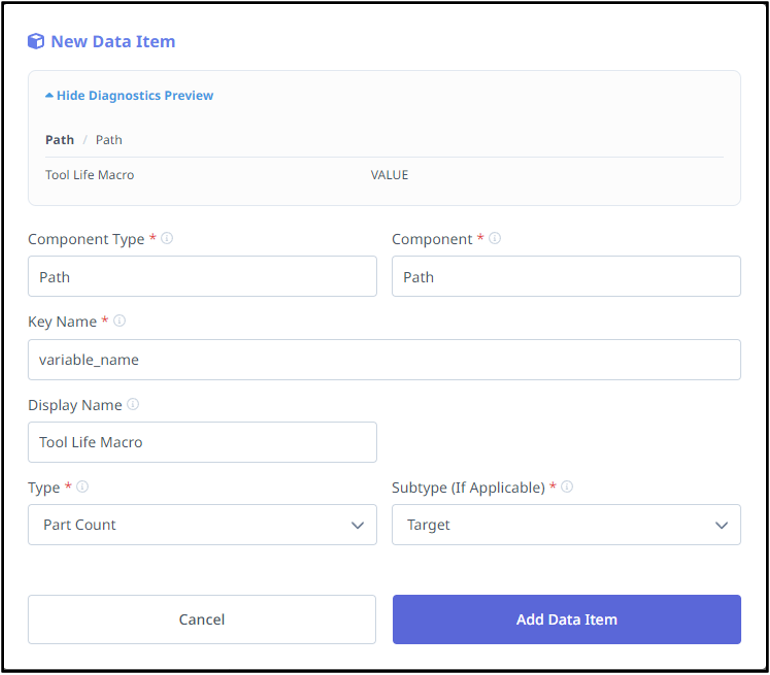
Step 4: Map the Data
- Go to Data Mapping tab
- Find the new macro variable data item
- Map to appropriate Type and Subtype
- Example: Type = "Part Count", Subtype = "Target"
Multi-Path Macro Configuration:
{
  "macros": {
    "path1_macro": 101,
    "all_paths_macro": { "addr": 500, "path": [-1] },
    "specific_paths_macro": { "addr": 501, "path": [1,3] }
  }
}
- Path -1 = All paths
- Path [1,3] = Specific paths only
💡 For additional adapter script examples including PMC, P-codes, and tool wear tracking, see Adapter Script Configuration.
Configuring Diagnostics
FOCAS provides access to hundreds of diagnostic codes for monitoring machine health.
Default Diagnostics (enabled automatically):
- 308: Servo Motor Temperature
- 309: Pulsecoder Temperature
- 403: Spindle Temperature
To add additional diagnostics:
Use descriptive names as keys with diagnostic code numbers as values:
{
  "diagnostics": {
    "servo_motor_temp": 308,
    "pulse_temp": 309,
    "sp_temp": 403
  }
}
- Use descriptive names for keys (e.g.,
servo_motor_temp,coolant_level) - Set the diagnostic code number as the value
- The default diagnostics (308, 309, 403) are included automatically, but you can configure them explicitly to customize names or add additional codes
Data Mapping:
- Refresh data items list
- Filter for "Diag" prefix or your custom names
- Map each diagnostic to appropriate Component and Type
- Add descriptive display names
- Example: servo_motor_temp → Component "Linear/Z", Type "Sample/Temperature", Name "Z-Axis Servo Temp"
See Diagnostics Configuration for more details.