Universal Robots Connectivity Guide
- Overview
- Supported Robots
- Prerequisites
- Network Configuration
- Adding Machine in MachineMetrics
- MM URCap
- Data Collection Configuration
- Data Mapping
- Troubleshooting
- Additional Resources
Overview
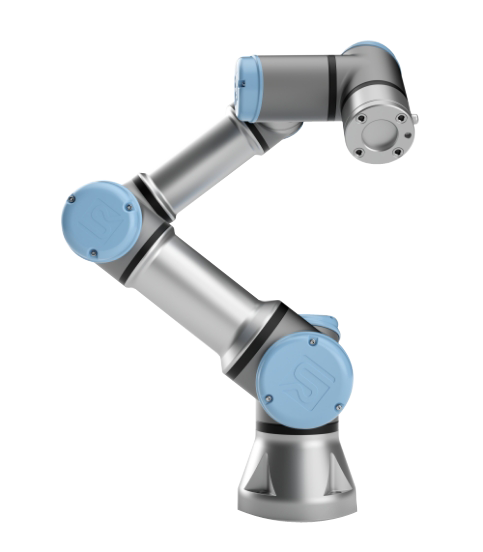
MachineMetrics connects to Universal Robots collaborative arms so robot activity is monitored alongside the production machines on the floor. The adapter reads from three client interfaces exposed by the robot. The Primary/Secondary interface carries program and controller state, the Dashboard Server reports operational status, and RTDE, Real-Time Data Exchange, streams the numeric and boolean values used for most reporting.
Robots appear in MachineMetrics as machines, so dashboards, production reporting and downtime behave the same way they do for a CNC.
Supported Robots
The integration supports the Universal Robots e-Series.
| Model | Teach pendant software |
|---|---|
| UR3e | Polyscope 5.11.8 or newer |
| UR5e | Polyscope 5.11.8 or newer |
| UR10e | Polyscope 5.11.8 or newer |
| UR16e | Polyscope 5.11.8 or newer |
Robots running Polyscope older than 5.11.8 need to be updated before connecting.
Prerequisites
- A supported e-Series robot running Polyscope 5.11.8 or newer
- A MachineMetrics Edge Device with network access to the robot
- The robot and the Edge Device able to reach each other on the network
Network Configuration
The robot connects to the Edge Device either over a direct wired connection or over the site network.
Wired. Run Ethernet directly from the robot control box to the Edge Device. Set the robot and the Edge Device to IP addresses in the same range so they can reach each other.
Wireless. On a WiFi-enabled Edge Device, connect the robot to the Edge Device Ethernet port and set compatible IP addresses on both.
Recommended: Use a wired connection between the Edge Device and the robot wherever possible. It gives the best performance and the most stable connection.
Ports
The adapter connects to the robot on the following ports. The MM URCap port applies only when the URCap is installed.
| Interface | Port |
|---|---|
| RTDE | 30004 |
| Primary (read only) | 30011 |
| Dashboard | 29999 |
| MM URCap | 1936 |
MachineMetrics only reads from the robot, so the adapter uses the read-only Primary port, 30011, rather than the read/write Primary port, 30001. This matters on the shop floor: Universal Robots drops connections to ports 30001, 30002 and 30003 whenever the robot is switched to local mode, while 30004 and 30011 stay available in both local and remote modes. Open 30011, not 30001.
Adding Machine in MachineMetrics
Add the robot the same way as any other machine, selecting Universal Robots as the connection type under Data Collection. See the Machine Settings Guide for the full procedure.
MM URCap
The MM URCap is optional. A Universal Robots integration works without it. It was built as part of the MachineMetrics and Universal Robots partnership and UR+ certification, and it is deliberately minimal.
It contributes two things to the teach pendant.
Installation panel. A QR code linking to MachineMetrics documentation.
Toolbar. A connection health readout backed by a TCP server on port 1936. It reports one of three states.
| State | Meaning |
|---|---|
| Connected | All connections are online |
| Degraded | One or two of the connections are offline |
| Disconnected | All connections are offline |
The Edge Device is assumed disconnected after 60 seconds without a message.
Note: The toolbar does not update while it is open. Close it and reopen it to refresh the status.
Data Collection Configuration
Adapter configuration is optional. Left empty, the robot connects and reports with its default RTDE outputs.
To collect more than the defaults, enter a JSON object in the Configure your adapter field. Everything goes inside a recipe object.
{
  "recipe": {
      "robot_mode",
      "safety_status_bits",
      "program_running",
      "runtime_state"
  }
}
Note: This field takes JSON. It is not the YAML adapter script language used by the other connectivity types.
Anything added here needs data mapping in the application afterward before it reports.
RTDE Outputs
Three RTDE outputs are registered by default. robot_mode and safety_status_bits report, and safety_status_bits is what indicates emergency stop conditions. timestamp is registered but fully suppressed and is not reported.
To monitor more, use the rtde_output key as shown above, given as a string array of the RTDE output variables to collect.
Vector6D values expand into their components automatically. Requesting target_q produces target_q_base, target_q_shoulder, target_q_elbow, target_q_wrist_1, target_q_wrist_2 and target_q_wrist_3. TCP-based values expand with _x, _y, _z, _rx, _ry and _rz instead.
I/O Registers
Six register types can be collected. Each is a key inside the same recipe object.
input_bit_registersinput_int_registersinput_double_registersoutput_bit_registersoutput_int_registersoutput_double_registers
Each key takes a string array of individual registers or ranges of registers. Define only the register types needed. Keys that are left out default to empty.
Robot Variables
A robot variable binds to a variable defined on the robot itself so its value is reflected in MachineMetrics.
String, integer, float and boolean variables are supported. Matrix, Pose and List types are not supported.
Variables are declared as an array inside the same recipe object, using the same name and spelling as the variable on the robot. The names must match exactly.
Important: The adapter must be connected and monitoring the robot at the start of program execution. The robot broadcasts the information needed to associate incoming data with a variable only at execution start, so a robot variable configured while a program is already running will not collect until the next program start.
Primitive types require Universal Robot Adapter 1.3.0.0 or newer.
Data Mapping
Configuring an RTDE output, an I/O register or a robot variable makes the value available to the platform. It does not make it report. Each configured value needs to be mapped to a data item in Machine Settings before it appears in dashboards or reports.
Troubleshooting
No data from the robot. Confirm the robot and the Edge Device can reach each other, and confirm Polyscope is 5.11.8 or newer.
URCap toolbar shows Degraded. One or two of the interfaces are unreachable while the others are connected. Check that the ports listed above are open between the Edge Device and the robot.
URCap toolbar status looks stale. The toolbar does not refresh while open. Close it and reopen it.
A robot variable never reports. Confirm the spelling matches the variable on the robot exactly, confirm the adapter version is 1.3.0.0 or newer, and restart the robot program so the association data is broadcast while the adapter is connected.
A configured value is missing from dashboards. Confirm data mapping was completed for that value in Machine Settings.