OPC-UA Connectivity
Connecting OPC-UA in MachineMetrics establishes a session to your server; it does not by itself define which nodes, variables, and namespaces become execution state, part counts, and alarms. You must configure a Transform Adapter Script (and related data mapping) so OPC-UA reads are translated into MachineMetrics data items. Skipping this step is a frequent cause of “we added the machine but nothing shows up” support cases.
Node / variable mapping and an adapter script are mandatory before you will see data. See the machine setup guides below for per-vendor examples. Contact MachineMetrics Support if you need more help.
Overview
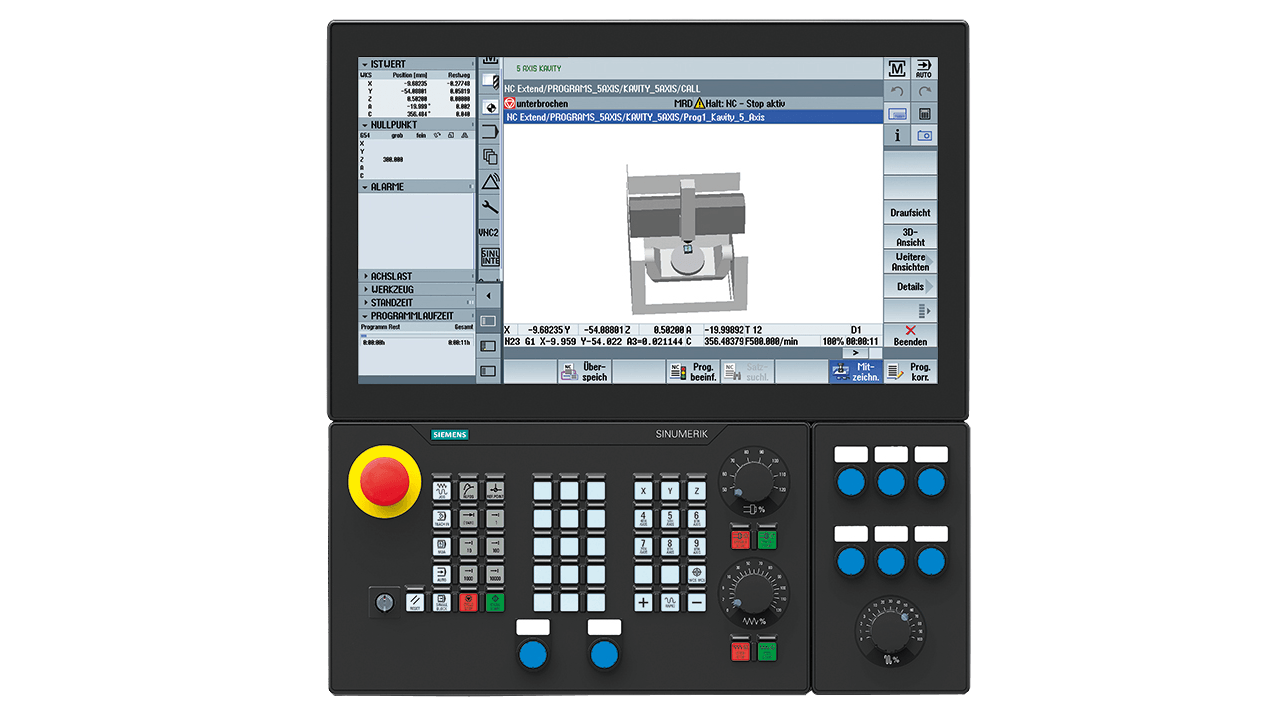
Siemens 840D sl CNC control panel. Siemens CNC controls (840D sl) use OPC-UA for connectivity, while 840D PL controls require BFC Gateway or I/O. Brother D-Series (D00) machines should use OPC-UA — see Brother D Series.
What is OPC-UA?
OPC-UA (Open Platform Communications Unified Architecture) is a platform-independent, service-oriented architecture for secure and reliable exchange of data in industrial automation. It's an industry standard that ensures seamless information flow among devices from multiple vendors.
Key Characteristics:
- Platform-independent (Windows, Linux, embedded systems)
- Secure communication (encryption, authentication, certificates)
- Rich data modeling capabilities
- Service-oriented architecture
- Maintained by the OPC Foundation
Important Note: Unlike MTConnect or FOCAS, OPC-UA does not standardize the meaning of data points. Each machine make, model, and configuration can have different data structures. This means OPC-UA connections require more initial configuration but provide great flexibility.
Why Use OPC-UA?
When OPC-UA is the Best Choice:
- Machine/controller natively supports OPC-UA
- Need secure, encrypted communication
- Connecting PLCs or automation equipment
- Equipment doesn't support other protocols (FOCAS, MTConnect)
- Connecting diverse equipment types (welders, presses, robots)
Advantages:
- Industry-standard protocol
- Secure by design
- Rich data modeling
- Platform-independent
- Widely supported by automation vendors
Challenges:
- Requires understanding of machine's data model
- Need data map/tag list from manufacturer
- More complex initial configuration
- Certificate management may be required
Who This Guide is For
This guide is for:
- Engineers connecting OPC-UA-capable equipment
- IT personnel configuring secure OPC-UA connections
- Anyone connecting Siemens, Brother, or other OPC-UA machines
- PLC programmers and automation specialists
- System integrators working with diverse equipment
Machine Setup Guides
OPC-UA does not standardize what data means, so enabling it differs considerably by manufacturer. Each guide below covers that vendor end to end — licensing, enabling the server on the control, the port it uses, and a working adapter script where one is available.
| Machine / Control | Port | Setup guide |
|---|---|---|
| Siemens Sinumerik 828D / 840D sl | 4840 | Siemens 828D / 840D sl |
| Brother D-Series (D00) | 4840 | Brother D Series |
| Bystronic laser cutters and press brakes | 56000 | Bystronic |
| Okuma OSP-P500 | 4840 | Okuma OSP-P500 |
| Trumpf (TruLaser, TruBend, TruPunch) | 11878 via proxy | Trumpf |
| Bosch Rexroth IndraControl V MTX | 4840 | Bosch Rexroth IndraControl V MTX |
| Heidenhain TNC 640 / TNC 730 / TNC7 | 4840 | Heidenhain TNC 640 / TNC7 |
| Rollomatic (RConnect) | 8999 | Rollomatic Connectivity |
Machines not listed here can still connect if they expose an OPC-UA server — see Other OPC-UA Equipment for the general approach.
Compatible Machines
Common OPC-UA Equipment
CNC Machine Controls:
- Siemens Sinumerik 828D / 840D SL (with OPC-UA license)
- Heidenhain TNC 640, TNC 730 and TNC7 (with Option 56 — the recommended connection for these controls; see Heidenhain TNC 640 / TNC7)
- Okuma OSP-P500 (with OPC UA for Machine Tools option)
- Brother D-Series CNC machines (recommended method — see Brother D Series; the Brother Adapter in FTP mode is an alternative)
- Some FANUC robots
- Various DMG MORI machines
- Other modern CNC controls
Manufacturing Equipment:
- Bystronic laser cutters and press brakes
- Industrial robots (ABB, KUKA, Fanuc)
- Automated assembly equipment
- Process machinery
Automation & PLCs:
- Siemens S7 PLCs
- Allen-Bradley (via gateway)
- Beckhoff controllers
- B&R Automation
- Many others
Third-Party OPC-UA Servers:
- Kepware (common gateway/adapter)
- MatrikonOPC
- Softing OPC servers
- Custom implementations
Checking for OPC-UA Support
Check with Manufacturer:
- Consult machine documentation
- Contact machine tool builder support
- Verify control version and options installed
- Ask if OPC-UA license is required
Check on Machine:
- Look for OPC-UA in control settings/menus
- Check license page for OPC-UA option
- Review control software version for OPC-UA support
Verify with Tools:
- Use OPC-UA client software to attempt connection
- Try connecting to
opc.tcp://[machine-ip]:4840 - Common ports: 4840, 4855, 49320, 56000 (varies by implementation)
Prerequisites
Hardware Requirements
- Machine or equipment with OPC-UA server capability
- MachineMetrics Edge device (deployed and activated)
- Ethernet cable (CAT5/CAT6)
- Network access between machine and Edge device
Software Requirements
- OPC-UA server enabled on machine/controller
- OPC-UA license (if required by manufacturer)
- OPC-UA client tool for browsing (UaExpert, opcua-commander, etc.)
- Data map or tag list from machine manufacturer
Information Needed
Before starting, gather:
- Machine IP address
- OPC-UA port number (typically 4840)
- Username and password (if authentication required)
- Security mode and policy (if applicable)
- Data map/tag list showing:
- Node IDs for relevant data
- What each tag represents (status, part count, etc.)
- Data types and units
- Certificate requirements (if any)
Understanding OPC-UA
Architecture
OPC-UA uses a client-server model:
Machine/Controller (OPC-UA Server)
     ↓
Network (TCP/IP)
     ↓
MachineMetrics Edge Device (OPC-UA Client)
     ↓
MachineMetrics Cloud
Components:
- Server: Runs on machine/controller, exposes data
- Client: MachineMetrics Edge device, reads data
- Address Space: Hierarchical structure of available data nodes
- Nodes: Individual data points with unique identifiers
Data Structure
OPC-UA data is organized in a tree-like address space with nodes.
Node ID Format:
ns=2;s=/Channel/State/progStatus(string identifier)ns=3;i=1001(integer identifier)ns=4;g=A7B3...(GUID identifier)
Where:
ns= namespace indexs= string identifieri= integer identifierg= GUID identifier
Data Types:
Simple Types:
- String, Boolean, DateTime
- Double, Float, Int32, Int64
- Guid, LocalizedString
Complex Types:
- Objects (structures with properties)
- Enumerations (predefined value sets)
- Arrays (ordered collections)
Example:
Node: ns=2;s=/Channel/State
  ↳ Property: progStatus (Int32)
  ↳ Property: opMode (String)
  ↳ Property: actParts (Int32)
Security Modes
OPC-UA supports multiple security configurations:
| Mode | Description | Use Case |
|---|---|---|
| None | No encryption, no authentication | Testing, internal networks only |
| Sign | Data is signed (integrity) | Standard security |
| SignAndEncrypt | Data signed and encrypted | High security environments |
Common Security Policies:
- None - No security
- Basic128Rsa15 - Older security standard
- Basic256 - Common standard
- Basic256Sha256 - Modern, recommended standard
Browsing OPC-UA Servers
Before configuring MachineMetrics, you need to browse the OPC-UA server to find relevant data nodes.
Option 1: GUI Client (Recommended for most users)
UaExpert (Free from OPC Foundation):
- Download: opcfoundation.org/products/view/uaexpert
- Windows only (7 or higher)
- Intuitive graphical interface
- Easy browsing of address space
Steps:
- Install UaExpert
- Add new server connection
- Enter endpoint URL:
opc.tcp://[machine-ip]:[port] - Connect (handle certificates if prompted)
- Browse address space to find data nodes
- Note node IDs for relevant data
Option 2: Command Line Client
uals (Python OPC-UA tools):
- Source: github.com/FreeOpcUa/python-opcua
- Cross-platform (Windows, Linux, macOS)
- Prints tree-like structure in plaintext
Usage:
uals -u opc.tcp://[address]:[port] -i [namespace_id] -d [tree_depth]
opcua-commander (Interactive terminal client):
- Source: github.com/node-opcua/opcua-commander
- Requires Node.js
- Interactive browsing capability
Physical Connection
Step 1: Connect Ethernet Cable
- Plug cable into machine's Ethernet port
- For Siemens CNC: Typically X130 (company network port)
- For Brother: Standard network port on control
- Verify link lights
🔴 CRITICAL WARNING for Siemens CNC Machines:
- Always check your machine documentation for the correct port address
- Port designation varies by machine tool builder (X130 is common, but not universal)
- These machines have complex internal networks and PROFIBUS
- Connecting to the wrong port can BRICK the machine
- NEVER connect to system network ports (192.168.214.x or 192.168.215.x ranges)
- When in doubt, contact your machine tool builder
Step 2: Configure Network
- Set static IP on machine (recommended)
- Document IP address, subnet, gateway
- Ensure machine and Edge device are on same subnet or properly routed
Step 3: Test Connectivity
- Ping machine IP from Edge or computer
- Verify response
- Check firewall allows OPC-UA port
Generic OPC-UA Setup
For machines with OPC-UA capability:
-
Verify License
- Check if OPC-UA option is licensed
- Purchase/install license if needed
- Verify license is activated
-
Enable OPC-UA Server
- Access machine settings/configuration
- Look for OPC-UA, network, or communication settings
- Enable OPC-UA server function
-
Configure Port
- Default: 4840
- Some implementations use different ports
- Note the port for later
-
Set Authentication
- Create username and password (if required)
- Or enable anonymous access (testing only)
- Document credentials
-
Configure Security
- Select security mode (None, Sign, SignAndEncrypt)
- Select security policy (None, Basic256, Basic256Sha256)
- Balance security needs with compatibility
-
Restart/Reboot
- Changes typically require restart
- Follow manufacturer instructions
Adding the Machine in MachineMetrics
Once OPC-UA is enabled and network is configured:
Step 1: Browse OPC-UA Server First
Before adding in MachineMetrics, use an OPC-UA client to:
- Verify you can connect to the server
- Browse available data nodes
- Document node IDs for relevant data
- Create data map/tag list
Step 2: Log into MachineMetrics
- Navigate to Assets → Machines
- Click Add Machine
Step 3: Enter Machine Details
- Machine Name: Descriptive name
- Make: Manufacturer
- Model: Machine model
- Select Edge Device: Choose your Edge
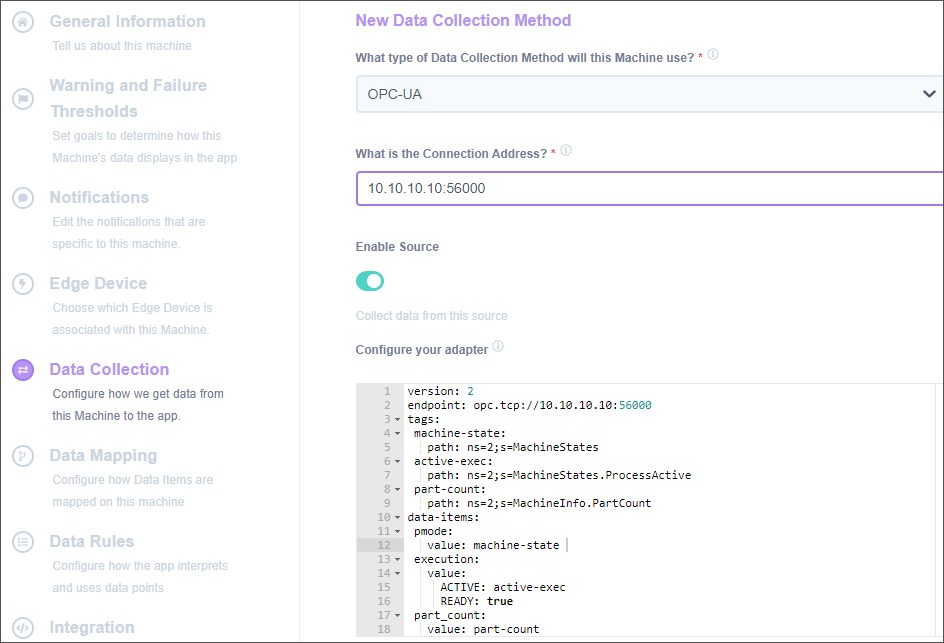
Step 4: Configure OPC-UA Adapter
- Adapter Type: Select OPC-UA
- Connection String:
opc.tcp://[ip-address]:[port]- Example:
opc.tcp://192.168.1.100:4840
- Example:
- Username: If authentication required
- Password: If authentication required
- Security Mode: None, Sign, or SignAndEncrypt
- Security Policy: None, Basic256, Basic256Sha256
- Click Test Connection
Step 5: Verify Connection
- Test should return success
- If fails: Check connection string, credentials, firewall
- Click Save when successful
Step 6: Configure Adapter Script
This is where you define which data nodes to collect.
- See OPC-UA Adapter Scripts section
- Use YAML format to define tags, variables, and data items
Configuring Data Collection
Available Data Items
Data available through OPC-UA varies widely by implementation. Common items include:
Machine Status:
- Execution state (running, idle, stopped)
- Controller mode (AUTO, MDI, MANUAL)
- Alarm status
Program Information:
- Program name
- Line number
- Block counter
Production Metrics:
- Part count (various methods)
- Cycle time
- Run time
Machine Parameters:
- Spindle speed and load
- Feed rate and override
- Axis positions
- Tool number
Alarms & Diagnostics:
- Active alarms with codes
- Alarm history
- Diagnostic values
Custom Data:
- Process parameters
- Quality measurements
- Automation status
- Equipment-specific values
OPC-UA Adapter Scripts
MachineMetrics uses YAML configuration to map OPC-UA data to our standard model.
Script Structure:
version: 2
username: your-username  # If required
password: your-password  # If required
security-mode: Sign  # None, Sign, or SignAndEncrypt
security-policy: Basic256Sha256  # or Basic256, Basic128Rsa15, None

tags:
  # Define data nodes to monitor

variables:
  # Transform and model data

data-items:
  # Specify which items to send to MachineMetrics
Read Options
By default, the adapter creates an OPC-UA subscription and receives data only when values change. Some servers do not support subscriptions or may not send initial values as expected. Use these options to adjust read behavior:
read-mode
| Value | Description |
|---|---|
subscription | (Default) Create a subscription; server pushes data when values change |
polling | Read all configured tags on a regular interval instead |
Use polling when:
- The server does not support subscriptions
- The server does not send data when expected
- You experience missing or delayed updates with subscription mode
Note: Polling may not be appropriate if a large number of tags are configured, as it reads all tags on each interval.
scan-interval
When read-mode: polling is set, scan-interval is the number of seconds between reads. Must be greater than 0. Default: 1.0.
read-mode: polling
scan-interval: 2.0  # Read all tags every 2 seconds
force-read-on-connect
When set to true, the adapter explicitly reads all tags when the connection is established or reestablished. Use this when a server does not send the current value of all tags when opening a subscription.
force-read-on-connect: true
Example with read options:
version: 2
read-mode: polling
scan-interval: 1.5
force-read-on-connect: true
username: OpcUaClient
password: YourSecurePassword
security-mode: Sign
security-policy: Basic256Sha256

tags:
  spindle-speed:
    path: ns=2;s=/Nck/LogicalSpindle/actSpeed
  # ... more tags
Tags Configuration
Tags define references to specific nodes in the OPC-UA address space.
Simple Tag (Direct Value):
tags:
  spindle-speed:
    path: ns=2;s=/Nck/Spindle/actSpeed
  program-name:
    path: ns=2;s=/Channel/ProgramInfo/progName
Complex Type Tag (Object with Properties):
tags:
  part-quantity:
    path: ns=2;s=/Laser/CurrentPlan
    property: partQuantity
This retrieves the partQuantity property from the CurrentPlan object.
Reading Array Elements:
To read a specific element from an OPC-UA array, add an index property to your tag definition:
tags:
  operation-state:
    path: ns=2;s=thing-that-is-an-array
    index: 3
Key details:
- Single element:
index: value(e.g.,index: 3reads the 4th element) - Range:
index: start:end(e.g.,index: 0:5reads elements 0 through 5) - Zero-based: Indexing starts at 0
- Adapter version: Requires OPC-UA adapter version 1.34.2 or later
Reading multiple values from the same array:
You can reference the same path with different indexes to read multiple elements from one array:
tags:
  tag-pdsp-feed-ovr:
    path: ns=3;s=NC/System/PDSP
    index: 115
  tag-pdsp-spindle-ovr:
    path: ns=3;s=NC/System/PDSP
    index: 116
Variables and Transformations
Variables transform tag values into MachineMetrics standard model.
Pass-Through (No Transformation):
variables:
  spindle-rpm:
    - source: spindle-speed
State Transformation (Conditional Logic):
variables:
  execution:
    - source: prog-status
    - state:
      - INTERRUPTED: this == 1
      - STOPPED: this == 2 or this == 5
      - ACTIVE: this == 3 or this == 4
      - READY: true  # Fallback
Count on Value Change:
variables:
  part-count:
    - source: part-quantity
    - value-change
    - count
Mathematical Operations:
variables:
  execution:
    - source: laser-power
    - state:
      - ACTIVE: this > 0
      - READY: true
Data Mapping
After adapter script is configured, map data items in MachineMetrics:
Step 1: Edit Machine
- Assets → Machines → [Your Machine]
- Go to Data Mapping tab
- Click Refresh List to see new items
Step 2: Map Each Data Item
For each data item from your script:
- Select Type (e.g., "Part Count", "Sample", "Event")
- Select Subtype (e.g., "Actual", "Speed", "Status")
- Assign Component (e.g., "Spindle", "Controller")
- Add Display Name (human-readable description)
Step 3: Save Mappings
- Review all mappings
- Click Save Changes
- Data will now flow to MachineMetrics dashboards and reports
Certificate Management
Understanding Certificates
OPC-UA uses X.509 certificates for security:
- Server Certificate: Identifies the machine/server
- Client Certificate: Identifies MachineMetrics Edge
- Both sides must trust each other's certificates
Accepting Certificates
On Siemens Controls:
- Startup → Network → OPC UA → Certificates
- Pending certificates appear when client first connects
- Select client certificate → Accept
- MachineMetrics Edge must also trust server certificate (usually automatic)
On Other Controls:
- Process varies by manufacturer
- Check control documentation
- May auto-accept or require manual approval
Testing During Setup:
- Can enable "Accept certificates automatically" initially
- Disable after confirming connection works
- For production, use proper certificate validation
Certificate Errors:
- Usually appear as connection failures
- Check that certificates are accepted on both sides
- Verify certificate hasn't expired
- Check system time/date on both devices
Other OPC-UA Equipment
Fanuc Robots
Key Points:
- Fanuc robots support OPC-UA
- Typically port 4880
- Requires network configuration on robot controller
- Data structure varies by robot model
Contact:
- Fanuc robot support for specific configuration
- MachineMetrics support for adapter script assistance
Connecting Equipment Not Listed Above
Generic Process:
- Verify OPC-UA is licensed and enabled
- Determine port number
- Get data map from manufacturer
- Use OPC-UA client to browse server
- Create adapter script based on relevant nodes
- Work with MachineMetrics support for script development
Troubleshooting
Connection Issues
Problem: Can't connect to OPC-UA server
Diagnostic Steps:
-
Verify Network Connectivity
- Ping machine IP from Edge or computer
- If ping fails: network problem
- If ping succeeds: OPC-UA configuration issue
-
Test with OPC-UA Client
- Use UaExpert or similar tool
- Try connecting from a computer on same network
- Try endpoint:
opc.tcp://[machine-ip]:[port] - If client can't connect: OPC-UA not properly enabled
-
Verify Port Number
- Common ports: 4840, 56000 (Bystronic), 49320 (Kepware), 4880 (Fanuc robots)
- Check machine documentation
- Try different ports if unsure
-
Check Firewall
- Windows Firewall on control may block OPC-UA port
- Temporarily disable to test (re-enable after)
- Or create firewall rule for OPC-UA port
-
Verify OPC-UA Service
- Check that OPC-UA server is enabled on machine
- May be in license settings, network settings, or services
Authentication Failures
Problem: Connection fails with authentication error
Solutions:
-
Verify Credentials
- Double-check username and password
- Case-sensitive
- No extra spaces
-
Check Authentication Settings
- Verify username/password is configured on machine
- Some machines require creating OPC-UA user account
- Check if anonymous access is enabled (for testing)
-
Security Mode Mismatch
- Verify security mode matches machine configuration
- Try None, Sign, then SignAndEncrypt
- Must match what machine expects
-
Security Policy Mismatch
- Verify policy matches machine capability
- Try None, then Basic256, then Basic256Sha256
- Older equipment may only support Basic128Rsa15
Certificate Errors
Problem: Certificate validation failures
Solutions:
-
Accept Certificates
- On machine: Accept MachineMetrics Edge certificate
- On Edge: Usually accepts automatically
- Check pending certificates on machine
-
Check System Time
- Certificates have validity periods
- If machine or Edge time is wrong, certificates fail
- Sync time via NTP
-
Regenerate Certificates
- May need to clear and regenerate
- Contact MachineMetrics support for assistance
-
Temporary: Disable Certificate Validation
- For testing only
- Enable "Accept certificates automatically"
- Properly configure for production
No Data Appearing
Problem: Connected but no data in MachineMetrics
Solutions:
-
Check Adapter Script
- Verify YAML syntax is correct
- Ensure tags reference valid node IDs
- Test node IDs in OPC-UA client first
-
Verify Data Mapping
- Assets → Machines → Data Mapping
- Ensure data items from script are mapped
- Check for unmapped items
Part Count Issues
Problem: Part counts not incrementing or incorrect
⚠️ CRITICAL FIRST STEP: Verify Machine is Counting Parts
Before troubleshooting MachineMetrics configuration, verify the machine itself is incrementing its internal part counter.
MachineMetrics reads the machine's native part counter via OPC-UA. If the machine isn't counting parts, MachineMetrics cannot report them. Without additional scripting or configuration, MachineMetrics relies entirely on the machine's internal part count signal exposed via OPC-UA.
See the Connectivity Validation Guide for a visual guide to identifying healthy vs. problematic part count patterns — including what sporadic counts and sub-second cycle times look like.
Check Machine Part Counter:
- Look at the machine's control screen or HMI
- Find the part counter display (varies by machine/OEM)
- Run a cycle
- Verify the counter increments on the machine itself
If the machine counter is NOT incrementing:
- This is a machine configuration issue, not a MachineMetrics issue
- Machine is not configured to count parts
- Consult machine manual or OEM for part counting configuration
- May require enabling part counting in machine settings
If the machine counter IS incrementing but MachineMetrics shows zero:
- This is a MachineMetrics or OPC-UA configuration issue
- Continue to diagnostic steps below
Diagnostic Steps:
-
Verify Part Count Tag in OPC-UA
- Use OPC-UA client (UaExpert) to browse server
- Find part count tag/node ID
- Watch tag value while running machine
- If tag doesn't increment in OPC-UA client: Machine not exposing part count
-
Check Adapter Script
- Verify part count tag is referenced in YAML script
- Ensure node ID is correct (copy from OPC-UA client)
- Verify
data-itemsincludes part count variable
-
Check Data Mapping
- Assets → Machines → Data Mapping
- Ensure part count data item is mapped
- Type should be "Part Count"
-
Test with OPC-UA Client
- Connect to machine with UaExpert
- Monitor part count tag in real-time
- Run a cycle on machine
- If tag increments in UaExpert but not MachineMetrics: Configuration issue
- If tag doesn't increment in UaExpert: Machine not counting parts
Common OEM-Specific Notes:
- Bystronic: Look for
Production.PartCounteror similar in OPC-UA tree - Siemens: Check
DB(Data Block) for part count variable - Fanuc Robots: May require program command to increment counter (e.g.,
R[1]=R[1]+1)
-
Check Machine Status
- Machine may need to be running to generate some data
- Verify OPC-UA server is active
-
Request Edge Logs
- Edge device logs are not viewable in the app
- Contact MachineMetrics Support to have them checked for OPC-UA, node ID, or parsing errors
-
Test with Simple Script First
- Start with minimal configuration
- Add one or two tags
- Verify those work before adding more
Firewall Issues
Problem: Can connect locally but not from network
See Also: Network Requirements Guide for Edge device firewall requirements.
Solutions:
-
Windows Firewall (On Machine)
- Open Windows Firewall settings
- Create inbound rule for OPC-UA port
- Allow TCP and UDP
- Apply to all profiles
-
Network Firewall
- Work with IT team
- Ensure OPC-UA port allowed between machine and Edge
- May need exception for specific IP addresses
-
Test Locally First
- On machine control, use OPC-UA client
- Connect to
opc.tcp://localhost:[port] - If this works but remote doesn't: firewall
Best Practices
Planning:
- Browse OPC-UA server before configuration
- Create comprehensive data map with manufacturer's help
- Start with essential data items, add more later
- Document all node IDs and their meanings
Security:
- Use strong passwords for OPC-UA accounts
- Use Sign or SignAndEncrypt security mode
- Properly manage certificates
- Don't use anonymous access in production
- Use dedicated network for machine connectivity
Network:
- Use static IP addresses
- Document IP, port, and credentials
- Test connectivity before full configuration
- Keep machine firewall rules documented
Configuration:
- Start with simple adapter script
- Test incrementally (add tags one at a time if issues)
- Validate data accuracy against machine display
- Keep backup of working configurations
Data Mapping:
- Use descriptive display names
- Map all relevant data items
- Assign proper types and subtypes
- Review mappings for accuracy
Maintenance:
- Watch reporting status and buffer levels in Assets → Edge Devices → Edge Management
- Keep OPC-UA server software updated
- Review certificate expiration dates
- Document any configuration changes made
Working with Manufacturers:
- Request complete data map/node list
- Ask for recommended node IDs for status, count, etc.
- Get clarification on data types and units
- Request sample configurations if available
Additional Resources
OPC Foundation:
- Official website: opcfoundation.org
- OPC-UA specification
- Client tool downloads
- Training and certification
OPC-UA Client Tools:
- UaExpert (GUI, Windows)
- python-opcua (Command line)
- opcua-commander (Interactive terminal)
Standards:
- UMATI (Universal Machine Tool Interface)
- MTConnect OPC-UA Companion Specification
- Industry-specific OPC-UA standards (emerging)
MachineMetrics Resources:
- Machine Connectivity Overview
- OPC-UA adapter script examples (contact support)
Getting Help
Before Contacting Support
Gather this information:
-
Machine Details
- Make, model, serial number
- Control type and version
- OPC-UA license status
-
Network Configuration
- Machine IP address and port
- Connection string used
- Can you ping the machine?
-
OPC-UA Browsing Results
- Can you connect with UaExpert or other client?
- What data nodes are available?
- Node ID examples
-
Current Configuration
- Adapter script (YAML)
- Data mapping configuration
- Any error messages shown in the app
-
Authentication & Security
- Security mode and policy used
- Username (don't include password in emails)
- Certificate status
Contact Options
MachineMetrics Support:
- Email: MachineMetrics Support
- Include all information above
- Attach screenshots
- Include adapter script (sanitize passwords)
Machine Manufacturer:
- For OPC-UA license/enablement
- For data map and node ID documentation
- For control-specific configuration
- For software updates
Solution Delivery Manager (SDM):
- For deployment planning
- For adapter script development assistance
- For best practices and optimization
OPC Foundation:
- For protocol questions
- For client tool support
- For standards documentation
Ready to connect your OPC-UA machine?
- Verify OPC-UA support and licensing
- Browse OPC-UA server to identify data nodes
- Configure network and enable OPC-UA
- Create adapter script for your machine
- Add machine in MachineMetrics
- Map data items
- Verify data flow
Questions? Contact MachineMetrics Support with your machine details and data map.
Need adapter script help? MachineMetrics support can assist with creating custom OPC-UA adapter scripts based on your machine's data structure.