DMG MORI Connectivity Guide
Overview
Why DMG MORI Has Its Own Guide
DMG MORI machines are unique in the manufacturing world because they ship with a variety of underlying CNC controls from different manufacturers. The operator-facing interface is typically DMG MORI's CELOS (Customer Electronic Lean Operating System) or MAPPS, but underneath, the actual control hardware and firmware can be:
- FANUC (connected via FOCAS)
- Siemens (connected via MTConnect through Connector Management)
- Mitsubishi (connected via MTConnect)
- Heidenhain (connected via Heidenhain adapter)
The backend control determines which protocol MachineMetrics uses and how you find the IP address and network settings. This guide walks through each backend variant so you can identify your machine and follow the correct connectivity path.
Identifying Your Backend Control
How to determine which backend your DMG MORI machine has:
- Check the model name/number — Certain DMG MORI model lines are associated with specific backends
- Look at the CNC screen — When you access the CNC/system menus behind CELOS, the underlying control interface reveals the manufacturer
- Check machine documentation — The machine spec sheet or purchase order will list the control type
- Look for labels — The electrical cabinet may have labels from FANUC, Siemens, Mitsubishi, or Heidenhain on the NCU or drive units
- Contact DMG MORI — Provide your serial number and they can confirm the backend
Common DMG MORI Models and Their Backends:
| DMG MORI Model Family | Common Backend | Protocol |
|---|---|---|
| NLX, NTX, NZX (lathes) | FANUC or Mitsubishi | FOCAS or MTConnect |
| DMU, DMC (5-axis mills) | Siemens or Heidenhain | MTConnect or Heidenhain |
| CMX, CLX (entry-level) | FANUC or Siemens | FOCAS or MTConnect |
| ecoTurn, ecoline | FANUC or Siemens | FOCAS or MTConnect |
| NHX (horizontal mills) | FANUC or Mitsubishi | FOCAS or MTConnect |
| Older Mori Seiki (MAPPS) | Mitsubishi | MTConnect |
Note: This table provides general guidance. The same model can have different backends depending on the year of manufacture and customer configuration. Always verify your specific machine.
Backend Decision Tree
Use this to determine the correct connectivity approach for your DMG MORI machine:
DMG MORI Machine
├── Has CELOS interface?
│   ├── Yes → What backend control?
│   │   ├── FANUC     → Use FOCAS (port 8193)
│   │   ├── Siemens   → Enable MTConnect via Connector Management
│   │   ├── Mitsubishi → Use MTConnect (usually pre-installed)
│   │   └── Heidenhain → Use Heidenhain adapter
│   └── No
│       ├── Has MAPPS interface? → Use MTConnect (usually pre-installed)
│       └── Has MSX interface?  → Use FOCAS (standard FANUC setup)
Quick Reference:
| Interface | Backend | Protocol | Adapter in MachineMetrics |
|---|---|---|---|
| CELOS | FANUC | FOCAS | FANUC FOCAS |
| CELOS | Siemens | MTConnect | MTConnect |
| CELOS | Mitsubishi | MTConnect | MTConnect |
| CELOS | Heidenhain | Heidenhain | Heidenhain |
| MAPPS | Mitsubishi | MTConnect | MTConnect |
| MSX | FANUC | FOCAS | FANUC FOCAS |
CELOS with FANUC Backend
Overview
DMG MORI's CELOS is a user-friendly interface built on top of standard FANUC controls. The FANUC control runs in the background and handles all machine control and networking, including FOCAS.
Key Points:
- CELOS is the "front end" — what the operator sees
- FANUC is the "backend" — what controls the machine
- FOCAS configuration is done at the FANUC level
- CELOS provides graphical menus to access FANUC settings
Control Types:
- MSX series (FANUC-based, no CELOS)
- CELOS with FANUC backend
Accessing FANUC Configuration on CELOS
Method 1: Through CELOS Interface (Recommended)
- On the CELOS home screen, navigate to Settings or Machine
- Look for NC System or Controller Settings
- Select Network or Ethernet configuration
- CELOS will present FANUC parameters in a graphical format
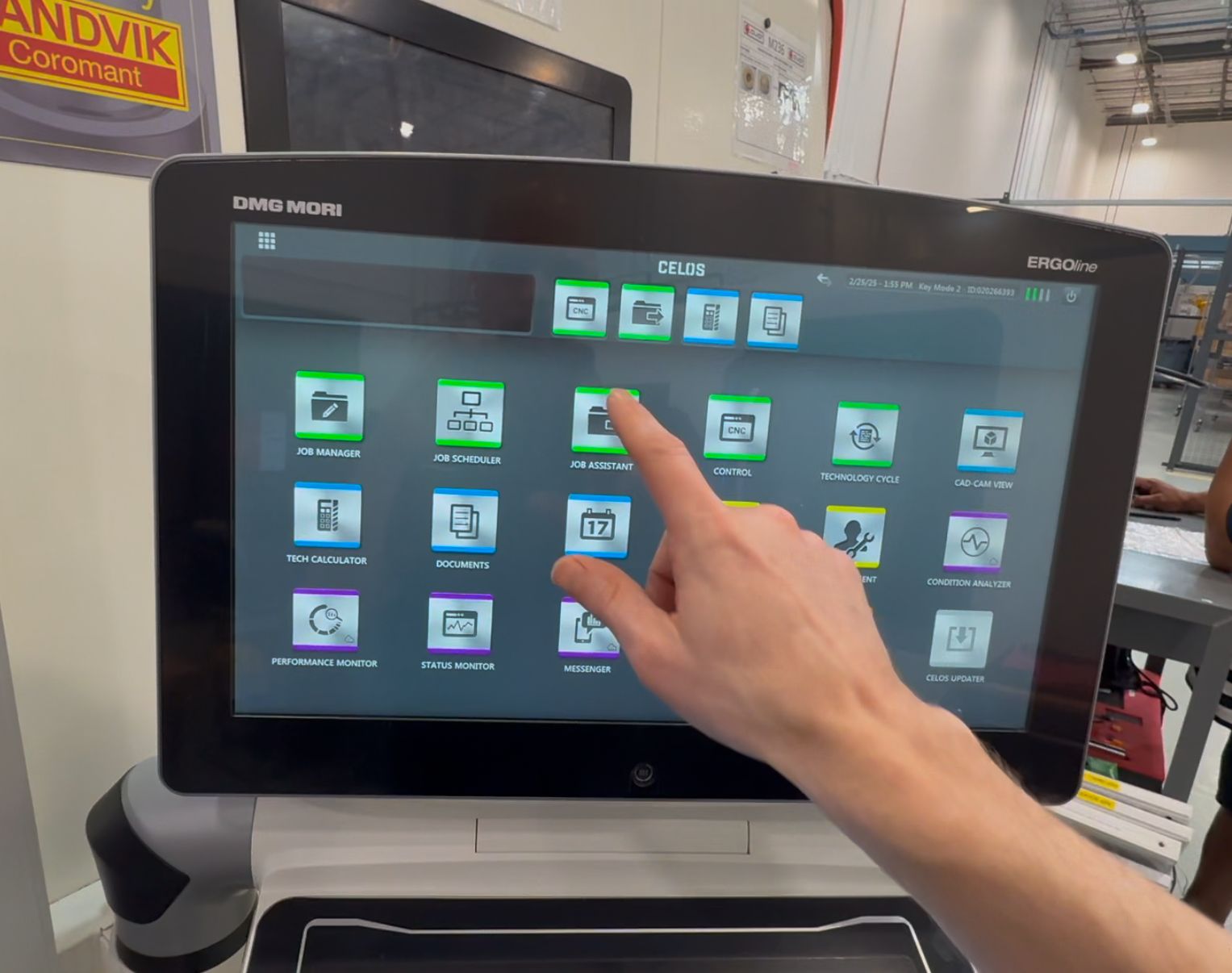
Method 2: Direct FANUC Access (If Available)
Some CELOS systems allow direct access to the FANUC interface:
- Look for an NC Screen or FANUC Display option in CELOS
- This switches to the standard FANUC interface
- Use standard FANUC navigation (SYSTEM → ETHPRM)
- Return to CELOS interface when configuration is complete
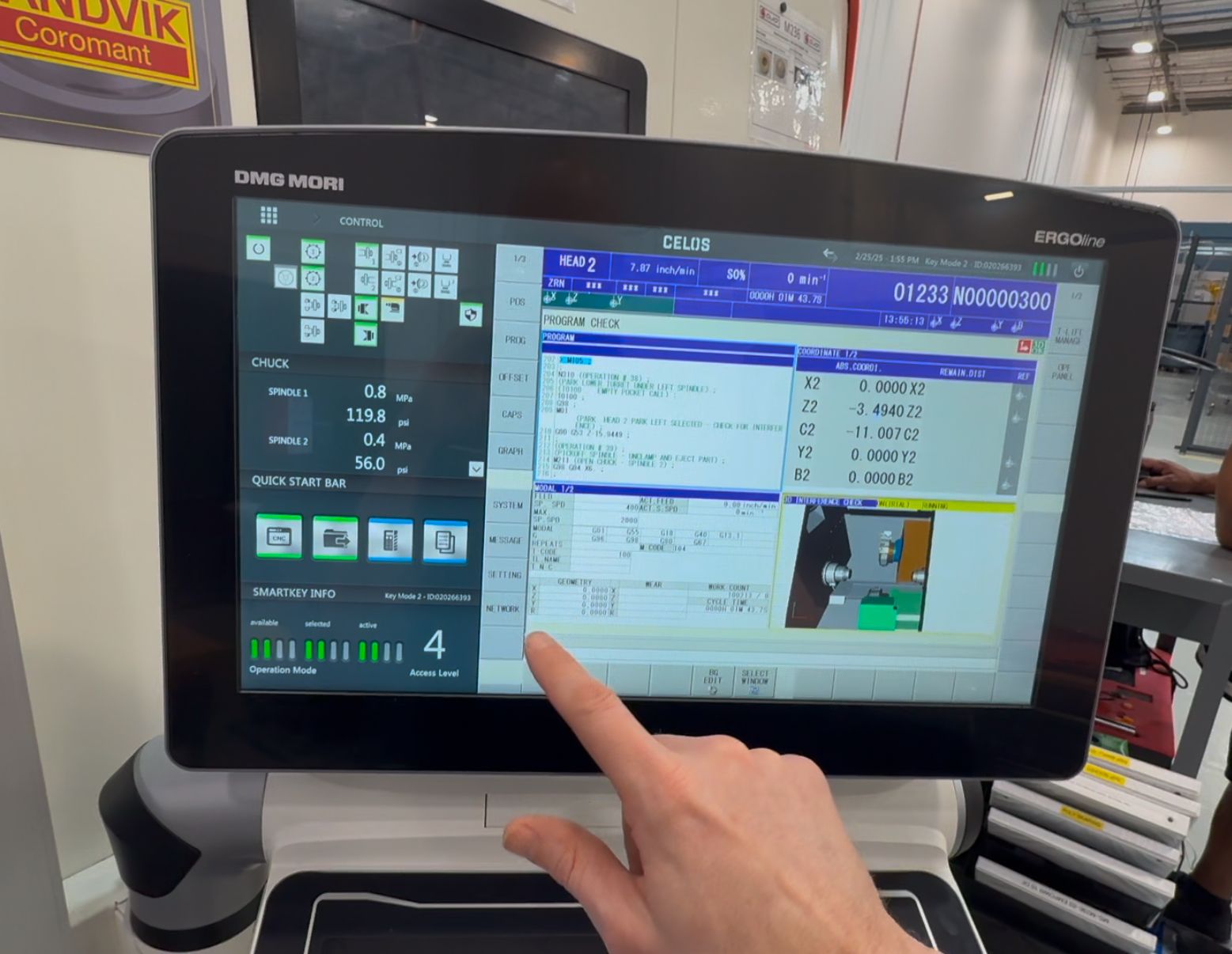
Method 3: NCSystem (Advanced)
If parameters are locked or hidden:
- Navigate to NCSystem in CELOS
- May require password (contact DMG MORI service)
- Unlock parameters if needed
- Access network and FOCAS settings
- Lock parameters again after configuration
CELOS FOCAS Configuration Steps
Step 1: Configure Network Settings
- In CELOS, navigate to Settings → Machine → Network
- Or look for Controller → Ethernet settings
- Configure:
- IP Address: Set static IP or note DHCP address
- Subnet Mask: Match your network (typically 255.255.255.0)
- Gateway: Your network gateway
- Save network settings
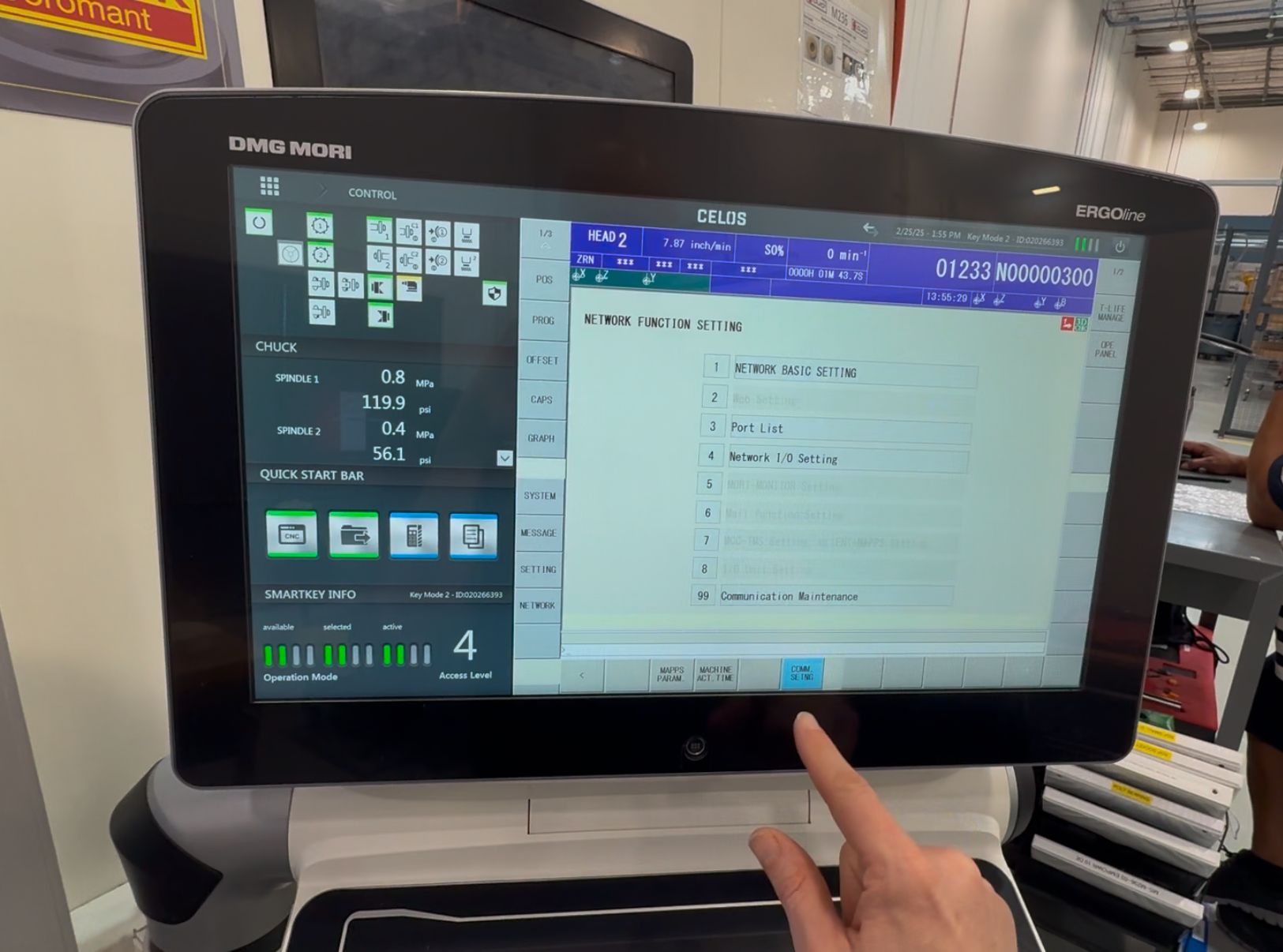
Step 2: Configure FOCAS Settings
- Look for FOCAS or Embedded Port configuration
- Configure:
- TCP Port: 8193 (standard)
- UDP Port: Leave blank or 0
- Timeout: 0
- Available Device: EMBEDDED (not PCMCIA)
- Enable FOCAS if there's an on/off toggle
- Save FOCAS settings
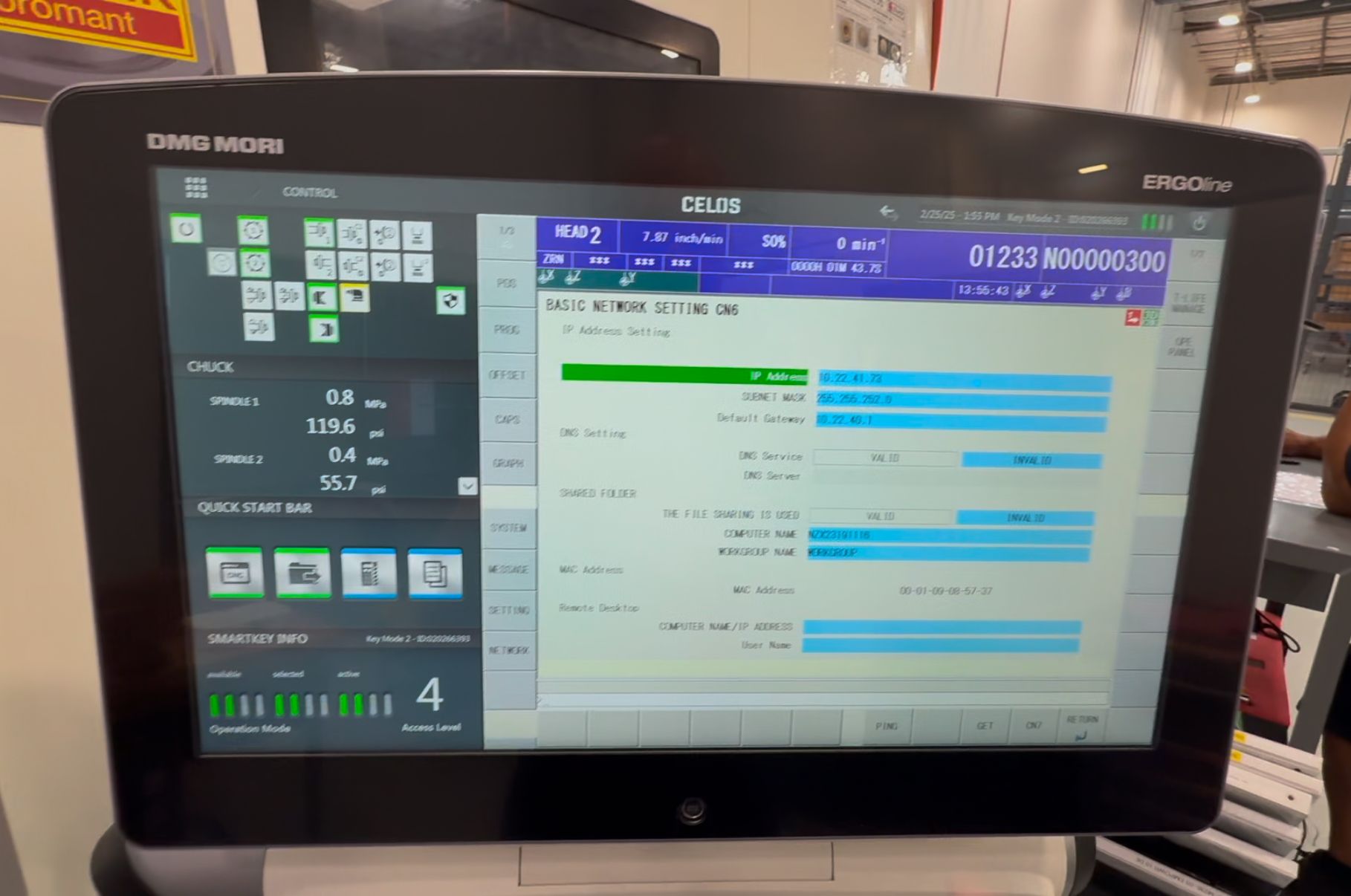
Step 3: Restart Network
- Look for Restart Network or Apply Settings button
- Or navigate to Restart in the CELOS menu
- If no restart option available, power cycle the machine
- Wait for system to fully boot (may take 2-5 minutes)
Finding the Ethernet Port
The physical FANUC Ethernet port location varies by DMG MORI model:
Common Locations:
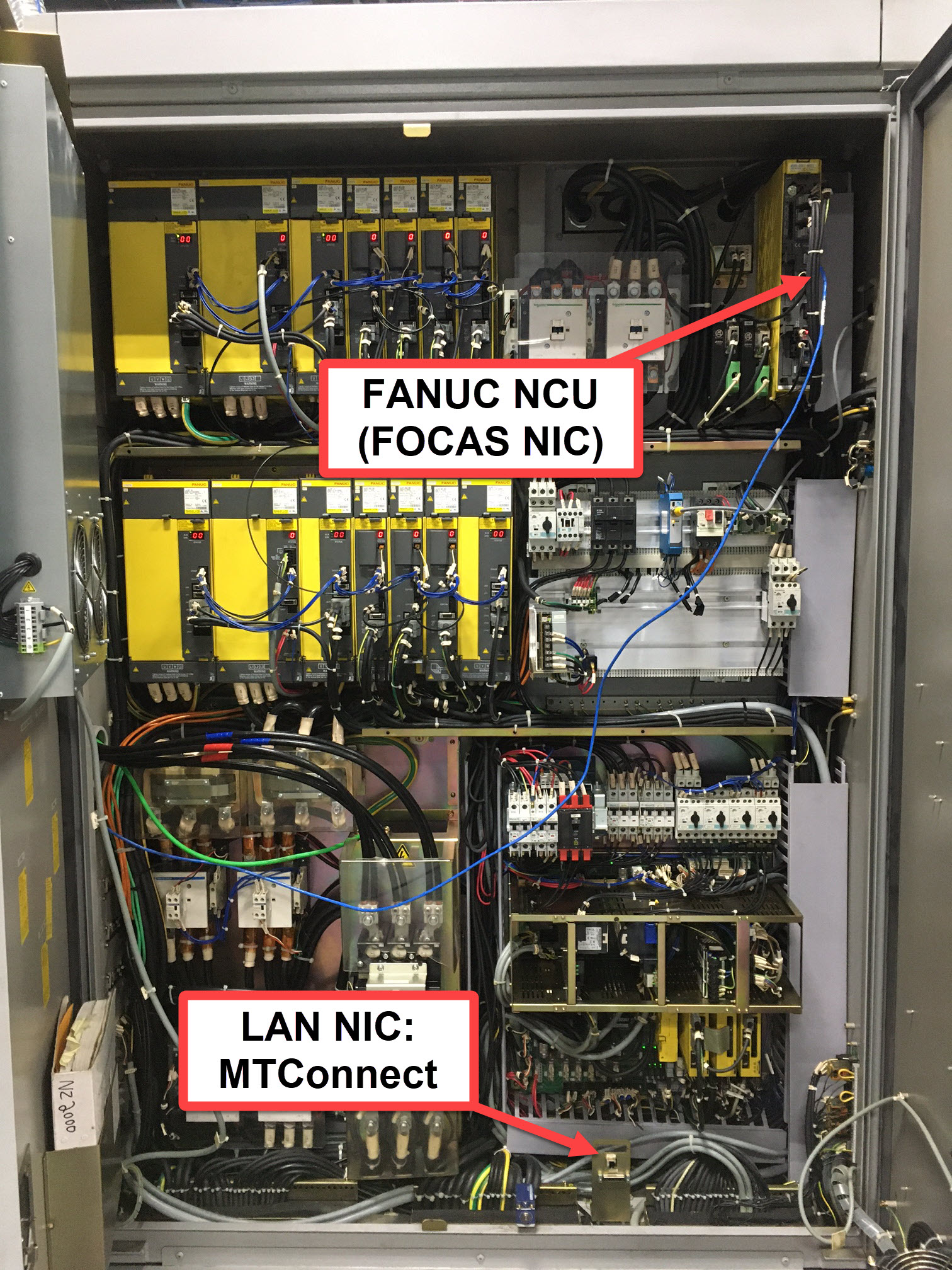
- Inside electrical cabinet on FANUC NCU unit
- Behind control panel (some models)
- On side of machine control housing (some models)
- Port labeled CD38A or EMBEDDED PORT
Finding the Port:
- Check machine documentation for "Ethernet port" or "CD38A" location
- Look for FANUC NCU unit in electrical cabinet
- Port typically has RJ45 connector and is labeled
- May be near other FANUC communication ports
For more details on FANUC Ethernet port types (CD38A, CD38R, CD38S), see the FOCAS Connectivity Guide.
Mori Seiki Machines: FANUC NCU vs LAN NIC
On Mori Seiki machines with a FANUC backend, the control cabinet contains two separate network interfaces — the FANUC NCU (FOCAS NIC) for FOCAS data collection, and a separate LAN NIC used for MTConnect. Connect the Edge device to the FANUC NCU port for FOCAS.
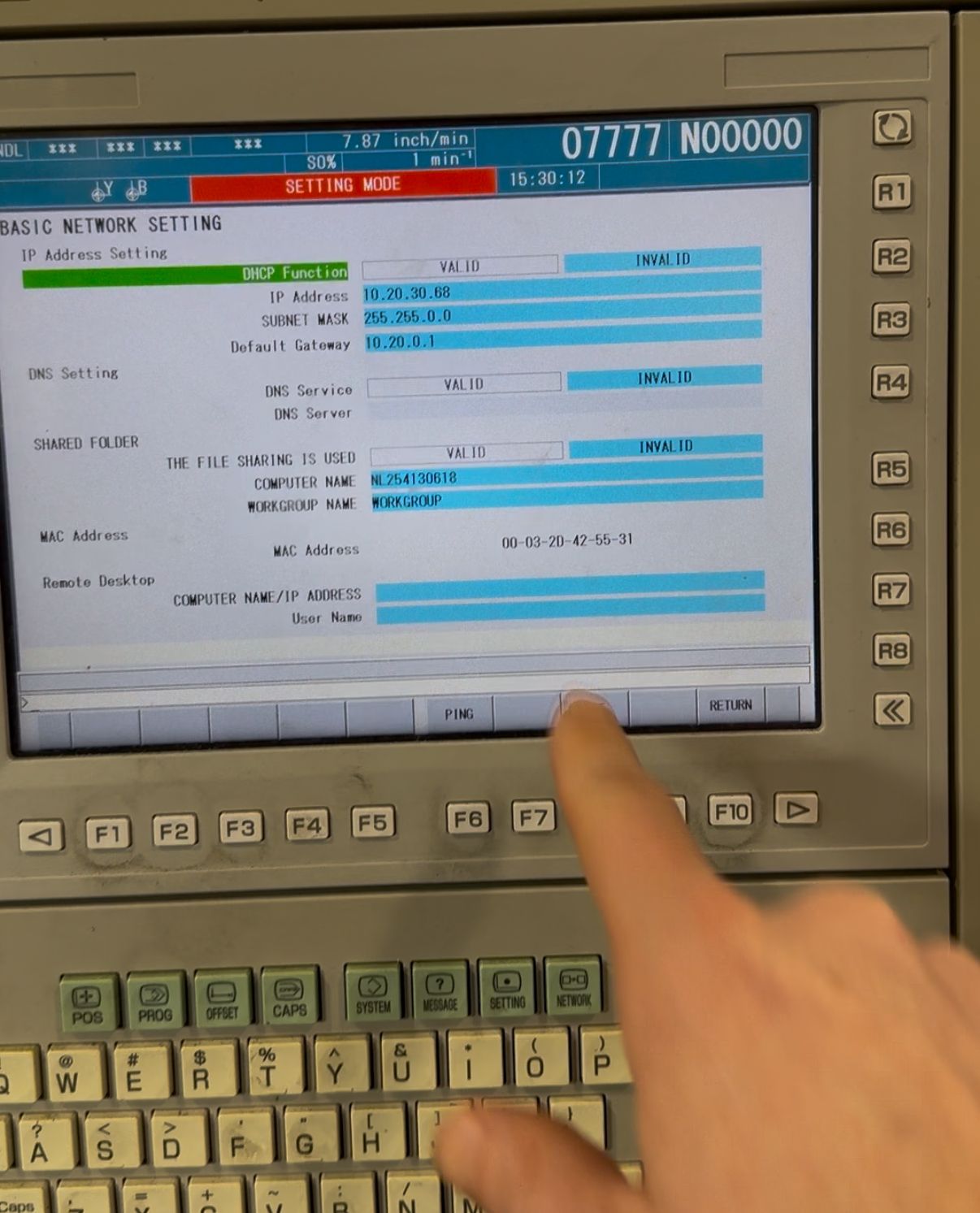
On machines that use the MAPPS interface, set the network address through COMM. SETNG as described under Finding the IP Address, and make sure DHCP Function is set to INVALID so the address stays static.
Verifying Configuration
Check Network Settings:
- In CELOS, return to Settings → Machine → Network
- Verify IP address is displayed and correct
- Check connection status (should show "Connected")
Test Ping:
- From a computer on the same network
- Ping the machine IP address
- Should receive responses
Check FOCAS Port:
- In CELOS diagnostics or maintenance menu
- Look for Network Status or Port Status
- Verify TCP port 8193 is active
- Check for any network-related alarms
MSX-Specific Considerations
For DMG MORI MSX series machines (non-CELOS):
Configuration:
- MSX interface is similar to standard FANUC
- Press SYSTEM hard key
- Navigate to ETHPRM or EMBED PORT
- Follow standard FANUC configuration steps (see FOCAS Connectivity Guide)
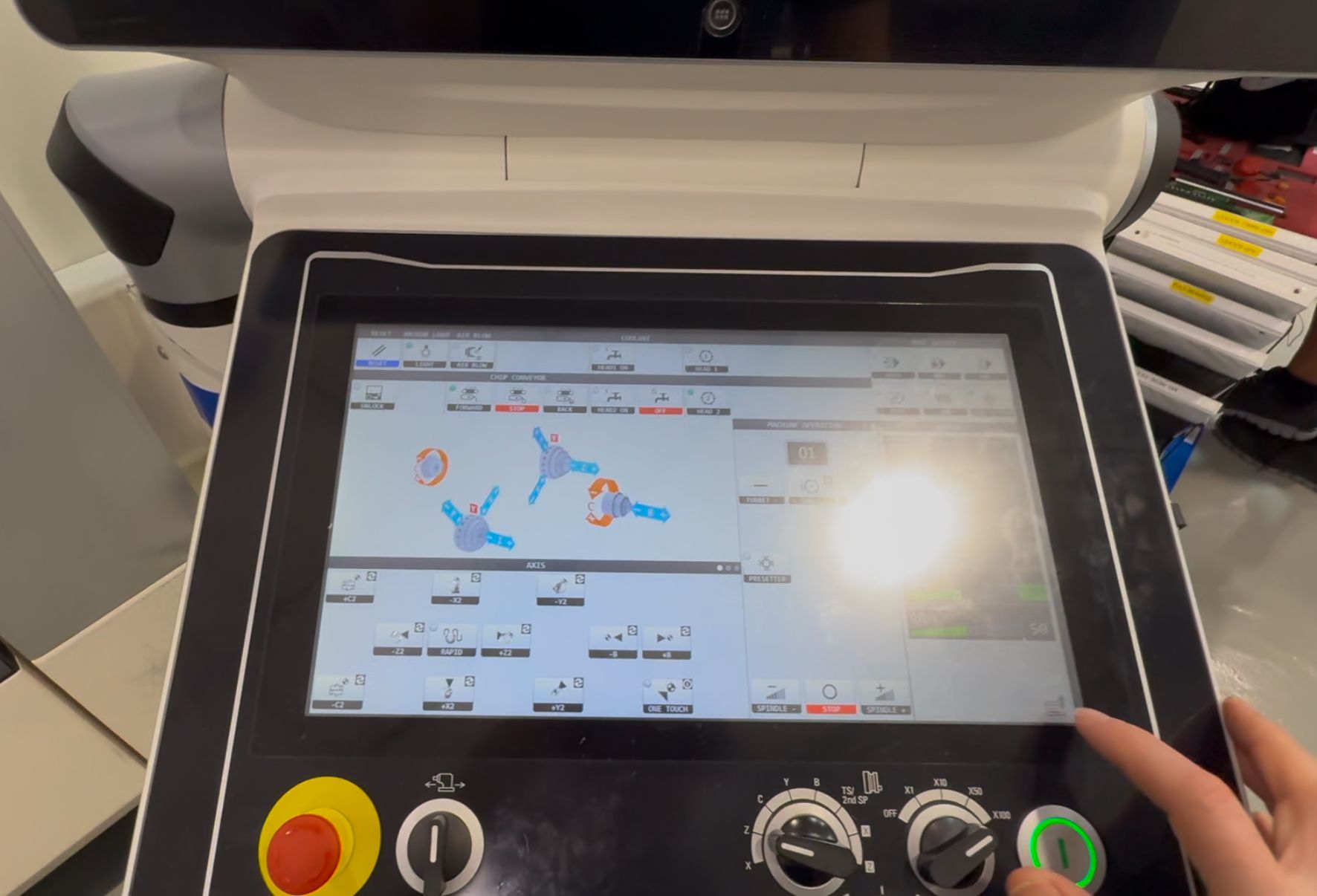
NCSystem Access:
- May be required to unlock parameters
- Password typically from DMG MORI
- Unlock → Configure → Lock again
Part Counting
Standard M30 Method:
- Works on most DMG MORI machines with FANUC backend
- FOCAS reads parameter 6711 automatically
DMG MORI Custom M-Codes:
- Some models use custom part count M-codes
- Check parameter 6710 for custom M-code number
- Example: If 6710 = 56, add M56 before M30 or M99
Macro Variable Method:
- If custom M-code doesn't work, use macro method
- Add
#3901=#3901+1in program - Requires Macro B option enabled
CELOS Interface Counters:
- CELOS may display its own part counters on screen
- These are separate from FANUC internal counters
- MachineMetrics reads FANUC counter (parameter 6711)
- Ensure FANUC counter is incrementing, not just CELOS display
For detailed part counting methods including looping cycles (M99) and custom M-code configuration, see the FOCAS Connectivity Guide — Part Counting Methods.
Common Issues
Cannot Find Network Settings in CELOS:
- Look under Settings, Machine, or Controller menus
- Try System or Maintenance sections
- Contact DMG MORI service for specific menu locations on your CELOS version
Parameters Are Locked:
- May need to access NCSystem to unlock
- Password typically held by DMG MORI service
- Contact DMG MORI support for unlock procedure
CELOS vs FANUC Interface Confusion:
- Remember: CELOS is just a graphical interface
- FANUC control is running underneath
- Configuration applies to FANUC, accessed through CELOS
- If you see standard FANUC menus, that's normal
Network Configuration Not Saving:
- Ensure you select "Save" or "Apply" after changes
- May need to restart network or reboot machine
- Check if parameters need to be unlocked first
Cannot Connect After Configuration:
- Verify physical connection to correct Ethernet port (CD38A)
- Check firewall isn't blocking port 8193
- Ensure "Available Device" is set to EMBEDDED
- Try power cycling the machine completely
CELOS with Siemens Backend
Overview
DMG MORI machines with a Siemens backend (typically Siemens 840D) require purchasing IOT Connectivity from DMG MORI, as MTConnect is not installed by default. Once enabled, connectivity is managed through DMG MORI's Connector Management application within CELOS.
Key Points:
- MTConnect is not pre-installed — must be purchased from DMG MORI
- Configuration is done through the Connector Management app in CELOS
- Once enabled, MachineMetrics connects via MTConnect
- Contact DMG MORI to purchase IOT Connectivity if not already available
Enabling MTConnect via Connector Management
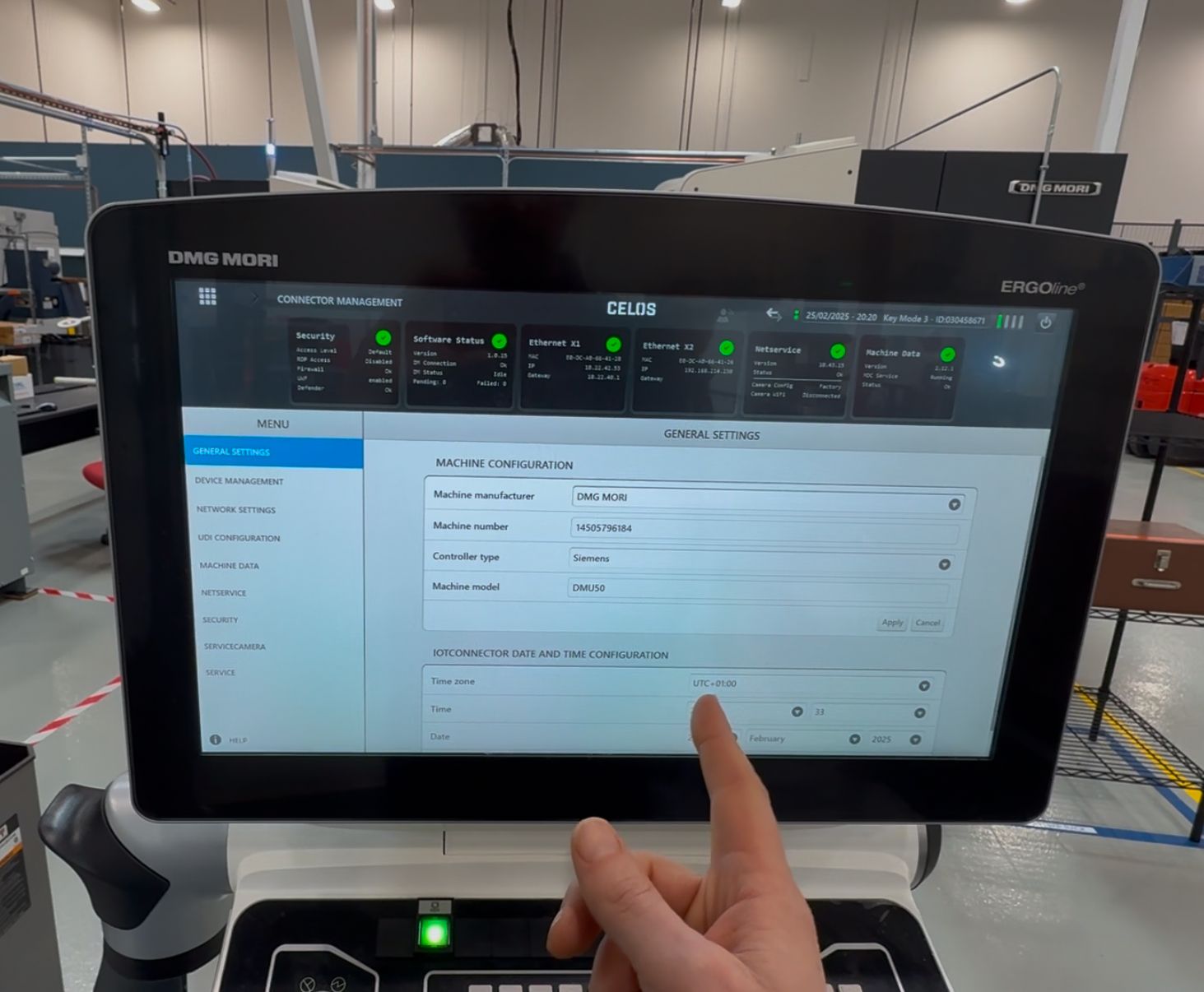
Step 1: Open Connector Management
- Click the upper-left icon (grid of boxes) on the CELOS screen to access applications
- Look for Connector Management — you may need to slide/scroll if there are more than 18 apps listed
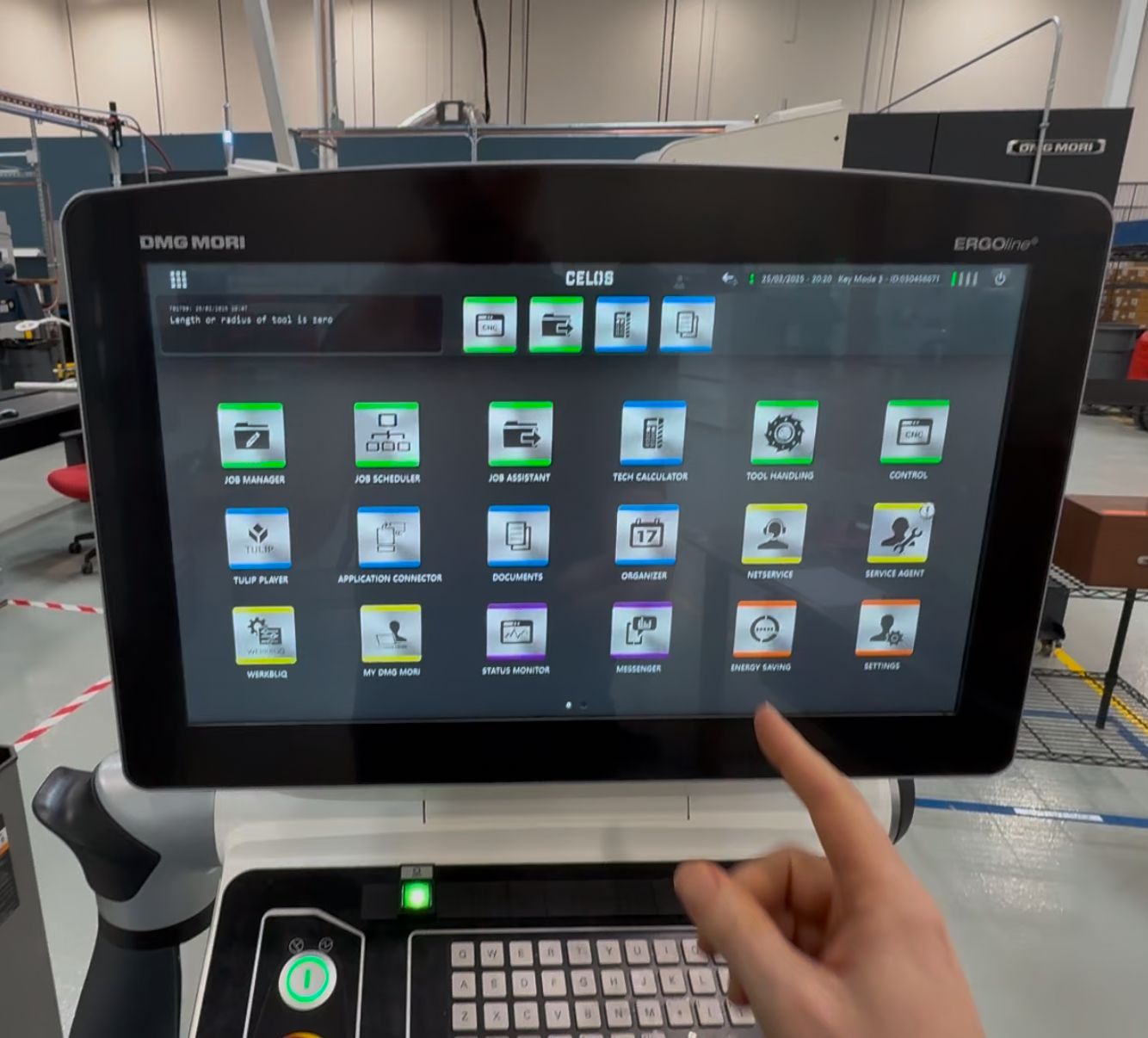
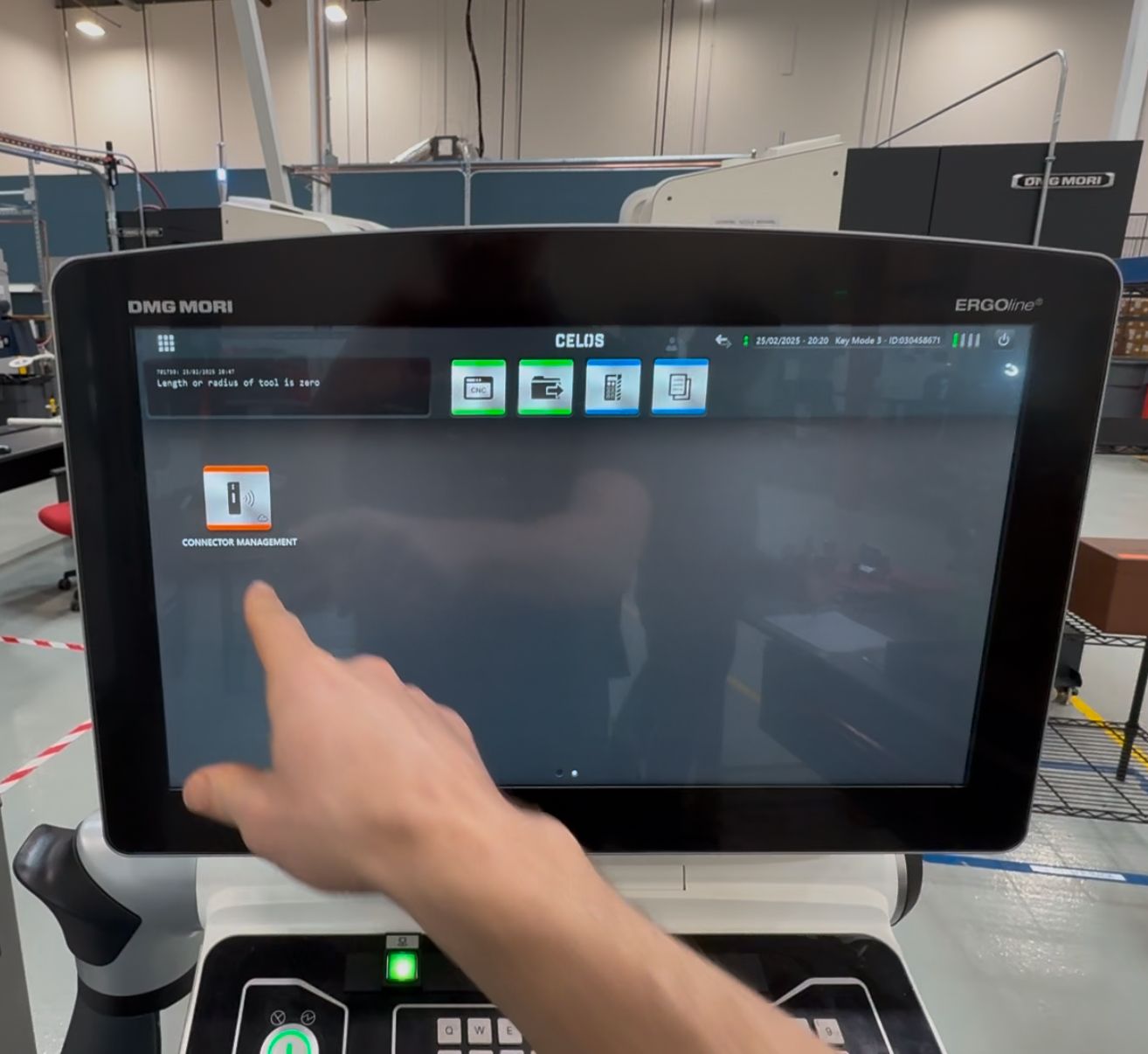
- Select Connector Management
Step 2: Find the IP Address
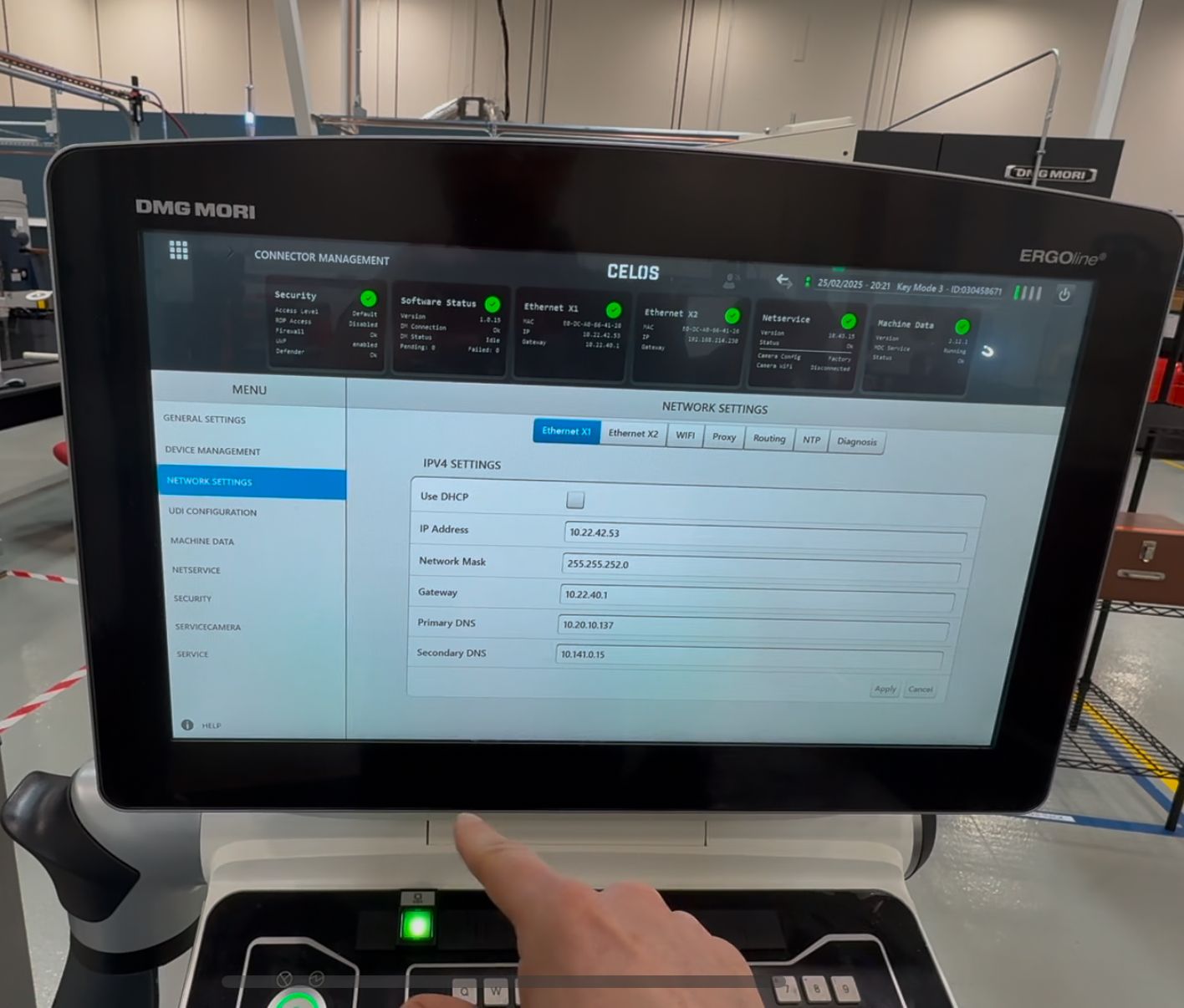
- In Connector Management, select Network Settings
- The IP address is displayed on this page
- You can view or change the IP address here
Step 3: Enable MTConnect
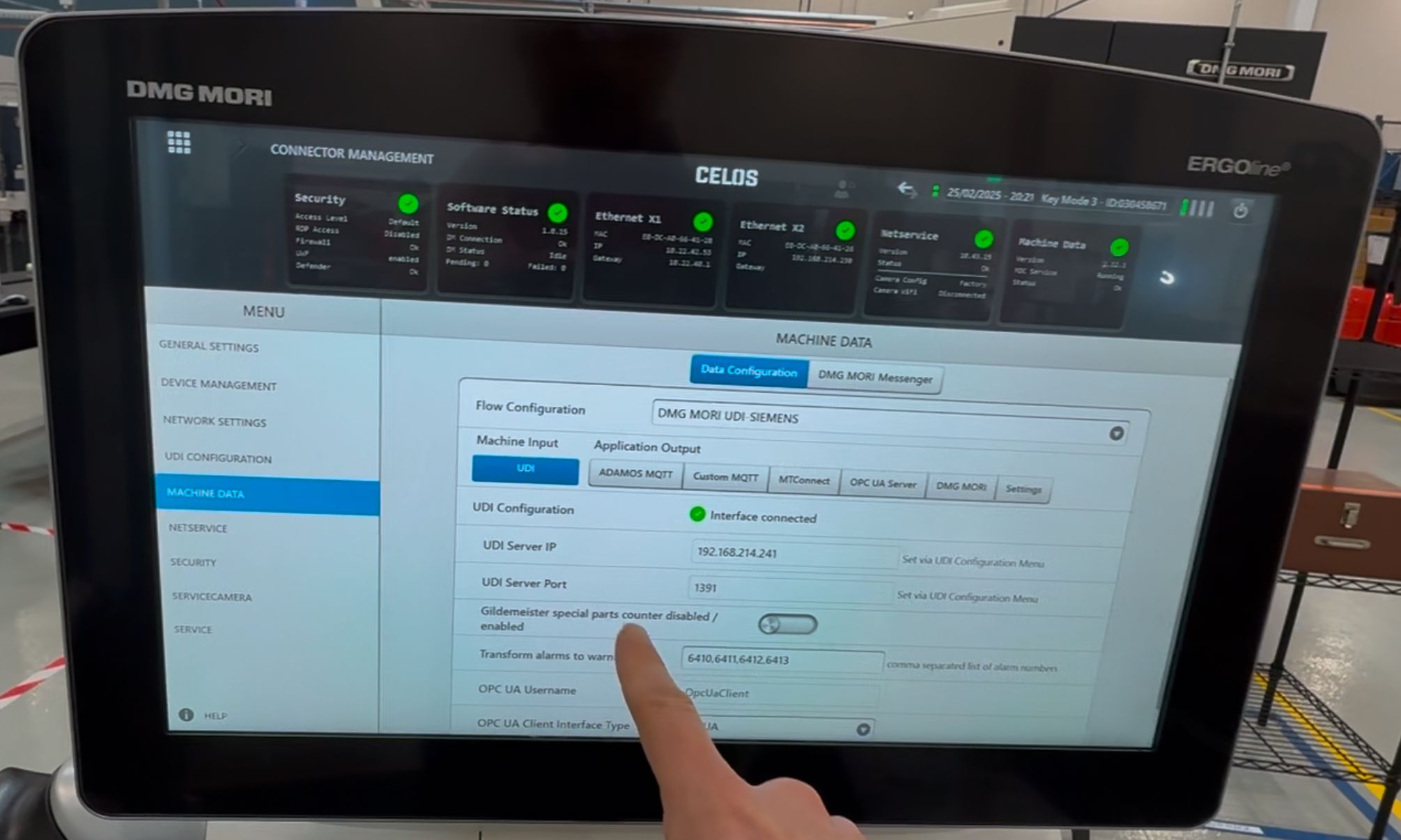
- In Connector Management, select Machine Data to view available connectors
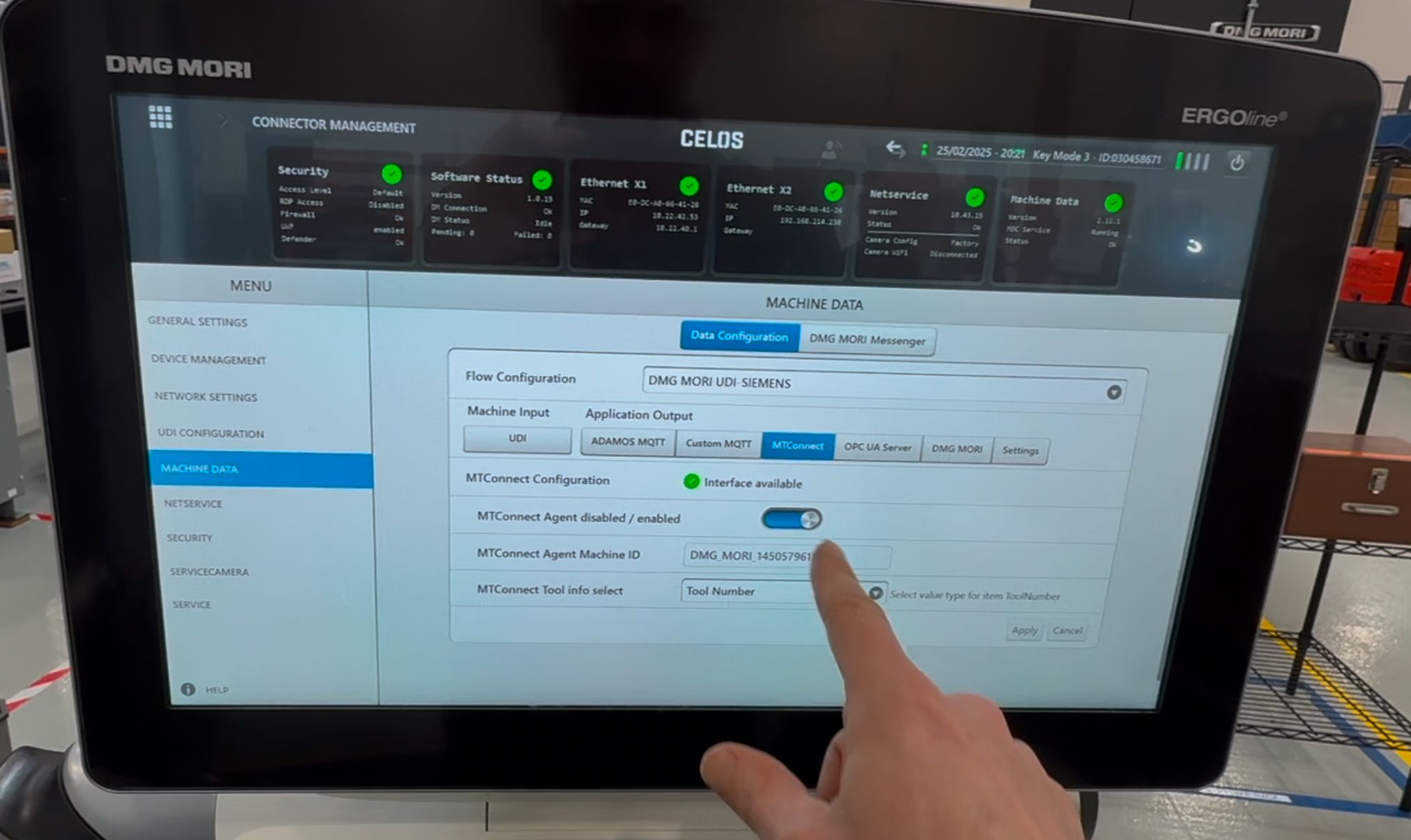
- Find MTConnect in the list
- Enable MTConnect using the blue slider toggle
- The machine will now communicate over MTConnect
Step 4: Add to MachineMetrics
- Adapter Type: MTConnect
- IP Address: From Connector Management Network Settings
- Port: Typically 5000 (verify in Connector Management)
For MTConnect adapter configuration details, see the MTConnect Connectivity Guide.
CELOS with Mitsubishi Backend
Even when a DMG Mori machine has a Mitsubishi backend, never use the Mitsubishi adapter. DMG Mori machines must always be connected via MTConnect. Using the Mitsubishi adapter on these machines will result in incorrect or failed connectivity.
Overview
DMG MORI machines with a Mitsubishi backend and CELOS interface will likely have MTConnect already installed. Even if the machine has Connector Management, the best way to connect to MachineMetrics is to use MTConnect.
Key Points:
- MTConnect is typically pre-installed
- Use MTConnect even if Connector Management is available
- Configuration is accessed through the CNC menus behind CELOS
Finding the IP Address
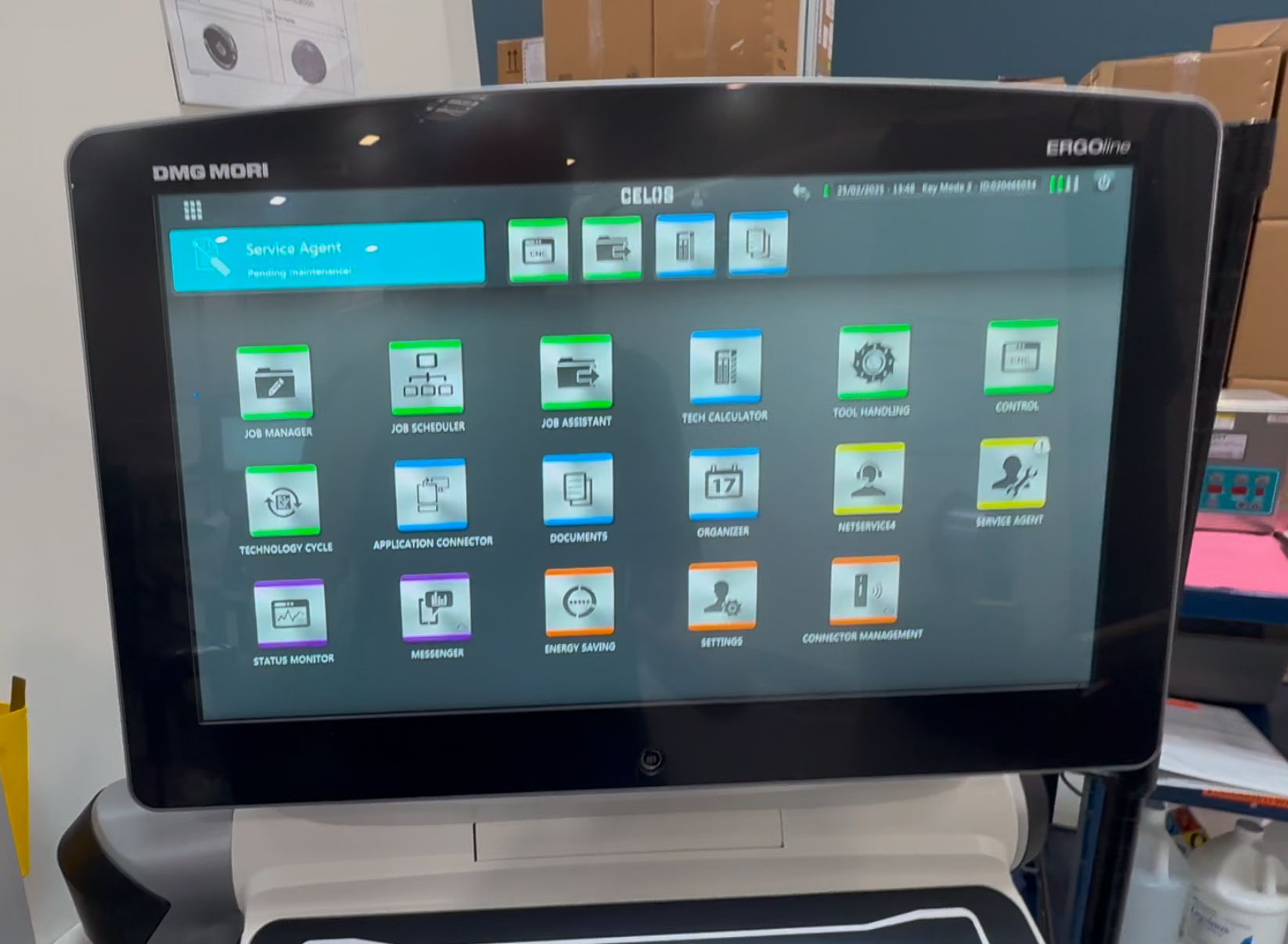
Step 1: Access CNC Screen
- Select CNC from the top menu bar in CELOS
- This brings up the main CNC screen
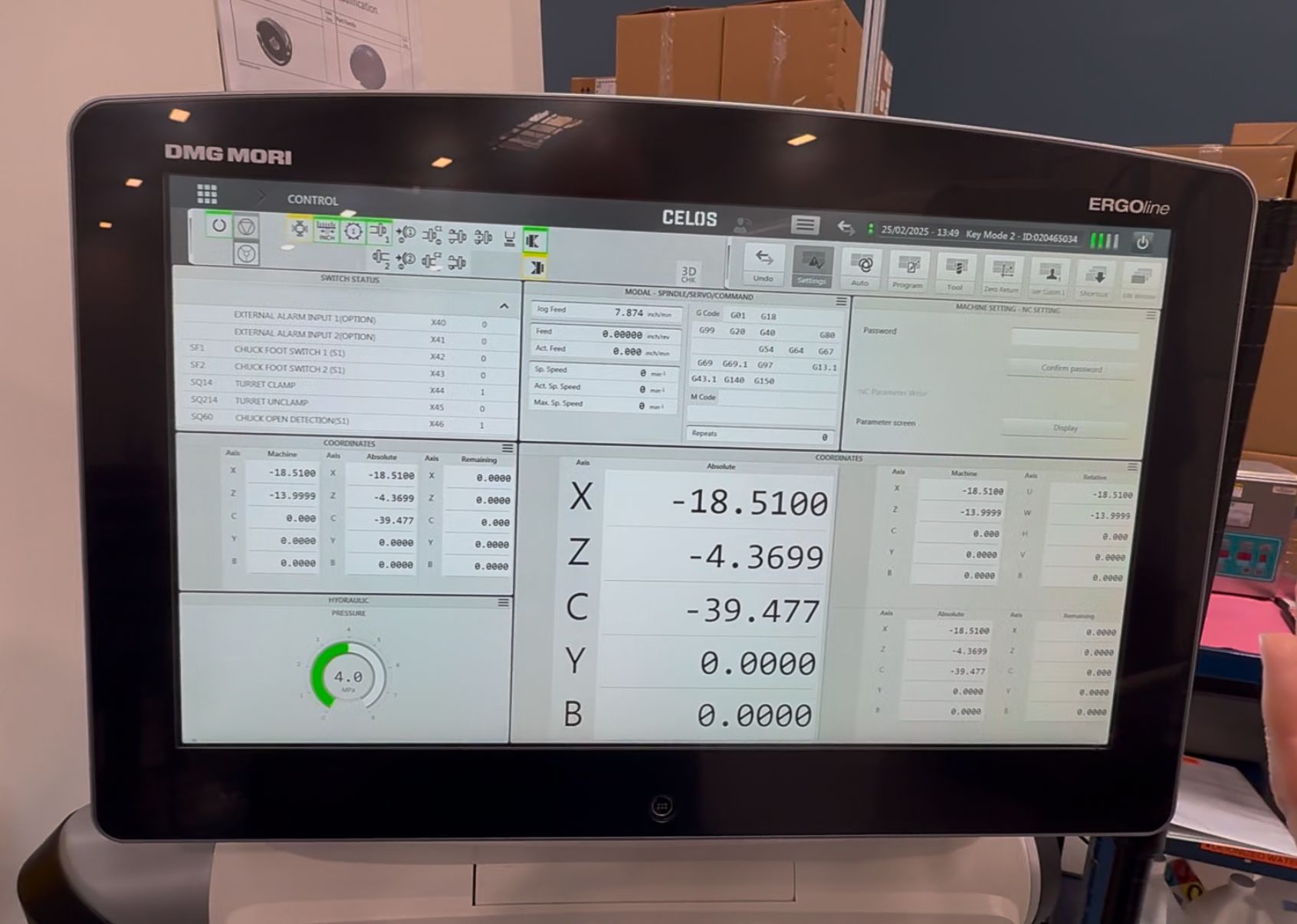
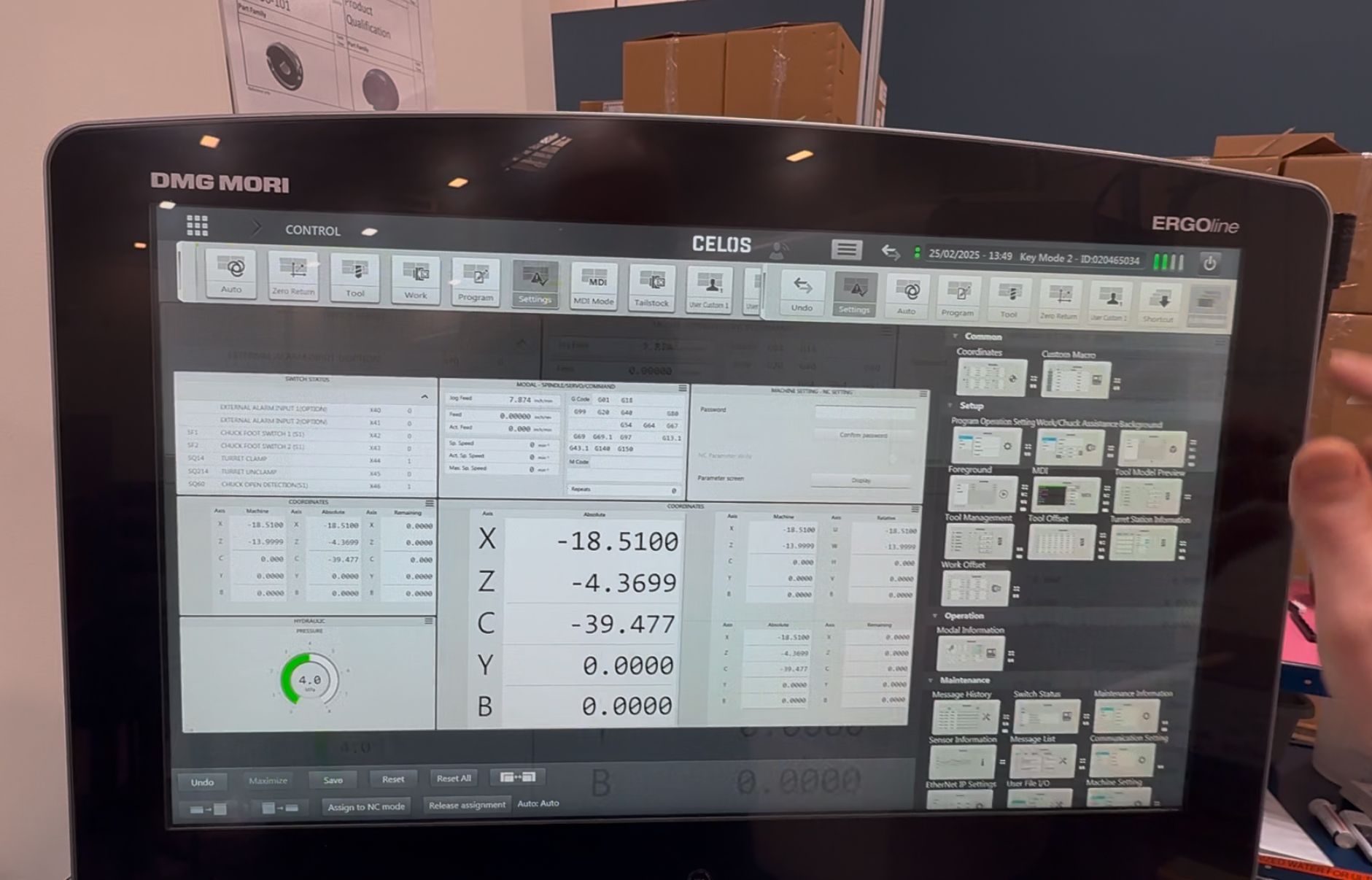
Step 2: Access Communications Settings
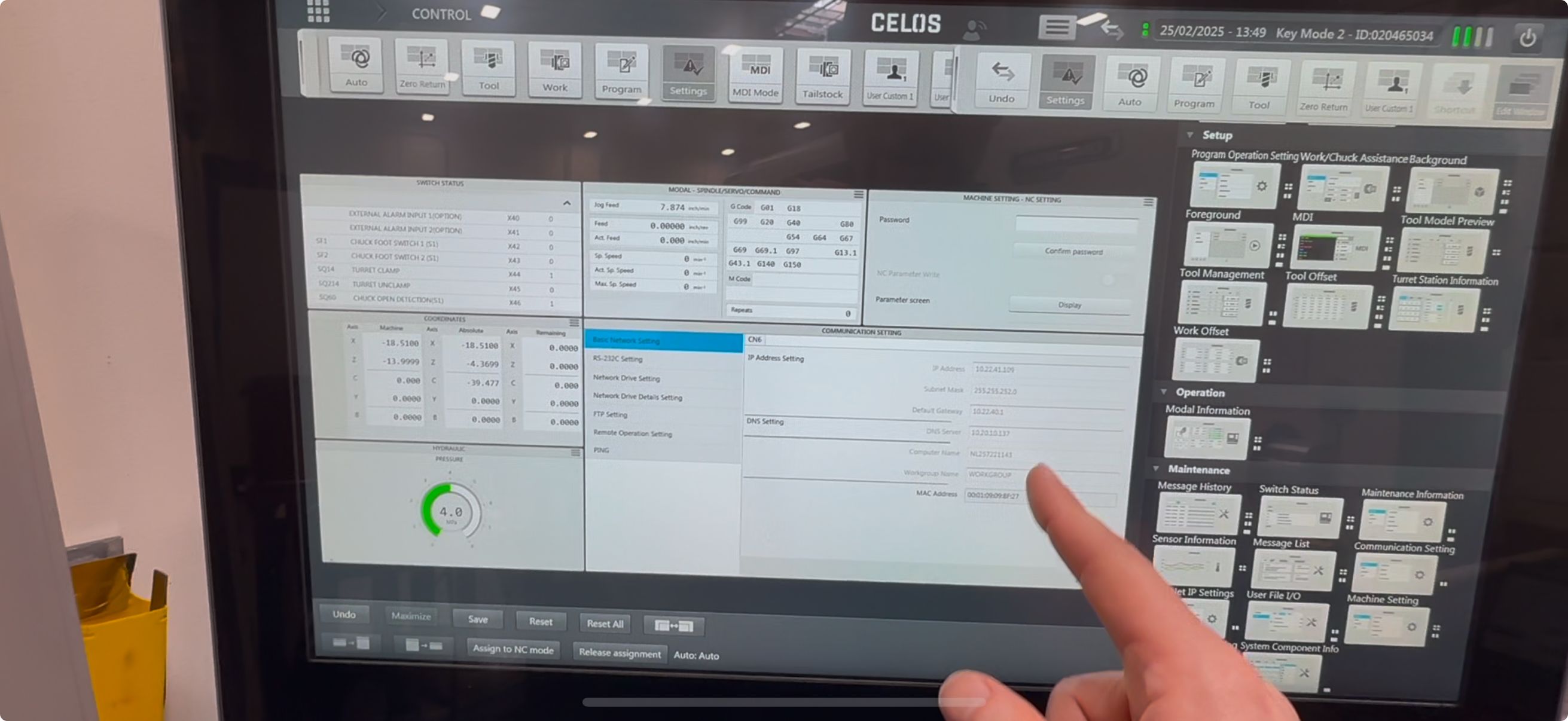
- On the CNC screen, tap the Edit Window button
- This reveals all available screen panels
- Drag and drop Communications Settings onto the main screen
- Tap Edit Window again to view the screen and enable edits
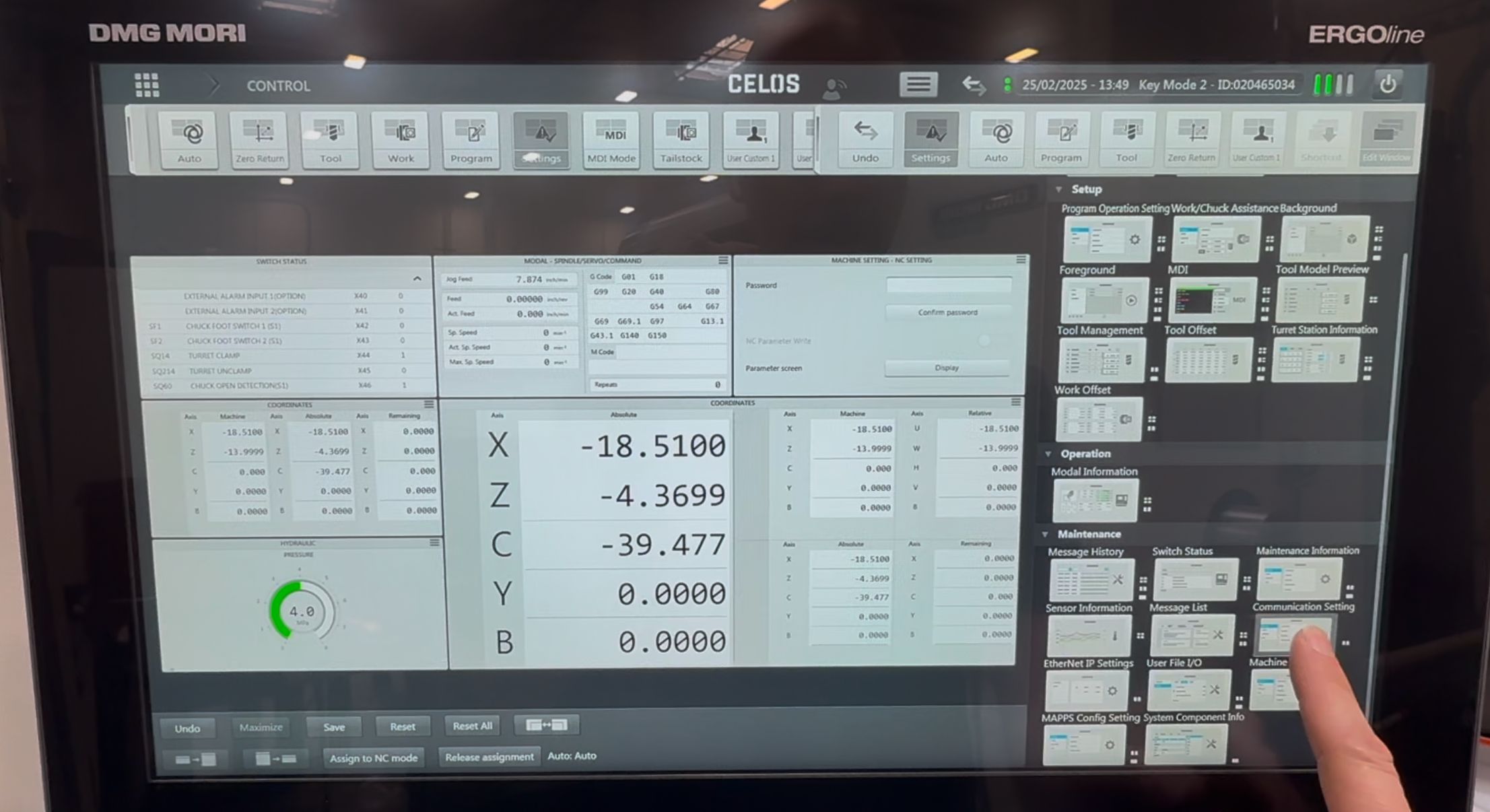
Step 3: View or Change IP Address
- The IP address is displayed in the Communications Settings panel
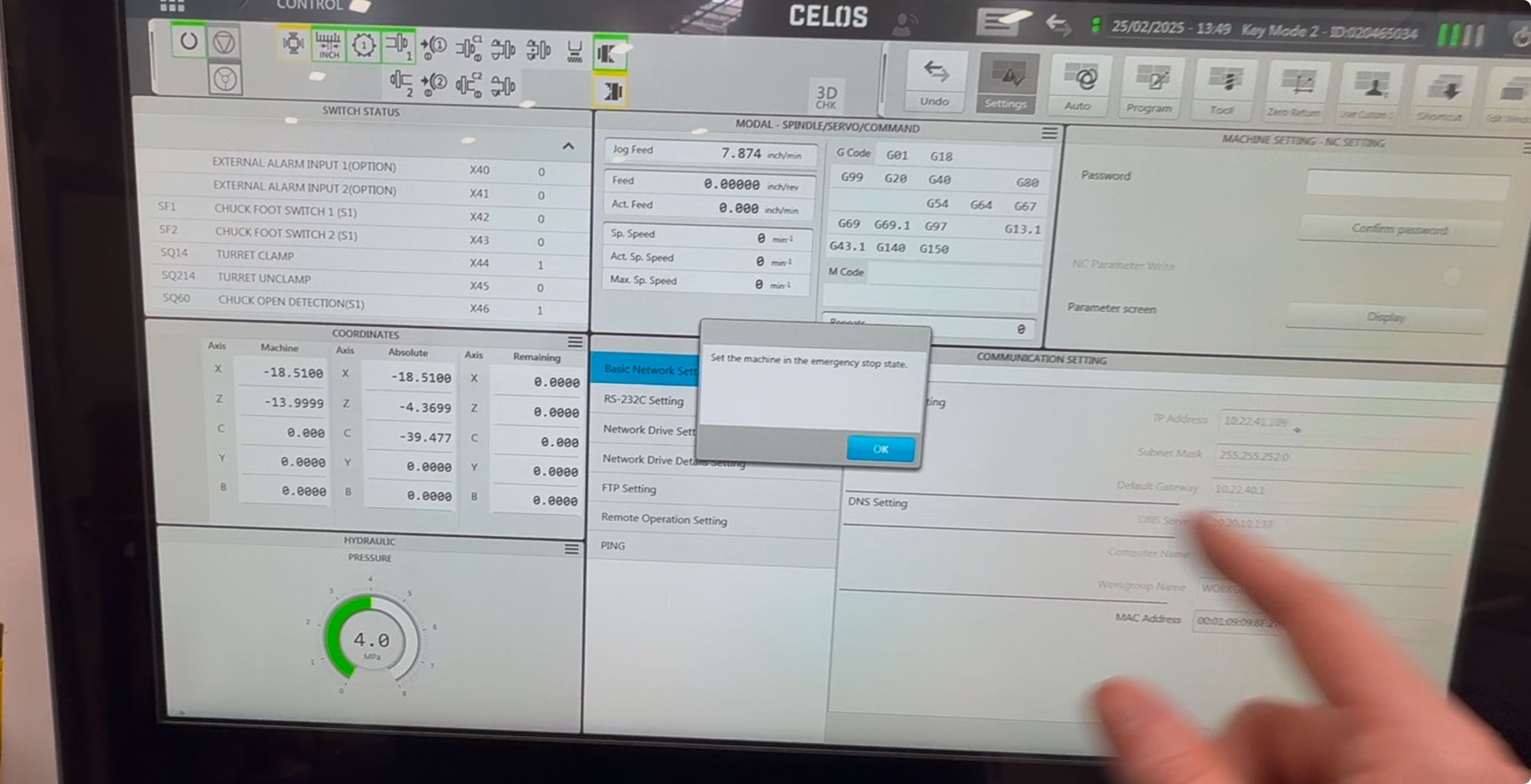
- To change the IP address, you must put the machine into E-Stop first
Step 4: Add to MachineMetrics
- Adapter Type: MTConnect
- IP Address: From Communications Settings
- Port: Typically 5000
For MTConnect adapter configuration details, see the MTConnect Connectivity Guide.
Part Counting
DMG MORI machines with a CELOS interface and Mitsubishi backend report part counts via MTConnect. MachineMetrics reads the Work Count value automatically — but the Work Count must be correctly configured on the machine for counts to increment reliably.
Standard Programs (M30 End)
For programs that end with M30, no special configuration is required. The machine can be configured to increment the Work Count automatically on M30 execution using the M02/M30 Count setting.
Steps:
- On the CELOS screen, select CNC from the top menu bar
- Tap the MODAL soft key
- Tap Counter to open the Work Count configuration dialog
- Set M02/M30 Count to ON
- Ensure your programs end with
M30
The Work Count will increment once per cycle automatically.
Looping Programs (M99 / No M30)
If your programs loop continuously without executing M30 (using M99 or similar), you must configure a dedicated Count M Code and insert it into your programs manually.
Step 1: Configure the Count M Code
- On the CELOS screen, select CNC from the top menu bar
- Tap the MODAL soft key
- Tap Counter to open the Work Count configuration dialog
- Set the Count M Code to your chosen M-code (e.g.,
89for M89) - Set Head 1 and Head 2 to Invalid to prevent double-counting
If both Head 1 and Head 2 are set to Valid, the counter can increment twice per cycle. Setting both to Invalid ensures only the Count M Code triggers the increment.
Step 2: Update your CNC programs
Insert the Count M Code at the point in the program where one part has been completed — typically just before the loop-back command:
...
M89   (increment part count)
M99   (loop back to program start)
Verifying the Count
Navigate to MODAL → Counter and confirm the Current value increments after each program cycle. MachineMetrics should reflect the updated count within a few seconds via MTConnect.
MAPPS Control with Mitsubishi Backend
Even when a DMG Mori machine has a Mitsubishi backend, never use the Mitsubishi adapter. DMG Mori machines must always be connected via MTConnect. Using the Mitsubishi adapter on these machines will result in incorrect or failed connectivity.
Overview
Older DMG MORI machines (often branded as Mori Seiki) may have a MAPPS (Mori Advanced Programming Production System) control interface with a Mitsubishi backend. These machines usually have MTConnect installed by default.
Key Points:
- MAPPS is DMG MORI's older control interface (pre-CELOS)
- Typically has a Mitsubishi backend
- MTConnect is usually pre-installed
- Network settings are accessed through the FANUC-style System menus
Finding the IP Address
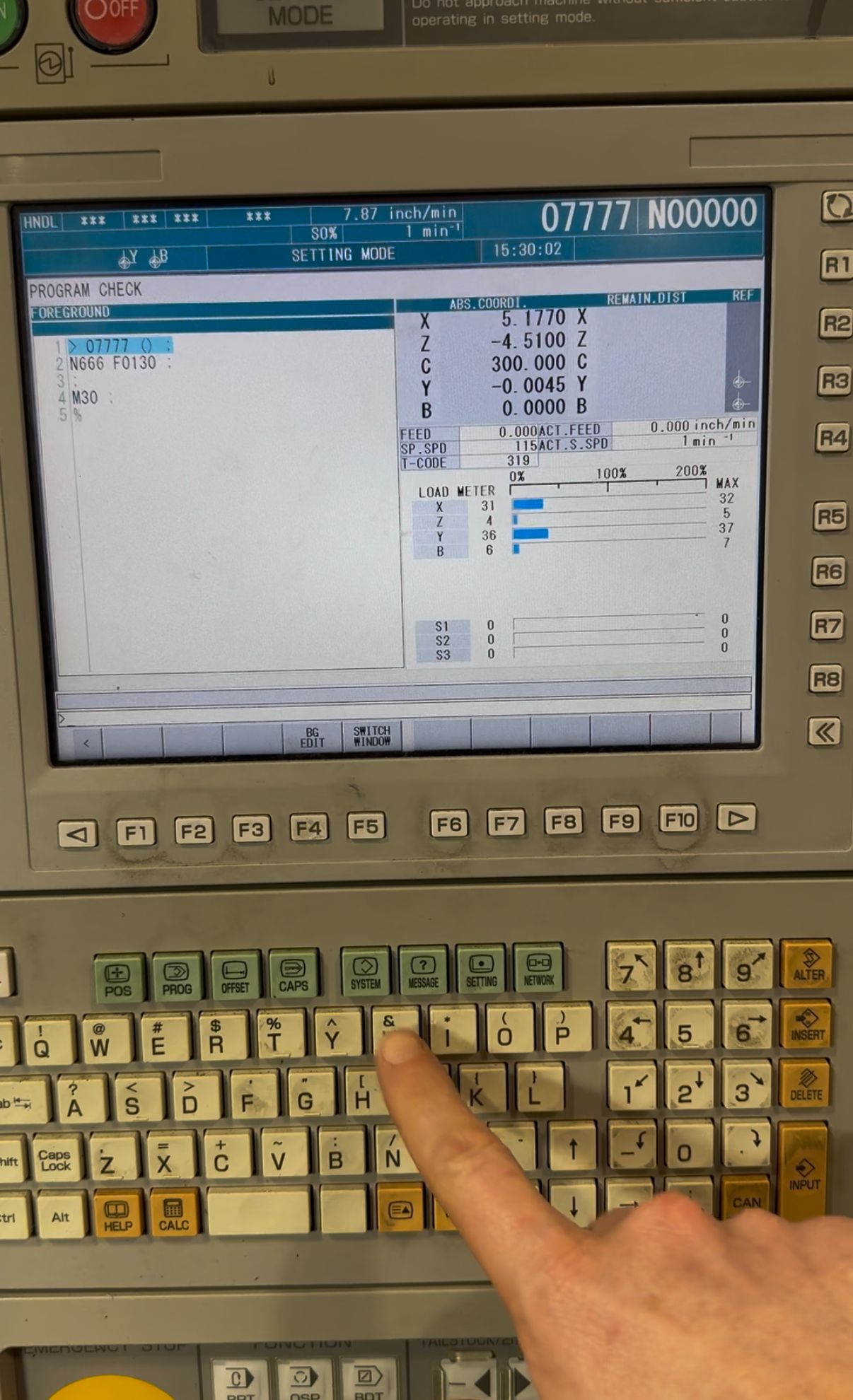
Step 1: Access System Settings
- Press the System hard key on the control panel
Step 2: Navigate to Communication Settings
- Press the left arrow hard key to navigate to COMM SETNG
- Press COM SETNG soft key
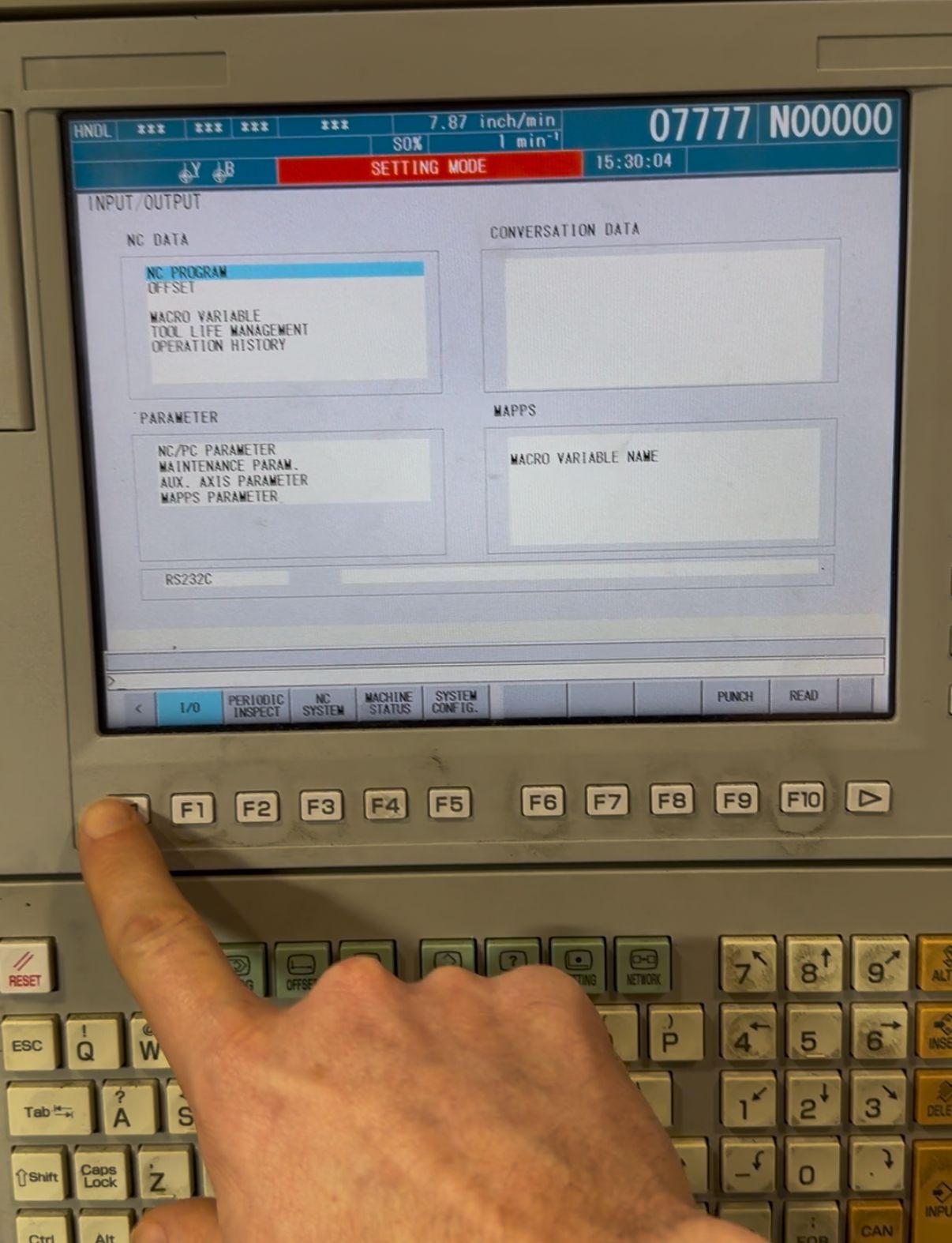
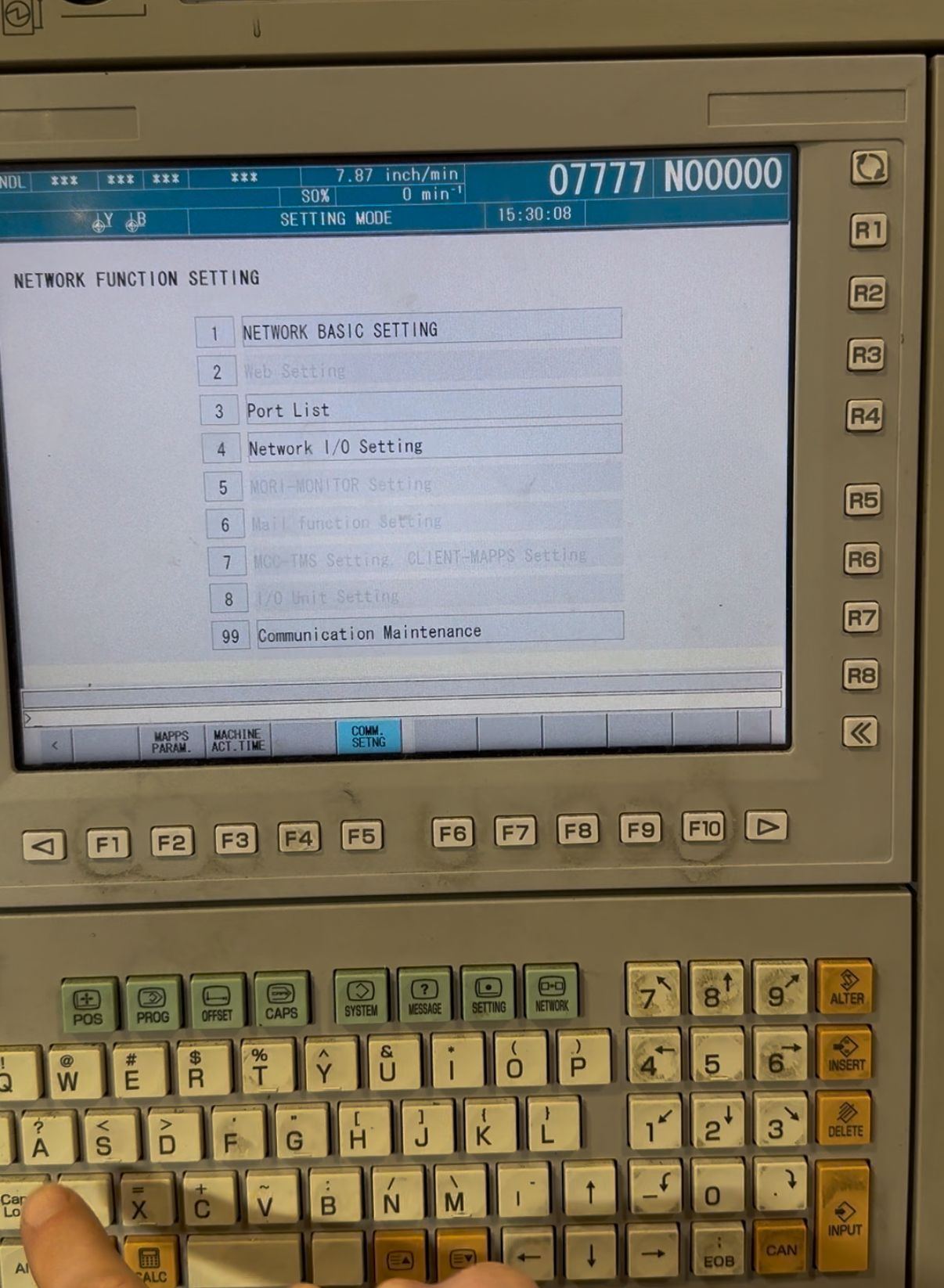
Step 3: View IP Address
- Press 1 and then Input
- This brings up the network settings including the IP address
Step 4: Add to MachineMetrics
- Adapter Type: MTConnect
- IP Address: From communication settings
- Port: Typically 5000
For MTConnect adapter configuration details, see the MTConnect Connectivity Guide.
CELOS with Heidenhain Backend
Some DMG MORI machines (particularly 5-axis mills like the DMU series) may have a Heidenhain backend (TNC 530 or TNC 640).
Key Points:
- Uses the Heidenhain adapter in MachineMetrics
- Configuration follows the standard Heidenhain setup process
- Refer to Heidenhain Connectivity for detailed instructions
Common Models:
- DMU series (5-axis universal milling)
- Some DMC series machines
Adding the Machine in MachineMetrics
Once you've identified your backend and found the IP address:
Step 1: Log into MachineMetrics
- Navigate to Assets → Machines
- Click Add Machine
Step 2: Enter Machine Details
- Machine Name: Descriptive name (e.g., "DMG-NLX2500-01")
- Make: DMG MORI (or Mori Seiki for older machines)
- Model: Machine model
- Select Edge Device: Choose your Edge from dropdown
Step 3: Configure Adapter
Select the adapter based on your backend:
| Backend | Adapter Type | Connection Details |
|---|---|---|
| FANUC | FANUC FOCAS | IP address, Port 8193 |
| Siemens | MTConnect | IP address, Port 5000 (verify) |
| Mitsubishi (CELOS) | MTConnect | IP address, Port 5000 |
| Mitsubishi (MAPPS) | MTConnect | IP address, Port 5000 |
| Heidenhain | Heidenhain | See Heidenhain guide |
Step 4: Test and Save
- Click Test Connection
- Verify success
- Click Save
Troubleshooting
Cannot Determine Backend Control
- Open the electrical cabinet and look for manufacturer labels on the NCU/drive units
- Access CNC menus behind CELOS — the underlying interface reveals the manufacturer
- Check machine purchase documentation
- Contact DMG MORI with your serial number
CELOS Connector Management Not Available (Siemens Backend)
- IOT Connectivity must be purchased from DMG MORI
- Contact DMG MORI to purchase and enable
- Without Connector Management, MTConnect cannot be activated on Siemens-backed machines
MTConnect Not Responding (Mitsubishi Backend)
- Verify IP address in Communications Settings
- Ensure machine is not in E-Stop (required for changes, not for data)
- Try pinging the machine IP from the Edge device
- Verify MTConnect port (typically 5000)
Restarting the MTConnect Adapter on CELOS
If the MTConnect adapter goes offline on a CELOS machine with a Siemens backend, a full machine restart is not required. You can restart just the MTConnect connector through Connector Management without interrupting the machine or any active programs.
This procedure applies to: CELOS machines with a Siemens backend (e.g., NLX, DMU, CMX series with Siemens 840D control)
Steps:
- On the CELOS home screen, navigate to Settings or Machine
- Open Connector Management (scroll through the app grid if it is not immediately visible)
- Select Machine Data
- Find MTConnect in the connector list
- Toggle the blue slider to turn MTConnect off
- Wait a few seconds, then toggle the slider back on
The MTConnect adapter will restart and reconnect. MachineMetrics should resume receiving data within a minute.
If MTConnect continues to go offline repeatedly, contact MachineMetrics Support with the machine model, serial number, and a description of how frequently the adapter drops — this pattern may indicate a network or configuration issue that requires deeper investigation.
FOCAS Not Connecting (FANUC Backend)
- See Common CELOS/FANUC Issues above
- Verify the correct Ethernet port (CD38A) is connected
- Ensure "Available Device" is set to EMBEDDED
- Check that FOCAS port 8193 is configured
- For detailed FOCAS troubleshooting, see the FOCAS Connectivity Guide — Troubleshooting
Parameters Are Locked
- NCSystem password may be required
- Password is typically held by DMG MORI service
- Contact DMG MORI support for unlock procedure
- Provide machine serial number and CELOS version
DMG MORI Support Resources
When to Contact DMG MORI:
- Need NCSystem password
- Cannot find network configuration menus in CELOS
- Need to purchase IOT Connectivity (Siemens backend)
- Unsure of Ethernet port location for your specific model
- Parameters are locked and cannot be changed
What to Provide:
- Machine serial number
- CELOS version (visible in settings)
- Backend control model and version
- Specific error messages or issues encountered
Getting Help
Before Contacting Support
Gather this information:
-
Machine Details
- Make, model, serial number
- CELOS version (or MAPPS version)
- Backend control type (FANUC, Siemens, Mitsubishi, Heidenhain)
-
Network Configuration
- Machine IP address
- How IP was found (which menu/screen)
- Can you ping the machine?
-
Current Configuration
- Which adapter type selected in MachineMetrics
- Connection test results
- Any error messages
Contact Options
MachineMetrics Support:
- Email: MachineMetrics Support
- Include all information above
- Specify DMG MORI model and backend control
DMG MORI:
- For NCSystem passwords and locked parameters
- For IOT Connectivity purchase (Siemens backend)
- For model-specific configuration questions
Protocol-Specific Guides:
- FOCAS Connectivity Guide — FANUC backend details
- MTConnect Connectivity Guide — MTConnect configuration
- OPC-UA Connectivity Guide — Siemens OPC-UA (alternative)
- Heidenhain Connectivity — Heidenhain backend details