FANUC FOCAS Connectivity
Protocol: FOCAS · Port: TCP 8193 · Cable: the FANUC Ethernet port — CD38A or CD38S (embedded) or CD38R (Fast Ethernet board).
Set a static IP, subnet mask and gateway on the control, on the same subnet as the Edge device. See Physical Connection for where each port is located, then Control Setup for the configuration steps.
Overview
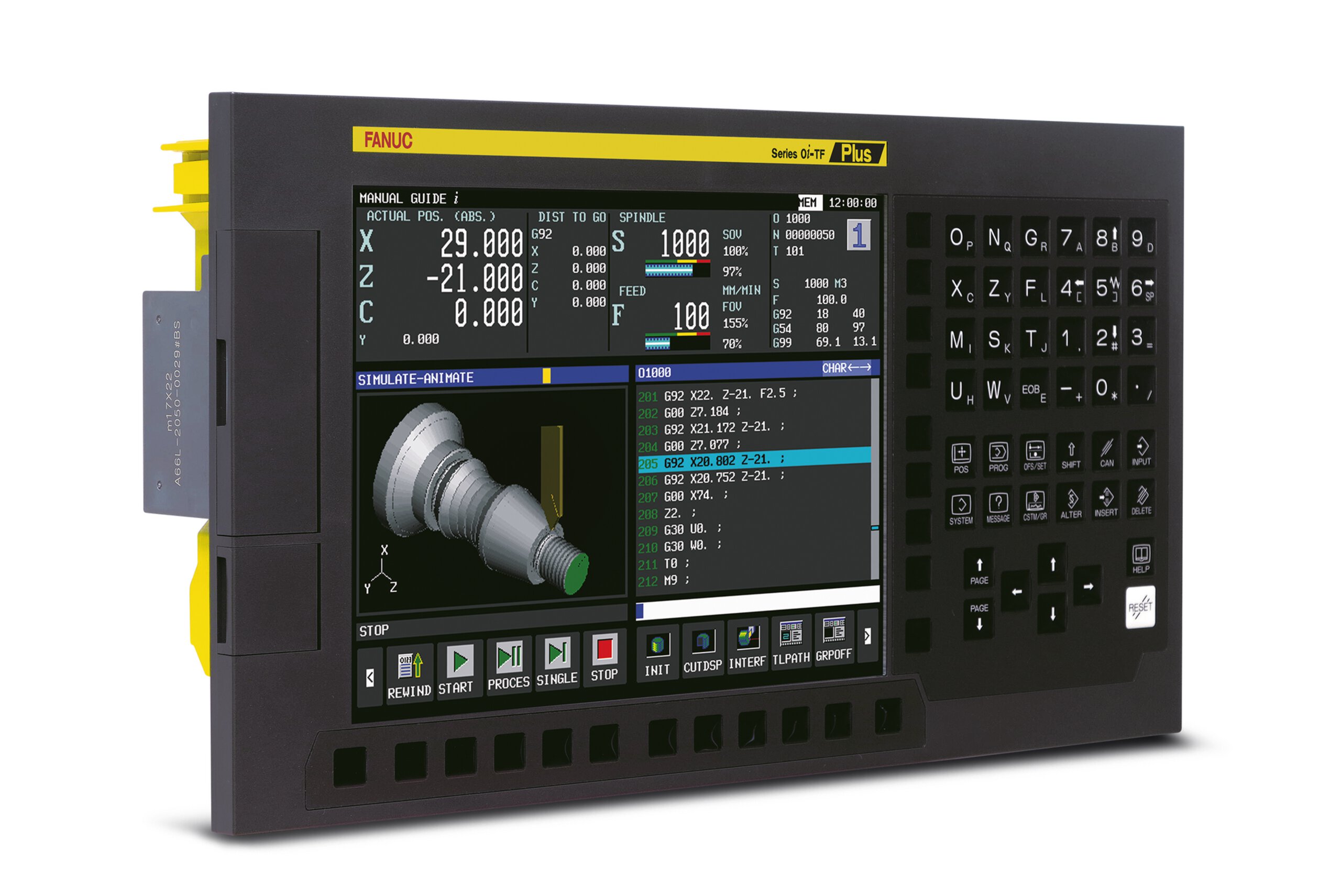
FANUC CNC control panel. FANUC controls use the FOCAS protocol for direct Ethernet connectivity to MachineMetrics, providing real-time machine data including status, programs, tools, and production information.
What is FANUC FOCAS?
FOCAS (FANUC Open CNC API Specification) is a set of library files that enable direct access to nearly all information inside a FANUC CNC control. MachineMetrics uses these libraries to retrieve data from the control via Ethernet, providing comprehensive real-time visibility into machine status, production metrics, and diagnostic information.
Key Benefits:
- Direct, high-speed data access
- No additional hardware adapters required
- Rich data set including alarms, diagnostics, and program information
- Widely supported across FANUC control generations
- Reliable and proven technology
Why FOCAS is Preferred
When a machine is equipped with a modern, FOCAS-enabled FANUC control, it is MachineMetrics' preferred method for data collection because:
- Simple Setup: Often requires only an Ethernet cable
- Comprehensive Data: Access to status, alarms, programs, cycles, and more
- No Additional Hardware: No serial converters or I/O modules needed
- Fast Deployment: Can typically connect in 15-30 minutes
- Reliable: Direct connection to control with minimal points of failure
Who This Guide is For
This guide is for:
- Manufacturing engineers connecting FANUC-controlled equipment
- Maintenance staff configuring machine connectivity
- IT personnel supporting MachineMetrics deployment
- Anyone responsible for connecting machines with FANUC controls
Video: How to connect FANUC FOCAS
Step-by-step video walkthrough for FOCAS connectivity.
Compatible Machines
FOCAS-Enabled Controls
FANUC controls that are approximately 10-15 years old or newer typically support FOCAS.
Controls with FOCAS by default:
- 0i-D/F series
- 16i-B / 18i-B series
- 30i / 31i / 32i / 35i series
FANUC Control Compatibility Table:
| Does NOT have Ethernet/FOCAS | Could have Ethernet (Check) | Has Ethernet as Standard |
|---|---|---|
| O Series | 0i-C* | 0i-D/F |
| 3 / 6 Series | 21i-B* | 16i / 18i B |
| 16 / 15 / 18 / 21 (non-i) | 15i-A/B | 30/31/32/35i Series |
| 16i / 18i / 21i A* |
* Can be upgraded by FANUC to include FOCAS
"i-Series" Designation: Controls with an "i" in the model number (e.g., 0i, 16i, 18i, 31i) may support FOCAS. Most i-Series controls that don't include FOCAS can have it added as an option by FANUC.
Machine Tool Builders Using FANUC
FANUC controls are used worldwide by many machine tool manufacturers. Common brands using FANUC controls include:
- Amada
- DN Solutions (formerly Doosan)
- FANUC Roboshot (injection molding machines)
- Feeler (FFG)
- Makino
- Matsuura
- DMG MORI / Mori Seiki
- Nakamura-Tome
- OKK
- Quaser
- Star Micronics
- Tornos
- Toyoda
- Tsugami
- Yasda
- Many others
How to Check if Your Control Supports FOCAS
Follow these steps on the machine control to verify FOCAS capability:
Step 1: Access System Menu
- Press the SYSTEM hard key on the control panel
- Scroll using the right arrow soft key until you see ETHPRM, EMBED PORT, EMBDD, or ETHER-BOARD
Step 2: Check for Embedded Ethernet Settings
- If you see ETHPRM, EMBDD (embedded), EMBED PORT (embedded port), or ETHER BOARD, your control has embedded Ethernet and likely supports FOCAS
- If you don't see these options, your control may not have embedded Ethernet/FOCAS capability
For 16i/18i/21i and 160i/180i/210i Series (B-models): These controls (16i-B, 18i-B, 21i-B, 160i-B, 180i-B, 210i-B, 160is-B, 180is-B, 210is-B) may have embedded Ethernet as an option. Look for:
- EMBDD or EMBED PORT menu when pressing SYSTEM and scrolling through soft keys
- If these menus don't appear, the control may not have the embedded Ethernet option installed
- These controls can be upgraded by FANUC to include embedded Ethernet/FOCAS if not currently available
Step 3: Verify FOCAS Settings
- Select the Ethernet/Embedded Port menu (EMBDD or EMBED PORT)
- Look for FOCAS 2 and COMMON settings
- If these appear, FOCAS is available
Alternative for Windows-Based Controls:
- Some controls have a Windows backend
- Search for the "CNC Screen Display" program
- Access embedded port settings through this program
Still Unsure?
- Contact your machine tool builder with control model and serial number
- Contact MachineMetrics support with control information
- A MachineMetrics representative can typically confirm FOCAS capability with the control model and year of manufacture
Prerequisites
Before connecting your FANUC machine, ensure you have:
Hardware:
- FANUC-controlled machine with FOCAS capability
- MachineMetrics Edge device (deployed and activated)
- Ethernet cable (CAT5/CAT6)
- Keyboard, monitor, mouse (for control configuration)
Network:
- IP address for the machine (static or DHCP)
- Network access between machine and Edge device
- Subnet and gateway information (if static IP)
Access:
- Physical access to machine control and electrical cabinet
- Permission to modify machine network settings
- Parameter write access (if configuring part counting or advanced features)
Information:
- Machine make and model
- Control model and version
- Current network configuration (if any)
Physical Connection
FANUC Ethernet Port Types (CD38 Variants)
FANUC CNC controls can have multiple Ethernet interfaces, each identified by a CD38 designation. Understanding which port your machine has — and which one to use for FOCAS — is important for successful connectivity.
| Port | Name | Speed | FOCAS Connections | Location | Menu Key | Notes |
|---|---|---|---|---|---|---|
| CD38A | Embedded Ethernet | 10 Mbps | 1 | On the NCU board (main electrical cabinet) or behind the HMI screen | EMBDD or EMBED PORT | Most common port for FOCAS. Standard on 0i-D/F, 16i-B/18i-B, 30i/31i/32i. |
| CD38S | Display Unit Ethernet | 10 Mbps | 1 | Rear of the display unit (operator side) | EMBDD (parameter setting 2) | Same embedded Ethernet function as CD38A, just a different physical location. Common on 0i series controls where the Ethernet connector is routed to the back of the screen instead of the NCU. |
| CD38R | Fast Ethernet (Data Server) | 100 Mbps | 10 | On the optional Ethernet board inside the control cabinet | ETHER BOARD | Add-on option board with a dedicated sub-processor, bypassing the main control bus. Sometimes called "Fast Ethernet" or "Data Server." Preferred when multiple applications need simultaneous FOCAS access. |
| PCMCIA | PCMCIA Ethernet Card | 10 Mbps | 1 | Card slot on the side of the display unit | PCMCIA | Older method using a FANUC-designated PCMCIA Ethernet card inserted into the card slot. Must be a FANUC-approved card — generic cards will not work. Rarely seen on modern controls. |
Which Port Supports FOCAS?
All of the above interfaces can support FOCAS communication. MachineMetrics recommends CD38A or CD38R for FOCAS connectivity. Use CD38S only when CD38A and CD38R are not available. Each interface has its own FOCAS2 configuration page in the control settings with independent IP address and port assignments.
- Embedded + Fast Ethernet (CD38R): If a control has both an embedded port (CD38A or CD38S) and a Fast Ethernet option board (CD38R), both can run FOCAS simultaneously — they are independent interfaces with separate settings under EMBDD and ETHER BOARD respectively.
- Embedded vs PCMCIA: The embedded port and PCMCIA card share the same embedded Ethernet function, so only one can be active at a time.
Finding the Embedded Ethernet Port
The FANUC embedded Ethernet port (labeled CD38A or CD38S) is typically located in one of two places, depending on whether your machine has an LCD-mounted control or a standalone control.
LCD-Mounted Control — Port on Back of CNC Screen
On machines with an LCD-mounted control, the Ethernet port is located on the back of the CNC screen/display unit. Look for the RJ45 port (often labeled CD38A or EMBEDDED PORT) on the rear of the operator display.
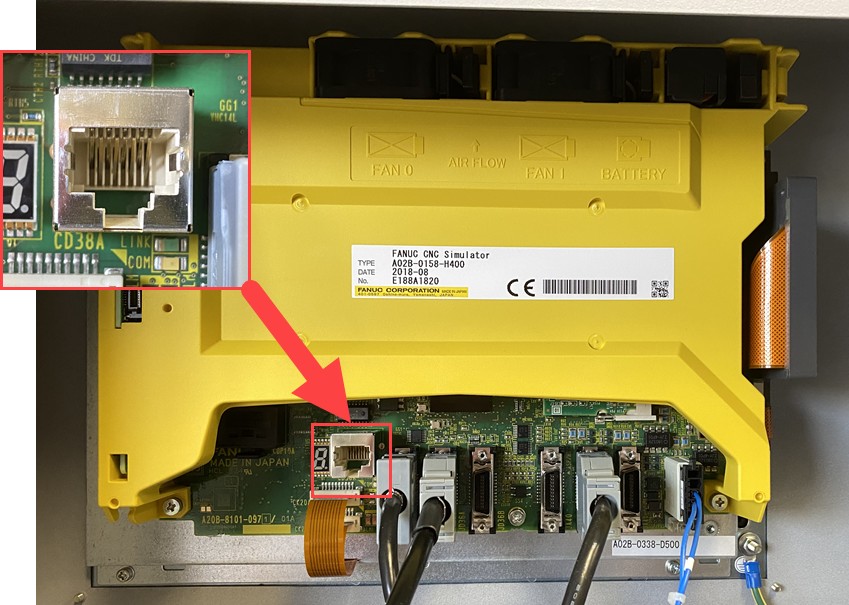
Ethernet port (CD38A) on the back of the CNC screen — LCD-mounted control.
Standalone Control — NCU in Electrical Cabinet
On machines with a standalone control, the FANUC NCU (Numerical Control Unit) is located inside the electrical cabinet. Open the cabinet and locate the yellow FANUC NCU module. The embedded Ethernet port is on the NCU board.
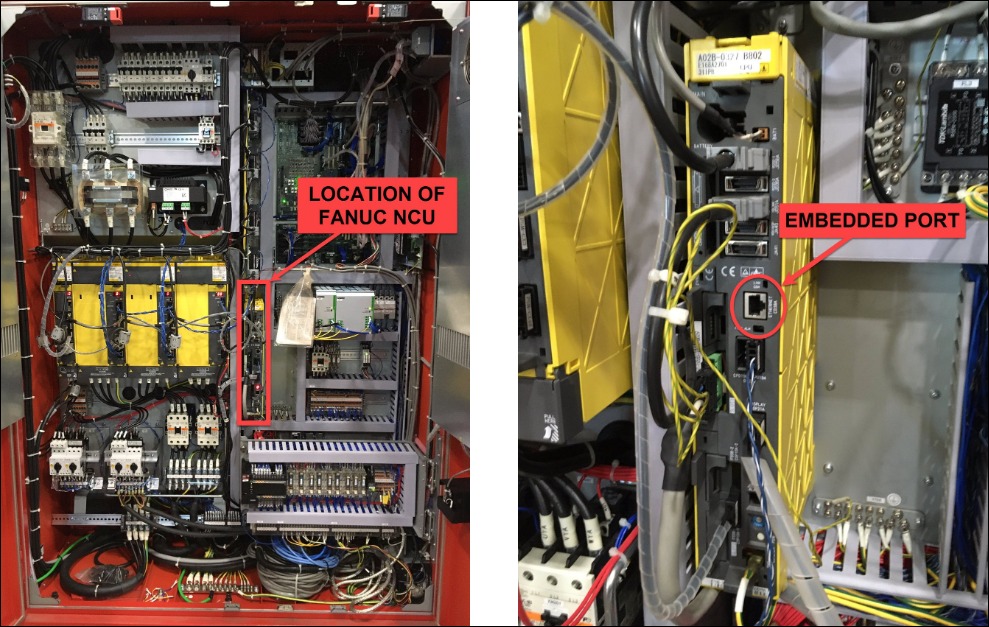
Location of the FANUC NCU and embedded Ethernet port inside the electrical cabinet — standalone control.
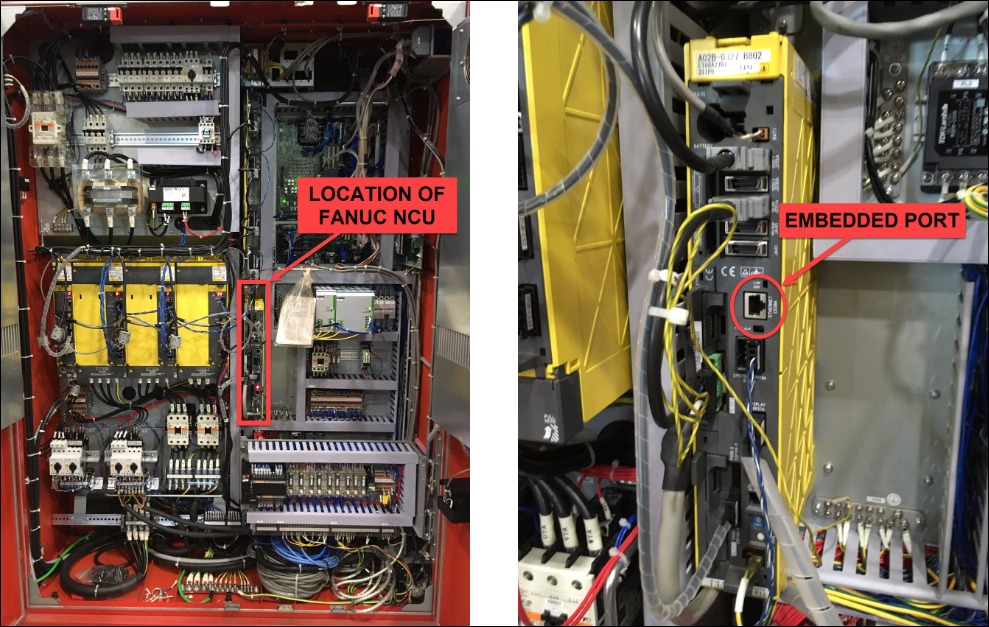
Close-up of the embedded Ethernet port on the FANUC NCU — standalone control.
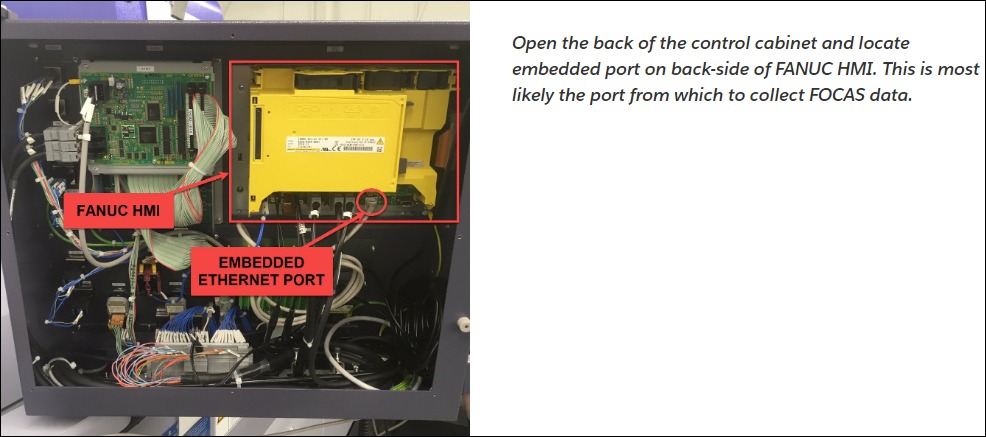
Open the control cabinet and locate the embedded port on the back side of the FANUC HMI. On most machines this is the preferred FOCAS connection point.
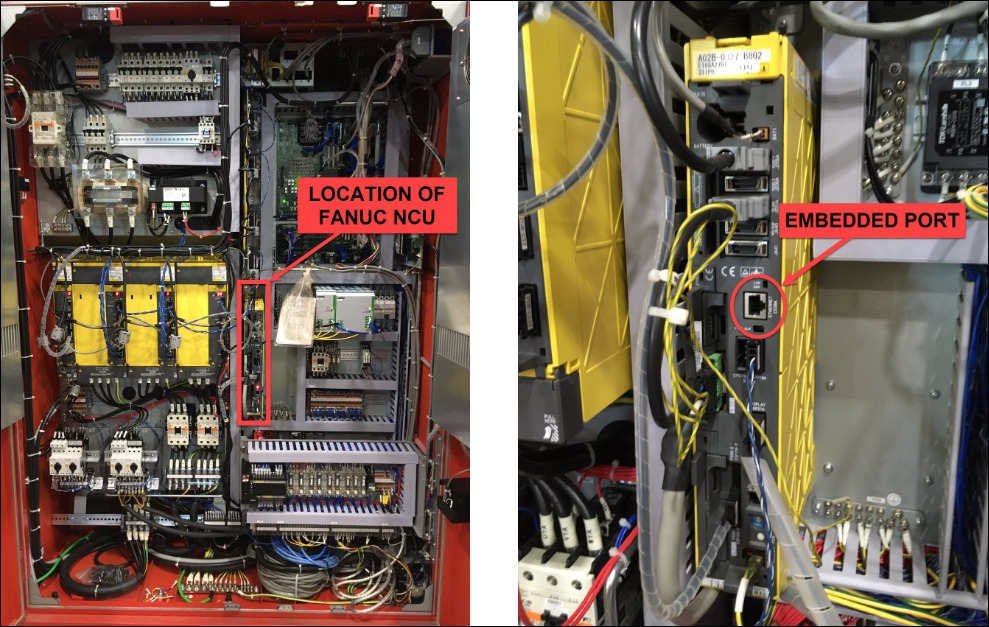
Left: FANUC NCU (yellow module) location in the electrical cabinet. Right: Close-up of the embedded Ethernet port — the RJ45 connector used for FOCAS communication.
Port Identification:
- Standard RJ45 Ethernet port
- Usually has a green/yellow status LED (LINK/ACT indicators)
- May be recessed or behind a protective cover
Wired Network Connection
For hardwired installations (Edge in server room, Ethernet drops to machines):
- Run Ethernet cable from network switch to machine
- Plug cable into the FANUC embedded port (CD38A)
- Verify LED lights indicate link
- Configure machine IP address (see Network Configuration section)
- Ensure IP is in same subnet as Edge device
Network Requirements:
- Machine and Edge must be on same subnet or have proper routing
- Typical configuration: Edge device connects to network switch, machines connect to same switch
- Bandwidth: Minimal (< 1 Mbps per machine)
Wireless Network Connection
For wireless installations (Edge device in each machine electrical cabinet):
- Mount Edge device in machine's electrical cabinet or HMI enclosure
- Connect WiFi antennas to Edge device
- Mount antennas outside electrical enclosure for best signal
- Connect Ethernet cable from Edge device (outer NIC port) to FANUC embedded port
- Configure machine IP to match Edge device subnet
Key Points:
- Edge device's external Ethernet port connects to FANUC port
- WiFi antennas must be outside metal enclosure
- Machine and Edge communicate over Ethernet, Edge communicates to cloud over WiFi
Sharing the Embedded Port
If the FANUC embedded port is already in use (for DNC, program transfer, or other equipment), you can share the port using an unmanaged Ethernet switch:
Setup:
- Install small unmanaged switch (e.g., Brainbox, Netgear)
- Connect FANUC embedded port to switch
- Connect MachineMetrics Edge/cable to switch
- Connect existing equipment to switch
Important: Use an unmanaged switch only. Managed switches can interfere with communication.
Machine with Internal Network
If the machine already has its own internal network (communicating with peripheral devices, robots, PC front end, or PLC), then you need to use an Edge device to join the machine LAN to the company network.
Setup:
- Connect Edge device to the machine's internal network switch
- The Edge device bridges the machine's LAN to your company network
- Machine, peripherals, and robots remain on their isolated network
- Edge provides secure connection to MachineMetrics cloud
Why this is needed:
- Preserves the machine's isolated network for control devices
- Prevents network conflicts between machine devices and company network
- Edge acts as a secure gateway without disrupting machine operations
In This Section
| Page | Covers |
|---|---|
| Control Setup | Network settings on the control, enabling FOCAS, adding the machine |
| Data Collection | Available data items, macro variables, diagnostics |
| Part Counting | M30/M02 standard cycles, M99 looping cycles, custom M-codes |
| Adapter Script Configuration | Macro variables, PMC, P-codes, multi-path, tool offsets |
| Parameter Management | Parameter write (PWE), key FOCAS parameters, safety |
| Troubleshooting | Connection failures, packet errors, missing data, part counts |
Machine Builder Notes
FANUC controls are used by many machine tool builders, and some put their own interface or network in front of the FANUC NCU. If your machine is one of these, start here.
| Machine Builder | Page |
|---|---|
| Makino Pro 5 / Pro 6 | Makino |
| Amada (including AMNC-3i) | Amada |
| FANUC Roboshot injection molding | FANUC Roboshot |
| DMG MORI / Mori Seiki (FANUC backend) | DMG MORI Connectivity |
| Haas | Haas Connectivity |
| Mazak | Mazak Connectivity |
FOCAS1 vs FOCAS2: What to Expect on Older Controls
FANUC's FOCAS library has two major versions, and the version available on your control directly affects which data items MachineMetrics can collect.
FOCAS Version by Control Model
| FOCAS Version | Control Models |
|---|---|
| FOCAS1 | 0i-A, 0i-B, 0i-C, 16i-A, 18i-A, 21i-A, 15i-A |
| FOCAS2 | 0i-D, 0i-F, 16i-B, 18i-B, 21i-B, 30i, 31i, 32i, 35i |
Note: Some FOCAS1 controls (0i-C, 16i-A, 18i-A, 21i-A, 15i-A/B) can be upgraded by FANUC to include FOCAS2 and/or embedded Ethernet. Contact FANUC with your control serial number to confirm upgrade eligibility.
Key Differences
FOCAS2 significantly expanded the function library over FOCAS1. The MachineMetrics adapter's default data mappings were built against FOCAS2 capabilities, which means certain data points that work on newer controls will come back as UNAVAILABLE or fail silently on FOCAS1 machines.
| Capability | FOCAS1 | FOCAS2 |
|---|---|---|
| Basic machine status (mode, run/idle) | Supported | Supported |
| Program number and name | Supported | Supported |
| Spindle speed and feed rate | Supported | Supported |
| Active alarms | Supported | Supported |
| Part count (parameter 6711) | Supported | Supported |
| Expanded PMC variable ranges | Limited | Full access |
| Multi-path support | Not supported | Supported |
| Extended diagnostic codes | Limited set | Full set (300+) |
| Tool management (P-codes) | Limited | Full access |
| Program directory listing | Not supported | Supported |
| Macro variable extended ranges | Limited (common variables only) | Full range support |
Ready to connect your FANUC machine?
- Verify your control supports FOCAS
- Gather prerequisites
- Follow physical connection steps
- Configure network on the control
- Add machine in MachineMetrics
- Test and verify data flow
Questions? Contact MachineMetrics Support with your machine details.
Best Practices
Network Configuration:
- Use static IP addresses for machines (not DHCP)
- Document IP addresses for each machine
- Use consistent IP range (e.g., 192.168.1.100-199 for machines)
Part Counting:
- Test part counting thoroughly before production use
- Use M30 for simple parts, #3901=#3901+1 for automation
- Set 6700#0=0 for maximum flexibility
- Verify counts match actual production regularly
Maintenance:
- Check cable connections periodically
- Watch reporting status and buffer levels in Assets → Edge Devices → Edge Management
- Keep machine controls up to date with latest FANUC software
- Document any parameter changes made
Data Quality:
- Map all relevant data items (not just basics)
- Use descriptive display names for diagnostics
- Configure macro variables for custom data
- Regularly review data accuracy
Security:
- Use dedicated network for machine connectivity
- Limit parameter write access
- Document who has permission to modify machine settings
- Follow lockout/tagout procedures when working on machines
Documentation:
- Record machine IP addresses
- Document custom M-codes used
- Keep notes on any OEM-specific configurations
- Maintain list of parameters changed
Getting Help
Before Contacting Support
Gather this information:
-
Machine Details
- Make, model, serial number
- Control type and version
- FOCAS capability confirmed?
-
Network Configuration
- Machine IP address
- Subnet mask
- Edge device IP
- Are they on same subnet?
-
Configuration
- Screenshots of EMBDD settings
- Parameter 6700 and 6710 values (if part count issue)
- Adapter configuration from MachineMetrics
-
Error Details
- Exact error messages
- When problem started
- What was changed recently
- Screenshots of issue
Contact Options
MachineMetrics Support:
- Email: MachineMetrics Support
- Include all information listed above
- Attach screenshots
- Describe troubleshooting steps already attempted
Solution Delivery Manager (SDM):
- For configuration guidance
- Best practices consultation
- Deployment planning
FANUC Support:
- For control-specific questions
- Parameter explanations
- Hardware/firmware issues
Machine Tool Builder:
- For OEM-specific configurations
- Custom M-code information
- Machine manual requests