Kitamura Connectivity
Kitamura machines always connect over MTConnect, but how you get an MTConnect stream depends on the control. An Arumatik-Mi has one built in. An Arumatik-Jr does not, so a Windows PC running the Mitsubishi IMA adapter produces one instead.
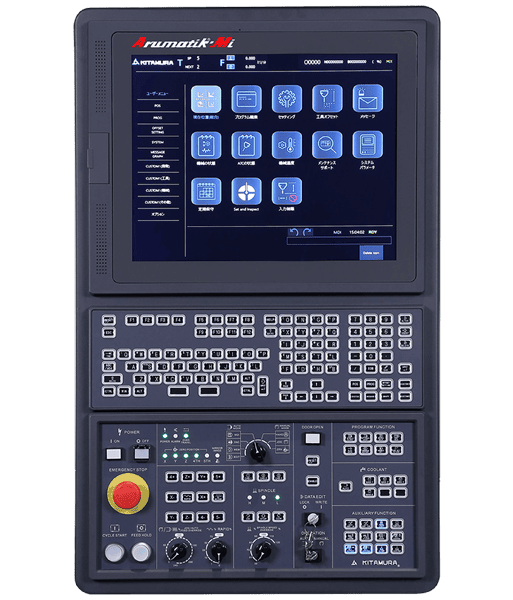
Kitamura Arumatik-Mi control. Kitamura machines with an Arumatik control connect to MachineMetrics over MTConnect.
Kitamura CNC machines connect to MachineMetrics using MTConnect. How you get an MTConnect stream off the machine depends on which Arumatik control it has.
This guide applies to Kitamura machines with a Kitamura Arumatik control. Kitamura machines equipped with a FANUC control connect over FOCAS instead — see the FOCAS (FANUC) Connectivity Guide.
Even though the Arumatik control is built on a Mitsubishi Electric NC, Kitamura machines must always be connected via MTConnect. Selecting the MachineMetrics Mitsubishi M70 / M700 adapter for a Kitamura machine results in incorrect or failed connectivity. See the Mitsubishi Connectivity Guide for where that adapter does apply.
Connection Summary
What the Edge device talks to depends on which control you have, so confirm that first in Identifying Your Control below.
| Arumatik-Mi | Arumatik-Jr | |
|---|---|---|
| Edge connects to | The machine itself | The Windows PC running the IMA adapter and agent |
| Address and port | Machine IP, plus the MTConnect agent port shown in AnyWhere Remote | PC IP, plus the agent port set during install (default 5000) |
| Verify with | http://<machine-ip>:<agent-port>/current | http://<pc-ip>:<agent-port>/current |
Where to plug in the cable: run Ethernet from your network switch to the control's Ethernet port. Kitamura does not publish a standard port location across models — if you cannot identify it, ask Kitamura to confirm it for your machine before scheduling the install.
What to set on the control: the Arumatik is built on a Mitsubishi Electric NC, so the network settings are Mitsubishi parameters. Set a static address on the same subnet as the Edge device:
| Parameter | Setting |
|---|---|
| #1925 | Ethernet enabled |
| #1926 | Global IP Address — the CNC's address on the network |
| #1927 | Global Subnet Mask — usually 255.255.255.0 |
| #1928 | Global Gateway — the router or forwarding host |
Reboot the control after changing these. The parameters do not take effect until you do.
Identifying Your Control
There are two versions of the Arumatik control, and they connect in different ways. The quickest way to tell them apart is screen size.
| Control | Screen size | Connection method |
|---|---|---|
| Arumatik-Mi | Large 19" screen | Built-in MTConnect via AnyWhere Remote |
| Arumatik-Jr | Smaller 15" screen | Mitsubishi IMA Standard Adapter or controller upgrade |
In This Section
| Page | What it covers |
|---|---|
| Arumatik-Mi | The 19" control — enabling built-in MTConnect through AnyWhere Remote and licensing it |
| Arumatik-Jr | The 15" control — installing the Mitsubishi IMA Standard Adapter on a host PC, or upgrading the control |
| Troubleshooting | Connection faults, IMA logging and machines that keep dropping offline |
Additional Resources
Related Guides:
- MTConnect Connectivity Guide — adding and configuring an MTConnect machine
- FOCAS (FANUC) Connectivity Guide — for Kitamura machines with a FANUC control
- Mitsubishi Connectivity Guide — where the MachineMetrics Mitsubishi adapter does apply
- Machine Settings Guide — configuring machine settings and part counting
- Connectivity Overview — choosing the right protocol
Vendor Contacts:
- Kitamura (AnyWhere Remote installer and MTConnect license) — contact Kitamura directly.
- Mitsubishi Electric Automation (IMA adapter installer, license keys, and guides): software.solutions@meau.com or 847-478-2100
Getting Help:
- MachineMetrics Support
- Include in your support request:
- Machine make and model
- Arumatik control version (Mi or Jr)
- IP address and MTConnect agent port
- Whether
http://<ip>:<port>/currentreturns XML - Screenshots of any connection errors