Modbus/TCP Connectivity Guide
Saving a Modbus/TCP machine in MachineMetrics does not collect data by itself. You must add a Transform Adapter Script that maps your PLC or device registers and Modbus addresses to MachineMetrics data items (execution, part count, alarms, etc.). Without that script, the connection will look configured but no meaningful data will appear — a common reason customers open support tickets.
Address mapping and an adapter script are mandatory before you will see data. See Configuration Examples on this page for sample setups and scripts. Contact MachineMetrics Support if you need more help.
Overview
What is Modbus/TCP?
Modbus/TCP is an industrial communication protocol that runs over standard Ethernet networks. It's one of the most widely adopted protocols for connecting PLCs, industrial equipment, and automation systems.
When to Use Modbus/TCP:
- Equipment has Modbus/TCP server capability
- PLCs (Allen Bradley, Siemens, Click, etc.)
- Industrial controllers and automation equipment
- I/O modules (Sealevel, WISE, etc.)
- Third-party gateways (Kepware, MatrikonOPC)
Key Characteristics:
- Standard TCP/IP networking
- Default port: 502
- Function codes for different data types
- Unit ID for device addressing
- Widely supported by industrial equipment
Compatible Equipment
PLCs:
- Click PLCs (Ethernet models: C0-10DRE-D, C0-11DD2E-D, etc.)
- Allen Bradley CompactLogix / ControlLogix (via EtherNet/IP adapter)
- Siemens S7 PLCs
- Many others with Ethernet capability
I/O Modules:
- Sealevel eI/O series (170E, 130E, etc.)
- Advantech WISE-4000 series
- Third-party Modbus I/O modules
Gateways:
- Kepware servers
- MatrikonOPC
- Protocol converters
Industrial Equipment:
- Some CNC controls
- VFDs (variable frequency drives)
- Process controllers
- Automation equipment
Prerequisites
- Device with Modbus/TCP server capability
- Modbus register map or tag list from manufacturer
- Device IP address and port (typically 502)
- Network access between device and Edge
- MachineMetrics Edge device deployed
Physical Connection
Step 1: Connect Ethernet
- Plug CAT5/CAT6 cable into device
- Connect to network switch
- Ensure Edge device is on same network
Step 2: Configure Static IP
- Set static IP on device (recommended)
- Document IP address
- Typical port: 502
Step 3: Test Connectivity
- Ping device IP from Edge or computer
- Verify firewall allows TCP port 502
Modbus Addressing
Address Spaces
Modbus has different function codes and address ranges:
Function Code 1 - Read Coils (digital outputs/internal coils)
- Addresses: 1-9999 or 00001-09999
- Use for reading output states
Function Code 2 - Read Discrete Inputs (digital inputs)
- Addresses: 10001-19999
- Use for reading input states (most common for I/O modules)
Function Code 3 - Read Holding Registers (read/write registers)
- Addresses: 40001-49999
Function Code 4 - Read Input Registers (read-only registers)
- Addresses: 30001-39999
Address Conversion
5-Digit Addresses:
- Use as-is in script
- Example: Address 40005 →
address: 40005
6-Digit Addresses:
- Drop leading digit and subtract 1
- Example: 400010 → drop 4, subtract 1 → 9
- Example: 300020 → drop 3, subtract 1 → 19
Configuration Parameters
unit-id: 1                   # Device ID (1-247)
byte-order: big              # Big or little endian
word-order: big              # For 32-bit values
address-space: mixed         # or function3 or extended
Address Space Options:
mixed: Uses 40001, 30001, etc. format (most common)function3: All registers assumed to be holding registersextended: For 6-digit addresses
Configuration Examples
Tip: Use Max — MachineMetrics’ AI assistant — to help generate or refine an adapter script for your Modbus registers and addresses. The examples below are starting points.
Example 1: Generic PLC
Device: Click PLC or similar
- Coil 1: Machine running status
- Register 40001: Part counter (int16)
Adapter Script:
version: 2
unit-id: 1
address-space: mixed

coils:
  machine-running:
    address: 1
    func: 2        # Use func 2 for digital inputs

registers:
  counter:
    address: 40001
    type: int16
    func: 3

variables:
  execution:
    - source: machine-running
    - state:
        - ACTIVE: this
        - READY: true

  part-count:
    - source: counter
    - value-increase
    - count

data-items:
  - execution
  - part-count
Example 2: PLC with Multiple Signals
Device: PLC with green lamp, red lamp, and counter
- Coil 1: Green lamp (running)
- Coil 2: Red lamp (alarm)
- Register 40001: Part counter
Adapter Script:
version: 2
unit-id: 1

coils:
  green-lamp:
    address: 1
    func: 2        # Read Discrete Inputs
  red-lamp:
    address: 2
    func: 2

registers:
  counter:
    address: 40001
    type: int16

variables:
  execution:
    - state:
        - INTERRUPTED: red-lamp
        - ACTIVE: green-lamp
        - READY: true

  part-count:
    - source: counter
    - value-increase
    - count

data-items:
  - execution
  - part-count
Adding Machine in MachineMetrics
Step 1: Navigate to Assets → Machines → Add Machine and enter machine details (name, make, model).
Step 2: Select adapter type:
- Modbus TCP (for PLCs, generic Modbus devices)
- Digital IO (Sealevel 170E) (for Sealevel eI/O)
- Digital IO (WISE-4050) (for WISE modules)
Step 3: Enter the Connection Address — IP and port together
The Connection Address field requires both the IP address and the port number, joined with a colon — for example:
10.20.112.52:502
Do not enter the IP alone (10.20.112.52). Without the port, MachineMetrics cannot establish a Modbus/TCP connection and the machine will show offline.
- Standard Modbus port:
502 - Custom port: Use whatever the device is configured for (check device documentation)

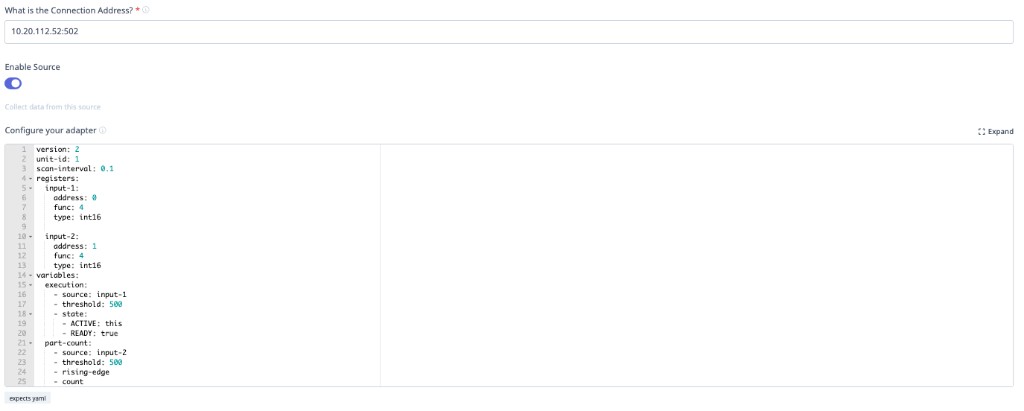
Step 4: Add an Adapter Script — required for any data to appear
The connection address alone only routes network traffic to the device. You must paste a Transform Adapter Script in the "Configure your adapter" field. Without a script, the device will show as connected but MachineMetrics will collect no production data.
See Configuration Examples on this page for ready-to-use scripts.
Step 5: Click Save (and optionally Test Connection first to confirm the IP:port is reachable).
Troubleshooting
Connection Issues:
- Verify IP address and port
- Check firewall allows TCP port 502
- Ping device from Edge
Data Not Appearing:
- Verify register addresses in script match device map
- Check function codes (1, 3, 4)
- Verify data types (int16, int16, uint32, float32)
Address Errors:
- Confirm 5-digit vs 6-digit addressing
- Apply correct conversion if needed
Additional Resources
- Adapter Scripts Introduction
- Modbus.org: Official Modbus specification
- Device manufacturer documentation for register maps
Questions? Contact MachineMetrics Support