Mazak Fusion Client
Overview
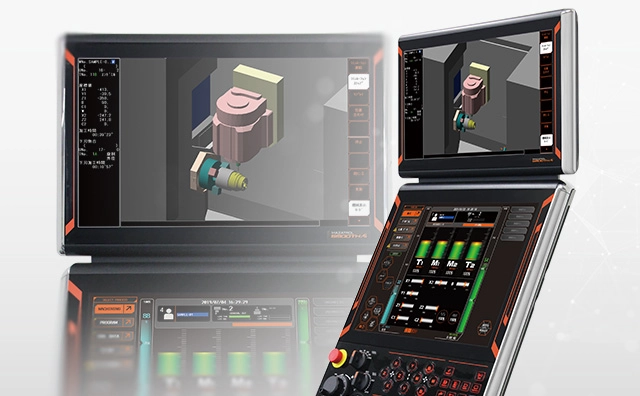
Mazak Mazatrol Smooth control panel. Mazak machines with Windows-based controls (Fusion 640, Matrix, Nexus, Preview 3, Smooth) connect via the Fusion Client application using UDP port 51001.
MachineMetrics connects to Mazak CNC machines using the Mazak Fusion Client, a native connector that integrates directly with Mazak's application running on the Windows portion of the Mazak controller.
Key Features:
- Real-time machine data collection
- Direct communication with Mazak controls
- Automatic data item discovery
- Simplified setup process
- UDP communication on port 51001
Connectivity + Enhancement:
| Method | Purpose | Requires |
|---|---|---|
| Fusion Client | Primary connection — machine status, spindle data, cycle times, alarms | Windows PC on control, network access |
| DPRNT Program Headers (SMB Reader) | Enhancement — extracts the current program name from DPRNT program headers and maps it as the machine's Job | DPR14=4 parameter, shared folder on Mazak PC, SMB Reader edge service |
DPRNT works alongside Fusion Client (or MTConnect) — it cannot replace it. You still need a primary connectivity method for machine status and production data. DPRNT adds the ability to push custom data from inside your part programs, such as job numbers, operation names, or process values that aren't available through the standard connection.
Applicable Machines
The Mazak Fusion Client works with the following Mazak control types:
Supported Controls (Fusion Client):
- Fusion 640 (may require a PCMCIA expansion board and ethernet card — see Checking Fusion 640 Ethernet)
- Matrix
- Nexus
- Preview 3
- Smooth (Windows-based variants: SmoothX, SmoothAi, SmoothG)
🔴 Warning for Fusion 640: Fusion 640 controls typically run on Windows 98 or Windows 2000 operating systems. Finding compatible drivers for PCMCIA network cards can be very difficult or impossible with these legacy operating systems. Consider upgrading the control or be prepared for troubleshooting driver compatibility issues.
Note: The Preview G, SmoothEZ, and Smart controls require MTConnect instead of Fusion Client. SmoothEZ is an MTConnect-native control and is not compatible with the Fusion Client adapter. Please contact Mazak to purchase MTConnect for these controls. See the MTConnect Connectivity Guide for setup instructions.
Checking Fusion 640 Ethernet
The PCMCIA ethernet interface is an option on some Fusion 640 and early Nexus controls. Confirm the hardware is present before attempting a Fusion Client connection.
Open the back of the screen housing:
- Access the rear of the CNC screen, where the controller is mounted.
- Behind the screen you'll see a gray box — that is the outer housing of the control.
- There are two tabs on the right-hand side. Press them to open the back panel of this box.
Slot location and prerequisites:
- The internal PCMCIA slots are on the HR841 board, mounted behind the screen. Open the back of the control housing to access them.
- The front IC card slot is for memory cards, not ethernet.
- If there is no HR841 board, the hardware can be ordered from Mazak / Mitsubishi. Mazak option reference: PCMCIA INTERFACE (2-SLOT). No parameter changes are required after installing the board.
Ethernet card already installed:
If an ethernet card is seated in the expansion slot, you will see an RJ45 network port in the black PCMCIA cutout at the top of the housing.
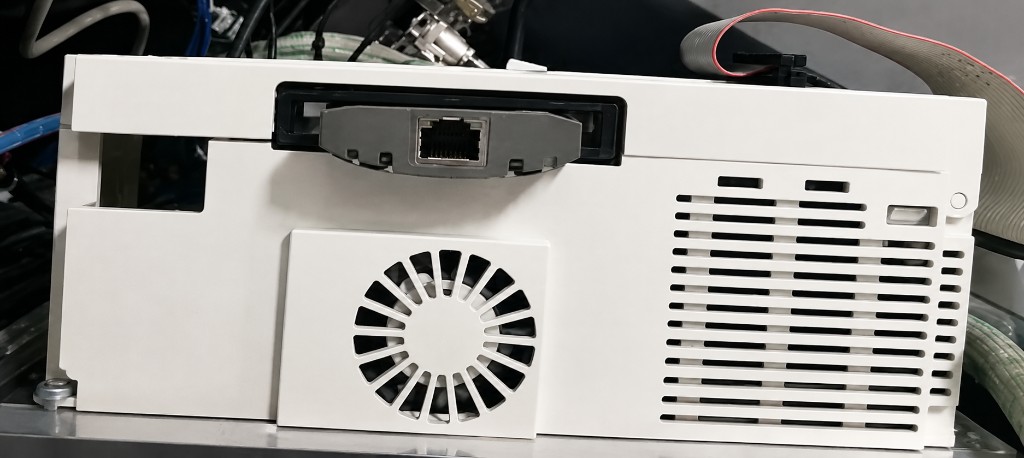
Top of a Fusion 640 control housing with an ethernet PCMCIA card installed in the expansion slot — the RJ45 port is visible in the black cutout.
Does the expansion board exist?
Compare the inside of the housing to the two cases below. The expansion board is a green circuit board that covers the ribbon cable. If you can see the ribbon cable in an empty frame, the board is missing.
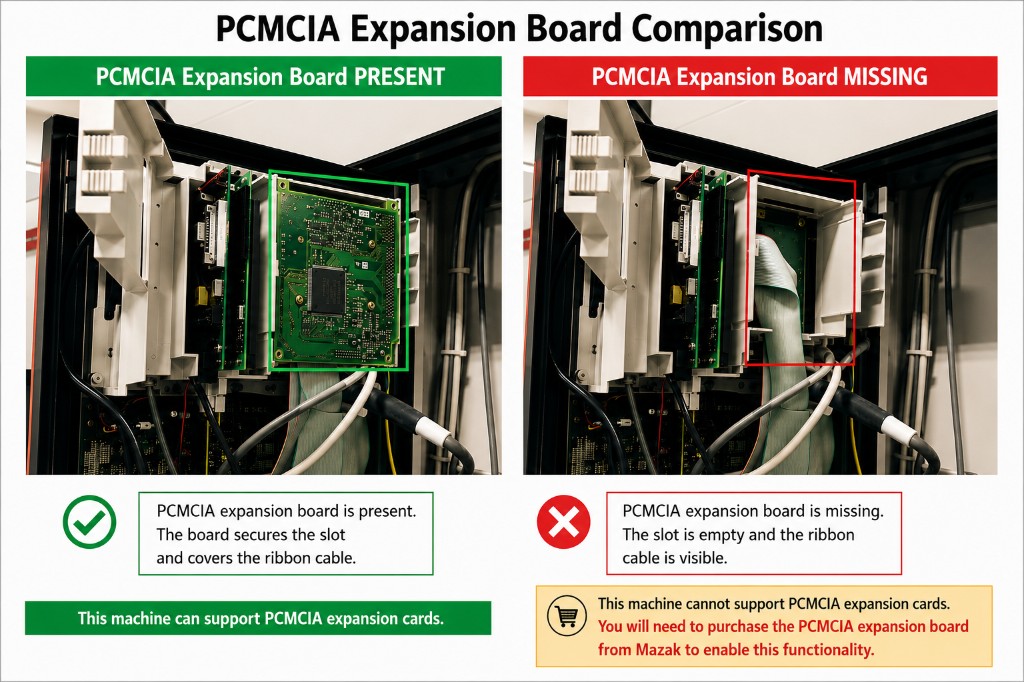
Left: PCMCIA expansion board present (green board covering the ribbon cable) — this machine can support PCMCIA ethernet cards. Right: expansion board missing (empty slot, ribbon cable visible) — contact Mazak for a quote to provide the board.
If the expansion board is not present, reach out to Mazak for a quote. MachineMetrics cannot supply this hardware.
Mazak Fusion Client Setup
Prerequisites
Before beginning setup, ensure you have:
- Mazak Machine Requirements:
- Mazak Smooth control with Windows PC
- Network connectivity (Ethernet)
- Static or reserved DHCP IP address assigned
- Mazak Fusion Client application installed (or installation files)
- Fusion Client version 2.1 or later. To verify, launch
FusionClient.exeand check the version displayed in the title bar of the application window. If the installed version is older than 2.1, contact MachineMetrics Support for the installer.
- Network Requirements:
- Machine must be accessible from MachineMetrics Edge device
- Edge device must reach machine IP address
- UDP Port 51001 must be allowed through firewall
- Bi-directional communication required
- Access Requirements:
- Admin access to Windows PC on Mazak control
- Ability to install/configure Fusion Client
- MachineMetrics account with Manager or Executive permissions
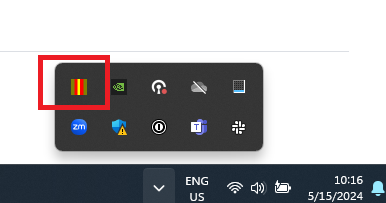
Mazak control Windows desktop showing the system tray. The Fusion Client application icon (highlighted in red) should be visible in the taskbar when the service is running. Access the Windows side of the control to install and configure Fusion Client.
Installing Fusion Client
Step 1: Access MS Windows Menu
The Fusion Client runs on the Windows side of the control, so you first need to reach the Windows taskbar and desktop. How you do this depends on your control type.
Nexus, Fusion, and Matrix controls:
- Using the cursor pad or knob, drive the cursor to the bottom-left corner of the screen, moving it as far as it will go.
- Left-click to bring up the Windows taskbar.
Smooth controls:
- Tap the gear icon in the top-right corner of the screen.
- Select Setup, then Show Windows. If nothing appears, repeat this step — it sometimes takes a second attempt.
- Swipe in from the right side of the screen to reveal the Windows menu.
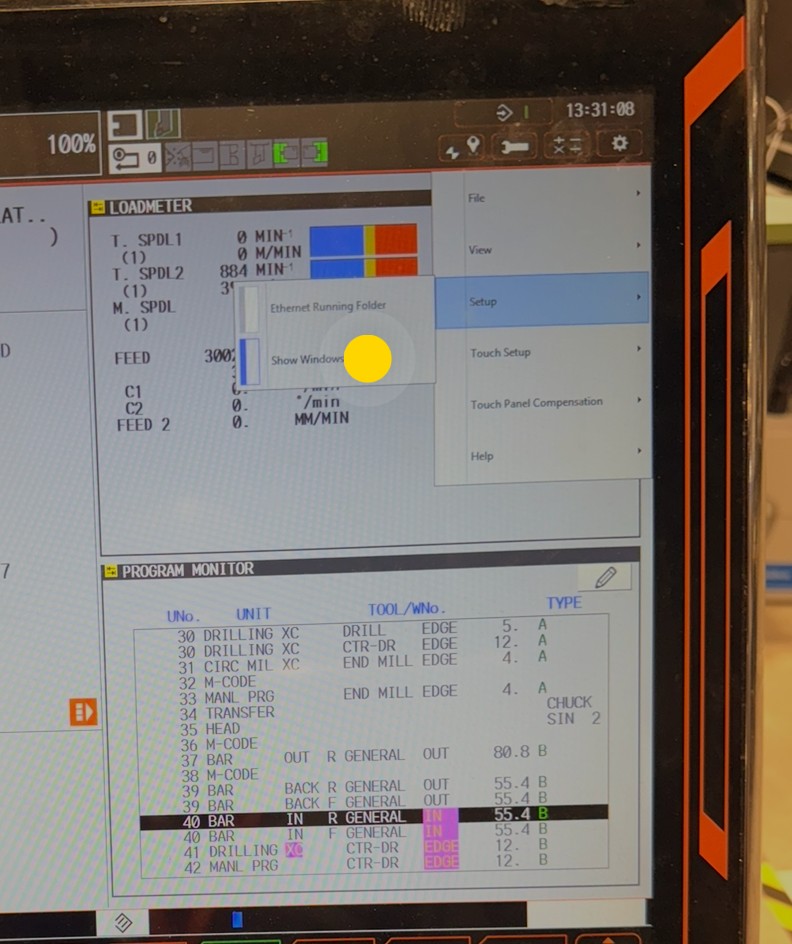
On a Smooth control, tap the gear icon (top-right), then Setup → Show Windows to bring up the Windows taskbar.
Note: When the Fusion Client is running, it appears in the taskbar menu. Repeat the procedure above for your control type whenever you need to bring the taskbar back up to access the application.
Step 2: Launch Fusion Client
- Go to
C:\CPCU\fmcnc - Double-click
Fusion Client.exe - Note: Nothing will appear to happen when you click the icon, but the application will now be running in the Windows system tray
Important: If your machine does not have the
C:\CPCUfolder in Windows Explorer, contact MachineMetrics Support and we can provide it.
Mazak control Windows desktop showing the system tray. The Fusion Client application icon (highlighted in red) should be visible in the taskbar when the service is running.
Step 3: Open Fusion Client Settings
- In the Windows system tray (bottom right), locate the Fusion Client icon
- Double-click the Fusion Client icon in the system tray
- The Fusion Client configuration window will open

CPC Cyber Monitor Satellite (IPC) application showing the Fusion Client configuration interface.
Step 4: Configure Connection Settings
- Click Change Settings

Communications Settings dialog where you'll configure the MachineMetrics Edge connection.
-
Click Add to add a new connection
-
Enter the following information:
- Network Name: Leave blank
- IP Address: Enter the static IP address of the MachineMetrics Edge device (e.g., 192.168.1.50)
- UDP Receive Port: Enter
51001 - Host Compatibility: Select Level 4 from the dropdown
-
Click OK or Apply to save the connection settings
Step 5: Configure Parameter Settings
- In the Fusion Client main menu, go to the Parameter tab
- Deselect the Close Button checkbox
- This prevents the Fusion Client from being accidentally closed
- Click OK or Apply
Step 6: Configure Firewall (If Enabled)
If the firewall is enabled on the Mazak CNC:
Option A: Disable Firewall (If Not Required)
- If you do not need the firewall enabled, disable it completely
Option B: Add Port Exception
- If the firewall must remain enabled, add a port exception for UDP port 51001
- Navigate to Windows Firewall settings
- Add inbound and outbound rules for UDP port 51001
Configuring the Connection
Step 1: Verify Network Connectivity
-
From MachineMetrics Edge device, ping the machine:
ping [MAZAK-IP-ADDRESS] -
Verify successful response
-
Test port connectivity if ping succeeds
Step 2: Note Required Information
Document the following:
- Machine IP Address: (e.g., 192.168.1.50)
- Fusion Client Port: UDP 51001 (standard for Mazak Fusion)
- Machine Name: For identification in MachineMetrics
- Machine Serial Number: (optional but recommended)
- Control Type: (Fusion 640, Matrix, Nexus, Preview 3, or Smooth)
Adding Machine in MachineMetrics
Step 1: Navigate to Machines
- Log into MachineMetrics at app.machinemetrics.com
- Click Assets → Machines
- Click Add Machine button
Step 2: Enter Machine Information
- Machine Name: Enter descriptive name (e.g., "Mazak-Integrex-01")
- Machine Type: Select appropriate type (Mill, Lathe, Multi-Axis, etc.)
- Machine Make: Mazak
- Machine Model: (e.g., Integrex, Quick Turn, Vertical Center)
- Serial Number: Enter if available
- Click Next or Continue
Step 3: Select Mazak Fusion as Connection Type
- In Data Collection Method dropdown, select Mazak Fusion Client
- Enter IP Address: [MAZAK-IP-ADDRESS]
- Click Save
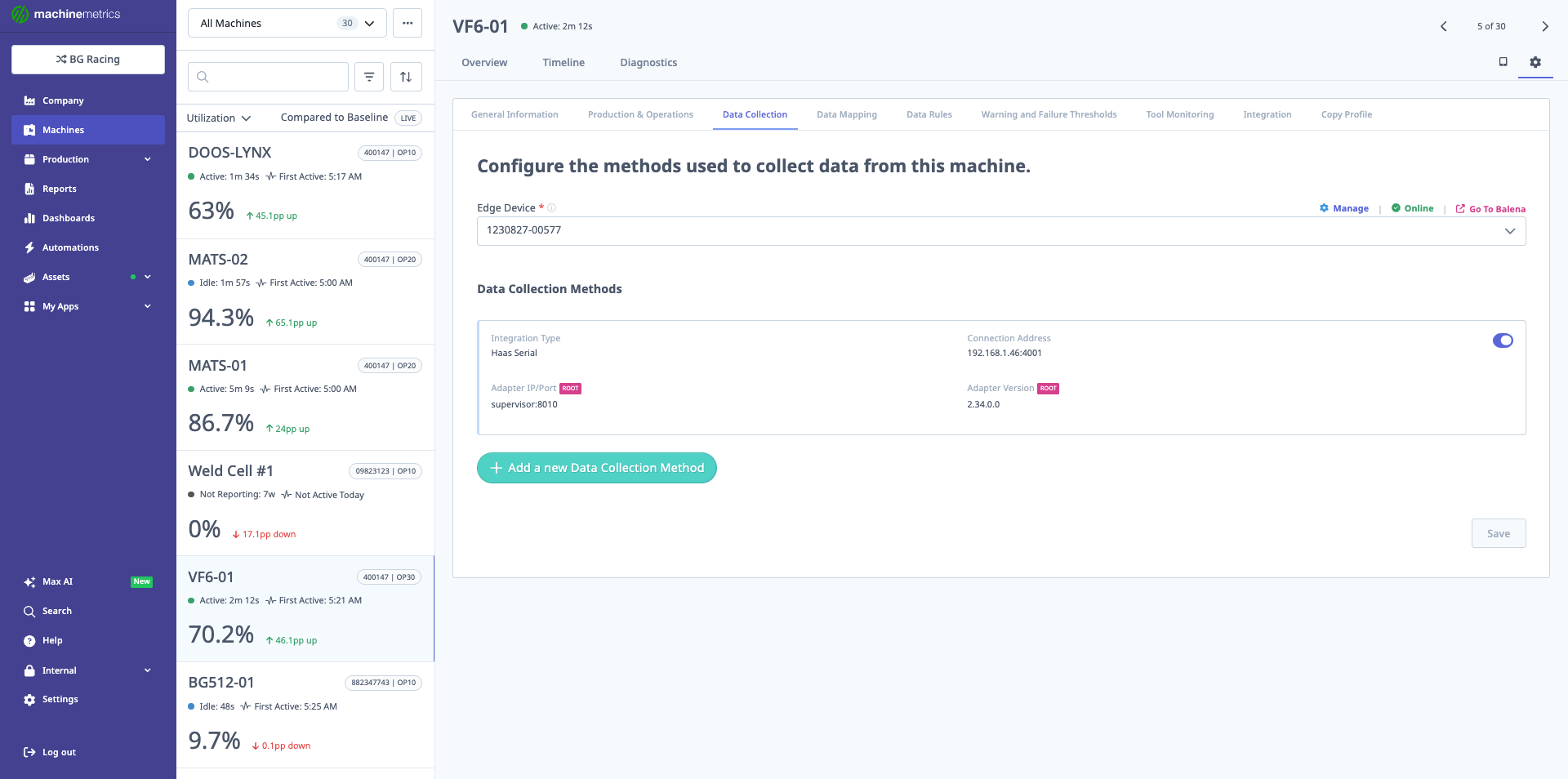
Data Collection tab showing configured adapter. For Mazak Fusion Client, you'll see the connection listed with the IP address and port. The adapter version and status are displayed, showing when the connection was last successful.
Step 4: Verify Data Collection
- After saving, machine should appear in machines list
- Status should show Reporting (green) within 1-2 minutes
- Click machine name to view machine page
- Navigate to Diagnostics tab
- Verify data items are populating
Part Counting Setup
Mazak machines offer multiple methods for part counting depending on your control type and requirements. This section covers how to configure part counting in MachineMetrics.
Once part counting is configured, use the Connectivity Validation Guide to confirm it is working correctly — including how to identify bad counts on the Timeline before they affect production reporting.
Understanding Mazak Part Counting
Mazak controls track part counts in two primary locations:
- COUNTER (MODAL) - Displayed on the main machine status screen
- PARTS COUNTER - Accessible via the work number menu system
Both counters can be used for MachineMetrics part counting depending on your preference and control configuration.
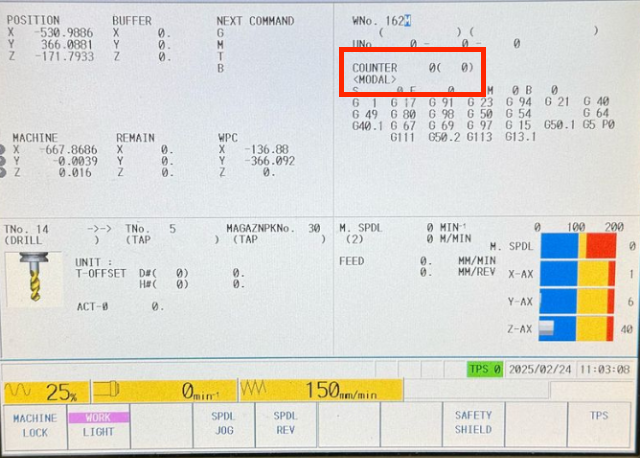 Mazak status screen showing the COUNTER (MODAL) value highlighted in red. This counter increments with each completed cycle and is commonly used for part counting.
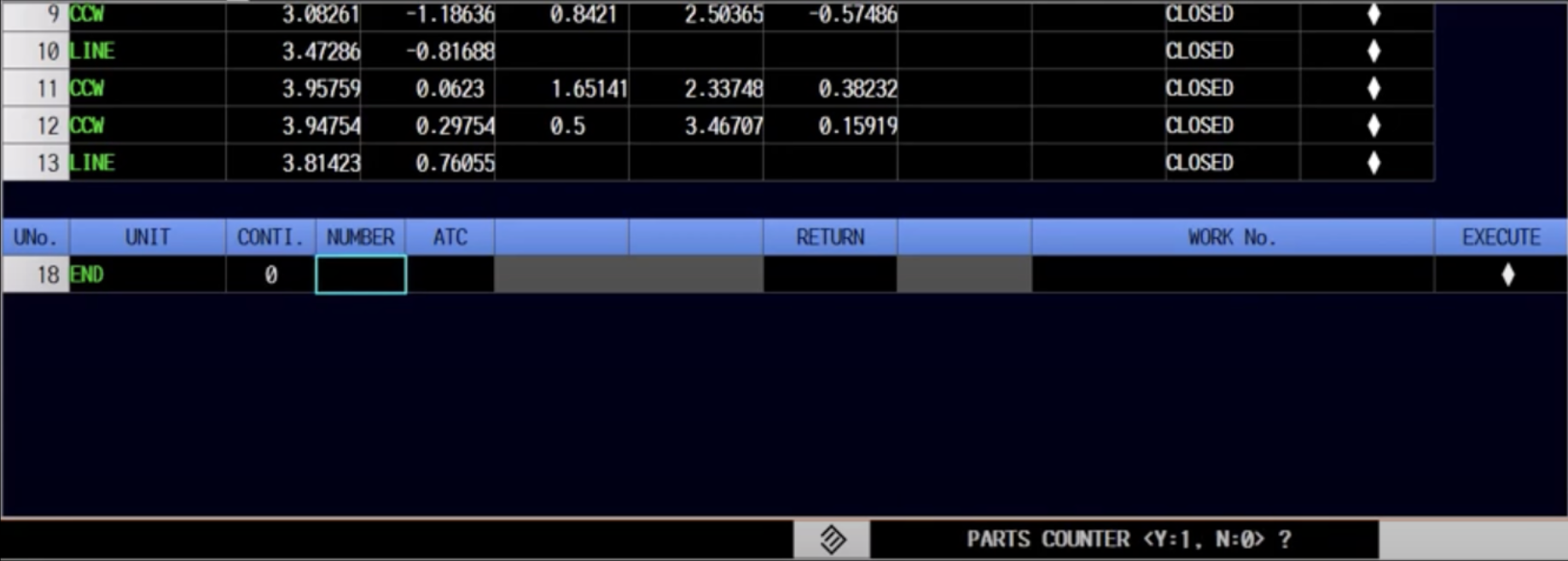 Mazak work number screen showing the PARTS COUNTER interface. The CONT. (continuous) and NUMBER columns track part counts. This menu is accessed via the work number system.
Configuring Your Machine to Count Parts
MachineMetrics reads the Mazak part counter, but the machine must be configured to increment it. The method depends on which programming mode you are using.
Mazatrol Mode
In the END command at the end of your Mazatrol program, there is a parameter to enable part counting. Ensure this parameter is set so that the machine increments the counter on each cycle completion.
EIA/ISO Mode
The Mazak part counter is stored in macro variable #3901. This variable does not increment automatically — you must add the following line to the end of each program, immediately before the M30:
#3901=#3901+1
Without this line, the part counter will not increment and MachineMetrics will be unable to detect completed parts.
Part Counting Options
Mazak Fusion Client provides several part counting options:
Option 1: Default Part Counting (Recommended)
- Uses the machine's native counter
- Automatically increments based on cycle completion
- No additional configuration required
- Works with most Mazak controls
Option 2: Counter Modal
- Uses the COUNTER value displayed on the machine status screen
- Visible during machine operation
- Commonly used for production tracking
- Good for operators to verify counts
Option 3: Parts Counter (Work Number Menu)
- Uses the dedicated parts counter in the work number system
- May provide more detailed counting options
- Requires accessing specific menu on control
- Can track multiple part types
Configuring Part Counting in MachineMetrics
Step 1: Verify Part Count Data Item
- Go to Assets → Machines → [machine] → Edit → Data Mapping tab
- Search for part count related data items:
PartCountorpart_countCounterorcounter_modalTotalPartsortotal_partsGoodPartsorgood_parts
- Verify the data item is mapped correctly
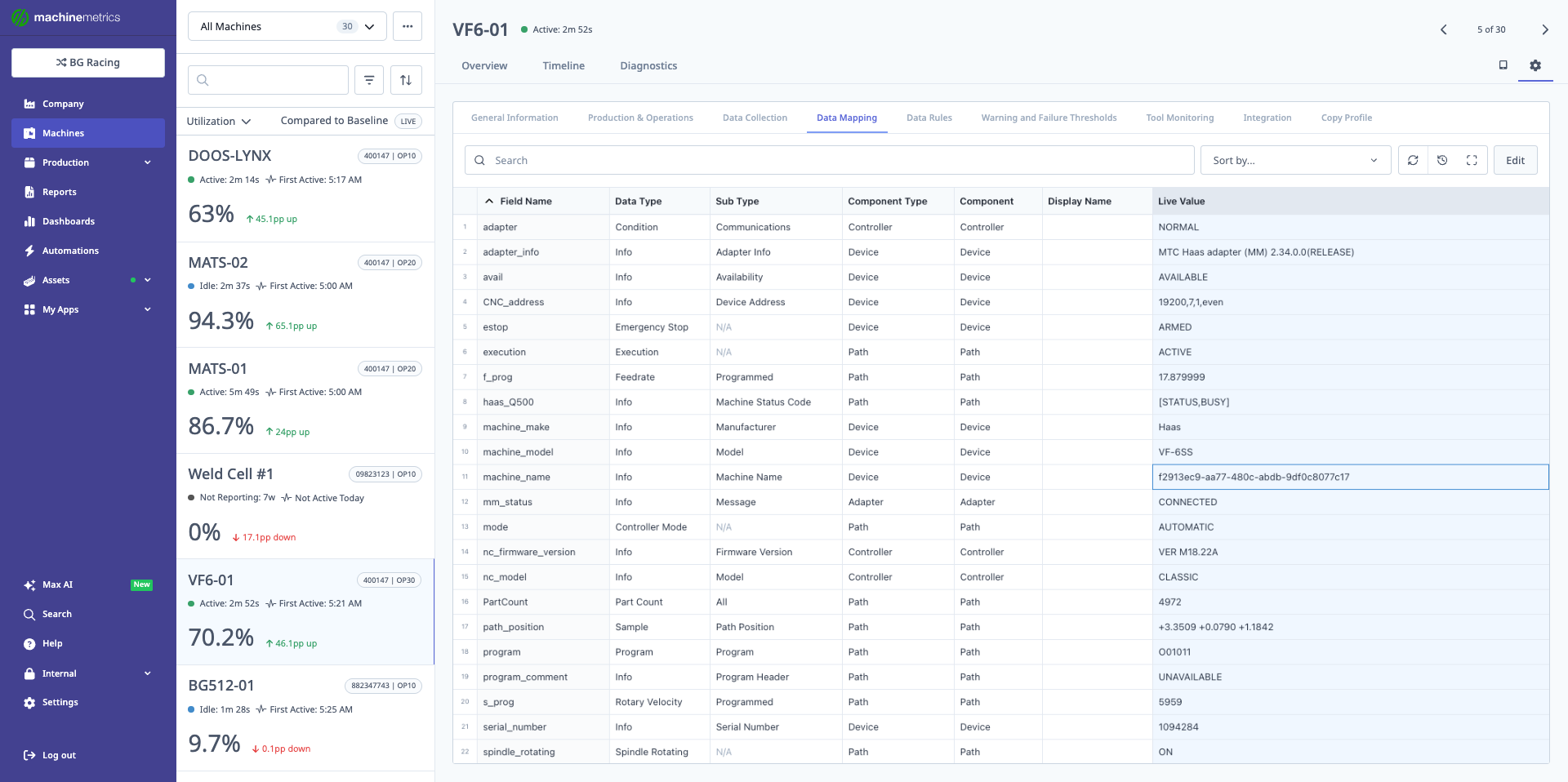
Data Mapping tab displays all data items collected from the Mazak machine. Search for part count-related data items and verify they are properly mapped with correct data types (EVENT or SAMPLE) and component types. The live values column shows current readings from the machine.
Step 2: Configure Part Count in Data Rules
- Navigate to Assets → Machines → [machine] → Edit → Data Rules tab
- Under Part Count Metric, select the appropriate data item from dropdown:
- PartCount: Standard cumulative counter
- Counter: Modal counter from status screen
- GoodParts: Only counts good/accepted parts
- Configure reset behavior (optional):
- Reset on Program Change: Counter resets when new program loads
- Reset on Shift Change: Counter resets at shift boundaries
- Never Reset: Cumulative counter
- Click Save
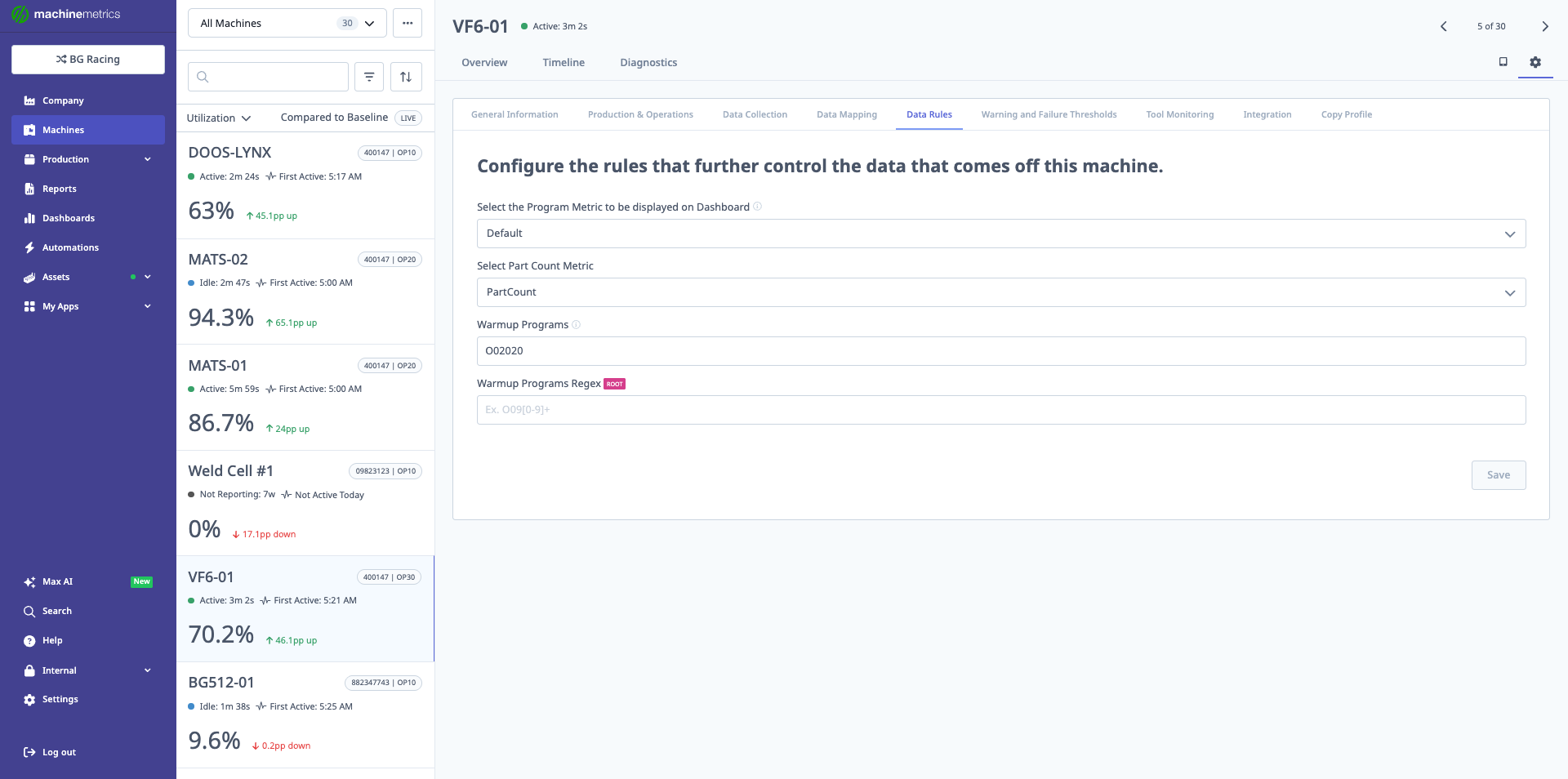
Data Rules tab where you configure which metrics are displayed on dashboards. Select the Part Count Metric from the dropdown to specify which data item should be used for part counting.
Step 3: Test Part Counting
- Run a test part on the machine
- Watch the counter on the Mazak control increment
- In MachineMetrics, navigate to machine page
- Click Parts tab
- Verify part count increments after cycle completes
- Check Timeline view for real-time part count updates
- Verify part appears in production runs with correct timestamp
Step 4: Verify Part Counter Accuracy
Compare the counts:
- Note the counter value on the Mazak control (COUNTER or PARTS COUNTER)
- Check the part count in MachineMetrics
- Ensure values match
- If there's a discrepancy, check Data Mapping configuration
Troubleshooting Part Counting
Problem: Parts Not Counting
Possible causes:
- Part count data item not mapped correctly
- Counter not incrementing on machine
- Data Rules not configured
- Machine cycle not completing properly
Solutions:
- Verify counter increments on the Mazak control itself
- Check Data Mapping for part count data item
- Ensure Data Rules has Part Count Metric selected
- Review machine cycle completion (check for alarms/interruptions)
- Verify the Fusion Client is receiving counter data
Problem: Part Count Incorrect or Off by Several Parts
Possible causes:
- Counter reset on machine but not in MachineMetrics
- Multiple part counters being tracked
- Manual counter adjustments on control
Solutions:
- Reset part counter in MachineMetrics to match machine
- Verify you're using the correct counter (COUNTER vs PARTS COUNTER)
- Check if operator is manually adjusting counter on control
- Consider using "good parts" counter if available
Problem: Part Counter Resets Unexpectedly
Possible causes:
- Data Rules configured to reset on program change
- Machine counter reset by operator
- Shift change reset enabled
Solutions:
- Check Data Rules reset behavior settings
- Change reset behavior to "Never Reset" if cumulative count needed
- Train operators not to reset counter during production
- Use MachineMetrics counter rather than machine counter for reporting
Resetting Part Counter
On the Machine:
- Access the work number menu or counter display
- Find the counter reset function (varies by control)
- Reset the counter to zero or desired value
- MachineMetrics will sync within 1-2 minutes
In MachineMetrics:
- Navigate to machine Parts tab
- Click Reset Counter (if available)
- Or manually adjust in Data Rules if needed
- Changes take effect immediately
Best Practice:
- Reset counters at the start of each shift for shift-based tracking
- Or maintain cumulative counters for total production metrics
- Document reset procedures for operators
SMB Reader for DPRNT Program Header Monitoring
How It Works
DPRNT is a macro command that lets Mazak part programs write text data — most commonly the current program name — to an output destination. When parameter DPR14 is set to 4, the machine writes this output to a shared file, C:\MC_sdg\print\print.txt, on the Mazak PC.
The SMB Reader edge service polls that shared folder over the network, reads the print.txt file, and extracts the current program name using a pattern match against the DPRNT header line. That value is then mapped into MachineMetrics as the machine's Job.
Use this in combination with your existing Fusion Client or MTConnect connection, not as a substitute for it.
The DPRNT command used on the Mazak looks like:
POPEN
DPRNT[MMPHDR*BG-400147 OP10]
PCLOS
The
*character outputs as a space in the text file. Use-(hyphen) as a word separator within label names — e.g.,PART-COUNTnotPART*COUNT. The SMB Reader parsing script matches theMMPHDR*header prefix and captures the rest of the line as the program name.
Prerequisites
The SMB Reader polls the Windows folder C:\MC_sdg\print on the machine control. This is the folder DPRNT writes print.txt into when DPR14 is set to 4. That folder must be shared over the network so the Edge device can read it.
The machine control is production equipment, not a standard PC. An incorrect change to its Windows configuration can stop the machine from booting to Mazatrol.
MachineMetrics does not provide instructions for creating this share. Your IT department must configure it, and if there is any uncertainty about the control's Windows environment, contact Mazak — the operating system on the control is theirs, and only they can confirm what is safe to change on your specific control.
Before returning the machine to production, reboot the control and confirm it still boots straight to Mazatrol with no Windows login prompt.
Give IT the following requirements. Do not proceed to the MachineMetrics setup until you have the share path and credentials in hand.
| Requirement | Detail |
|---|---|
| Folder to share | C:\MC_sdg\print on the machine control — this folder only, never C:\MC_sdg or the drive root |
| Access level | Read-only. MachineMetrics never writes to the control |
| Credentials | A dedicated account for MachineMetrics to authenticate with, not a person's login |
| Addressing | The control needs a static IP or DHCP reservation — the SMB Reader connects by IP |
| Network | The Edge device must be able to reach the control over SMB |
What you need back from IT before continuing:
- The share path, in the form
\\<control-ip>\<share-name> - The username, in the form
<control-ip>\<username> - The password
Also confirm the machine's DPRNT parameters are set (DPR14 = 4, plus supporting parameters DPR9 and DPR16 per your machine's configuration).
MachineMetrics Setup
-
Add the SMB Reader edge service — Go to Assets → Edge Devices, select the relevant Edge device, open the Edge Services tab, click Add Service.
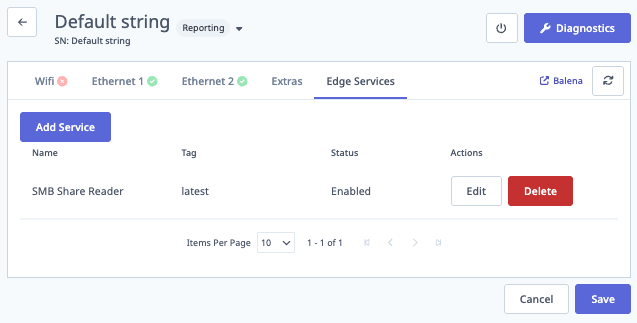
Edge Services tab with Add Service and an Enabled SMB Share Reader at tag
latest. -
Configure SMB credentials — Select SMB Share Reader as the Container Service, enable it, set version to
latest. Enter SMB username as<host-ip>\<username>(e.g.192.168.68.67\svc-smb), SMB password, and Domain/Workgroup if required.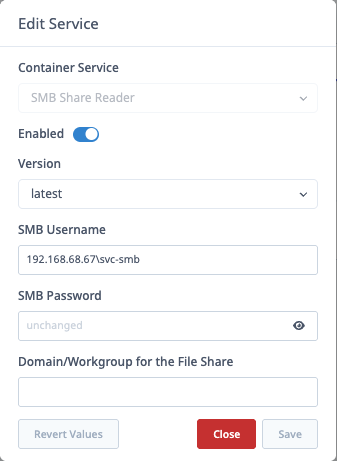
Edit Service dialog for SMB Share Reader. Username format is
<host-ip>\<username>; version islatest; Domain/Workgroup is optional. -
Add a JSON HTTP data collection method — Under Assets > Machines, select the Mazak machine, add a data collection method with Integration Type JSON HTTP.
-
Set the connection address:
http://smb-reader:8080?host=<mazak-ip-address>&share=print&filename=print.txtExample:
http://smb-reader:8080?host=192.168.68.67&share=print&filename=print.txt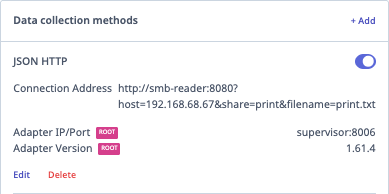
JSON HTTP method showing the SMB Reader connection address:
http://smb-reader:8080?host=<mazak-ip>&share=print&filename=print.txt. -
Add the parsing script:
version: 2
scan-interval: 10
props:
  content: content
variables:
  operation_name:
    - source: content
    - pattern-match:
        pattern: /MMPHDR[*]([^\r\n]+)/
        group: 1
data-items:
- operation_name -
Map
operation_nameas a Program in the machine's data item mapping. -
Confirm the Job source — Under Production & Operations settings, set Jobs selected by to Program. Confirm the mapped program data item (for example Program Name - Path /
operation_name) is listed with STRICT MATCH.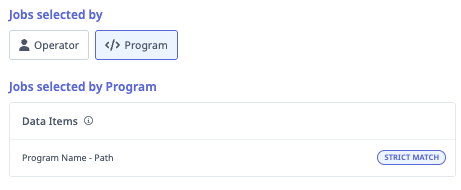
Production & Operations: Jobs selected by Program, with the program data item using STRICT MATCH.
Validation
- Confirm the SMB Reader service shows Enabled on the Edge Services tab.
- Watch the machine's live data feed and start a program on the Mazak — the Job should update to match the parsed program name within one scan interval (10 seconds).
- If the Job doesn't update, confirm the Connection Address host IP matches the Mazak PC's actual IP, and have IT verify the share is still readable with the credentials you were given.
SMB Reader Troubleshooting
| Symptom | Likely Cause / Fix |
|---|---|
| Job doesn't update after starting a program | Host IP in Connection Address doesn't match the Mazak PC, or the share is no longer readable — ask IT to verify |
| SMB Reader service won't enable | Check username format (<host-ip>\<username>) and that Domain/Workgroup is filled in if required |
| No data at all | Confirm the share is reachable from another PC on the same network first — this isolates network/permission issues from MachineMetrics configuration issues |
Integration Note
Coordinate with MachineMetrics support to make sure the field labels in your DPRNT program (the text following MMPHDR*) match what the parsing script expects, so the extracted program name maps correctly to the Job.
Troubleshooting
Mazak Fusion Client Issues
Problem: Settings appear correct but machine is not reporting
An outdated Fusion Client version produces no error, no data, and no indication of what is wrong. Check the version before investigating network or firewall issues.
Verify Fusion Client is running version 2.1 or later. An outdated version transmits in a format the Edge cannot parse — the settings will appear correct and the UDP port will be open, but no data will flow.
To check the version:
- Navigate to
C:\CPCU\fmcnc - Launch
FusionClient.exe - Note the version displayed in the application title bar
If the version is older than 2.1, contact MachineMetrics Support for the installer and replace the existing executable before reconfiguring.
Problem: Connection Failed
Possible causes:
- Fusion Client not running on Mazak control
- Incorrect IP address or port
- Firewall blocking connection
- Network connectivity issue
Solutions:
- Verify Fusion Client is running on Mazak Windows PC
- Check Task Manager for Fusion Client process
- Restart Fusion Client service
- Ping machine IP from Edge device
- Verify UDP port 51001 is allowed through firewall (both directions)
- Check Windows Firewall on Mazak control
- Verify network switch/router allows UDP traffic
- Check Fusion Client logs for errors
Firewall Configuration:
- Protocol: UDP
- Port: 51001
- Direction: Bi-directional (both inbound and outbound)
- Source: MachineMetrics Edge device IP
- Destination: Mazak machine IP
Problem: Machine Shows "Not Reporting"
Possible causes:
- Network interruption
- Fusion Client crashed
- Machine control restarted
Solutions:
- Check network connectivity
- Restart Fusion Client application
- Restart machine control's Windows PC
- Verify IP address hasn't changed (use static IP)
- Check MachineMetrics Edge device connectivity
Problem: Missing Data Items
Possible causes:
- Fusion Client not configured to share all data
- Data items not available on this control
- Incorrect data mapping
Solutions:
- Check Fusion Client configuration for data item visibility
- Review Mazak control capabilities
- Verify data mapping in MachineMetrics settings
- Contact MachineMetrics support for data item availability
Additional Resources
MachineMetrics Resources:
- Machine Settings Guide - Configure machine settings
- Connectivity Overview - Compare connectivity methods
- MTConnect Guide - Alternative MTConnect setup
- Adapter Scripts - Advanced data transformation
Mazak Resources:
- Mazak Fusion Client documentation (contact Mazak)
- Mazak control programming manual
- Mazak system variables reference
- Mazak networking and communication manual
Networking Resources:
- Network Requirements - Firewall and port configuration
- Edge Device Setup - Configure MachineMetrics Edge
Getting Help
MachineMetrics Support:
- Email: MachineMetrics Support
- Phone: 844-822-0664
Before Contacting Support:
- Note the Mazak control type and model
- Document any error messages
- Capture screenshots of configuration screens
- Check machine and Edge device connectivity
- Review adapter logs if available
Information to Provide:
- Machine make, model, and control type
- Connection method (Fusion Client)
- IP address and port configuration
- Description of issue and when it started
- Any recent changes to machine or network
- Screenshots of error messages or configurations