Production and Operations Tab
The Production & Operations tab on Machine Edit was overhauled to center on job management, ERP resource mapping, how jobs are selected (operator vs program / APM), and MES. The overview below matches the current product behavior described in Configuring a Machine's Production Settings — use that guide for full step-by-step detail, screenshots, FAQs, and troubleshooting.
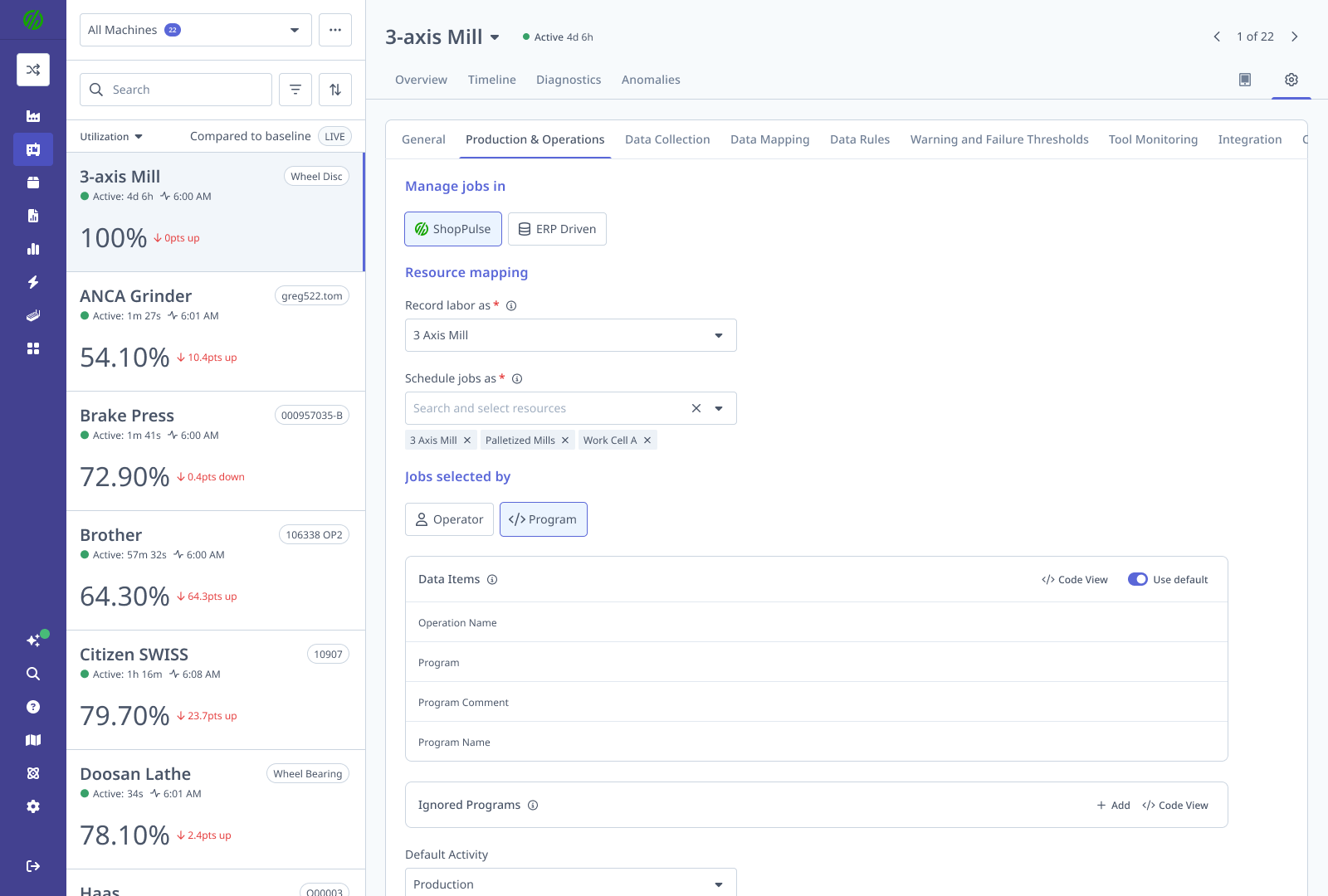
Access and navigation
| Requirement | Details |
|---|---|
| Who | Manager, Executive, and IT Admin users. |
| Where | Machines in the main sidebar → select a machine → settings icon in the machine header → Production & Operations tab. |
Job management, ERP mapping, and MES
Manage jobs in
- ShopPulse — Operators manage jobs and submit labor tickets in MachineMetrics; data syncs to your ERP.
- ERP Driven — Jobs and labor are managed in the ERP; MachineMetrics reflects ERP state read-only. Jobs selected by is not available in this mode.
Record labor as / Schedule jobs as
- Record labor as — Single ERP resource labor tickets are attributed to. If Manage jobs in is ERP Driven, this must be an individual resource (resource groups are not supported in ERP Driven mode).
- Schedule jobs as — One or more ERP resources or resource groups that determine which jobs appear on this machine’s Dispatch Schedule.
Both must be set before MES can be enabled on the machine.
Jobs selected by (when Manage jobs in = ShopPulse)
- Operator — Operator picks jobs from the Dispatch Schedule. With MES off, Operators can create new operations may appear so operators can create jobs manually instead of only selecting scheduled work.
- Program — Jobs are tracked from the running program. Auto Production Monitoring (APM) matches programs to jobs using part/program data; see Auto Production Monitoring (APM) for Data Items, Ignored Programs, Default Activity, and Create run when operation changes (when MES is off, that setting controls when a new production run starts). With MES on, labor tickets drive run lifecycle instead.
Optional features (MES on + ShopPulse)
| Feature | What it does |
|---|---|
| Enable first article inspection | QA gate at setup → production. See First Article Inspection. |
| Enable shift handover | Structured end-of-shift handoff and AI summary for the next operator. See Shift Handover. |
Same toggles exist as FAI / Handover on MES Settings → Machines for bulk edits.
MES enablement
Enabling MES on the machine switches it to ERP-sourced operations with labor tickets; active operator sessions and jobs on that machine stop — a warning confirms before apply. Disabling MES has the same stop behavior; submit in-flight labor tickets first. Other machines are unaffected.
Uniform vs Flexible connector accounts
How global vs per-machine options interact depends on connector type (e.g. Uniform vs Flexible / Epicor Kinetic). See MES Settings. Your Solution Delivery Manager (SDM) can confirm which applies to your account.
Configuration summary
| MES | Manage jobs in | Jobs selected by | Result |
|---|---|---|---|
| Off | ShopPulse | Operator | No labor tickets; operator-driven jobs |
| Off | ShopPulse | Program | Program-driven tracking and APM; no labor tickets |
| On | ShopPulse | Operator | MES; operator picks jobs; labor tickets to ERP |
| On | ShopPulse | Program | MES; APM matching; operator confirms; labor tickets to ERP |
| On | ERP Driven | N/A (locked) | ERP-managed; MachineMetrics read-only |
Typical setup order and references
- Set Manage jobs in (ShopPulse vs ERP Driven).
- Map Record labor as and Schedule jobs as.
- Set Jobs selected by to Operator or Program (ShopPulse only).
- If Program, review program-matching defaults; see APM guide before changing advanced options.
- Enable MES on the machine when ready (after mapping and warnings acknowledged).
Also helpful
- Machine Production Settings — full UI walkthrough, tips, and FAQs.
- How to Use ShopPulse on MES-Enabled Machines — operator-facing MES behavior.