Data Rules Tab
Control primary metrics used for dashboards and reporting.
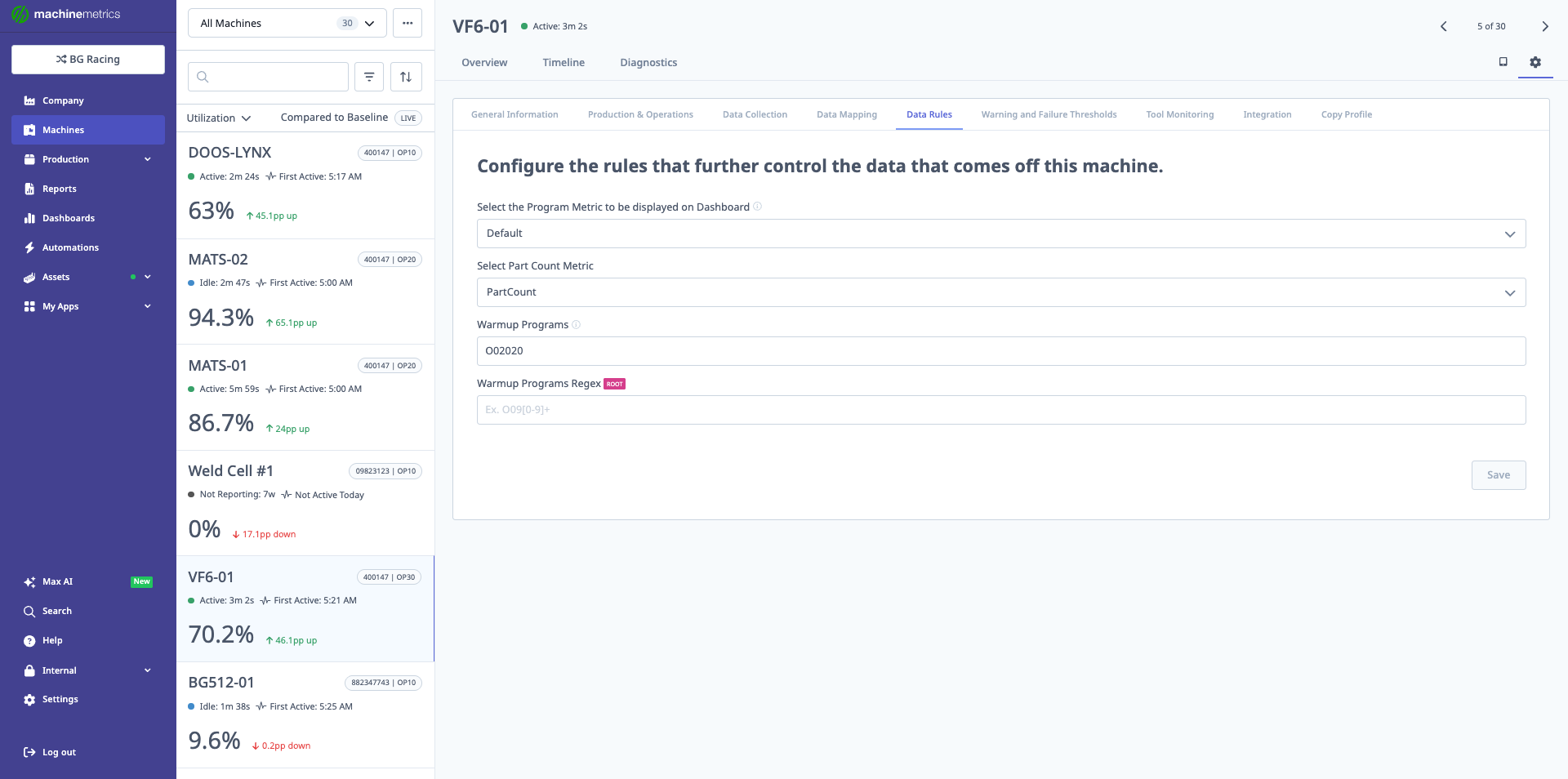
The Data Rules tab allows you to configure which metrics are displayed on dashboards and shop floor boards. Key settings include selecting the Program Metric (Default), Part Count Metric (PartCount), defining Warmup Programs (O00020), and specifying Warmup Programs Regex patterns. These rules control how production data is interpreted and displayed.
Program Metrics
- Select which program-related metric to display on:
- Dashboards
- Shop floor boards
Part Count Metric (Most Important Setting)
- Select Part Count Metric:
- Decide which data item is the authoritative part counter.
Available Options:
The dropdown includes several part count options based on your machine's available data items and configuration:
- Default (part_count, part_count2, total_part_count, total_part_count2)
- Production Run
- Virtual Part Counter
- Manual Counter
- Haas M30-Counter (for Haas machines)
How to Choose the Right Option
Default (Standard Part Count) - Most Common
This is the standard option and uses the machine controller's built-in part counter.
When to use:
- Machine has a reliable built-in part counter
- Controller properly increments the counter
- No double-counting issues
Common data items:
part_count- Primary counter from controllerpart_count2- Secondary counter (if machine has multiple paths)total_part_count- Accumulated total countertotal_part_count2- Secondary accumulated counter
⚠️ Avoiding Double Counts:
If you experience double counts, it's likely because multiple part count paths are being counted. In this case:
- Identify which path to count: Check if your machine has Path 1/Path 2 or multiple counters
- Select the specific counter: Choose
part_count(Path 1) ORpart_count2(Path 2), not both - Verify in Data Mapping: Ensure only ONE counter is mapped as the part count data item
Common scenarios:
- Mill-turn lathes with two paths: Select Path 1 (
part_count) unless Path 2 is your primary production path - Machines with multiple spindles: Choose the counter that represents completed parts, not work-in-progress
Haas M30-Counter - For Haas Machines with Double Counting
When to use:
- You have a Haas machine
- You're experiencing double counting issues
- Machine has multiple M30 counters
Why this option exists:
Haas mills typically have two M30 counters in their control. If both counters are mapped, the system will double-count each finished part.
Solution:
- Select "Haas M30-Counter" from the dropdown
- This tells the system to use only M30 Counter #1
- Prevents duplicate part counts
Alternative fix:
- Go to Data Mapping tab
- Unmap one of the M30 counters
- Keep only M30 Counter #1 mapped as part count
Virtual Part Counter (VPC) - AI-Powered Counting
When to use:
Use VPC when your machine does not have a reliable part counter or when controller part counts are:
- Missing or unavailable
- Inconsistent or unreliable
- Incorrectly programmed
- Different across similar machines in your fleet
What is Virtual Part Counter?
VPC uses artificial intelligence to automatically detect part completions by analyzing real-time machine signals:
- Tool number sequences
- Program execution states
- Machine activity patterns
- Controller mode changes
Instead of relying on the machine's built-in counter, VPC learns each machine's unique cycle patterns and counts parts automatically.
Key Benefits:
- No programming required: Works without configuring controller-specific part counting logic
- Self-learning: Automatically adapts to production changes
- Real-time accuracy: Counts parts as cycles complete
- Fleet-wide consistency: Standardizes part counting across different machine types
Requirements for VPC:
✅ Machine must have:
- Advanced controller with reliable data items (tool numbers, execution state, controller mode, program numbers)
- Connection via FANUC FOCAS, MTConnect, OPC-UA, or similar protocol
- Machine must output tool number data
- Not supported: I/O-only connections
✅ Production must have:
- Job tracking enabled (APM, ShopPulse, or ERP-driven)
- 3+ repetitive cycles per job
- Cycle times under 1 hour
Enabling Virtual Part Counter:
- Navigate to Machine Settings (gear icon) → Data Rules tab
- Find "Select Part Count Metric" dropdown
- Select "Virtual Part Counter" from the list
- Click "Save"
What Happens Next:
- VPC activates immediately
- For ongoing jobs: VPC starts counting after a brief warmup period (3-10 cycles)
- For new jobs: VPC learns from first few cycles, then backfills counts
- Counts appear in real-time on dashboards, reports, and operator tablets
Warmup Period:
- New jobs (never seen before): VPC needs to observe a few cycles before counting accurately
- Typical warmup: 3-10 cycles depending on complexity
- During warmup: Counts may not appear immediately but will backfill once model is confident
- Established jobs: No warmup needed; VPC counts from first cycle
Validation:
Check VPC accuracy using:
- Timeline View: Verify part count increments align with cycle completions
- Job Run Comparison: Compare VPC totals to manual hand counts
- Production Reports: Review counts in reports to ensure accuracy
When VPC May Not Work:
- Machines connected via Digital I/O only
- Machines that don't output tool number data
- Jobs with fewer than 3 repetitive cycles
- Cycle times exceeding 1 hour
- Non-repetitive one-off parts
Troubleshooting VPC:
| Issue | Solution |
|---|---|
| No counts appearing | • Verify job tracking is enabled • Check machine data: Tool number, execution state available? • Confirm 3+ repetitive cycles exist • Wait for warmup period on new jobs |
| Counts seem inaccurate | • Validate against Timeline view • Check cycle consistency • Verify cycle time under 1 hour • Compare to hand counts |
| VPC stopped counting mid-job | • Check machine connectivity • Verify job didn't change • Look for data gaps in Timeline |
Reverting to Controller Part Count:
If VPC doesn't work for your machine:
- Return to Machine Settings → Data Rules
- Change "Select Part Count Metric" back to your controller part count data item
- Click "Save"
Production Run - For Machines with Manual Interventions
When to use:
- Production includes frequent off-runs (setup, testing, trials)
- Operators make many manual interventions
- You want to count one cycle per production run change (not individual parts)
What it does:
Counts 1 cycle each time a production run changes, rather than counting every part.
Best for:
- Customers with high mix/low volume production
- Shops with significant setup and trial runs
- Machines where operators frequently stop/start/adjust between good parts
Example scenario:
- Operator sets up machine and runs 5 test parts (not counted)
- Operator starts production run for Job #123 → Count increments by 1
- Machine produces 50 parts on that run → Still shows count of 1
- Operator changes to Job #456 → Count increments by 1 (now total is 2)
Not recommended for:
- Standard part counting needs
- High-volume production where individual part counts matter
- Tracking actual quantities produced
Manual Counter - For Manual Stations Only
When to use:
- Machine is configured as a Manual Station in MachineMetrics
- Operators manually track production (no automated counter)
What it does:
Allows operators to manually enter part counts through the ShopPulse interface.
Availability:
- Only available on machines configured as Manual Stations
- Not available on CNC machines or automated equipment
How it works:
- Operator completes parts at manual station
- Operator enters count via ShopPulse tablet/interface
- System records manual count for reporting
See Also:
- Manual Stations Setup Guide for configuring manual workstations
Troubleshooting Double Counts
If you see duplicate or double part counts:
Step 1: Identify the Issue
- Check if machine has multiple counters (Path 1/Path 2, multiple M30s, multiple spindles)
- Look at Data Mapping tab - how many data items are mapped as "part count"?
- Check Data Rules tab - which part count metric is selected?
Step 2: Fix the Root Cause
Solution A - Use Data Rules (Recommended):
- Go to Data Rules tab
- Change "Select Part Count Metric" to the specific counter you want:
- For Haas machines: Select "Haas M30-Counter"
- For Path machines: Select
part_count(notpart_count2) - For dual-spindle: Select the primary spindle counter
- Save changes
Solution B - Fix Data Mapping:
- Go to Data Mapping tab
- Find all data items mapped as "part count"
- Unmap the secondary/duplicate counters
- Keep only ONE counter mapped as part count
- Save changes
Step 3: Verify Fix
- Watch machine Timeline for next few cycles
- Confirm part count increments by 1 (not 2) per completed part
- Check dashboards and reports show correct counts
Warmup Programs
Define program names or patterns that should be excluded from production counting and reporting.
What are Warmup Programs?
Warmup programs are non-production programs that operators run to prepare the machine, such as:
- Machine warmup routines
- Tool setter programs
- Calibration programs
- Test programs
- Setup verification programs
Why exclude them?
These programs should not be counted as production because they:
- Don't produce parts
- Artificially inflate cycle counts
- Skew production metrics and reports
- Create confusion in dashboards
How to Configure:
Option 1: Exact Program Names
- Enter specific program names (e.g.,
O00020,WARMUP,SETUP01) - Separate multiple programs with commas
- These will be excluded from production metrics
Option 2: Regex Patterns
- Use Warmup Programs Regex field for pattern matching
- Example patterns:
^O0002.*- Excludes all programs starting with O0002.*WARMUP.*- Excludes any program containing "WARMUP"^(SETUP|TEST|CALIB).*- Excludes programs starting with SETUP, TEST, or CALIB
Example:
- Warmup Programs:
O00020, TOOL_SETTER - Warmup Programs Regex:
^SETUP.*
This configuration excludes:
- Programs named exactly "O00020" or "TOOL_SETTER"
- Any program starting with "SETUP" (SETUP01, SETUP_MILL, etc.)
See Also:
- Virtual Part Counter (VPC) for how VPC derives counts
- Job Tracking Guide - Virtual Part Counter for VPC in the context of job runs
- Production Analytics Guide for using part count data in reports