Siemens Sinumerik 828D / 840D sl
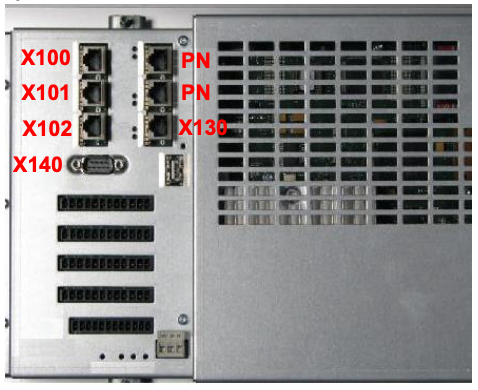
Protocol: OPC-UA · Port: 4840 · Endpoint: opc.tcp://<machine_ip>:4840 · Cable: the company-network Ethernet port, usually X130 — read the warning below before plugging anything in.
For where the cable goes and how to set the control's IP, subnet and gateway, see Physical Connection in the OPC-UA overview.
Siemens CNC controls running SINUMERIK Operate expose machine state over OPC-UA once the Access MyMachine / OPC UA option is licensed. This page covers licensing, enabling the server on the control, and a working adapter script.
These controls have complex internal networks and PROFIBUS. X130 is the most common company-network
port, but always verify against your machine documentation — port designations vary by machine tool
builder. Never modify the system network (192.168.214.x or 192.168.215.x). When in doubt, contact
your machine tool builder before connecting anything.
For Siemens S7 PLCs rather than SINUMERIK CNC controls, see Siemens S7 PLC Connectivity.
Key Points
- Requires OPC-UA license purchase
- Typically uses X130 port (company network) - but always verify with your machine documentation
- CRITICAL: Different machine tool builders use different port designations
- Connecting to the wrong port can brick the machine - these machines have complex internal networks and PROFIBUS
- Never modify system network (192.168.214.x / 215.x)
- Default manufacturer password: SUNRISE
- Port: 4840
- Requires restart after configuration
Version-Specific Guides
- Different Operate versions have slightly different menus
- See Additional Resources section for version-specific PDFs
- Always verify your Operate version first
Finding Operate Version
- Startup area → Version or Version display soft key
- Look for "SINUMERIK Operate Version" (e.g., 4.7 SP2 HF3)
Requirements
Prerequisites:
- SINUMERIK Operate installed
- Access MyMachine / OPC UA license (see Licensing below)
- Manufacturer access level password
- Static IP from your IT team
Compatibility:
| CNC Software Version | OPC-UA Version Supported |
|---|---|
| 4.5 | V2.2 and V3.0 SP1 |
| 4.07 SP2-SP5 | V2.2 and V3.0 SP1 |
| 4.08 SP2-SP3 | V2.2 and V3.0 SP1 |
| 4.92 and 4.92 HF2 | V3.0 SP1 |
Licensing: Access MyMachine / OPC UA
OPC-UA on Siemens controls is unlocked by purchasing a software option called Access MyMachine / OPC UA directly from Siemens. There are two versions — one for SINUMERIK CNC controls and one for SIMATIC PLCs. Order the correct one based on what you have on the shop floor.
For SINUMERIK CNC Controls (828D / 840D SL)
This is the option for Siemens CNC machining centers, mills, and lathes running SINUMERIK Operate.
| Product | Access MyMachine / OPC UA for SINUMERIK 828D / 840D SL |
| Part Number | 6FC5800-0AP67-0YBO |
| Price | $646.00 USD (one-time license, as of March 2026) |
| Purchase | Buy on Siemens DEX |
| Industry Mall | View on Siemens Industry Mall |
What it does: Activates an OPC UA server inside the SINUMERIK control that allows MachineMetrics to read machine state, programs, spindle data, alarms, and PLC tags over the network using a standardized protocol.
How to purchase:
- Go to Siemens DEX or the Siemens Industry Mall
- Create or log in to your Siemens account
- Add to cart and complete purchase — the license is delivered digitally via the Siemens Web License Manager (WLM)
- You will receive a license key that is activated on the control in Step 2 below
For SIMATIC PLC Controls (S7-1500 and compatible)
This is the option for standalone Siemens SIMATIC PLC-controlled machines (not SINUMERIK CNC). OPC UA server functionality is built into S7-1500 CPUs running firmware V2.0 or later and is enabled through TIA Portal — no separate Access MyMachine purchase is required for most S7-1500 CPUs.
What to do: In TIA Portal, open your CPU properties, navigate to Protection & Security → OPC UA, and enable the OPC UA server. Consult your Siemens distributor or the Siemens Industry Mall if your CPU requires a separate OPC UA license (older or smaller CPU variants).
Enabling OPC-UA on the Control
Step 1: Enable Manufacturer Access
- Select Startup area (🔧 Setup icon)
- Press Password → Set password
- Enter manufacturer password:
SUNRISE - Press OK
- Status bar should show: "Access level: Manufacturer"
Note: If rejected, the OEM may have changed the default password. Contact machine builder.
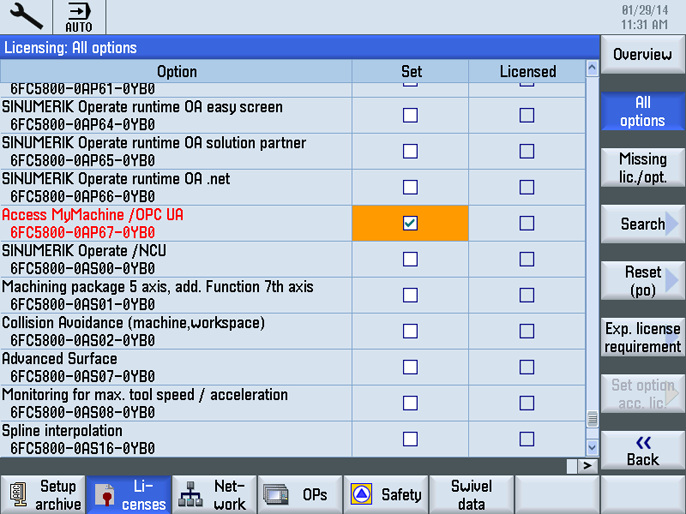
Step 2: Set License
No license yet? See Licensing: Access MyMachine / OPC UA above — purchase the option from Siemens and receive a key via the Web License Manager before continuing.
- Go to Startup
- Press Licenses soft key
- Navigate to Access MyMachine / OPC UA
- Check the box under Set
- If the license is not listed, enter the license key received from Siemens WLM
Step 3: Set Company Network IP (X130 Port)
🔴 CRITICAL WARNING:
- X130 is the most common port, but always verify with your machine documentation
- Different machine tool builders use different port designations
- These machines have complex internal networks and PROFIBUS
- Connecting to the wrong port can BRICK your machine
- NEVER modify system network (192.168.214.x or 192.168.215.x ranges)
- When in doubt, contact your machine tool builder before proceeding
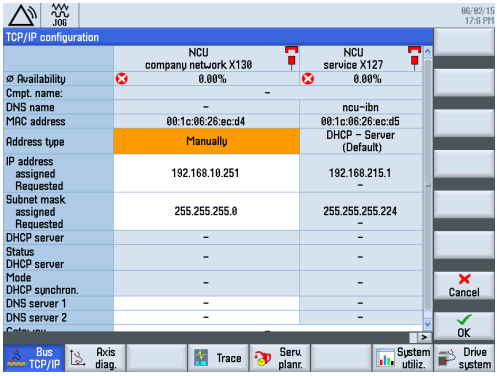
- Select Diagnostics
- Press menu forward key → Choose Bus TCP/IP
- Select TCP/IP diagnostics → TCP/IP config
- Select interface X130 (or your machine's designated company network port - verify in documentation)
- Press Change
- Set Address Type = Manual (for static IP)
- Enter network settings:
- IP Address: Assigned by IT team
- Subnet Mask: From IT team
- Gateway: Only if needed for routing outside subnet
- Press OK
- Restart the control (mandatory for changes to take effect)
Physical Port Location:
- On SINUMERIK 828D: Typically rear-panel Ethernet port labeled X130
- Verify port designation in your machine documentation
- Use shielded CAT5e/CAT6 cable
- Connect directly to company network switch
Step 4: Configure OPC-UA Server
-
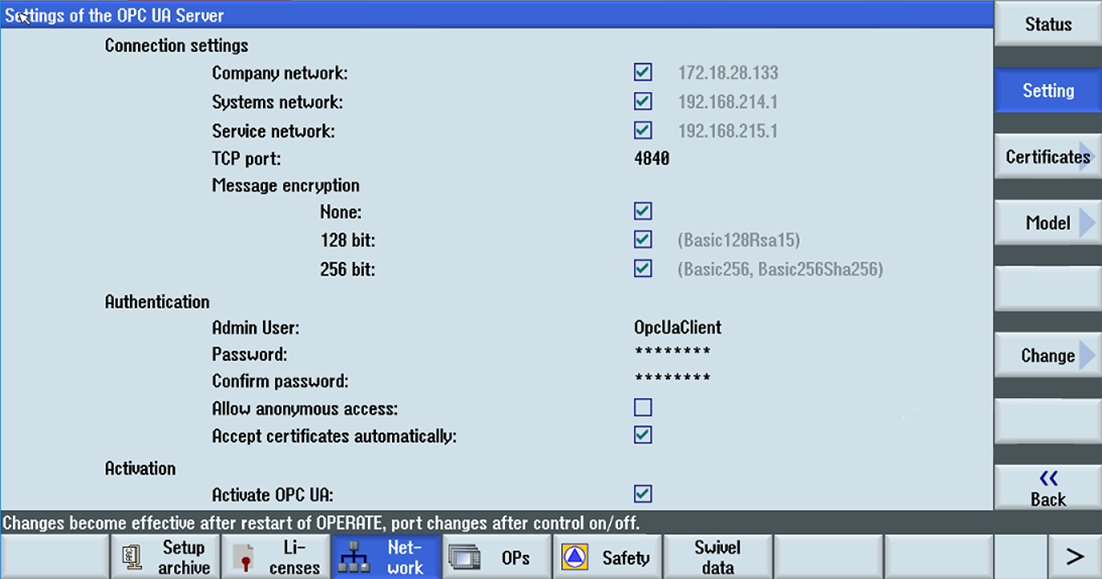
In Startup area, navigate to: Network → OPC UA → Setting → Change
-
Connection Settings:
- Verify Company network is selected
- Confirm IP address (your Company IP)
- TCP Port:
4840(default, leave unchanged)
-
Authentication:
- Admin User: Create username (e.g.,
OpcUaClient) - Password: Set secure password (needed for MachineMetrics connection)
- Allow anonymous access: Uncheck (for security)
- Accept certificates automatically: Check only for initial testing
- Admin User: Create username (e.g.,
-
Activation:
- Check Activate OPC UA
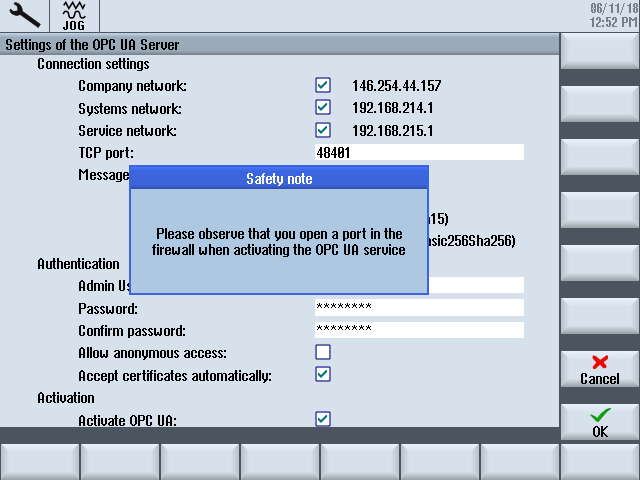
- Press OK → Save PCU settings
- Restart OPERATE for changes to take effect
Step 5: Verify Connectivity
- From PC on same network:
ping [machine-ip] - In Startup → Network → OPC UA → Status
- Confirm server lists Company IP (e.g.,
10.1.0.46:4840) - Should show Status: OK
Step 6: Accept Certificates
When MachineMetrics Edge first connects:
- Go to Startup → Network → OPC UA → Certificates
- Under "Pending Certificates", select the client certificate
- Press Accept
- Status page should show connected clients
Step 7: Return to Normal Access Level
- Go to Startup → Password → Set password
- Press Cancel or enter user-level password
- Status bar should return to "Access level: User"
Additional Resources:
Sample Adapter Script
Siemens 840D Sample Script
version: 2
username: OpcUaClient
password: YourSecurePassword
security-mode: Sign
security-policy: Basic256Sha256

tags:
  tool-group:
    path: ns=2;s=/Channel/State/actToolIdent
  tool-num:
    path: ns=2;s=/Channel/State/actTNumber
  line-number:
    path: ns=2;s=/Channel/ProgramInfo/actLineNumber
  spindle-load:
    path: ns=2;s=/Nck/Spindle/driveLoad
  prog-status:
    path: ns=2;s=/Channel/State/progStatus
  controller-op-mode:
    path: ns=2;s=/Bag/State/opMode
  spindle-speed:
    path: ns=2;s=/Nck/LogicalSpindle/actSpeed
  last-alarm-number:
    path: ns=2;s=/Nck/LastAlarm/alarmNo
  feed-rate:
    path: ns=2;s=/Channel/MachineAxis/actFeedRate
  prog-name:
    path: ns=2;s=/Channel/ProgramInfo/progName
  act-parts:
    path: ns=2;s=/Channel/State/actParts
  feedrate-ovr:
    path: ns=2;s=/Channel/MachineAxis/feedRateOvr

variables:
  execution:
    - source: prog-status
    - state:
      - INTERRUPTED: this == 1
      - STOPPED: this == 2 or this == 5
      - ACTIVE: this == 3 or this == 4
      - READY: true
  controller-mode:
    - source: controller-op-mode
    - state:
      - MANUAL: this == 0
      - MANUAL_DATA_INPUT: this == 1
      - AUTOMATIC: this == 2

data-items:
  - execution
  - controller-mode
  - spindle-speed
  - spindle-load
  - feed-rate
  - feedrate-ovr
  - last-alarm-number
  - line-number
  - tool-group
  - tool-num
  - prog-name
  - act-parts
Note: This script is valid for Siemens 828/840D SL controls. Node paths may differ for other machines.