Bystronic
Protocol: OPC-UA · Port: 56000 (TCP and UDP) · Endpoint: opc.tcp://<machine_ip>:56000 · Cable: the network port on the ByVision PC or brake panel PC. Firewall rules are needed on both the panel PC and the server.
For where the cable goes and how to set the control's IP, subnet and gateway, see Physical Connection in the OPC-UA overview.
Bystronic laser cutters and press brakes expose OPC-UA through ByVision.
Both TCP and UDP rules are required for port 56000, on both the brake panel PC and the server.
Key Points
- Port: 56000 (not standard 4840)
- Requires both TCP and UDP firewall rules
- Must reboot entire machine (not just PC)
- Enable in Modules → Administration → Advanced Settings
Unique Port
- Bystronic uses port 56000 instead of standard 4840
- Must open both TCP and UDP for this port
Enabling OPC-UA on the Control
Step 1: Enable OPC-UA
- Navigate to Modules → Administration → Advanced Settings
- Find OPC-UA setting
- Enable OPC-UA server
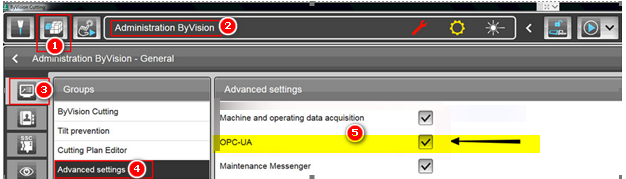
Step 2: Open Firewall Ports
Port 56000 (both TCP and UDP) must be open on both:
- Brake panel PC
- Server
Note: For network-level firewall configuration and Edge device requirements, see the Network Requirements Guide.
Creating Firewall Rules:
For TCP Port:
- Open Control Panel on machine/server
- System and Security → Windows Defender Firewall
- Advanced Settings → Inbound Rules
- Actions (right side) → New Rule
- Select Port → Next
- Select TCP → Enter
56000for Specific Local Port → Next - Select Allow the connection → Next
- Select Domain, Private, Public → Next
- Enter name:
Bystronic56000TCPPort→ Finish
For UDP Port:
- Actions → New Rule
- Select Port → Next
- Select UDP → Enter
56000→ Next - Allow the connection → Next
- Select all profiles → Next
- Enter name:
Bystronic56000UDPPort→ Finish
Step 3: Reboot
Reboot the entire machine (not just the PC) for changes to take effect.
Connection Port: 56000
Sample Adapter Script
Generic Laser Cutter Script
version: 2
tags:
  part-quantity:
    path: ns=2;s=Laser.CurrentPlan
    property: partQuantity
  laser-power:
    path: ns=2;s=Laser.CurrentLaserPower
  cut-state:
    path: ns=2;s=Laser.CurrentCutState

variables:
  part-count:
    - source: part-quantity
    - value-change
    - count
  execution:
    - source: laser-power
    - state:
      - ACTIVE: this > 0
      - READY: true

data-items:
  - execution
  - part-count
  - part-quantity
  - cut-state
Explanation:
part-count: Counts each timepart-quantitychangesexecution: ACTIVE when laser power > 0, otherwise READY- Direct pass-through for
part-quantityandcut-state