Kitamura Arumatik-Mi
The Arumatik-Mi — the large 19" screen — has MTConnect built in through AnyWhere Remote. No extra PC and no separate adapter software.
Edge connects to: the machine itself · Address: machine IP plus the agent port
shown in AnyWhere Remote · Verify with: http://<machine-ip>:<agent-port>/current
The Arumatik-Mi control includes Kitamura's AnyWhere Remote application, which provides a built-in MTConnect adapter. MTConnect is enabled from inside AnyWhere Remote and unlocked with a license file supplied by Kitamura.
Step 1: Open AnyWhere Remote
On the control, navigate to Custom → Option and locate the AnyWhere Remote icon.
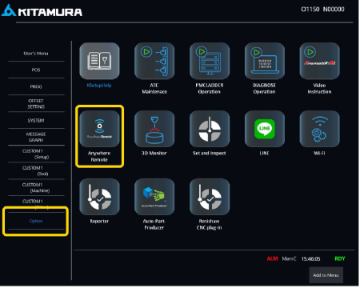
The AnyWhere Remote icon under Custom → Option on the Arumatik-Mi control.
Contact Kitamura. They can supply an installer (.exe) that you install on the control from a USB drive.
Step 2: Open the MTConnect settings
Inside AnyWhere Remote, select MTConnect FactoryWiz & A-R TV.
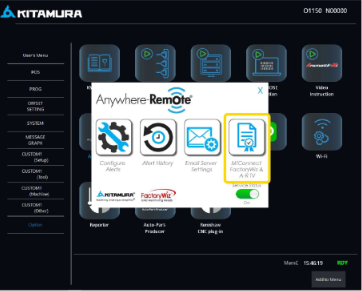
The MTConnect option inside the AnyWhere Remote window.
Step 3: Request and install the MTConnect license
The MTConnect adapter requires a license from Kitamura. The MTConnect window shows the current status — if it reads NOT ENABLED, work through the steps below.
- In the MTConnect window, select Save License Request.
- Save the generated
License.FWRequestfile to a USB drive. - Email the file to Kitamura.
- Kitamura emails back a
License.FWLicensefile. - Load the returned license file on the control using Load New License.
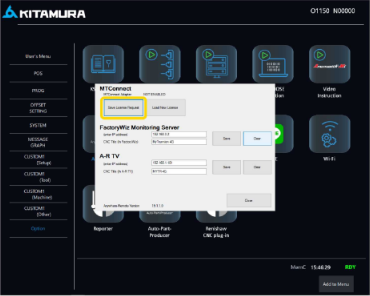
Use Save License Request to generate the license request file, and Load New License to install the file Kitamura sends back.
Step 4: Add the machine in MachineMetrics
Once MTConnect shows as enabled:
- Confirm the machine's IP address and the MTConnect agent port shown in the AnyWhere Remote MTConnect window. If the port is not listed, ask Kitamura to confirm it for your control version.
- From a PC on the same network, browse to
http://<machine-ip>:<agent-port>/current. XML output confirms the agent is serving data. - Add the machine in MachineMetrics as a standard MTConnect connection.
Follow Adding the Machine in MachineMetrics in the MTConnect guide for the full walkthrough.
Related Articles
- MTConnect Connectivity — how MachineMetrics reads an MTConnect agent
- Kitamura Overview — confirming which control you have
- Troubleshooting — connection faults