Haas Next Generation Control
Next Generation controls connect over Ethernet with no extra hardware. Start with MTConnect — it covers execution, program, part count and alarms. Add a second Haas Serial connection only if you need macro or system variables that MTConnect does not expose.
Connect to: the control's Ethernet port · MTConnect port: 8082 ·
Haas Serial port: 4001 · Control setting: for serial, 143 MACHINE DATA COLLECT = 4001
(on Next Gen it takes a port number, not ON/OFF)
MTConnect (Primary Connection)
Best option for Next Gen Haas machines. Provides comprehensive data with no additional hardware.
Prerequisites
- Haas machine with Next Generation control (2017+)
- Ethernet connection capability
- Network access between machine and Edge device
- MTConnect enabled on machine (usually enabled by default)
Configure the Control for MTConnect
Step 1: Enable MTConnect
- Press SETTINGS button
- Navigate to NETWORK → WIRED CONNECTION
- Configure network settings:
- IP Address: Set static IP or note DHCP address
- Subnet Mask: Match your network (typically 255.255.255.0)
- Gateway: Your network gateway
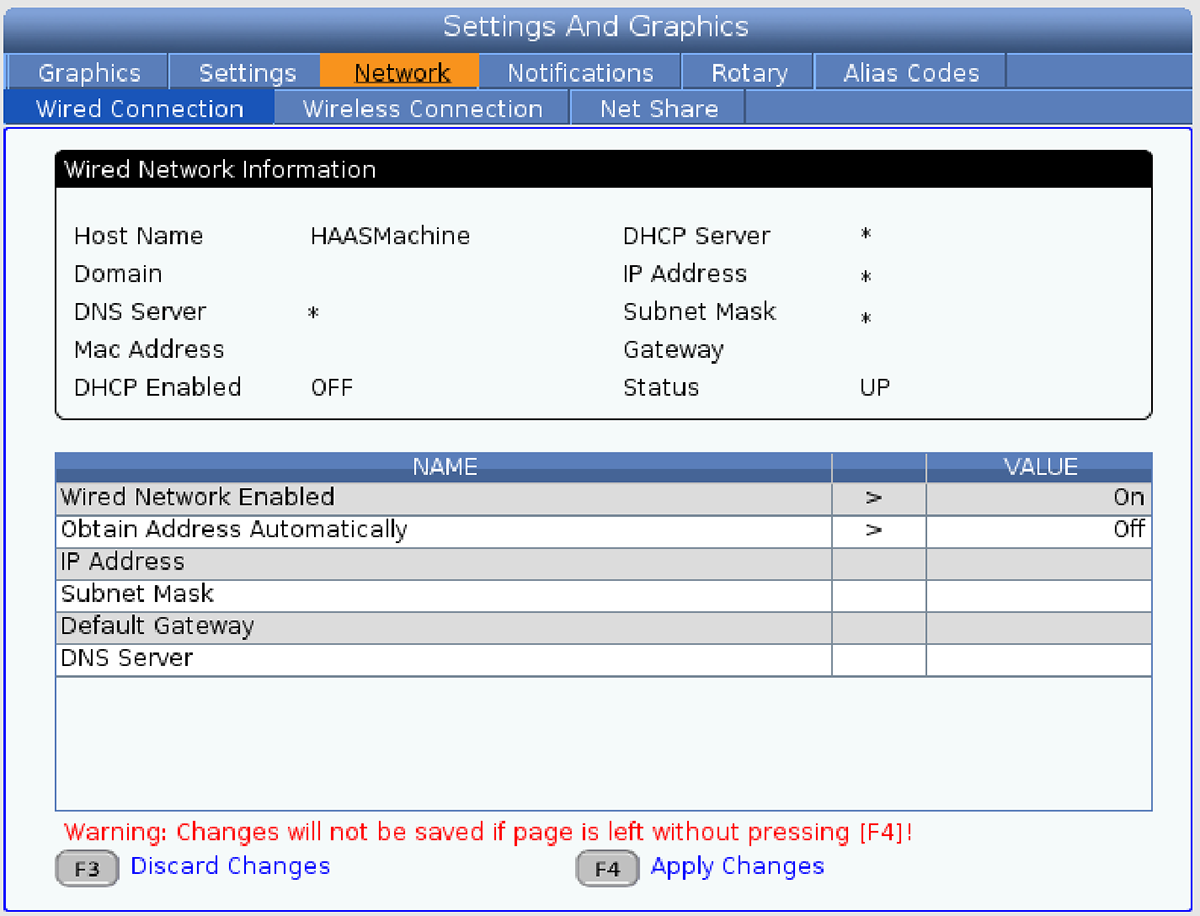
Haas NGC Wired Connection screen. Enter IP Address, Subnet Mask, Default Gateway, and DNS Server, then press [F4] Apply Changes. Changes are lost if you navigate away without pressing F4.
- Navigate to NETWORK → MTCONNECT
- Verify settings:
- MTConnect: ON
- Port: 8082 (default)
- Adapter: AGENT (default)
Step 2: Test MTConnect Connection
From a computer on the same network, open a web browser:
http://[MACHINE-IP]:8082/current
Replace [MACHINE-IP] with your machine's IP address.
Expected Response: You should see XML data showing machine information and data items.
Add MTConnect Adapter in MachineMetrics
-
Log into MachineMetrics
-
Go to Assets → Machines
-
Click Add Machine
-
Enter machine details:
- Machine Name: (e.g., "Haas VF-2")
- Make: Haas
- Model: (e.g., "VF-2")
- Edge Device: Select your Edge
-
Click Next
-
Select adapter type: MTConnect Agent
-
Enter connection details:
- Connection address:
[IP-ADDRESS]:[PORT](e.g.,10.26.5.142:8082)- Format is IP address followed by colon and port number
- Port 8082 is the standard MTConnect port for Haas Next Gen
- Adapter IP/Port: Will auto-populate (e.g.,
supervisor:8022) - Adapter version: Will auto-populate after connection
- Connection address:
-
Click Test Connection
-
If successful, click Save
Example:
- Connection address:
192.168.1.100:8082 - This connects to machine at IP 192.168.1.100 on MTConnect port 8082
Available MTConnect Data Items
Next Gen Haas machines provide via MTConnect:
- Execution State (execution) - ACTIVE, READY, INTERRUPTED, etc.
- Controller Mode (mode) - AUTO, MANUAL, MDI, JOG, etc.
- Program Name (program)
- Tool Number (tool)
- Spindle Speed (Sspeed)
- Spindle Load (Sload)
- Axis Positions (Xabs, Yabs, Zabs, etc.)
- Feed Rate (Fovr, path_feedrate)
- Part Count (PartCountAct)
- Alarms (message)
- And many more...
Haas Serial over Ethernet (Secondary Connection)
For Next Gen machines (2017+) when you need macro/system variables not available via MTConnect.
⚠️ Important: This should only be used as a secondary adapter alongside MTConnect. MTConnect must be your primary connection for Next Gen controls.
When to Use This
Only add Haas Serial to a Next Gen machine if:
- You need specific macro variables (e.g., #3901, #3027, #13013)
- You need system variables not exposed by MTConnect
- MTConnect is already configured as your primary adapter
If you just need basic machine data, use MTConnect only.
Configure the Control for Haas Serial
- Press SETTINGS button
- Navigate to I/O or MISCELLANEOUS page
- Find Setting 143 - MACHINE DATA COLLECT
- Set value to 4001 (port number)
Add Haas Serial Adapter in MachineMetrics
-
Go to Assets → Machines
-
Select your existing Haas machine (with MTConnect already configured)
-
Click Add Secondary Adapter
-
Select adapter type: Haas Serial
-
Enter connection details:
- Connection address:
[IP-ADDRESS]:[PORT](e.g.,10.26.5.142:4001)- Use same machine IP as MTConnect
- Port 4001 is the Haas Serial/MDC port
- Connection address:
-
Click Test Connection
-
If successful, click Save
Example:
- Connection address:
192.168.1.100:4001 - This connects to machine at IP 192.168.1.100 on Haas Serial port 4001
- MTConnect on same machine uses port 8082
Using Both MTConnect and Serial Together
For Next Gen Haas machines, the recommended setup is to use MTConnect as the primary adapter and Haas Serial as a secondary adapter to access macro variables.
Why Use Both?
- MTConnect provides comprehensive machine data (execution, program, speeds, positions, etc.)
- Haas Serial provides access to macro variables and system variables not exposed via MTConnect
- Combine to get the most complete data set
Setup Process
Step 1: Add MTConnect Adapter (Primary)
- Go to Assets → Machines
- Click Add Machine
- Configure as MTConnect — see MTConnect (Primary Connection) above
- Connect to port 8082
- Save and verify data collection
Step 2: Add Haas Serial Adapter (Secondary)
- On the same machine, click Add Secondary Adapter
- Select adapter type: Haas Serial
- Enter connection details:
- Connection address:
[MACHINE-IP]:4001(e.g.,10.26.5.142:4001)- Use same machine IP as MTConnect, but port 4001
- Connection address:
- Enable Setting 143 on machine (set to 4001)
- Add macro variables configuration (JSON)
- Save adapter
Step 3: Create Transform to Prevent Conflicts
The Haas Serial connection may provide a RunStatus data item that conflicts with MTConnect's execution data item. Use a transform adapter to filter it out.
Create Transform Adapter:
- On the same machine, click Add Secondary Adapter
- Select adapter type: Transform
- Add this configuration:
version: 2

# Do NOT pass all data through automatically (use false to control what passes)
mtconnect-passthrough: false

# Deny the RunStatus from Haas Serial to prevent conflict with MTConnect execution
deny-keys:
  - RunStatus

# Pull data items from parent adapters (MTConnect and Haas Serial)
declare-keys:
  - execution  # From MTConnect (primary execution state)
  - program    # From MTConnect
  - tool       # From MTConnect
  - Sspeed     # From MTConnect (spindle speed)
  - opt-stop-enabled        # From Haas Serial (macro variable)
  - part-timer-seconds      # From Haas Serial (macro variable)
  - spindle-rpm-actual      # From Haas Serial (macro variable)
  - coolant-level-percent   # From Haas Serial (macro variable)

# Output all declared data items
data-items:
  - execution
  - program
  - tool
  - Sspeed
  - opt-stop-enabled
  - part-timer-seconds
  - spindle-rpm-actual
  - coolant-level-percent
Important:
mtconnect-passthrough: falsemeans only declared keys are passed throughmtconnect-passthrough: truemeans all parent data passes through automatically (in addition to declared keys)- Use
falsewhen you want explicit control over which data items are output
- Save transform adapter
Result:
- MTConnect provides execution state (primary)
- Haas Serial provides macro variables
RunStatusis blocked to prevent conflicts- All data flows to MachineMetrics cleanly
Data Flow Diagram
Haas Next Gen Machine
  │
  ├─→ Port 8082 (MTConnect)
  │     └─→ execution, program, tool, speeds, positions, etc.
  │
  └─→ Port 4001 (Haas Serial/MDC)
        └─→ opt-stop, part-timer, macro variables
              │
              └─→ Transform Adapter
                    └─→ Denies: RunStatus
                    └─→ Passes: macro variables

Final Output: Complete machine data from both sources
Related Articles
- Macro Variables — the reason to add the secondary serial connection
- Part Count — counting parts once the connection is up
- DPRNT — sending custom data from the program
- Troubleshooting — MTConnect faults and conflicts between the two adapters