Haas Classic Control
Classic controls have no MTConnect, so Haas Serial over RS-232 is the only connection method. The control's serial port goes to a Moxa NPort converter, which puts the serial stream on the network for the Edge device to read.
Connect to: Serial Port 1 on the side of the machine · Protocol: Haas Serial (MDC) · Port: 4001 on the Moxa · Control setting: 143 MACHINE DATA COLLECT = ON
Prerequisites
- Haas machine with Classic control (pre-2017)
- Setting 143 available (ON/OFF type)
- Serial Port 1 on the side of the machine — a female DB-25 on most Classic controls, though some use a DB-9. Check the machine before ordering the cable
- Moxa NPort 5110 serial-to-Ethernet converter (provided by MachineMetrics)
- Serial cable to match the machine's connector, wired to the Moxa's DB-9
- Network access between the Moxa and the Edge device
Configure Haas Classic Control
Step 1: Set RS-232 Parameters
- Press SETTINGS button
- Navigate to I/O page
- Configure RS-232 settings:
- Baud Rate: 38400
- Parity: EVEN
- Stop Bits: 1
- Data Bits: 7
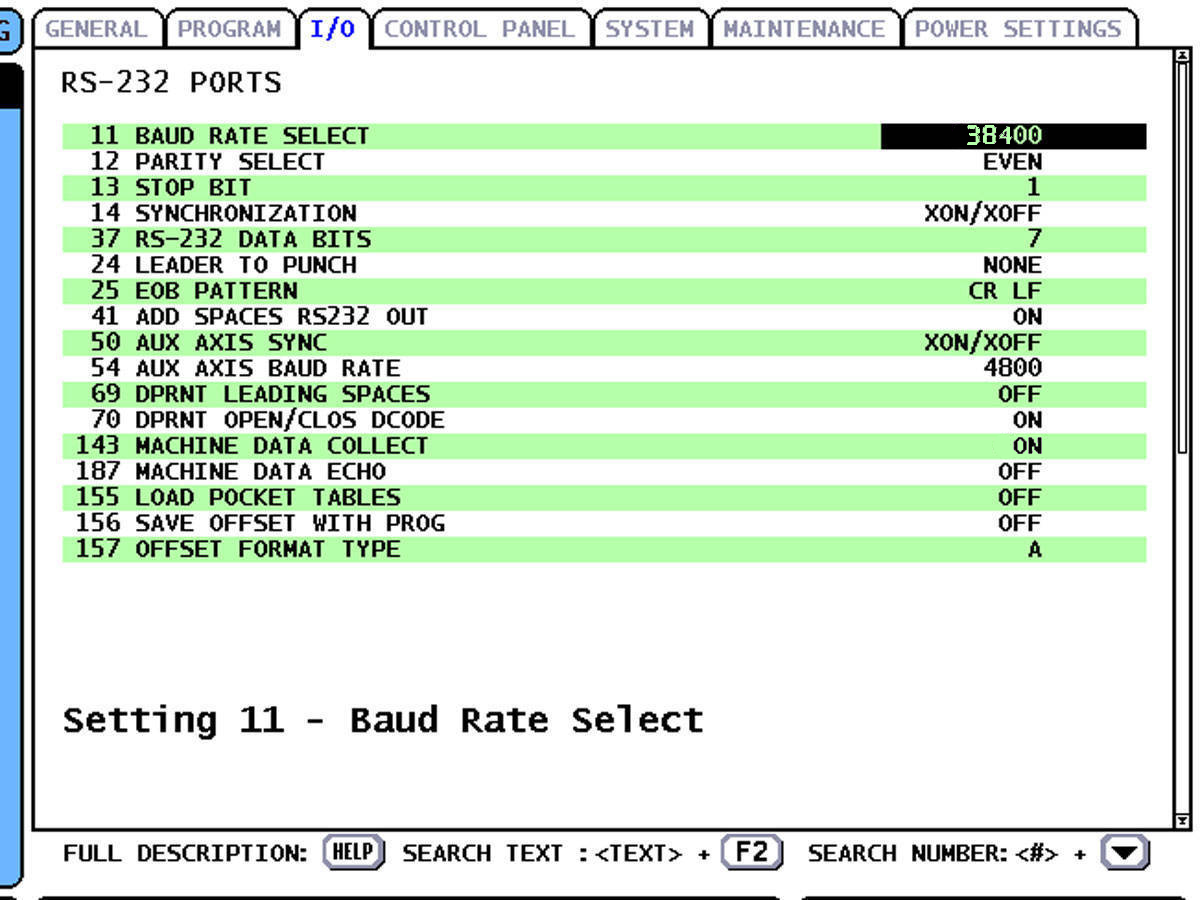
Classic control I/O settings with correct RS-232 parameters for MachineMetrics: Baud Rate 38400, Parity EVEN, Stop Bit 1, Data Bits 7, and Setting 143 set to ON.
Step 2: Enable Machine Data Collect
- Navigate to I/O or MISCELLANEOUS page
- Find Setting 143 - MACHINE DATA COLLECT
- Set to ON
Step 3: Connect Hardware
- Connect the serial cable from Serial Port 1 on the machine to the Moxa converter
- Connect Ethernet cable from Moxa to your network switch
- Power on Moxa converter
- Note Moxa IP address (check label or use Moxa discovery tool)
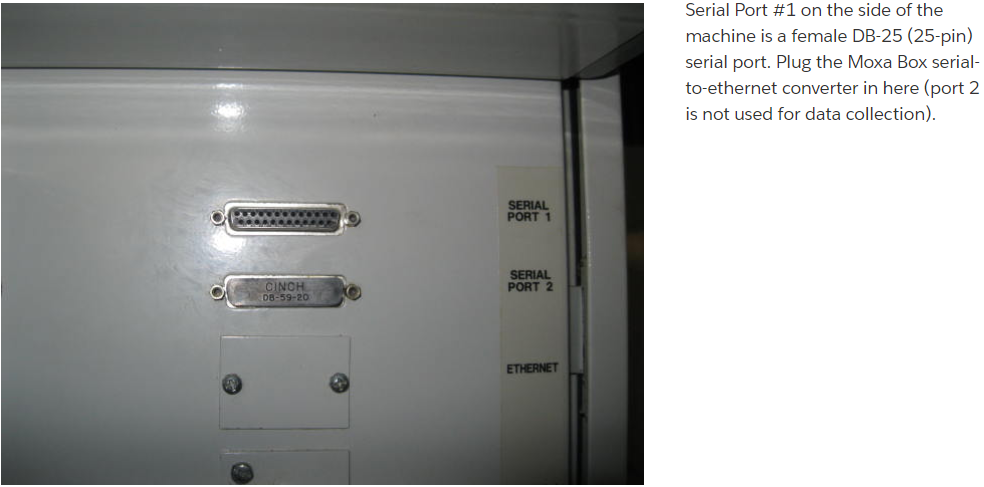
Serial Port #1 on the side of the machine is a female DB-25 (25-pin) serial port. Plug the Moxa Box serial-to-Ethernet converter here — port 2 is not used for data collection.
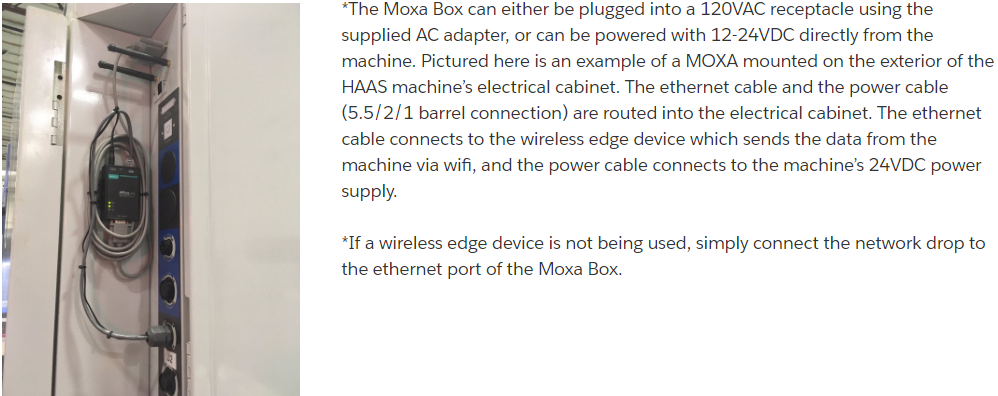
Moxa box mounted on the exterior of the Haas electrical cabinet. The Ethernet cable connects to your network (or wireless Edge device) and the power cable connects to the machine's 24VDC supply inside the cabinet. If a wired network drop is available, connect Ethernet directly to the switch.
Setting the Moxa IP Address (First-Time Setup)
If your Moxa NPort is new or has been reset to factory defaults, it ships with a default IP of 192.168.127.254 — which won't be reachable on your network. Use the Moxa Device Search Utility (DSU) to find the device and assign it a correct IP before proceeding.
1. Download and install DSU
- Download the Device Search Utility from moxa.com
- DSU v3.x runs as a web-based app in Chrome, Firefox, or Edge on Windows
2. Search for your device
- Open DSU and click Search
- DSU will broadcast-search your network and list any Moxa devices it finds
- If connecting to a live company network, configure one device at a time to avoid confusion
3. Unlock the device
- Select your device in the list and click Unlock
- On first login, you'll be prompted to create an account and password
- If the device has been used before, use username
adminand passwordmoxa
4. Open the web console
- Click Console — this opens the Moxa device's web interface in your browser
5. Set the IP address
- Navigate to Network Settings
- Enter the IP address, subnet mask, and default gateway for your network
- Save the settings and restart the device from the web interface
6. Confirm the new IP
- Once the device restarts, click Search in DSU again
- The device should now appear with its new IP address
7. Continue with operating mode setup
- With the correct IP confirmed, proceed with the configuration steps below
Connect the Moxa directly to your PC via Ethernet and temporarily set your PC's IP to 192.168.127.x (e.g., 192.168.127.1). You can then reach the device's default address directly in your browser at http://192.168.127.254.
Configure Moxa NPort Converter
-
Open web browser and navigate to Moxa IP address
-
Login (default: admin/admin or root/root)
-
Configure serial port (typically Port 1):
- Baud Rate: 38400
- Data Bits: 7
- Stop Bits: 1
- Parity: Even
- Flow Control: None
- Operation Mode: TCP Server
- TCP Port: 4001
-
Save settings and reboot Moxa
Add Haas Serial Adapter in MachineMetrics
-
Go to Assets → Machines
-
Click Add Machine
-
Select adapter type: Haas Serial
-
Enter connection details:
- Connection address:
[MOXA-IP]:[PORT](e.g.,10.26.5.200:4001)- Use Moxa converter IP address (not machine IP)
- Port 4001 is configured on the Moxa device
- Connection address:
-
Click Test Connection
-
If successful, click Save
Example:
- Connection address:
192.168.1.200:4001 - This connects to Moxa converter at IP 192.168.1.200 which is connected to the machine via RS-232
Related Articles
- Part Count — counting parts once the connection is up
- Macro Variables — the system variables Haas Serial exposes
- DPRNT — sending custom data from the program
- Troubleshooting — Haas Serial faults