Machine Schedules
What are Machine Schedules?
Machine Schedules define shifts for calculating scheduled time and OEE Availability.
Access: Settings → Machine Schedules
Who Can Manage: Managers, Executives, IT Admins
Purpose of Schedules
Why Define Schedules:
- Calculate Scheduled Time for OEE Availability
- Determine when machines are expected to run
- Separate attended vs. unattended shifts
- Enable shift-based reporting
Impact on OEE:
Availability = (Running Time / Scheduled Time) × 100%
Scheduled time is the denominator. Without shifts defined, scheduled time = 24/7.
Creating Shifts
Step-by-Step:
- Navigate to Settings → Machine Schedules
- Click "Add Shift"
- Configure shift:
- Shift Name: Descriptive name (e.g., "First Shift", "Day Shift")
- Start Time: When shift begins (e.g., 6:00 AM)
- End Time: When shift ends (e.g., 2:00 PM)
- Days: Which days shift runs (Monday - Sunday)
- Shift Type: Attended or Unattended
- Machine Group: Apply to specific group or all machines
- Click "Save"
Example Shifts:
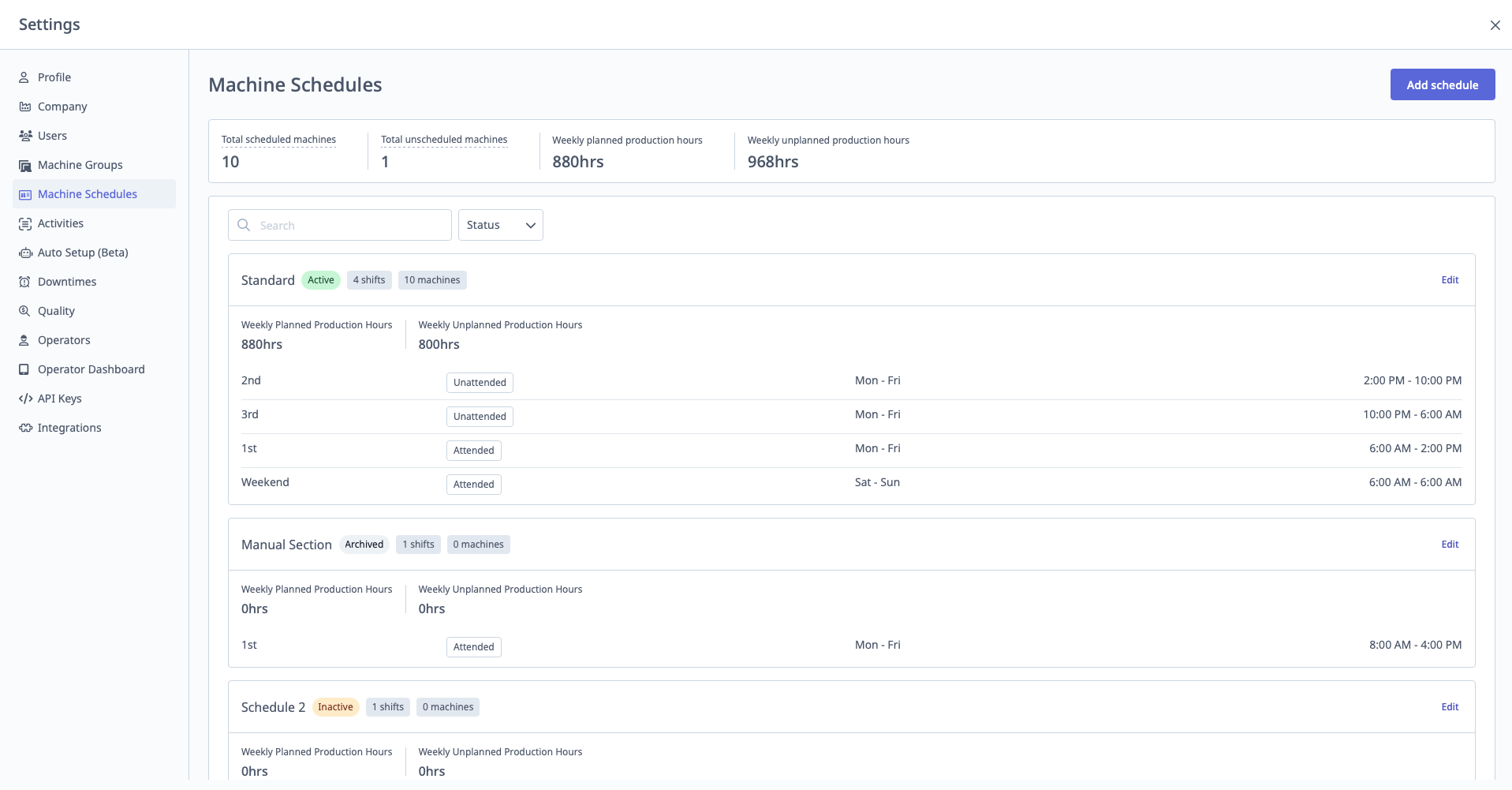
First Shift: 6:00 AM - 2:00 PM, Mon-Fri, Attended, CNC Mills
Second Shift: 2:00 PM - 10:00 PM, Mon-Fri, Attended, CNC Mills
Third Shift: 10:00 PM - 6:00 AM, Mon-Fri, Unattended, CNC Mills
Weekend Shift: 8:00 AM - 4:00 PM, Sat-Sun, Attended, CNC Mills
Attended vs. Unattended Shifts
Attended Shifts:
- All time during shift is scheduled
- Used for shifts with operators present
- Downtime during shift hurts Availability
Unattended Shifts:
- Only time when machine is active counts as scheduled
- Used for overnight or weekend shifts without operators
- Unattended Inactive Threshold (from Downtime settings) determines when machine is considered "unscheduled"
- If inactive > threshold: Time becomes unscheduled (doesn't hurt Availability)
- If active: Time becomes scheduled
Example:
Third Shift (Unattended): 10:00 PM - 6:00 AM
Unattended Inactive Threshold: 30 minutes

Scenario:
- Machine runs 10:00 PM - 2:00 AM (4 hours active) → Scheduled
- Machine idle 2:00 AM - 6:00 AM (4 hours idle > 30 min threshold) → Unscheduled

Scheduled Time: 4 hours (not 8 hours)
Non-Overlapping Shifts
Important Constraint: Shifts cannot overlap within the same machine group.
Allowed:
Group: CNC Mills
- First Shift: 6:00 AM - 2:00 PM
- Second Shift: 2:00 PM - 10:00 PM
- Third Shift: 10:00 PM - 6:00 AM
✅ No overlap

Group: CNC Lathes
- Day Shift: 9:00 AM - 5:00 PM
✅ Different group, can have different schedule
Not Allowed:
Group: CNC Mills
- First Shift: 6:00 AM - 2:00 PM
- Overlap Shift: 1:00 PM - 9:00 PM
❌ Overlap from 1:00 PM - 2:00 PM
Applying Schedules to Machines
Schedules are applied based on Machine Group:
- Create shift and assign to machine group
- All machines in that group inherit the shift schedule
Changing Machine Schedule:
- Move machine to different group (with different schedule)
- Or modify shift assigned to machine's group
Managing Schedules
Editing Shifts:
- Click shift in list
- Modify times, days, or type
- Click "Save"
Deleting Shifts:
- Click "Delete"
- Historical data recalculates based on new schedule configuration
Important: Changing schedules affects historical OEE calculations (data recalculates).
Planned Breaks
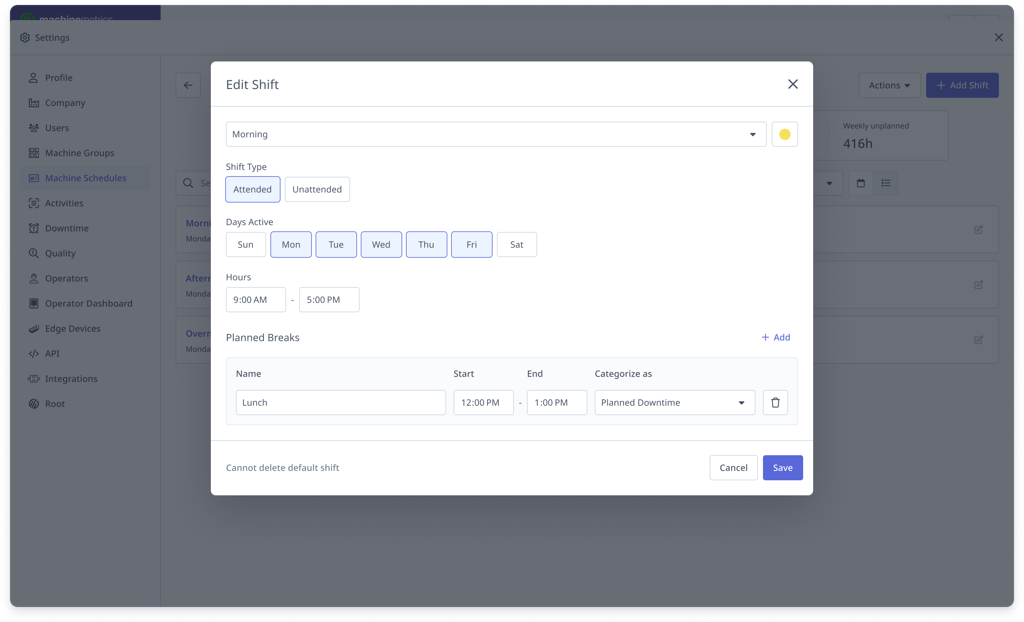
Purpose: Define recurring break windows within a shift where downtime is automatically categorized as planned downtime, so metrics reflect only expected production time.
Access: Settings → Machine Schedules → Edit Shift → Planned Breaks
Prerequisite: Enable Exclude Planned Downtime from Scheduled Time in Settings → Downtimes. Without this setting, downtime will still be categorized with the selected reason, but Scheduled Time and related metrics will not be adjusted.
How breaks work:
- Configured at the shift level — apply only to machines in the schedule that contains that shift
- Must fall entirely within shift hours
- Automatically categorize idle time during the break with the selected downtime reason
- Apply from the date they are created forward — historical data is not affected
- Multiple breaks can be added to a single shift; breaks do not carry over between shifts
Note: Existing automatic downtime categorization rules covering the same time period are no longer required once a break is configured.
Example: Shift 9:00 AM – 5:00 PM with a Lunch break 12:00 PM – 1:00 PM. If the machine is idle for the full break, that hour is classified as planned downtime and excluded from Scheduled Time — OEE and Availability then calculate against a 7-hour expected production window.
Impact on metrics:
| Metric | Impact |
|---|---|
| Scheduled Time | Reduced by planned downtime during breaks |
| Availability | Recalculated using reduced Scheduled Time |
| OEE | Recalculated |
| OOE | Recalculated |
| TEEP | Recalculated |
| Parts Goal | Recalculated using reduced Scheduled Time |
| Performance | No impact |
| Quality | No impact |
Adding a Break to a Shift
- Navigate to Settings → Machine Schedules
- Select the schedule to edit
- Click Edit on the shift
- Scroll to Planned Breaks and click + Add
- Configure:
- Name — a unique name for the break (e.g., "Lunch", "Morning Break")
- Start — time the break begins
- End — time the break ends
- Categorize as — downtime category to apply during this period
- Click Save
Rules and constraints:
- Break start and end times must fall within shift boundaries
- Multiple breaks can be added per shift
- Breaks do not carry across shifts
FAQ:
- Do breaks affect historical data? No — breaks apply from the date they are created forward.
- What if a machine runs during a break? Production activity is recorded normally. Only downtime is automatically categorized.
- Do breaks carry over across shifts? No — each break applies only within the shift it is configured on.