Users Management
What is Users?
Users is where you invite colleagues to MachineMetrics and assign roles.
Access: Settings → Users
Who Can Manage: Managers, Executives, IT Admins
User Roles
Available Roles:
1. Kiosk
- Purpose: Tablets and large screen TV displays
- Access: View-only, no login required
- Use Case: Shop floor dashboards on TVs
2. Supervisor
- Access:
- View dashboards, reports, machines
- Categorize downtime
- Reject parts
- Cannot create/delete reports
- Cannot manage users
- Use Case: Shift supervisors, floor leads
3. Manager
- Access:
- All Supervisor capabilities
- Create/save/delete reports
- Manage users (invite, edit, deactivate) — cannot assign the IT Admin role
- Export data
- Use Case: Operations managers, plant managers
4. IT Admin
- Purpose: For IT and technical staff
- Access:
- Technical configuration: SSO, Edge devices, integrations, API keys
- System-level maintenance: edit or delete any report or dashboard regardless of owner
- Note: IT Admin is managed by your own IT Admins — it cannot be assigned by Executives or Managers
- Use Case: IT department, system administrators
5. Executive
- Access: Full access to all settings and features
- Use Case: Plant managers, VPs, executives
Inviting Users
Step-by-Step:
- Navigate to Settings → Users
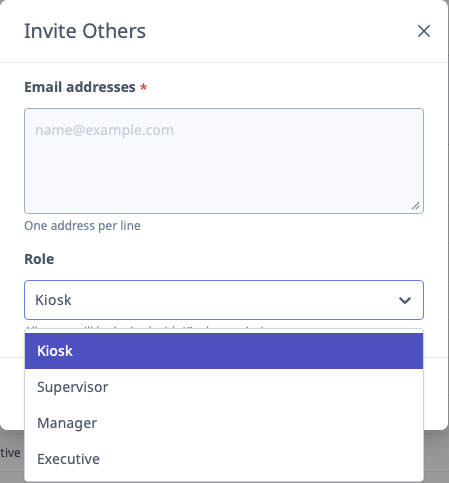
- Click "Invite Others" button
- Enter email addresses:
- One email per line
- Can invite multiple users at once
- Select Role from dropdown (applies to all invited users in this batch)
- Click "Send"
Example:
john.doe@company.com
jane.smith@company.com
bob.jones@company.com

Role: Supervisor
What Happens:
- Each user receives invitation email
- They click link to create password
- Account activated with assigned role
Editing Users
Changing User Role:
- Navigate to Settings → Users
- Find user in list
- Click Edit (pencil icon)
- Change Role dropdown
- Click Save
note
IT Admin is only selectable by an existing IT Admin and will not appear in the Role dropdown for Executive or Manager users.
Deactivating Users:
- Click Deactivate to disable account (user cannot log in)
- Account retained for historical data
- Can be reactivated later
Deleting Users:
- Click Delete to permanently remove account
- Historical data (downtime categorizations, etc.) retained but unlinked from user
User List
Columns:
- Name: User's name (from email or profile)
- Email: User's email address
- Role: Current role
- Status: Active or Inactive
- Last Login: When user last logged in
Filtering:
- Search by name or email
- Filter by role
- Filter by status (Active/Inactive)