Automatic Downtime Categorization
Overview
Auto downtime automatically assigns a downtime reason by evaluating rules against recorded machine data and schedules. Configure these rules in My Apps → Downtime Rules.
MachineMetrics records when a machine is active or inactive. The auto-downtime classifier uses those execution periods to identify downtime, then matches alarms, data item states, setup activities, part cycles, time windows, or work schedule events to that downtime. It saves the selected reason as a downtime annotation, which you can review in the machine Timeline and Downtime Report.
Classification runs periodically against recent data. The classifier checks the source data for each downtime period, and the category boundaries depend on the rule's Strict Mode setting. Creating a rule does not itself change the machine's execution state.
Start with the configuration walkthrough, then use the rule mode reference to choose a trigger and Strict Mode to control its timing boundaries.
For the prompts that ask operators to choose a reason in ShopPulse, see Auto Downtime Settings.
Prerequisites
Before adding a rule:
- Choose a reason from your initial category set, then create it in Settings → Downtimes.
- Confirm that the required source data is available. For a State rule, inspect the machine's Diagnostics tab and record the exact data item key and value. For an Alarm rule, use the reported native alarm code; for Alarm Message, use the alarm description.
- Create a machine group if the rule should apply to a subset of machines. No group selection means the rule applies to all machines.
Use values from your own machines. Alarm codes, data item keys, and signal meanings vary by controller and connection.
Accessing Downtime Rules
Open My Apps → Downtime Rules. The Downtime Classification Rules table shows each rule's trigger, comparison, value, category, machine groups, active-time setting, enabled state, and strict mode.
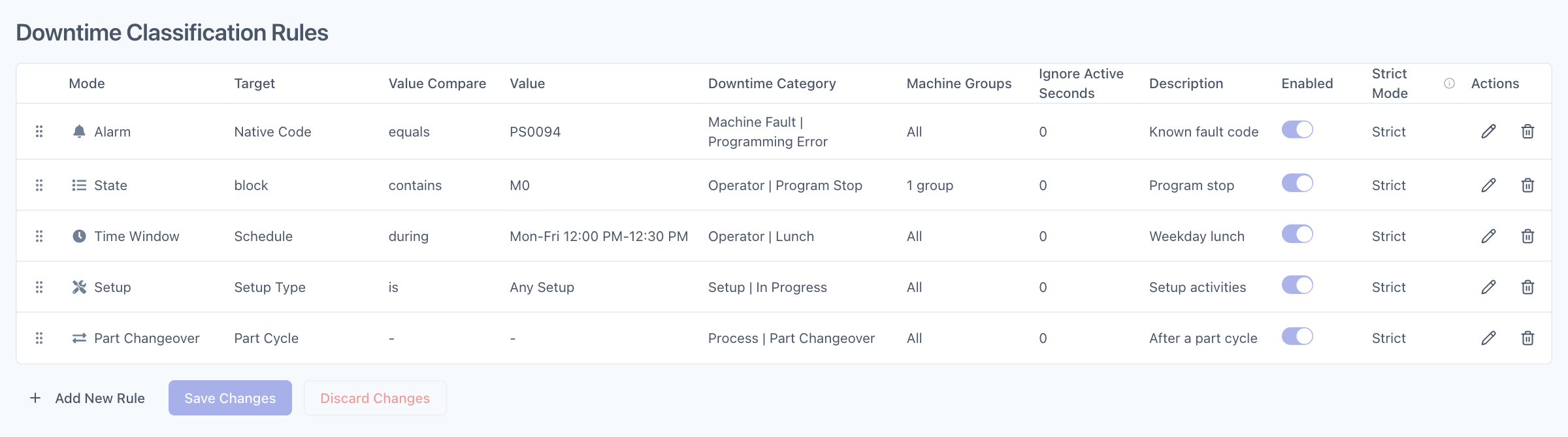
Screenshots use example rules. The State rule matches block containing M0; the other rows illustrate an alarm code, weekday lunch, setup, and part changeover. Choose source values and categories that match your own machines.
Quick Start: Configure Auto Downtime
This example categorizes downtime associated with a program stop. Use it only if your machine reports the program block in a block data item.
1. Add and Configure the Rule
Click Add New Rule and configure the row:
| Field | Example setting | Purpose |
|---|---|---|
| Mode | State | Match a data item's recorded state |
| Target | block | Enter the exact data item key |
| Value Compare | contains | Match text within the reported value |
| Value | M0 | Value indicating the stop on this machine |
| Downtime Category | Your program-stop category | Reason to assign |
| Machine Groups | A group containing your test machine | Limit the initial rollout |
| Ignore Active Seconds | 0 | Let a return to active execution separate downtime periods |
| Enabled | On | Include the rule in classification |
| Strict Mode | Strict | Restrict the category to downtime overlapping the matching state |
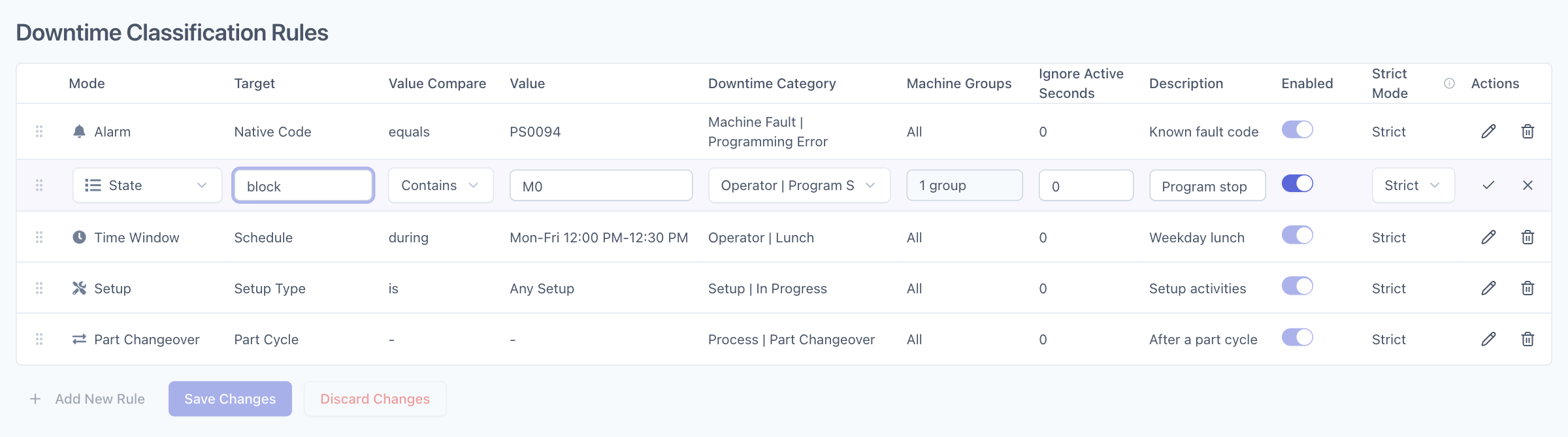
This is a text match: contains M0 also matches any longer value containing those characters. Check the reported block values before choosing a value comparison. Review Strict Mode and Ignore Active Seconds before changing this example’s timing options.
2. Save the Row and the Page
- Click the checkmark in the row's Actions column to finish editing the rule.
- Click Save Changes below the table to persist it.
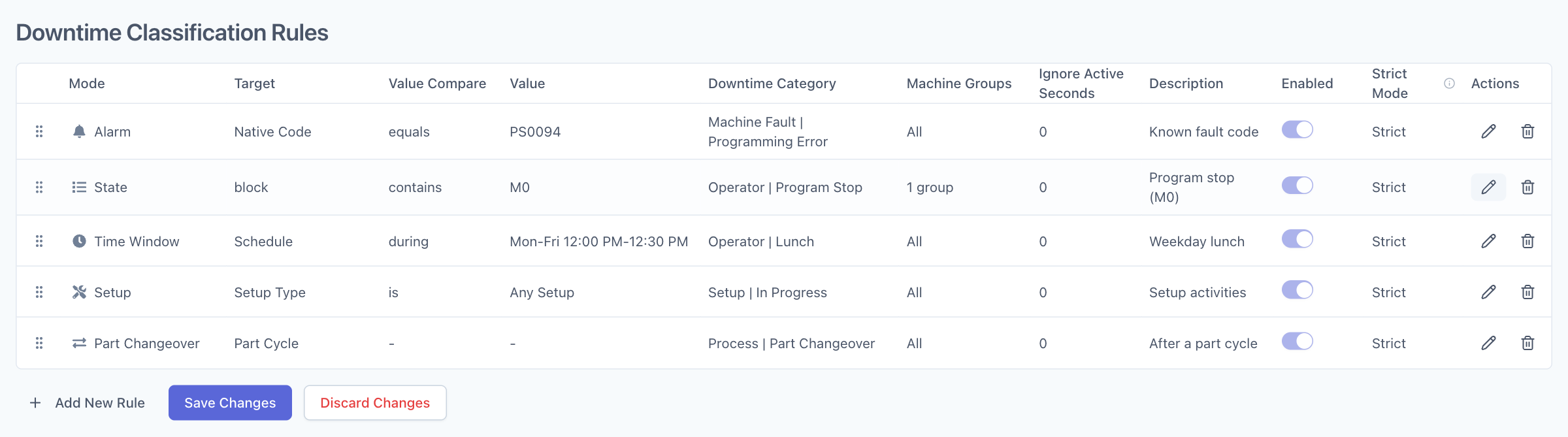
Complete any open row editor before saving the page. Save Changes is disabled while a row is being edited or when there are no changes. Discard Changes reloads the saved rules.
3. Verify a Downtime Event
Observe a normal production stop that matches the rule. Allow time for classification, then:
- Open the test machine's Timeline and select the period containing the stop.
- Inspect the Downtime lane and compare the assigned reason and interval with the actual stop and the reported source data.
- For this Strict example with Ignore Active Seconds set to
0, check that the reason covers only downtime overlapping the matchingblockstate. - Check the same period in the Downtime Report.
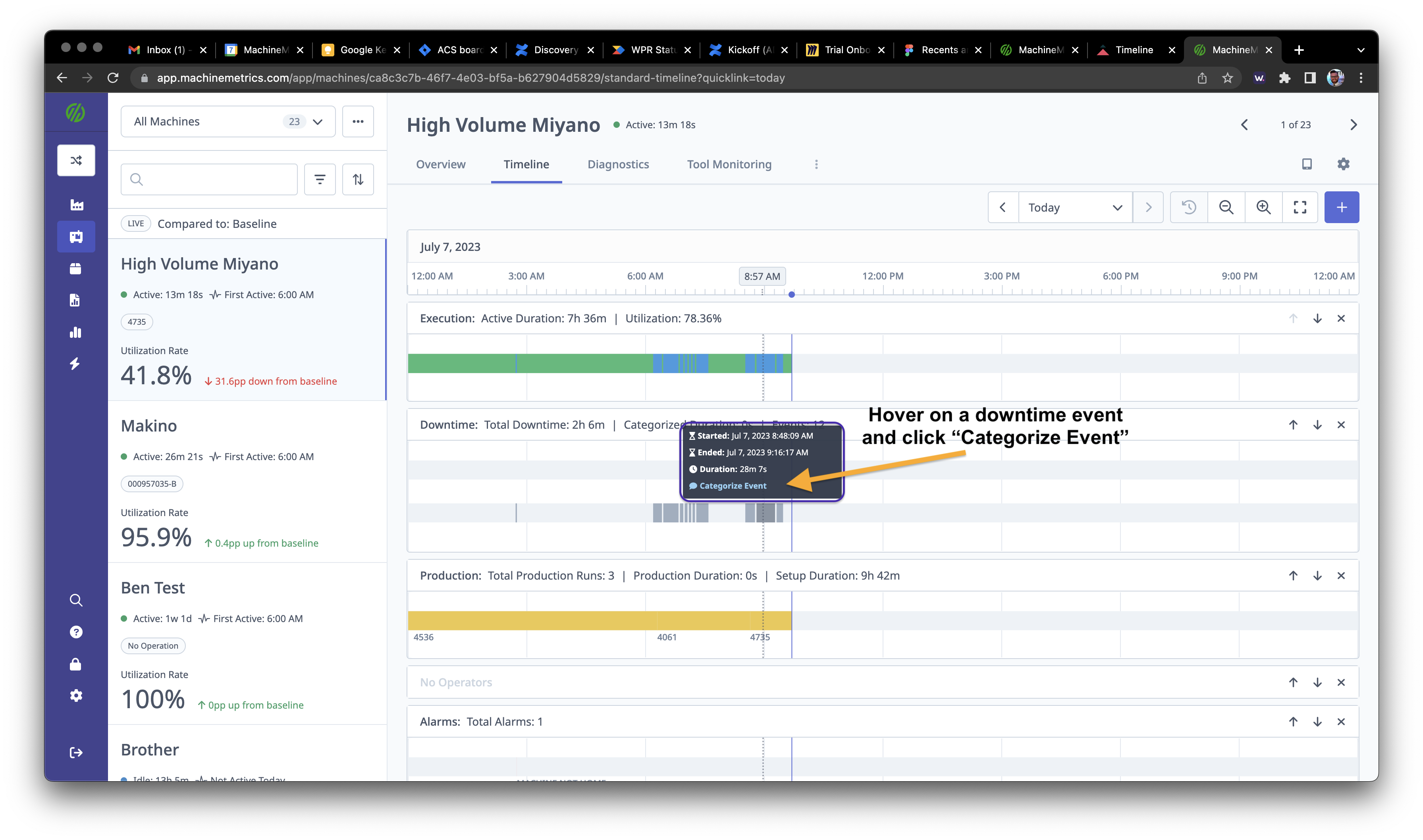
The screenshot shows where to inspect downtime events; it is not an example of the result of the rule above. Confirm the reason against what happened on the shop floor before expanding the rule to more machines.
Editing and Removing Rules
To update a saved rule, click its Edit action, change the fields, finish with the row checkmark, and click Save Changes. Use the row’s cancel action to cancel that edit, or Discard Changes to reload the saved rules.
To remove a rule, click its Delete action and then Save Changes. To pause classification while keeping the rule, edit it and turn Enabled off instead. Removing or disabling a rule does not remove reasons already assigned to downtime; see Existing and Historical Downtime.
Rule Modes Explained
Mode selects the source of the classification condition. Strict Mode separately determines the category's timing boundaries.
| Mode | What the classifier matches | What to configure |
|---|---|---|
| Alarm | A native alarm code active during downtime | Target is Native Code; choose a comparison and enter the code or pattern in Value |
| Alarm Message | An alarm's description text active during downtime | Target is Message; choose a comparison and enter the text or pattern in Value |
| State | A matching recorded value for one data item key, overlapping downtime | Enter the exact key in Target, then choose a comparison and Value |
| Setup | A setup activity overlapping downtime | Select the setup activity type, or leave it unspecified to match setup activities generally |
| Part Changeover | A part cycle event near the start of downtime | Select the category; the editor does not expose a comparison or value field for this mode |
| Time Window | Downtime overlapping a recurring scheduled window | Configure the window's days and times, then select the category |
| Work Schedule Event | Downtime overlapping an instance of a selected work schedule event | Select the event in Value, then select the category |
Alarm and Alarm Message
For an Alarm rule, the target is the alarm's native code, not an editable alarm-code field. Enter the code in Value. For example, to classify a known PS0094 alarm, select Alarm, equals, and PS0094, then choose your corresponding reason.
For Alarm Message, match the reported description. For example, contains Overload matches descriptions containing that exact text. An alarm may explain the full stop or only part of it; choose Strict Mode accordingly.
State
Enter the exact data item key in Target. The classifier compares its recorded values with the rule and checks whether the matching state overlaps downtime.
A PLC signal must already be collected as a data item before you can reference it here. State mode does not collect a PLC address by itself. Adapter scripts can be used to expose or derive a suitable data item, including a value combining several signals, but the State rule still performs the downtime categorization.
Setup
The condition comes from recorded setup activities, not a free-text machine mode. Select a particular setup activity type to narrow the rule, or leave the type unspecified to match setup activities generally.
Part Changeover
This mode uses recorded part cycle events near the start of downtime. The classifier's default matching tolerance is two seconds. The rule editor hides the comparison and value fields, so create the rule by choosing Part Changeover, its downtime category, machine groups, enabled state, and timing options.
Time Window
Use a Time Window rule for a recurring schedule such as lunch or a weekend closure. Open the schedule editor in the rule's Value cell and choose a daily pattern or a multi-day span. Enter the days and times, check the timezone shown in the editor, and click Apply. Then finish the rule row and click Save Changes.
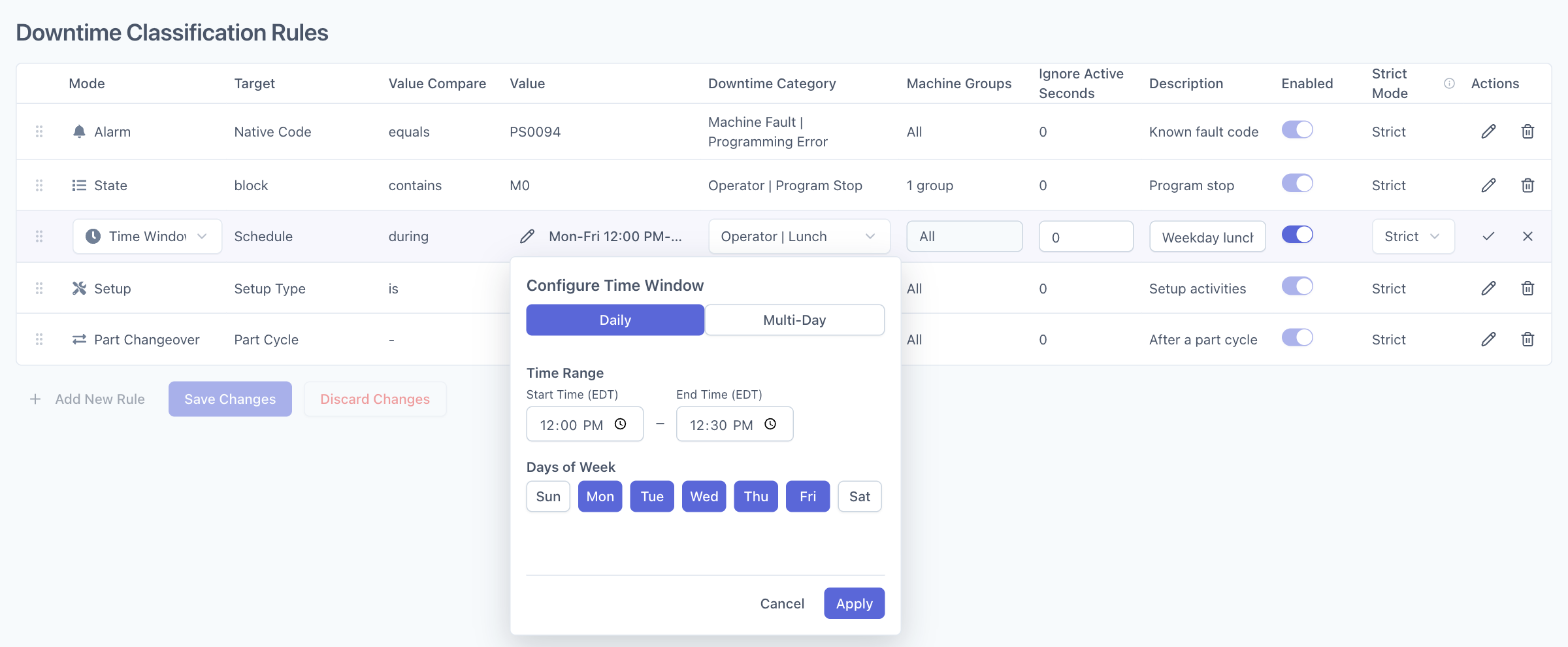
Time windows are evaluated in the company timezone, with the saved rule timezone used as a fallback. The classifier matches the scheduled window to recorded downtime. Use Strict with Ignore Active Seconds set to 0 when you want only the downtime inside the window categorized.
For example, if lunch is 12:00–12:30 and the machine is inactive from 11:55–12:35, a Strict lunch rule covers 12:00–12:30. The surrounding time can remain uncategorized or be covered by another rule.
For breaks attached to shifts or company holidays, review Planned Breaks and Holidays. Those settings can assign a downtime reason directly, so a separate Time Window rule covering the same period may be unnecessary.
Work Schedule Event
Use this mode to match instances of an existing work schedule event. Select Work Schedule Event as the mode, choose the event in Value, and choose the downtime category. Finish the row and click Save Changes.
The classifier checks whether the selected event instance overlaps recorded downtime. Review the machine's schedule and use Strict Mode to control whether the reason covers only the overlap or extends across the stop.
Value Comparisons
Alarm, Alarm Message, and State rules support these comparisons:
| Comparison | Behavior |
|---|---|
| equals | Exact value match |
| starts with | Value starts with the supplied text |
| contains | Value contains the supplied text |
| regular expression | Value matches the supplied regular expression |
Text comparisons are case-sensitive. Use the value reported by the source data, rather than a display label or an assumed numeric value.
Understanding Strict Mode
Strict Mode controls how far the assigned reason extends within downtime when a condition matches. The following examples assume Ignore Active Seconds is 0, no existing category covers the time, and no higher-priority rule has already classified it.
| Strict Mode | Category boundaries | Example use |
|---|---|---|
| Off | Full downtime containing the match | An alarm explains the whole stop |
| Strict Start | Start at the later of downtime start or condition start; continue to downtime end | A signal marks when the cause began |
| Strict End | Start at downtime start; end when the condition ends or production resumes, whichever comes first | Clearing a condition marks the end of the cause |
| Strict | Only the overlap between downtime and the matching condition | A scheduled break or a state with precise boundaries |
Off in the Strict Mode column does not disable the rule. Use Enabled to turn classification on or off.
Suppose downtime lasts from 1:00–1:30 and the matching state lasts from 1:05–1:20:
- Off: 1:00–1:30.
- Strict Start: 1:05–1:30.
- Strict End: 1:00–1:20.
- Strict: 1:05–1:20.
Rule Configuration Options
Ignore Active Seconds
This setting controls how the classifier treats brief returns to active execution between downtime periods. Active periods at or below the configured duration can be ignored when continuing a classification; a longer active period supplies the boundary for ending it.
For example, with 5 seconds configured, a three-second return to active execution can be bridged so the same reason continues into the following downtime. Set 0 when any positive-duration return to active execution should separate downtime periods.
This setting is not a minimum duration that an alarm, door signal, or other trigger must remain true. Review it alongside Strict Mode, because bridging active periods can extend the categorized interval.
Machine Groups and Enabled
Choose one or more machine groups to limit the rule to machines in those groups. Leave the selection empty to apply it to all machines. Click the row’s Edit action to change its groups or Enabled switch. Finish with the row checkmark, then click Save Changes. Disabled rules remain in the list but are excluded from classification.
Rule Evaluation Order
Enabled rules are evaluated in list order, from top to bottom, after filtering for the machine's groups. Drag a rule by its left-edge handle to change its priority, then click Save Changes.
Place specific rules above broader rules. A higher-priority rule can classify part of a downtime event, and a later Strict rule can fill eligible uncovered time. A single stop can therefore contain more than one categorized period.
Existing and Historical Downtime
Existing annotations also affect what can be classified. Fully categorized time is skipped; Strict rules can fill eligible gaps, while a non-strict rule is skipped if its proposed full interval overlaps an existing annotation. Changing rule order does not automatically replace reasons already assigned to an event.
Classification repeatedly processes a recent lookback window. A saved rule can classify eligible uncategorized time in that window, including time before the rule was saved. It does not automatically rewrite all historical downtime or replace existing categories. Validate changes with a new event so you can compare the source condition and assigned reason clearly.
Best Practices
- Start with a small rollout. Configure one or two rules for a test machine group, then expand after verifying real downtime events.
- Document the source condition. Record each rule's alarm code, data item key and value, or schedule, along with the intended reason and timing. Review the rule when its source changes.
- Choose timing deliberately. Review Strict Mode and Ignore Active Seconds together so the assigned interval reflects the cause of the stop.
- Review coverage regularly. Compare categorized and uncategorized time in the machine Timeline and Downtime Report. Check rule priority before adding broader rules.
Troubleshooting
| Symptom | What to check |
|---|---|
| Rule is not saved | Finish the row with its checkmark, then click Save Changes |
| No category appears | Confirm the rule is enabled, the machine belongs to its selected groups, and a matching source interval overlaps downtime |
| State rule does not match | Verify the exact data item key and recorded value in Diagnostics, including case and formatting |
| Alarm rule does not match | Match the native code for Alarm or the description for Alarm Message; enter the match in Value |
| Category covers too much time | Review Strict Mode and Ignore Active Seconds |
| A different rule supplies the reason | Review rule order and existing categories |
| Time Window does not match | Check days, times, the company timezone, and overlap with downtime |
If the data is missing or a rule still behaves unexpectedly, contact MachineMetrics Support. Include the machine, event time and timezone, rule screenshot, source data, and expected reason and timing.