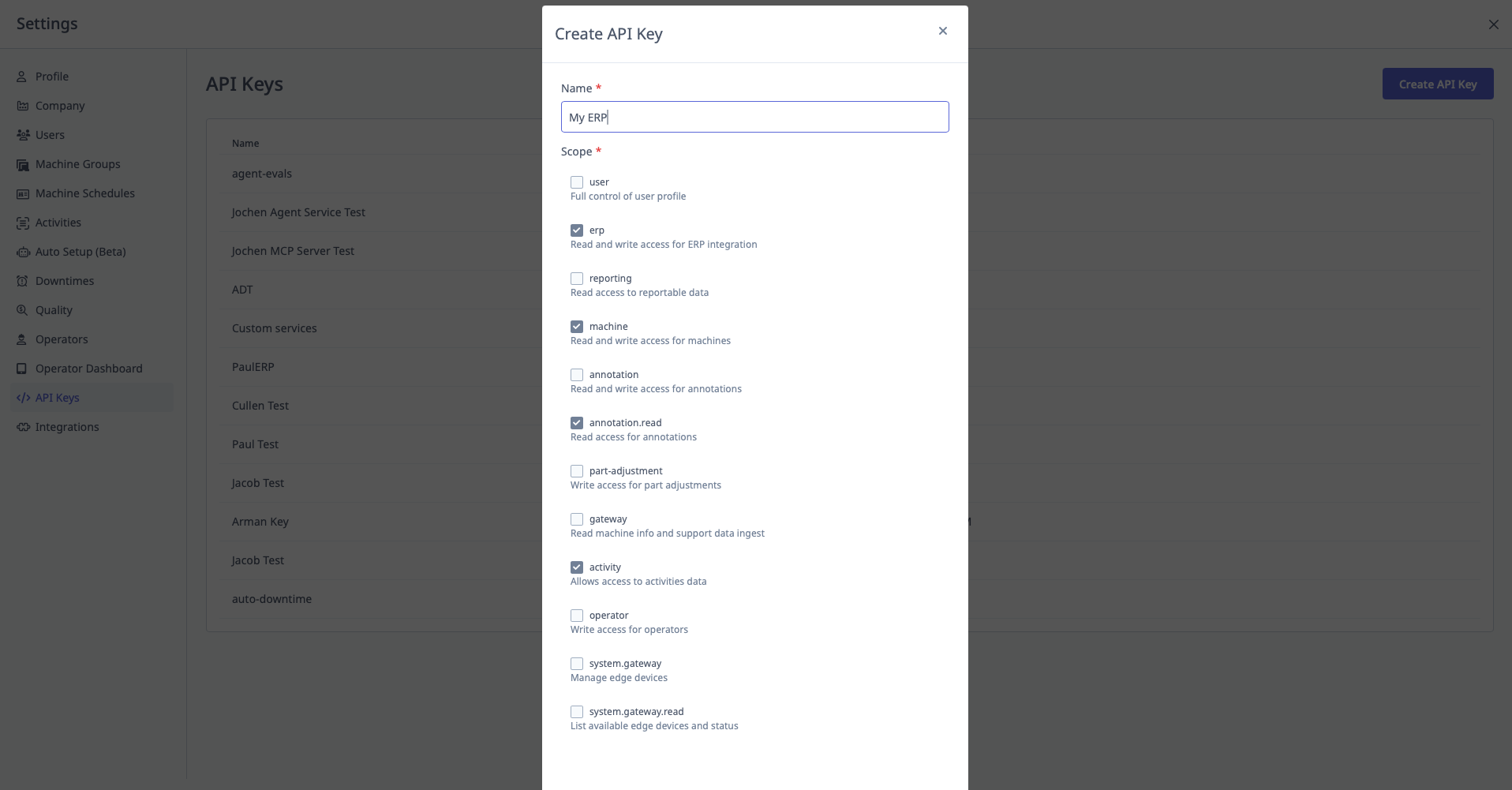
API Keys
What are API Keys?
API Keys allow external systems to access MachineMetrics data programmatically.
Access: Settings → API Keys
Who Can Manage: IT Admins, Executives
Use Cases:
- ERP integration (pull production data)
- Custom dashboards (external BI tools)
- Data warehouse sync
- Third-party applications
API Scopes
Purpose: Control what data the API key can access (principle of least privilege).
Available Scopes:
1. User
- Access: Full control of user profile
- Use Case: User management integrations
2. ERP Read
- Access: Read ERP integration data
- Use Case: View ERP-synced information
3. ERP Write
- Access: Write access for ERP integration
- Use Case: Create/update operations, work orders from ERP
4. Reporting Read
- Access: Read access for reportable data
- Use Case: Pull production reports, OEE data, downtime data
- Recommended: Most common scope for data export
5. Machine Read
- Access: Read machine information
- Use Case: Get machine list, status, configuration
6. Machine Write
- Access: Write access for machines
- Use Case: Create/update machines programmatically
7. Annotation (Downtime)
- Access: Read/write access for downtime categorizations
- Use Case: Auto-categorize downtime via external rules engine
8. Annotation Read
- Access: Read-only access for annotations
- Use Case: View downtime categorizations
9. Part Adjustment
- Access: Write access for part adjustments
- Use Case: Correct part counts programmatically
10. Gateway Read
- Access: Read machine information and support data
- Use Case: Edge Device diagnostics
11. Ingest Activity
- Access: Allow access to activities data
- Use Case: Ingest activity data from external systems
12. Operator
- Access: Write access for operators
- Use Case: Sync operator list from HR system
13. System Gateway
- Access: Manage Edge Devices
- Use Case: Configure Edge Devices programmatically
14. System Gateway Read
- Access: List available Edge Devices and status
- Use Case: Monitor Edge Device health
Creating API Keys
Step-by-Step:
- Navigate to Settings → API Keys
- Click "Add Key"
- Enter Key Name (descriptive, e.g., "ERP Integration - Read Only")
- Select Scope(s):
- Recommendation: Only select what you need
- Example: For reporting, select only "Reporting Read"
- Click "Save"
- API Key displayed (long alphanumeric string)
- IMPORTANT: Copy and store key safely (cannot be retrieved later)
- Click "Close"
Security Best Practice:
- Select minimum required scopes
- Create separate keys for different integrations
- Name keys descriptively
Example:
Key Name: "Power BI Dashboard - Reporting Read Only"
Scopes: Reporting Read
Use: Pull OEE and production data for Power BI dashboards
Managing API Keys
Viewing Keys:
- List shows:
- Key name
- Scopes assigned
- Created date
- Last used date
Revoking Keys:
- Find key in list
- Click "Revoke" or "Delete"
- Confirm revocation
- Key immediately invalid
Use Case for Revocation:
- Employee leaves (revoke their personal API key)
- Integration no longer used
- Security concern (key may be compromised)
Using API Keys
Authentication: Include API key in HTTP request header:
Authorization: Bearer YOUR_API_KEY_HERE
Example API Call (cURL):
curl -X GET "https://api.machinemetrics.com/machines" \
  -H "Authorization: Bearer abc123def456..."
See MachineMetrics API Documentation:
- Full API documentation is on the developer site: developers.machinemetrics.com
- REST API reference — production and quality reports, jobs, work schedules, and CSV downloads
- GraphQL API — machines, activities, part counts, and alarms
- Authentication — API keys, scopes, and JWTs