Single Sign-On
What is Single Sign-On (SSO)?
Single Sign-On (SSO) lets users log into MachineMetrics using your company's identity provider instead of a separate password. MachineMetrics supports SSO through OpenID Connect (OIDC), an identity framework built on OAuth 2.0. SAML is not supported.
Access: Settings → Single Sign-On
Who Can Manage: IT Admins
Key Concepts:
- Users log in using your company's identity provider (e.g., Microsoft Entra ID / Azure AD), eliminating separate passwords
- Once SSO is enabled, existing passwords and Google OAuth logins no longer work for users at that company
- If SSO is later disabled, previous login methods resume
Logging In with SSO
Once configured, users select Log In with SSO on the MachineMetrics login page:
- Select Log In with SSO
- Enter your email address to identify your company and redirect to the correct provider
- Authenticate with your provider. If already authenticated, you may land directly in MachineMetrics.
Configuring SSO
Only users with the IT Admin role can configure SSO.
Setting Up a New Provider
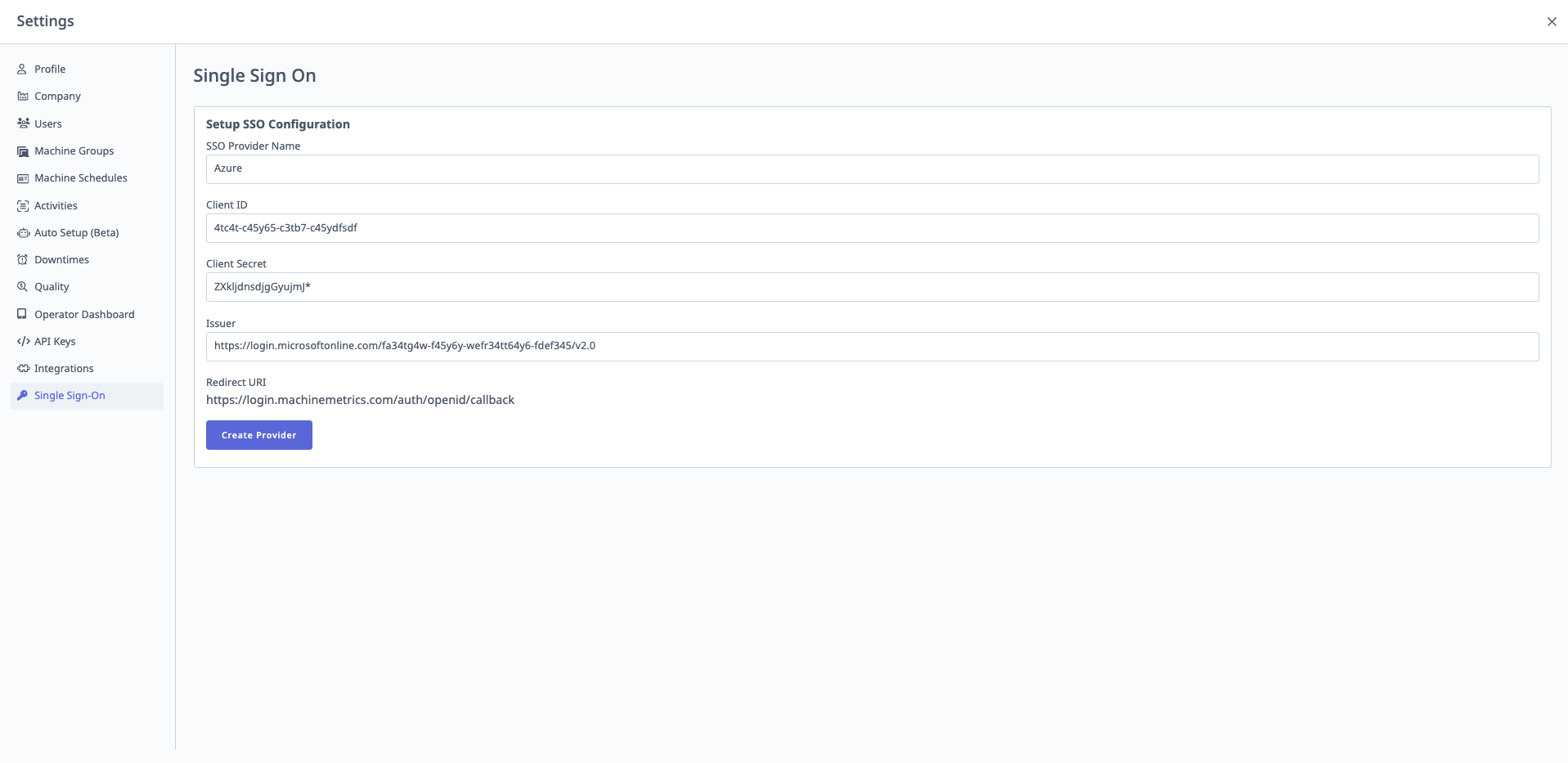
- Navigate to Settings → Single Sign-On
- Fill in the following fields:
- SSO Provider Name — A label for your provider
- Issuer (Authority URL) — A unique URL identifying the provider, which also hosts the OIDC configuration endpoint
- Client ID and Client Secret — Credentials generated by your provider to authenticate MachineMetrics' requests. The Client Secret is not visible after saving.
- Click Create Provider
Reusing an Existing Provider
If you manage multiple companies under the same IT Admin account, you can select an existing provider rather than creating a new one.
Updating or Disconnecting a Provider
- Update — Changes affect all companies sharing that provider. Use caution with shared configurations.
- Disconnect — Reverts the company to password or Google OAuth login. If no other companies use the provider, it is deleted.
OpenID Connect Requirements
MachineMetrics requires these scopes from your provider: openid, email, profile.
Microsoft Entra ID (Azure AD)
Add the following claims to your ID token configuration:
emailfamily_namegiven_nameupn
If the email claim is unavailable, MachineMetrics uses upn as a fallback. Do not include verified_primary_email — this claim conflicts with email/upn and causes login failures.
Ensure your Issuer URL ends with /v2.0 to use Azure's 2.0 token version.
Inviting Users to Register via SSO
After enabling SSO, existing users must re-register. Use Settings → Users → Invite Others to send bulk invitation emails. Users click the link in the invitation email to complete registration through your identity provider.
Recovery: Locked Out After Enabling SSO
If SSO is misconfigured and all users are locked out:
- On the Log In with SSO screen, click Trouble logging in?
- Enter your email. If you are an IT Admin, a temporary bypass link will be emailed to you.
- Use that link to access Settings and update or disable the SSO provider.
This recovery option is only available to IT Admin accounts.
Troubleshooting SSO
Invitation Links Expire Immediately
Symptom: Users receive an invitation email but the registration link shows "Invitation Expired" within seconds of clicking it — even on freshly sent links.
Cause: Enterprise email security gateways commonly pre-fetch URLs in incoming emails to scan them for threats before delivery. Because MachineMetrics invitation links are single-use tokens, the security scanner consumes the token before the user clicks it.
Common platforms that exhibit this behavior include Microsoft Defender for Office 365 (Safe Links), Proofpoint, Mimecast, Barracuda, and Cisco Secure Email, among others.
How to confirm: If the invitation URL in the received email has been rewritten to a proxy address — for example safelinks.protection.outlook.com for Microsoft Defender, or a similar gateway URL for other vendors — URL scanning is active and is the likely cause.
Fix: Your IT or email security administrator needs to add app.machinemetrics.com to the URL scanning bypass or exception list in your email security platform. The exact steps vary by vendor:
- Microsoft Defender for Office 365 (Safe Links): Security portal → Email & Collaboration → Policies & Rules → Threat Policies → Safe Links → edit the policy → add
app.machinemetrics.comunder "Do not rewrite the following URLs." - Proofpoint, Mimecast, Barracuda, Cisco Secure Email, and others: Consult your vendor's documentation for adding URL exceptions or bypass rules, and add
app.machinemetrics.com.
Once the bypass is in place, invitation links will reach users intact and function normally.
Login Fails After SSO Is Enabled
Verify your Entra ID token claims. The most common cause is the presence of the verified_primary_email claim alongside email or upn. Remove verified_primary_email from your ID token configuration and test again.
For additional assistance, contact MachineMetrics Support.
Best Practices
- Test SSO in a non-production environment before enabling it company-wide. MachineMetrics does not provide a sandbox instance, so plan for a brief outage window.
- Maintain at least one IT Admin account for recovery purposes.
- Double-check the Client Secret and Issuer URL before saving. The Client Secret cannot be retrieved after saving.
- When updating a shared provider, notify all affected companies first.