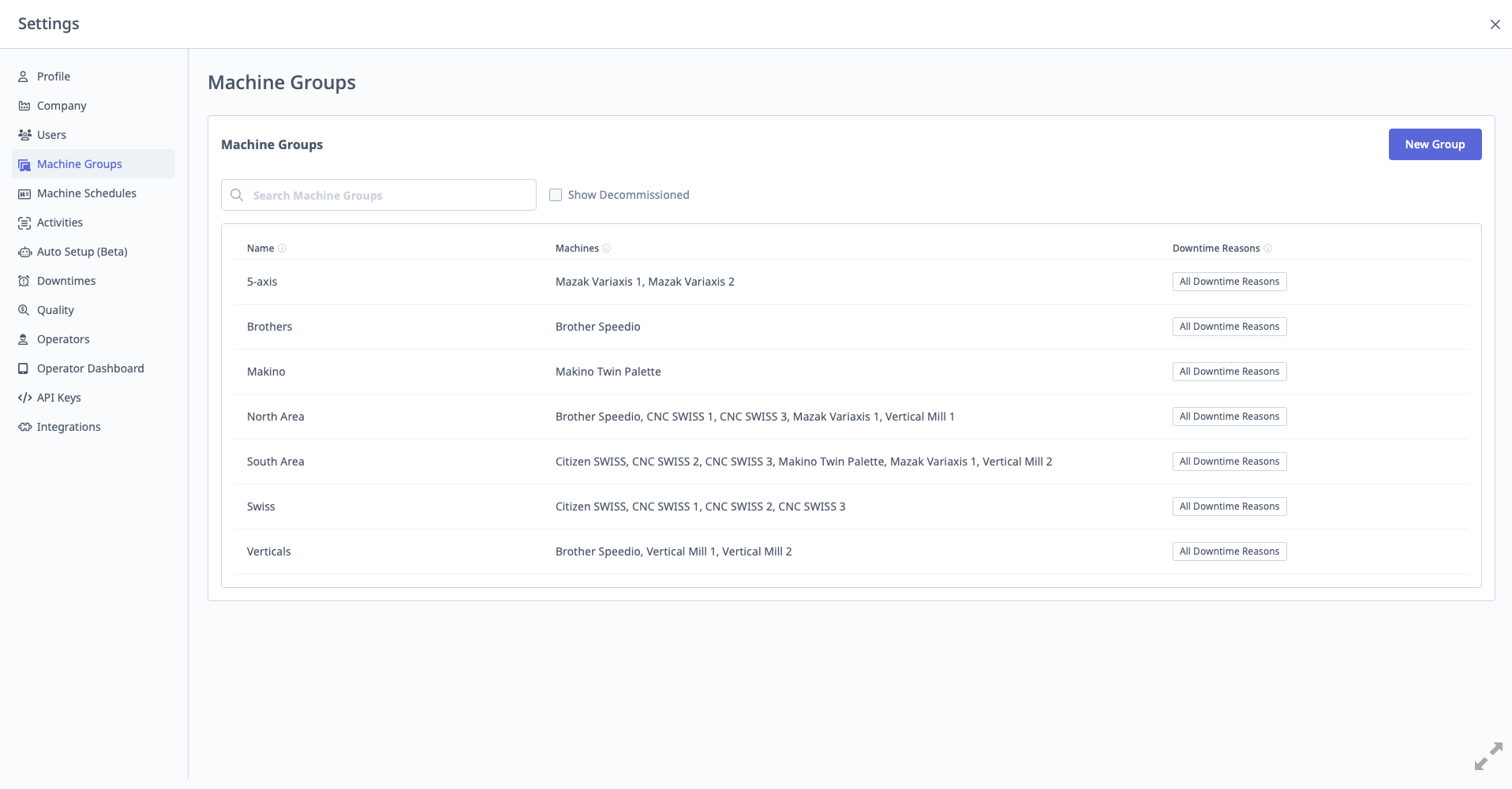
Machine Groups
What are Machine Groups?
Machine Groups organize machines into logical categories for filtering, reporting, and downtime categorization.
Access: Settings → Machine Groups
Who Can Manage: Managers, Executives, IT Admins
Purpose of Machine Groups
Use Cases:
- Filtering: View specific group on dashboards (e.g., "CNC Mills" only)
- Reporting: Run reports for specific group
- Downtime Categorization: Assign different downtime categories to different groups
- ERP Integration: Map groups to ERP work centers
Example Groups:
- CNC Mills
- CNC Lathes
- Manual Welding
- Grinders
- CMMs (Coordinate Measuring Machines)
Creating Machine Groups
Step-by-Step:
- Navigate to Settings → Machine Groups
- Click "Add Group" button
- Enter Group Name (e.g., "CNC Mills")
- (Optional) Select Downtimes: Choose which downtime categories apply to this group
- (Optional) Enter ERP ID: If integrating with ERP, enter work center ID
- Click "Save"
Downtime Category Assignment: Important: Different groups can have different downtime categories.
Example:
Group: CNC Mills
Downtimes: Tool Change, Setup, Material Unavailable, Maintenance

Group: Manual Welding
Downtimes: Waiting for Welder, Material Unavailable, Electrode Change
Why This Matters: Operators on tablets only see downtime categories relevant to their machine group, reducing clutter and improving categorization accuracy.
Assigning Machines to Groups
Method 1: During Machine Creation
- When adding machine, select group from dropdown
Method 2: Edit Existing Machine
- Navigate to Assets → Machines → Select Machine
- Click "Edit"
- Change "Machine Group" field
- Click "Save"
Method 3: Bulk Assignment
- Use CSV import to assign many machines to groups at once
ERP Integration
ERP ID Field:
- Maps MachineMetrics group to ERP work center or resource group
- Used for ERP integrations (IQMS, E2, JobBOSS, etc.)
- Format depends on ERP system
Example:
MachineMetrics Group: CNC Mills
ERP ID: WC-100
Managing Machine Groups
Editing Groups:
- Click group in list
- Modify name, downtimes, or ERP ID
- Click "Save"
Deleting Groups:
- Click "Delete"
- Machines in group are unassigned (not deleted)
- Reassign machines to different group before deleting