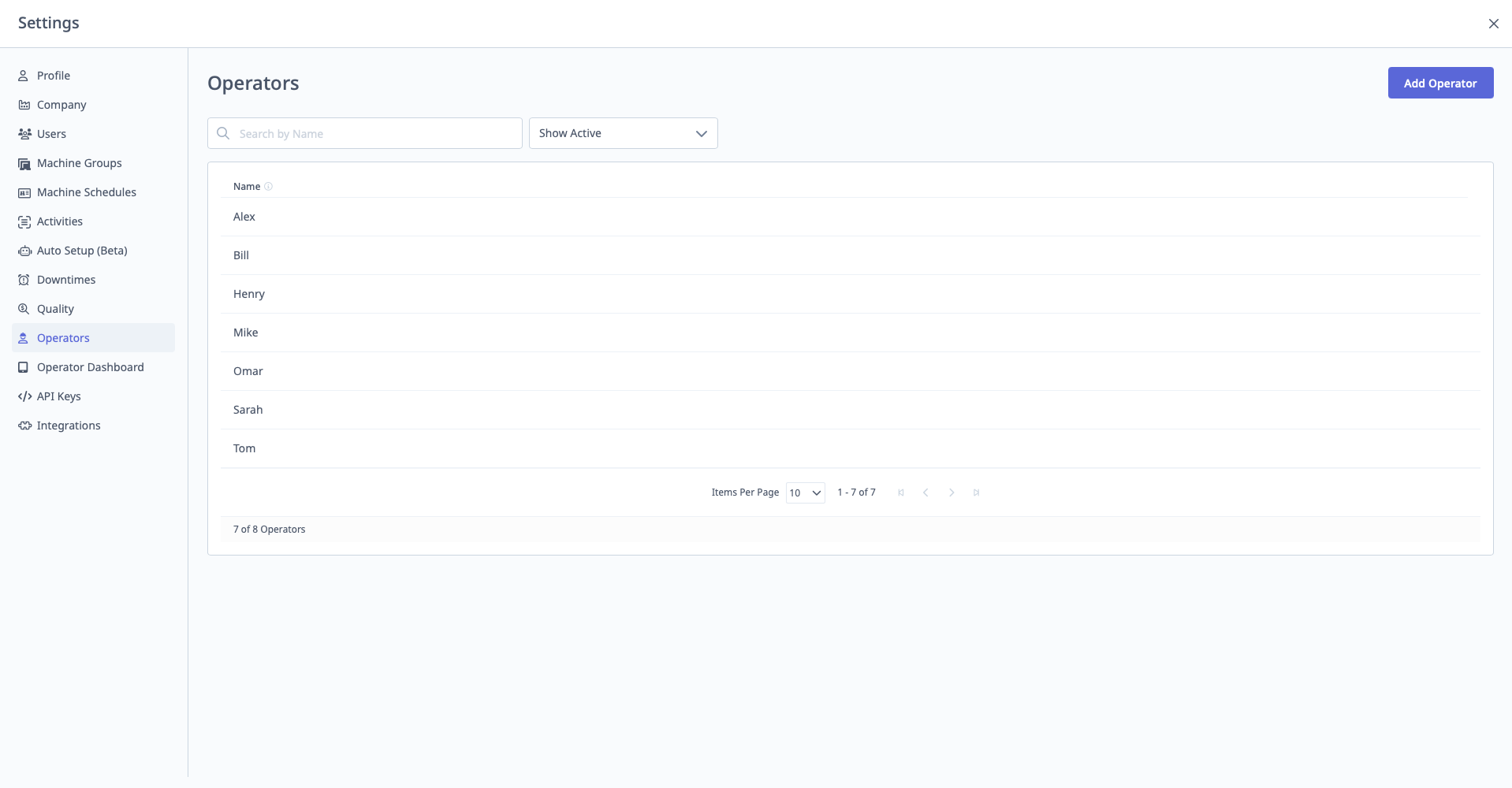
Operators
If your MachineMetrics account is connected to an ERP (e.g., JobBoss, Infor Visual, Epicor), do not add operators here. Operators must be mapped through My Apps → ERP Data Studio → Persons to appear on tablets. Adding operators in Settings → Operators without an Employee ID will not make them available for ERP-linked tablet login. See Adding Operators in an ERP-Linked Setup for the correct workflow.
What is Operators?
Operators is where you add operator names for login on Operator Dashboard (tablets).
Access: Settings → Operators
Who Can Manage: Managers, Executives, IT Admins
Prerequisites:
- Operator Insight must be enabled in Company Settings
Purpose of Operators
Why Add Operators:
- Track individual operator performance
- Identify training needs
- Recognize top performers
- Enable operator-specific reporting
Important: Operator names are not MachineMetrics user accounts. They:
- Have no password, though they may have a sign-in PIN if Operator Verification is enabled
- Have no email
- Have no access to MachineMetrics web interface
- Only appear on tablet sign-in list
Adding Operators
Step-by-Step:
- Navigate to Settings → Operators
- Click "Add Operator"
- Enter Operator Name:
- Full name (e.g., "John Smith")
- Last name only (e.g., "Smith")
- Employee ID (e.g., "EMP-1234")
- Or nickname (e.g., "Johnny")
- Click "Save"
Important:
- Names must be unique
- Use consistent naming convention (e.g., always "FirstName LastName")
- Operator immediately appears on tablet sign-in list
Managing Operators
Editing Operators:
- Find operator in list
- Click Edit (pencil icon)
- Change name
- Click "Save"
Archiving Operators:
- Click Archive to remove from tablet sign-in list
- Historical data retained
- Can be unarchived later
Do Not Delete:
- Archiving is preferred over deleting
- Deleting removes operator but may break historical data links
PIN Management
PIN management options are visible to IT Admins only and only appear when Operator Verification is enabled in Company Settings.
Generating or resetting a PIN:
- Navigate to Settings → Operators
- Find the operator in the list
- Click Generate PIN (for a new operator) or Reset PIN (to issue a replacement)
- The generated PIN is displayed once — copy or note it before closing the dialog
- If the PIN is lost before being shared with the operator, generate a new one
PIN status values shown in the operator list:
| Status | Meaning |
|---|---|
| Not Configured | No PIN has been generated for this operator |
| Active | Operator has a valid PIN |
| Locked | Too many failed attempts — shows a countdown before the next attempt is allowed |
| Expired | PIN has passed its 90-day validity window; operator cannot sign in until IT Admin resets it |
Important notes:
- Admins cannot choose an operator's PIN — the generated PIN is a random temporary value
- The temporary PIN must be used within 7 days of being generated; after that it expires and a new one must be generated
- Operators replace the temporary PIN with their own chosen PIN at first sign-in
See also: Operator Dashboard — PIN Verification
Operator Runs
Correcting Operator Data: If operator forgot to log in or logged in incorrectly:
- Navigate to Production → Operator Runs
- Click "Add Operator Run" or "Edit" existing run
- Assign correct operator to time period
- Corrects historical data
See Also: Operator Dashboard Guide