ERP Data Studio
ERP Data Studio shows the ERP records imported into MachineMetrics. Use it to check what arrived before investigating job selection, resource mapping, or labor sync issues.
Open My Apps → ERP Data Studio. Access depends on your account configuration; contact your Solution Delivery Manager (SDM) if the app is not available.
The screenshots below use a demo account. Your records and available actions depend on your permissions and integration.
Access and Editing
ERP Data Studio is read-only for users without editing permissions. In versions with the current role rules, Admin, Manager, Executive, and IT Admin users can add and edit records. IT Admin access is required to delete most record types. Read-only internal roles cannot edit.
Labor tickets have an additional account-level permission check. IT Admins can edit them; other administrator roles can add, edit, and delete labor tickets only when the account's labor-update capability is enabled. Contact your SDM to confirm this capability and the permissions available in your deployed version.
Permissions do not make every field editable. Available actions also depend on the record and integration.
Keep ERP-sourced data correct in the ERP. A later sync can overwrite local changes to imported fields. For submitted labor, follow your connector's correction rules. Infor Visual supports specific corrections from MachineMetrics, with limits on supported fields and closed accounting periods. Use the MES operator guide for operator corrections before submission.
Machine-to-resource mappings are configured in MES Settings, using Record labor as and Schedule jobs as.
Views
| View | What to check |
|---|---|
| Orders | Work order ID, part, required quantity, dates, and status. |
| Order Ops | An operation for a particular work order, including its sequence, resource, expected times, status, and closed date. |
| Parts | Part number, revision, method, and related routing steps. |
| Part Ops | Routing steps for a part, including resource, cycle time, setup time, and quantity per part. |
| Labor tickets | Person, work order, operation, resource, timestamps, and quantities. |
| Timesheets | A person's clock-in/out sessions, open sessions, duration, and source metadata. See the Timesheets walkthrough. |
| Resources | ERP resources and resource-group flags. Machine mappings are configured in MES Settings. |
| Persons | ERP employee identifiers and links to MachineMetrics operators. |
| Reasons | ERP reason IDs and codes, with MachineMetrics reject-reason and annotation mappings where present. |
Find and Inspect Records
- Choose a view from the tabs at the top of the screen.
- Check the date selector. Use Show all records when you need to look outside the current range.
- Search using the fields listed in that view's search box. Use the sort, column, and filter controls beside it to narrow the list or show more fields.
- Select a row to open its details in a side panel. Expand or collapse sections to focus on the fields you need. Close the panel with the × button to return to the list.
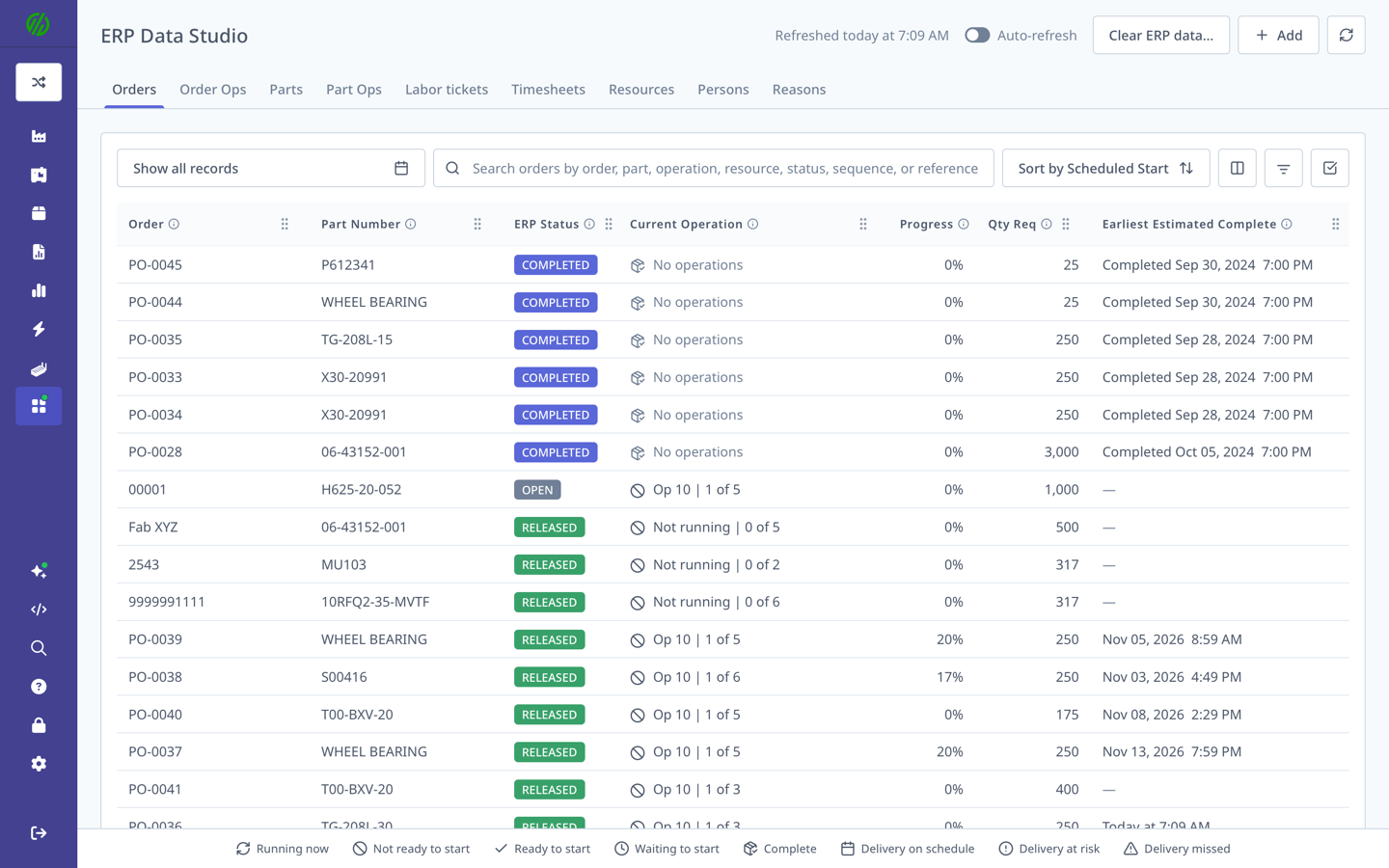
The Orders view shows work order status and progress. Order Ops shows the operations for those orders. Use the Data Mapping Specification to distinguish ERP IDs from MachineMetrics record references.
Inspect Parts and Routing
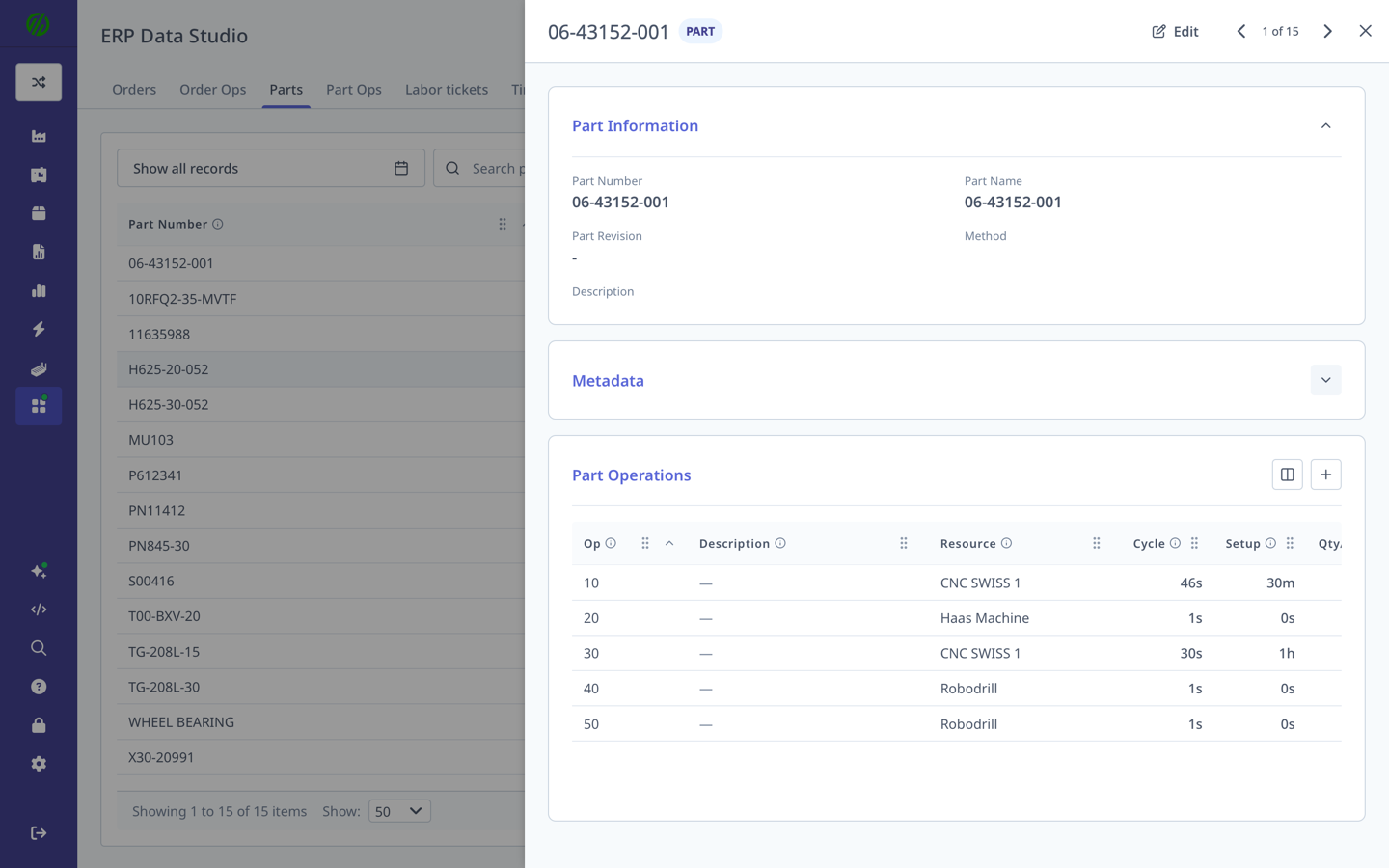
Open Parts and select a part to review its number, revision, method, and routing steps. In the example below, Metadata is collapsed so the Part Operations table is visible.
Open Part Ops to search routing steps across parts. Compare the operation sequence, resource, cycle time, setup time, and quantity per part.
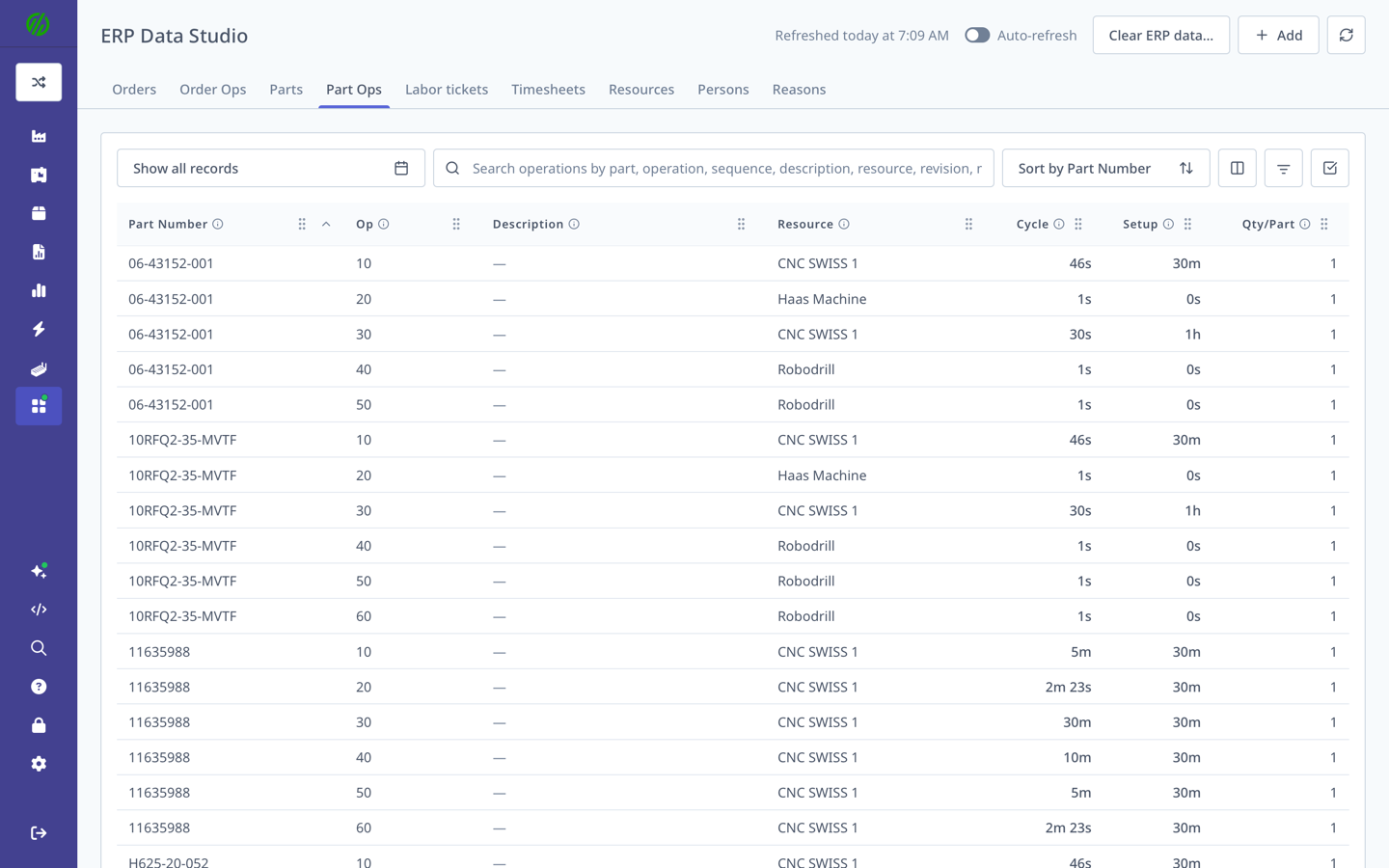
A Part Operation is a shared routing step. An Order Operation belongs to a specific work order. See Part Operations before changing an integration's routing mapping.
Operator Mapping
For an ERP-linked account, map operators through ERP Data Studio → Persons. Adding a name only in Settings → Operators does not establish its ERP employee link.
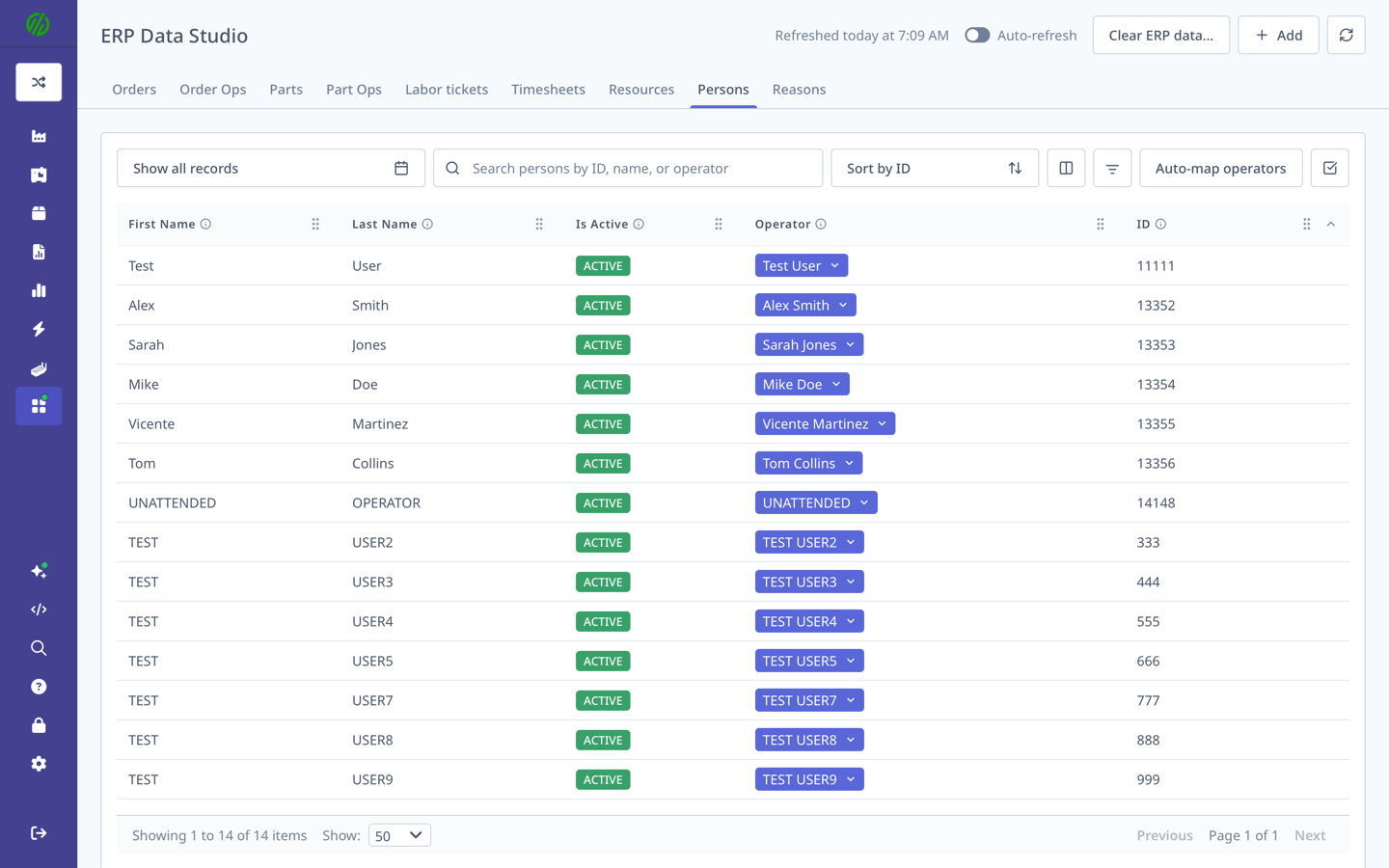
Link an Existing ERP Employee
- Open My Apps → ERP Data Studio → Persons.
- Find the employee by their ERP employee ID.
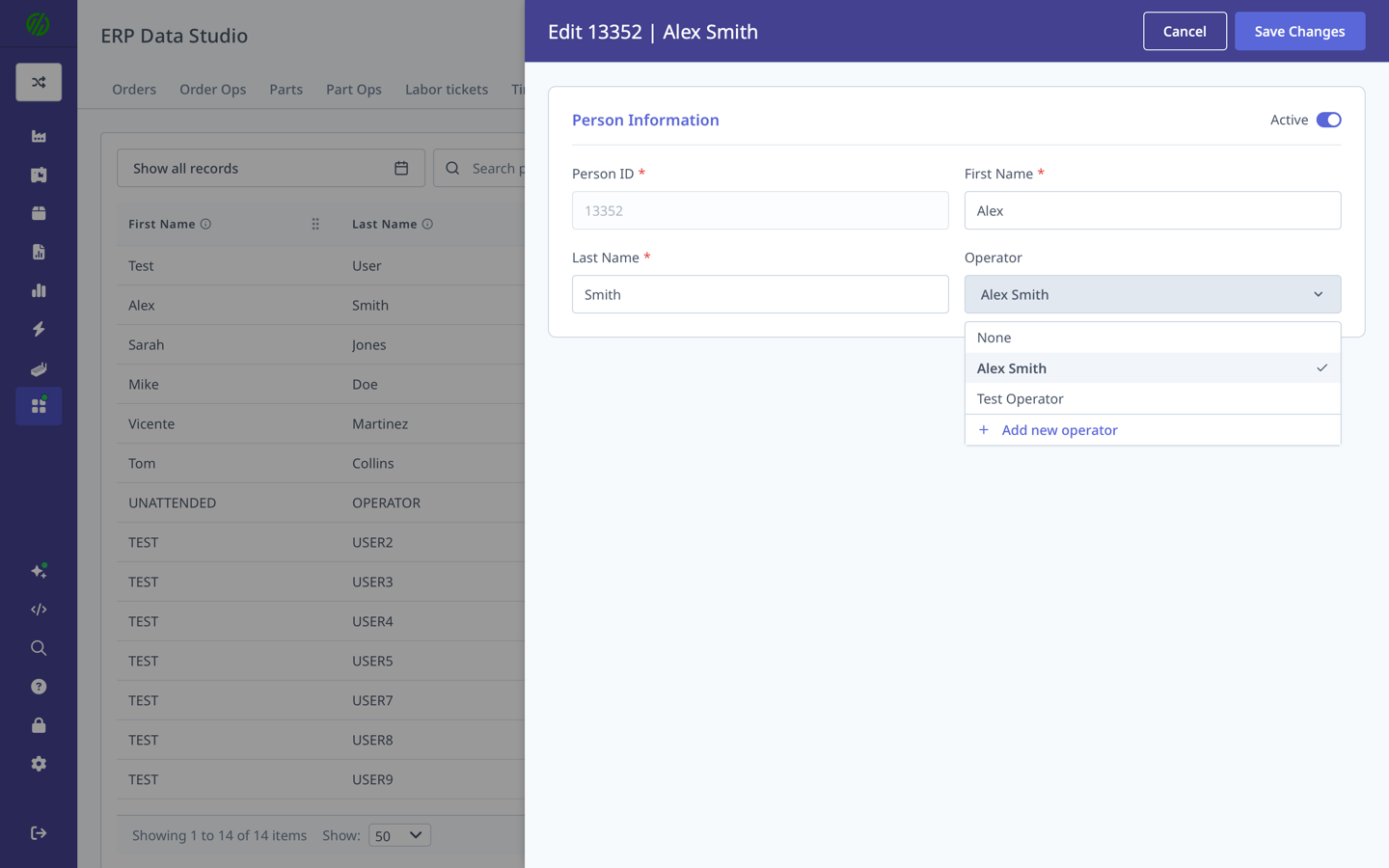
- Select the employee row to open its details, then select Edit.
- Open the Operator selector and choose the matching MachineMetrics operator. If it does not exist, choose Add new operator and complete that form.
- Select Save Changes, confirm the link in Persons, and verify that the operator appears in the Operator View sign-in list.
Add a Missing Person
- Confirm the employee is active in the ERP and allow the connector to sync.
- If the employee is still missing, check connector filters with your SDM or support.
- If you need a MachineMetrics-side person record, an administrator with editing access can use Add → Person, enter the ERP Person ID, first name, and last name, and link or create the operator there.
Manually adding a person does not create an employee in the ERP. Use the exact ERP employee ID, including leading zeros.
Check Reason Mappings
Open Reasons and search for the ERP reason ID or code. Select a row to compare the ERP identifier with its MachineMetrics Reject Reason or Annotation Type mapping.
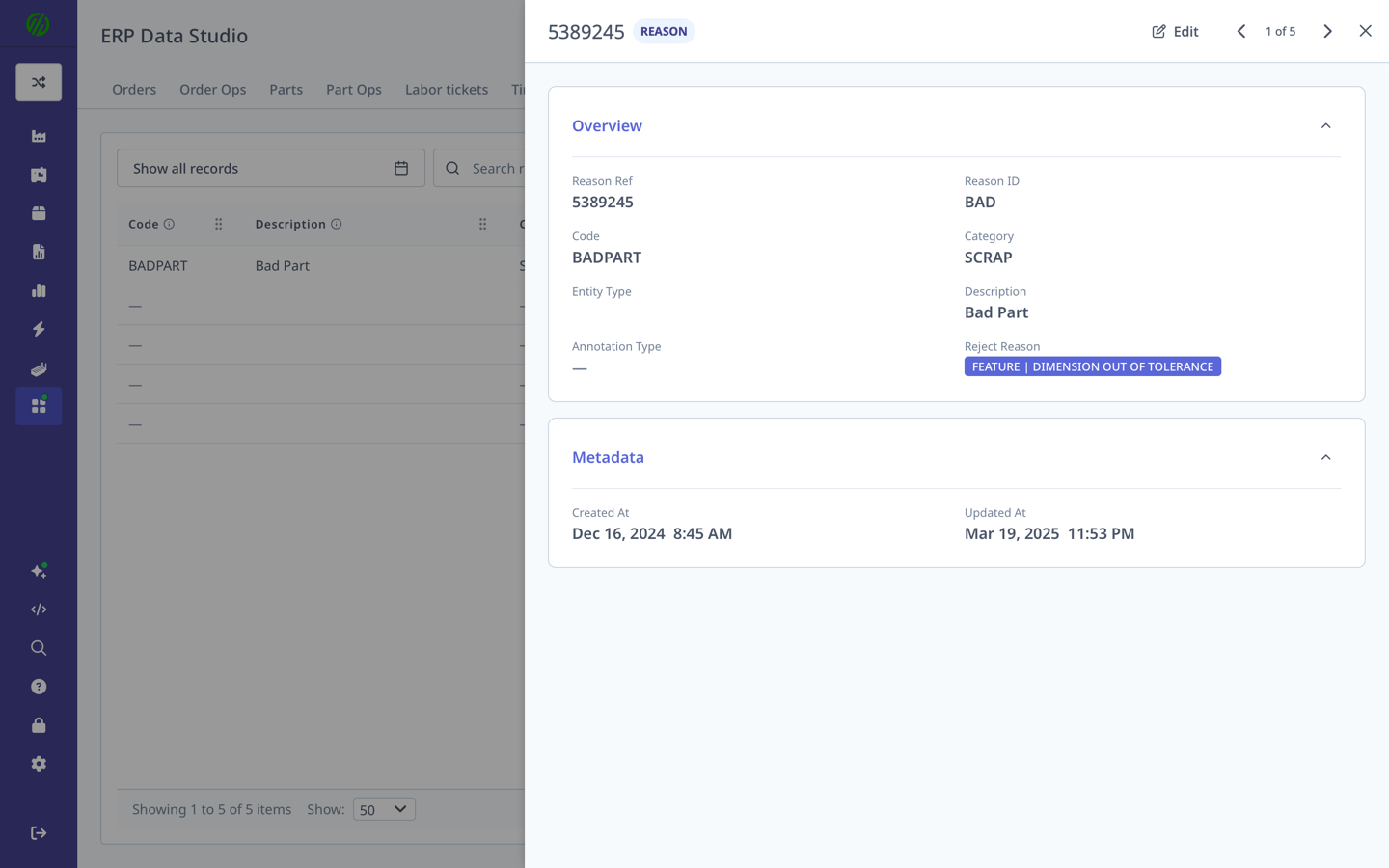
In this example, ERP reason ID BAD is linked to Feature | Dimension Out of Tolerance. The Reason Ref is the MachineMetrics reference for this ERP reason record; it is different from the ERP Reason ID. For the underlying relationships, see Reason Mappings and Labor-Ticket Reasons.
Investigate a Missing Job
- Open Orders and find the work order. If it is absent, check connector status, filters, history windows, permissions, and logs.
- Open Order Ops, find the operation, and check its status, closed date, and ERP resource.
- Verify the machine's Schedule jobs as mapping in MES Settings.
- Check whether the job is released and eligible for selection in your ERP and connector configuration.
- Correct ERP-sourced values in the ERP, allow another sync, and check again.
Review Labor Data
Open Labor tickets and find the ticket by work order, person, or date. Compare the operation, resource, timestamps, and quantities with the source record. Check the connector guide to understand whether the ERP receives open tickets, completed tickets, or records that need a separate posting step.
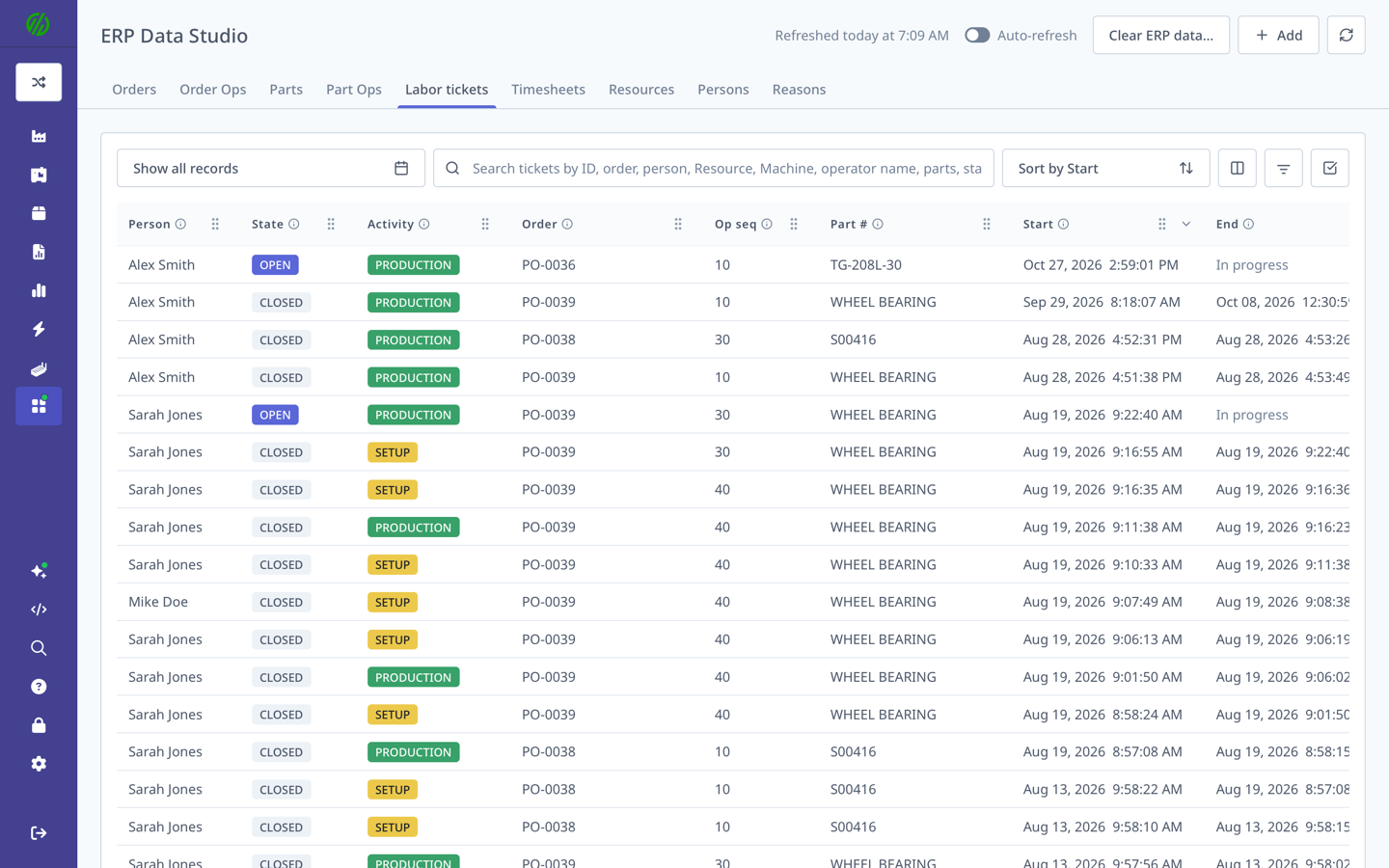
For person-level clock-in/out sessions, use Timesheets rather than job labor tickets. See the Timesheets guide for screenshots of the list and session details.
If a record is missing or fails to sync, use the Troubleshooting and FAQ.