Operations & Production Runs
This guide covers the Operations and Production Runs menus inside the MachineMetrics Production module. These are the core tools for defining what your machines should be running, how to measure performance, and how to track active and historical production activity.
Accessing the Production Menu
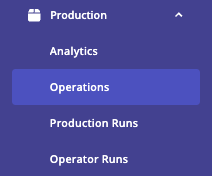
From the left-hand navigation, expand the Production section. You will see the following sub-menus:
- Analytics
- Operations
- Production Runs
- Operator Runs
Operations
Operations define the jobs that run on your machines. If you are not connecting your ERP system to MachineMetrics, this is where you manually load and manage your operations.
Operations List
Navigate to Production → Operations to see all operations loaded into the system.
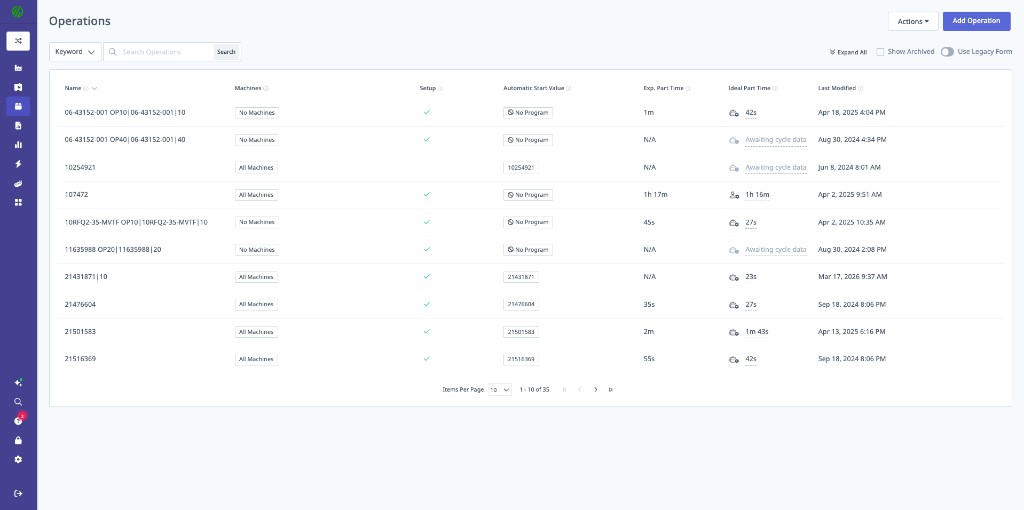
| Column | Description |
|---|---|
| Name | The operation name (e.g., WHEEL BEARING OP40, 21431871|10) |
| Machines | Whether the operation is filtered to specific machines or set to All Machines |
| Setup | Whether setup tracking is enabled |
| Automatic Start Value | The program name or number used for automatic operation detection |
| Exp. Part Time | The expected (button-to-button) part time |
| Ideal Part Time | The ideal (fastest realistic) cycle time |
| Last Modified | Timestamp of the last change |
Use the Keyword search bar at the top to find specific operations. The Show Archived toggle reveals archived operations, and Use Legacy Form is available if needed.
Adding or Editing an Operation
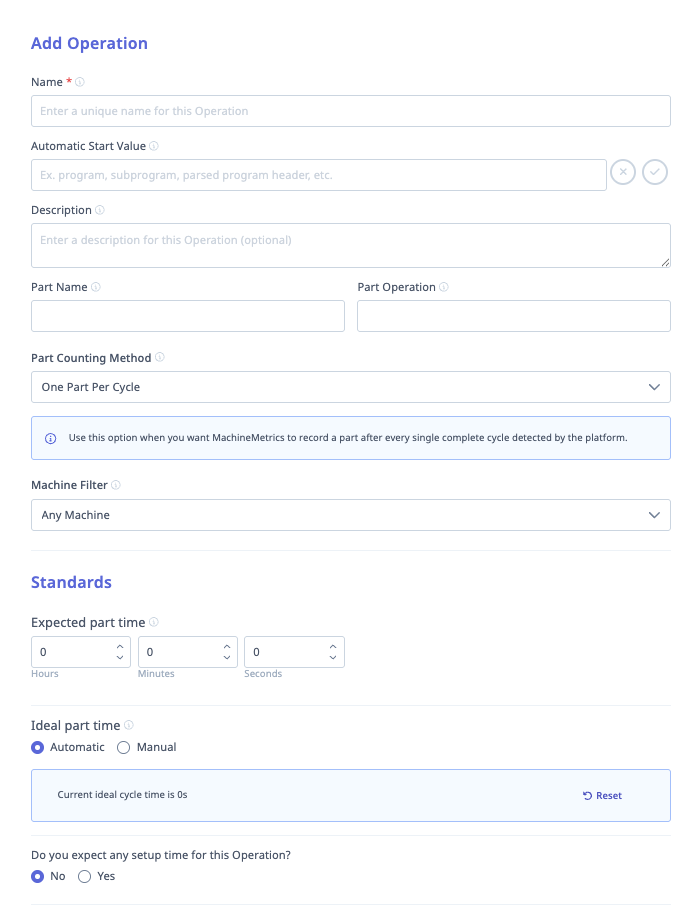
Click Add Operation (top-right) to create a new operation, or click an existing operation to edit it.
General Fields
- Name (required): A unique name for this operation.
- Automatic Start Value: The value MachineMetrics uses to automatically detect when this operation is running — typically a program name or number (e.g.,
O1234). Multiple values can be added. Under Machine Settings → Production & Operations → Matching, you configure where this value is read from (usuallyprogram,subprogram, orparsed program header). - Description: Optional description.
- Part Name: The name of the part being produced.
- Part Operation: The operation step number (e.g.,
10,20,40).
Part Counting Method
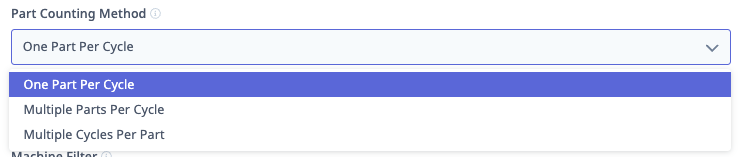
This controls how MachineMetrics counts finished parts for this operation.
| Option | When to Use |
|---|---|
| One Part Per Cycle | Each machine cycle produces exactly one finished part. |
| Multiple Parts Per Cycle | The machine produces more than one part per cycle (e.g., a multi-cavity fixture). Specify how many Parts Produced correspond to how many Cycles Reported. |
| Multiple Cycles Per Part | It takes more than one cycle to finish a single part — for example, OP10 on one side, flip, then OP20 on the other. MachineMetrics counts a finished part only after the defined number of cycles. |
Machine Filter
Restrict which machines this operation applies to by selecting specific machine groups from the Machine Filter dropdown. The default is Any Machine.
Standards
- Expected Part Time (Hours / Minutes / Seconds): The button-to-button cycle time including loading and unloading. This is the primary value used to calculate the parts goal shown on dashboards and operator views. It should reflect realistic total cycle time including operator interaction — not the theoretical minimum.
- Ideal Part Time: The optimum cycle time — the fastest realistic runtime without load/unload time. Used to calculate OEE and Performance metrics.
- Automatic: MachineMetrics calculates the ideal cycle time from observed data. The current calculated value is shown (e.g., "Current ideal cycle time is 23s"). Click Reset to recalculate.
- Manual: Enter a specific ideal part time value.
Expected Part Time drives your parts goal. Ideal Part Time drives your OEE/Performance calculation. These serve different purposes — do not use the same value for both unless your process has zero load/unload time.
Setup Time
Select Yes under "Do you expect any setup time for this Operation?" to enable setup tracking. When enabled, MachineMetrics reports planned versus actual setup time.
Performance Goals
- Default: Uses the system-wide thresholds (Warning: 90%, Failure: 80%).
- Custom: Override with operation-specific warning and failure percentages.
Importing Operations via CSV
For large numbers of operations, import from a spreadsheet instead of creating them one at a time.
Steps to Import
- Navigate to Production → Operations.
- Click Actions (top-right) → Import Operations.
Step 1 — Upload File
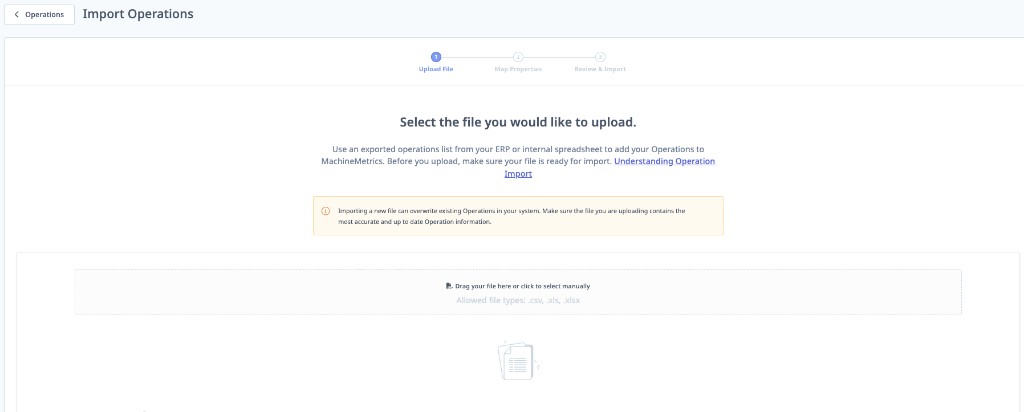
Drag and drop or select your .csv, .xls, or .xlsx file. Importing can overwrite existing operations with matching names — make sure your file is accurate and up to date before uploading.
Step 2 — Map Properties
Match each column header in your file to the corresponding MachineMetrics Operation Property using the dropdown menus. A preview of each column's data helps you verify the mapping.
Step 3 — Review & Import
Review the mapped data before confirming. The Auto-archive unmatched operations option controls merge behavior:
- Checked: Operations not present in the uploaded file are archived (full replacement).
- Unchecked: Uploaded operations are merged with existing ones (additive).
CSV Column Headers
| Header | Description |
|---|---|
name | Operation name |
part | Part name |
operation | Part operation number |
lot | Lot identifier |
description | Operation description |
quantity | Quantity |
default_programname | Automatic start value (program name) |
default_expectedparttime | Expected part time |
default_idealparttime | Ideal part time |
default_setuptime | Setup time |
default_partcountmultiplier | Part count multiplier |
default_actualparts | Actual parts per cycle |
warningpercent | Performance warning threshold (e.g., 90) |
failurepercent | Performance failure threshold (e.g., 80) |
workcenter | Work center assignment |
updatedAt | Last updated timestamp |
useCustomStandards | Whether custom standards are enabled (true/false) |
Always use the default_ prefixed columns (e.g., default_expectedparttime, default_idealparttime). Your spreadsheet may also contain non-prefixed versions of these fields — do not map those. The non-prefixed columns are for machine-specific overrides and will not apply correctly in a standard import.
Part time values can be provided in milliseconds, seconds, minutes, or hours. Select the unit when mapping properties during the import step.
Handling Import Conflicts
During the Map Properties step you may see a "Conflict Detected!" warning — for example, if default_idealparttime is set to zero but a default_expectedparttime value exists.
To resolve a conflict, click the mapped property dropdown for the conflicting column and clear the selection. If you don't need to import that column, deselecting it removes the conflict.
Production Runs
Production Runs represent periods of time when an Operation is actively running on a machine — the live or historical records of operations in execution.
Production Runs List
Navigate to Production → Production Runs to see all runs.
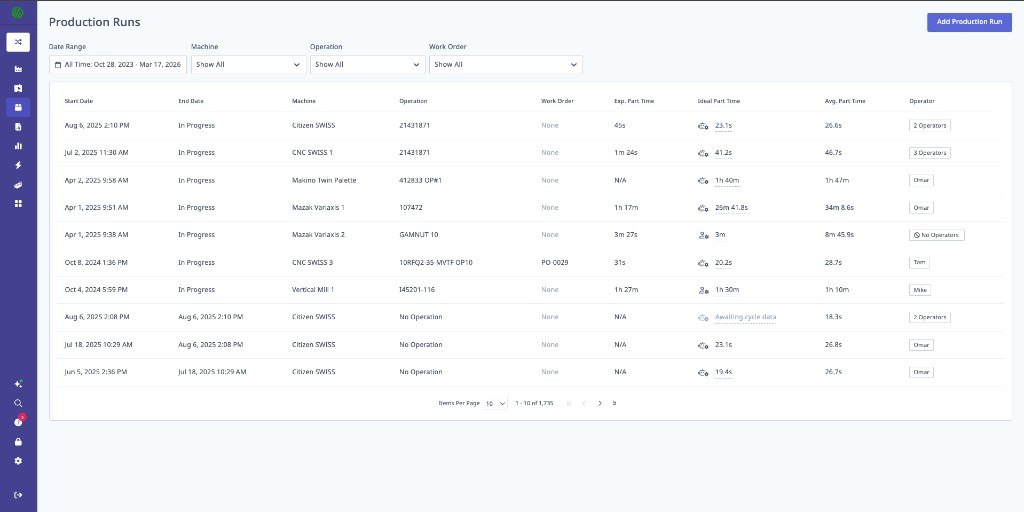
| Column | Description |
|---|---|
| Start Date | When the production run began |
| End Date | When the run ended, or In Progress if still active |
| Machine | The machine the run is on |
| Operation | The operation being run |
| Work Order | Associated work order (if any) |
| Exp. Part Time | Expected part time for this run |
| Ideal Part Time | Ideal part time (shows "Awaiting cycle data" if automatic and no cycles have been recorded yet) |
| Avg. Part Time | Average actual part time observed |
| Operator | Operator(s) assigned to the run |

Filter the list by Date Range, Machine, Operation, and Work Order using the dropdowns at the top.
Creating a Production Run
Click Add Production Run (top-right) to manually create a run. There are two common reasons to do this:
- An operator forgot to start the operation from the tablet — create a run retroactively for a period that already occurred.
- You want to start a run manually right now.
The form requires:
| Field | Notes |
|---|---|
| Select Operation (required) | Choose from existing operations |
| Select Machine (required) | Choose the machine |
| Work Order # | Optional — associate a work order |
| Part Counting Method | Defaults from the operation but can be overridden for this run |
| Expected Part Time | Defaults from the operation but can be overridden per-run |
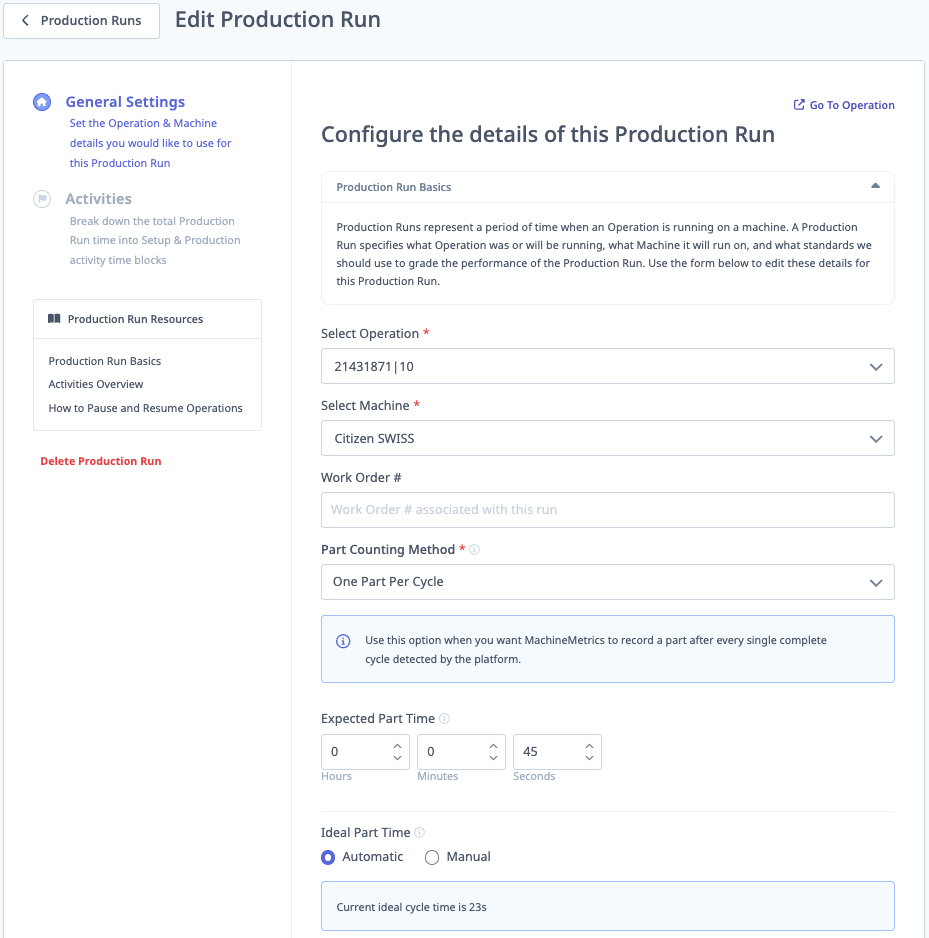
| Ideal Part Time | Set to Automatic or Manual. If Automatic, the current calculated ideal cycle time is displayed |
Editing a Production Run
Click into any production run to edit it. The left sidebar shows two steps: General Settings and Activities.
General Settings contains the same fields as creation (operation, machine, work order, part counting method, expected/ideal part time). A "Go To Operation" link in the top-right jumps directly to the underlying operation definition.
Activities
Activities break the total production run time into distinct blocks. All time during a run must be covered by activities — the end time of one activity becomes the start time of the next. If there is a gap between activities, the system logs it as Operation Paused.
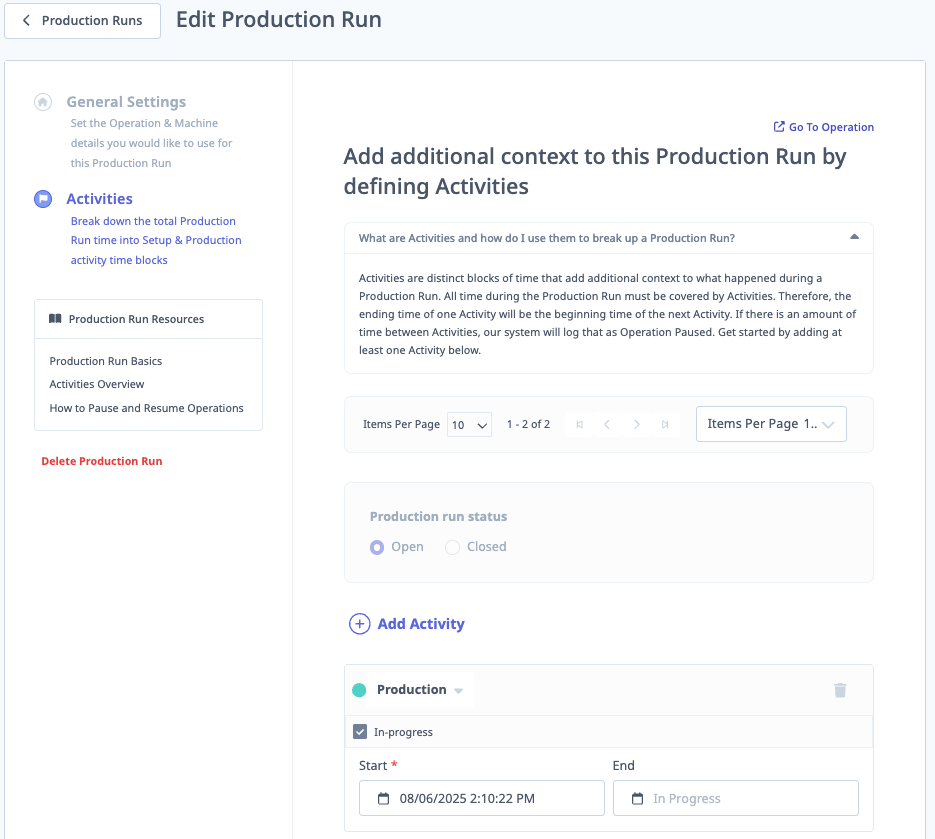
Each activity has:
- Type: Production (green) or Setup (yellow), selectable via the dropdown arrow.
- In-progress: Checkbox indicating the activity is still running.
- Start / End: Timestamps for the activity window.
Click Add Activity to insert additional time blocks, or use the trash icon to delete an existing activity.
Ending a Production Run
To close out an active (In Progress) production run:
- Click into the production run.
- Go to the Activities section.
- Find the activity marked In-progress and uncheck the In-progress checkbox.
- The Production run status radio buttons become available — select Closed.
- The end time is automatically set to the current time.
- Adjust start/end times if corrections are needed.
- Click Save Changes.
Deleting a Production Run
At the bottom of the left sidebar on the Edit Production Run page, click Delete Production Run (shown in red) to remove a run entirely.
Quick Reference
| Task | Where to Go |
|---|---|
| View all operations | Production → Operations |
| Add a new operation | Production → Operations → Add Operation |
| Import operations from CSV | Production → Operations → Actions → Import Operations |
| Search for an operation | Production → Operations → Keyword search bar |
| View all production runs | Production → Production Runs |
| Create a manual production run | Production → Production Runs → Add Production Run |
| End an active production run | Click into run → Activities → Uncheck In-progress → Set to Closed → Save |
| Edit part times on a run | Click into run → General Settings → Update Expected/Ideal Part Time |
| View or edit activities in a run | Click into run → Activities |