Manual Stations Guide
Overview
What are Manual Stations?
Manual Stations (also called "Stations") provides a streamlined, single-platform approach to managing manual workstations that replaces complex ERP interfaces with an intuitive system designed specifically for shop floor personnel.
Manual Stations extends MachineMetrics' machine monitoring capabilities to non-automated processes including:
- Assembly stations
- Inspection and quality stations
- Deburring and finishing
- Manual machining operations
- Packaging and shipping
- Kitting and material preparation
- Testing and calibration
- Any manual labor process
The Problem Manual Stations Solves:
- Complex ERP systems create friction for shop floor personnel
- Disconnected platforms force operators to learn and switch between multiple systems
- Limited visibility into labor utilization across manual processes
- Difficulty scheduling and tracking performance of non-automated operations
- Ineffective resource allocation due to lack of activity insights
The Solution: A simplified, unified shop floor interface that:
- Eliminates system switching (single platform for machines + manual work)
- Provides purpose-built UI for shop floor (not ERP complexity)
- Enables straightforward labor hour management
- Visualizes manual station schedules intuitively
- Tracks manual process performance with minimal operator input
- Generates utilization reports for previously unmeasured operations
Who Uses Manual Stations:
- Operators: Clock in/out for tasks, view assignments, report work completed
- Production Managers: Monitor manual process productivity and utilization
- IT Managers: Reduce training burden with simplified interface
- Plant Managers: Unified visibility across automated and manual operations
- Finance/Management: Data-driven insights for manual process efficiency
Key Benefits
Single Platform Experience
Before Manual Stations:
- Operators toggle between ERP, MES, time clocking system, work instruction viewer
- Different login credentials for each system
- Different interfaces and workflows
- Confusion and errors from system switching
With Manual Stations:
- One intuitive interface for all shop floor activities
- Single login for machines and manual stations
- Consistent user experience
- Operators spend time working, not navigating systems
Simplified User Interface
ERP Challenges:
- Designed for business management, not shop floor use
- Complex navigation with many unused features
- Training intensive (hours or days)
- High error rate from complexity
Manual Stations Advantage:
- Purpose-built for shop floor personnel
- Minimal clicks to complete common tasks
- Intuitive design requires minimal training (15-30 minutes)
- Reduced errors from simplified workflows
Labor Hour Management
Capabilities:
- Clock in/out for specific tasks with 2-3 taps
- Automatic duration calculation
- Task assignment visibility
- Labor reporting for manual processes
- Integration with payroll systems
Use Cases:
- Track time spent on assembly operations
- Measure inspection station productivity
- Monitor finishing and deburring labor
- Analyze packaging throughput
- Compare operator efficiency
Streamlined Scheduling
Visual Station Scheduling:
- See all manual stations and assignments at a glance
- Drag-and-drop task assignment
- Color-coded status indicators
- Real-time updates as work progresses
Operator Experience:
- View assigned tasks on tablet
- See task priority and due dates
- Clock into tasks directly from schedule
- Update task status as work completes
Complete Shop Floor Visibility
Unified Platform Benefits:
- Monitor CNC machines and manual stations in one view
- Compare automated vs. manual process performance
- Identify bottlenecks across entire production flow
- Allocate resources (people and machines) effectively
- Generate consistent reports for all operations
Getting Started
Prerequisites
Hardware:
- Tablets at manual workstations (same tablets as operator dashboards for machines)
- Or shared kiosk tablets for clock-in/out
- Recommended: 10-13" touchscreen tablets
Software:
- MachineMetrics Stations module enabled
- User accounts for manual station operators
- Station definitions configured (Settings → Stations)
Permissions:
- Operators: Access to assigned stations
- Supervisors: View all stations, assign tasks
- Managers: Configure stations, view reports
Configuring a Manual Station
A manual station is configured per machine. Complete these steps in order.
Step 1: Deploy the Manual Stations edge service
- Go to Assets → Edge Devices and click the Edge Device you want to use.
- Open the Edge Services tab and click Add Service.
- Set Container Service to Manual Stations.
- Leave Enabled on.
- Leave Version set to
latest. - Enter your API key in the API_KEY field.
- Click Add, then click Save.
Step 2: Create the station machine
- Go to Assets → Machines and click Add Machine.
- Enter a Machine Name, for example
Manual Station 4. - Leave IP Address blank.
- Set Edge Device to the device from Step 1.
- Click Save.
The machine is created with the status Needs Connecting.
Step 3: Add the Production Activity data collection method
- Open the machine record.
- In the Data collection methods panel, click + Add.
- Set Data Collection Method to Production Activity.
- Leave Enable source checked. The adapter configuration is prefilled and Adapter Version is selected automatically.
- Click Add.
Step 4: Set the part count metric
- Open the Data rules tab.
- Set Select Part Count Metric to Manual Counter.
- Click Save.
The Connection Address populates automatically and Machine health shows Connected.
Step 5: Start a run at the station
- Open the operator application at
operator.machinemetrics.com. The station appears in the machine list with the status Idle. - Select the station.
- Tap Start Run.
- Select the operation.
- Tap Enter Production.
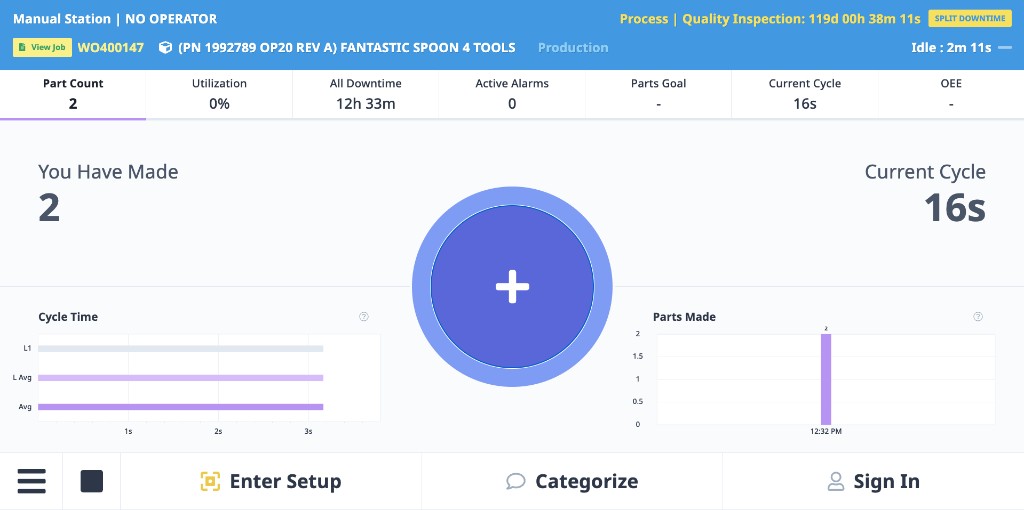
The manual count (+) button appears in the center of the screen. The button is only present once the station is in production.
Step 6: Record parts
Tap + once for each completed part. Part Count and You Have Made increment with each tap, and the station state changes to Active.
Initial Setup
Step 1: Add the Machine
Add the machine:
- Navigate to Assets → Machines from the left menu
- Click Add
- Enter the station name — no IP address needed
Configure the adapter:
- Click the machine once it appears in the list
- Click Add Adapter
- Select Production Activity from the dropdown
- Click Save
Step 2: Assign Operators to Stations
- Navigate to Settings → Operators
- Select operator
- Under Station Access, check boxes for stations this operator can work at
- Click "Save"
- Repeat for all operators
Step 3: Deploy Tablets
- Mount tablets at each manual station (or use shared kiosks)
- Open web browser to MachineMetrics URL
- Login with station-specific credentials (or operator login)
- Interface shows station name and available tasks
Step 4: Create Initial Tasks (Optional)
If using task-based workflow:
- Navigate to Production → Manual Stations → Tasks
- Click "Create Task"
- Configure:
- Task name/description
- Assigned station
- Due date
- Expected duration
- Click "Save"
For Operators: Using Manual Stations
Logging In
At Station Tablet:
- Open browser to MachineMetrics
- Enter username and password
- Station interface loads
- Shows assigned tasks and clock-in options
Shared Kiosk:
- Navigate to kiosk
- Tap "Clock In"
- Select your name or scan badge
- Enter PIN (if required)
- Select station/task
- Tap "Start"
Clocking Into a Task
Method 1: From Task List
- View list of assigned tasks
- Tap task to start
- Tap "Clock In"
- Timer starts automatically
Method 2: Quick Clock-In
- Tap "Clock In" button (top right)
- Select station (if multiple assigned)
- Select task from dropdown
- Or select "General Work" if no specific task
- Tap "Start"
- Timer starts
What's Tracked:
- Start time (timestamp)
- Operator ID
- Station ID
- Task/work order (if assigned)
- Duration (calculated automatically when clocked out)
Working on a Task
During Task:
- Timer shows elapsed time
- Task details visible on screen
- Work instructions accessible (if configured)
- Can pause and resume if needed
Pause Task:
- Tap "Pause" button
- Timer stops
- Select reason (optional):
- Break
- Material wait
- Meeting
- Other
- Resume by tapping "Resume"
Status Updates:
- Task progress bar (if quantity-based)
- Parts completed (if tracking quantity)
- Notes field for comments
Clocking Out
Complete Task:
- Tap "Clock Out" button
- Confirm task completion
- Enter quantity completed (if applicable)
- Add notes (optional)
- Tap "Submit"
Result:
- Duration calculated automatically
- Labor hours recorded
- Station becomes available
- Task marked complete (or partial if incomplete)
If Forgot to Clock Out:
- Supervisor or manager can adjust time retroactively
- Navigate to Production → Labor Tickets
- Find entry and click "Edit"
- Adjust end time
- Add note explaining adjustment
Viewing Assigned Tasks
Task Queue:
- Shows all tasks assigned to your stations
- Sorted by priority/due date
- Color-coded:
- Green: On time
- Yellow: Due soon
- Red: Overdue
Task Details:
- Task name
- Work order (if applicable)
- Expected duration
- Due date/time
- Instructions or notes
- Parts/quantity required
Reporting Issues
During Task:
- Tap "Report Issue" button
- Select issue type:
- Quality problem
- Material shortage
- Equipment problem
- Instructions unclear
- Other
- Add description
- Take photo (optional)
- Tap "Submit"
Result:
- Supervisor notified immediately
- Issue logged with timestamp
- Task remains active (or paused)
- Follow-up tracked
For Supervisors: Monitoring Manual Stations
Manual Station Dashboard
Access: Dashboards → Manual Stations
Real-Time View Shows:
- All manual stations and current status
- Operator assigned to each station (if any)
- Active task and elapsed time
- Station utilization (% of shift time active)
- Queue of pending tasks
- Color-coded status indicators:
- Green: Active (operator clocked in)
- Yellow: Idle (operator available)
- Gray: Offline (no operator assigned)
- Red: Issue reported
Use Cases:
- Morning standup: Review overnight manual station activity
- Real-time monitoring: Identify idle stations or bottlenecks
- Resource allocation: Reassign operators to balance workload
- Issue response: Address reported problems quickly
Task Assignment
Assigning Tasks to Stations:
- Navigate to Production → Manual Stations → Tasks
- Click "Create Task" or "Assign Existing"
- Configure:
- Task name/work order
- Assign to station
- Assign to specific operator (optional)
- Priority (High, Medium, Low)
- Due date
- Expected duration
- Instructions/notes
- Click "Save"
Reassigning Tasks:
- Drag and drop tasks between stations (Kanban view)
- Or click task → "Edit" → Change station assignment
Task Prioritization:
- Set priority level (High/Med/Low)
- Sort task list by priority
- Operators see highest priority first
Monitoring Labor Hours
Labor Summary View:
- Total labor hours by station (today, this week, this month)
- Labor hours by operator
- Comparison to scheduled hours
- Overtime tracking
- Utilization percentage
Identifying Issues:
- Stations consistently under-utilized (capacity not needed?)
- Stations consistently over-utilized (need more capacity?)
- High variability in task durations (standardization opportunity?)
- Frequent pauses or interruptions (bottleneck identification)
Adjusting Labor Tickets
When Corrections Needed:
- Operator forgot to clock out (end time = now, instead of hours ago)
- Operator clocked into wrong station
- Time needs adjustment for accuracy
How to Adjust:
- Navigate to Production → Manual Stations → Labor Tickets
- Filter to find ticket needing adjustment
- Click "Edit"
- Modify:
- Start time
- End time
- Operator
- Station
- Task/work order
- Add note explaining adjustment
- Click "Save"
Audit Trail:
- All adjustments logged
- Original values preserved
- Who made adjustment and when
- Reason for adjustment (from notes)
For Managers: Manual Station Analytics
Utilization Reports
Access: Reports → Manual Stations → Utilization
Metrics Available:
- Station Utilization %: Time clocked in ÷ scheduled time
- Operator Utilization %: Time worked ÷ scheduled shift time
- Idle Time: Time station available but no operator assigned
- Active Time: Time operator clocked in and working
- Pause Time: Time operator paused (breaks, material wait, etc.)
Grouping Options:
- By Station
- By Operator
- By Shift
- By Day/Week/Month
- By Task Type
Benchmarking:
- Compare stations to each other
- Compare operators to each other
- Trend over time (improving or declining?)
- Industry benchmarks (if available)
Use Cases:
- Justify adding/removing stations
- Identify training needs (low-performing operators)
- Optimize shift scheduling
- Balance workload across stations
Task Performance Analysis
Metrics:
- Average Task Duration: Actual time per task
- Task Duration Variance: Consistency of performance
- Tasks Completed per Shift: Throughput
- First Time Yield: % of tasks completed without rework
- On-Time Completion: % of tasks completed by due date
Analysis Views:
- By Task Type
- By Station
- By Operator
- By Complexity (if categorized)
Insights:
- Which tasks take longest?
- Which tasks have highest variability (standardization opportunity)?
- Which operators perform best on specific tasks?
- Where are bottlenecks in manual processes?
Cost Analysis
Labor Cost Calculation:
Total Labor Cost = Labor Hours × Hourly Rate
By Station:
- Total labor hours per station
- Labor cost per station
- Cost per unit output (if quantity tracked)
By Task/Work Order:
- Actual labor hours vs. estimated
- Variance analysis (over/under budget)
- Labor efficiency ratio
Use Cases:
- Job costing accuracy
- Process improvement ROI
- Pricing strategy adjustments
- Resource allocation optimization
Continuous Improvement Opportunities
Data-Driven Improvements:
- Standardization: Tasks with high duration variance need standardized work instructions
- Training: Operators significantly below average need additional training
- Process Improvement: Tasks taking longer than expected need process analysis
- Workload Balancing: Over/under-utilized stations need capacity adjustment
- Bottleneck Resolution: Stations with longest queues need additional capacity or process improvement
Tracking Improvements:
- Baseline metrics before improvement
- Implement changes
- Measure post-implementation
- Calculate ROI
Station Configuration
Station Types
Assembly:
- Multi-step assembly operations
- Kit building
- Sub-assembly work
Inspection:
- Quality inspection stations
- CMM operations
- Visual inspection
- Functional testing
Finishing:
- Deburring
- Polishing
- Painting
- Coating
Packaging:
- Final packaging
- Labeling
- Kitting for shipment
Testing:
- Functional testing
- Calibration
- Validation
Other:
- Custom station types
- General manual work
- Maintenance activities
Station Settings
Navigate to: Settings → Stations → [Select Station] → Edit
Configurable Options:
1. General Information
- Station Name
- Station Type
- Description
- Physical Location
2. Capacity
- Number of operators (1 = single operator, 2+ = team station)
- Maximum concurrent tasks
3. Operating Schedule
- Assign shift schedule
- Attended hours
- Breaks (excluded from utilization calculation)
4. Custom Fields
- Equipment ID (if station has specific equipment)
- Cost center
- Supervisor responsible
- Notes
5. Tablet Configuration
- Kiosk mode (simple clock-in/out)
- Full task management (view queue, instructions, etc.)
- Work instruction display options
Displaying Part ID in the Work Order View
The Manual Stations work order view displays the job name for the active run. To show the Part ID (or other job details) in that view, configure the Job Name Format — there is no separate per-station display setting for this.
Steps:
- Go to Settings → Company and locate the Job Name Format field.
- Add the
{part}token to the format string. For example:{name}; Part: {part}; Op: {operation}; Lot: {lot} - Click Save. The Part ID now appears wherever job names are shown, including the Manual Stations work order view.
The Part ID only displays if the operation has a Part value populated — set directly on the operation or synced from your ERP. If {part} is blank, verify the operation has a part assigned.
Work Instructions
Attaching Instructions to Tasks:
- Create or edit task
- Scroll to "Work Instructions" section
- Choose format:
- Text: Enter step-by-step instructions
- PDF: Upload document
- URL: Link to external resource (Google Drive, intranet, etc.)
- Video: Link to training video
- Instructions appear on operator tablet when task active
Best Practices:
- Keep instructions concise and clear
- Use numbered steps
- Include photos or diagrams where helpful
- Test instructions with actual operators
- Update regularly based on feedback
Labor Hour Management
Clock-In/Out Methods
Method 1: Badge Scan
- Operator scans badge at kiosk
- System identifies operator
- Shows available stations/tasks
- Operator selects and starts
Method 2: PIN Entry
- Operator enters unique PIN
- System identifies operator
- Shows available stations/tasks
- Operator selects and starts
Method 3: Username/Password
- Traditional login
- Suitable for dedicated station tablets
- Operator already identified
Method 4: Facial Recognition (if configured)
- Camera at kiosk identifies operator
- Touchless clock-in
- High security environments
Time Validation
Automatic Validation:
- Clock-in time must be ≤ current time
- Clock-out time must be > clock-in time
- Duration must be reasonable (< 24 hours per task)
- Operator can only clock into one task at a time
Manual Validation (by Supervisor):
- Review labor tickets daily
- Identify outliers (unusually long/short durations)
- Investigate and adjust as needed
- Add notes for audit trail
Breaks and Interruptions
Handling Breaks:
Option 1: Pause Task
- Operator taps "Pause" before break
- Timer stops
- Resumes after break
- Pause time excluded from task duration
Option 2: Clock Out, Clock In
- Operator clocks out before break
- Clocks back in after break
- Creates separate labor ticket entries
- Both entries linked to same task
Option 3: Auto-Pause (if configured)
- System automatically pauses during scheduled break times
- Resumes automatically when break ends
- Requires shift schedule with defined breaks
Tracking Interruptions:
- Material wait: Pause with "Material Wait" reason
- Meetings: Pause with "Meeting" reason
- Equipment issue: Pause with "Equipment Problem" reason
- Helps identify non-value-added time
Overtime Tracking
Automatic Overtime Calculation:
- Based on operator's scheduled shift hours
- Hours beyond 40/week flagged as overtime (configurable)
- Overtime approval workflow (optional)
Reports:
- Overtime by operator
- Overtime by station
- Overtime cost analysis
- Trend over time
Process Tracking
Task-Based Workflow
Creating Tasks:
- Navigate to Production → Manual Stations → Tasks
- Click "Create Task"
- Configure:
- Task name
- Work order (optional)
- Station assignment
- Operator assignment (optional - can assign to station only)
- Expected duration
- Quantity (if applicable)
- Priority
- Due date
- Add work instructions (optional)
- Click "Save"
Task Status:
- Pending: Not started
- In Progress: Operator clocked in
- Paused: Operator paused work
- Completed: Finished
- Cancelled: No longer needed
Quantity Tracking
For Assembly/Packaging Stations:
Setup:
- Enable quantity tracking for station (Settings → Stations → [Station] → Enable Quantity Tracking)
- Create task with target quantity (e.g., "Assemble 50 widgets")
Operator Experience:
- Clock into task
- As parts completed, tap "+" button to increment count
- Progress bar shows completion percentage
- Clock out when target quantity reached (or end of shift)
Partial Completion:
- Operator can clock out before reaching target
- Remaining quantity stays on task
- Next operator clocks in and continues
Reports:
- Parts per hour by station
- Parts per hour by operator
- Throughput trends over time
Quality and Rework
Tracking Rework:
- Operator discovers defect requiring rework
- Taps "Report Issue" or "Rework Required"
- Selects reason:
- Upstream quality issue
- Damage in process
- Assembly error
- Inspection failure
- Adds notes and photo (optional)
- Rework task created automatically
- Rework time tracked separately
Quality Metrics:
- First time yield (% completed without rework)
- Rework rate by station
- Rework rate by operator
- Rework time vs. original task time
Utilization Reporting
Station Utilization Calculation
Station Utilization % = (Active Time ÷ Scheduled Time) × 100

Where:
- Active Time = Time operator clocked in to station
- Scheduled Time = Shift hours for station
Example:
Station: Assembly Station 1
Shift: 8:00 AM - 4:00 PM (8 hours = 480 minutes)
Breaks: 2 × 15 min breaks + 30 min lunch = 60 minutes
Scheduled Time: 480 - 60 = 420 minutes

Active Time: 380 minutes (clocked in working)
Station Utilization: (380 ÷ 420) × 100 = 90.5%
Operator Utilization Calculation
Operator Utilization % = (Time Worked ÷ Scheduled Shift Time) × 100

Where:
- Time Worked = Sum of all labor tickets for operator
- Scheduled Shift Time = Operator's shift hours (minus breaks)
Example:
Operator: John Smith
Shift: 8:00 AM - 4:00 PM (8 hours = 480 minutes)
Breaks: 60 minutes
Scheduled Time: 420 minutes

Time Worked:
- Assembly Station 1: 180 minutes
- Inspection Station: 120 minutes
- Packaging: 90 minutes
Total: 390 minutes

Operator Utilization: (390 ÷ 420) × 100 = 92.9%
Utilization Reports
Access: Reports → Manual Stations → Utilization
Available Views:
By Station:
- Utilization % per station
- Ranked from highest to lowest
- Trend over time (daily, weekly, monthly)
By Operator:
- Utilization % per operator
- Ranked from highest to lowest
- Identifies training needs or workload imbalances
By Shift:
- Compare first, second, third shift utilization
- Identifies shift-specific issues
By Time Period:
- Daily utilization trends
- Weekly comparisons
- Monthly averages
- Seasonal patterns
Filters:
- Date range
- Specific stations
- Specific operators
- Station types
- Shifts
Export Options:
- CSV for further analysis
- PDF for presentations
- Scheduled email reports
Benchmarking Utilization
Industry Benchmarks (Manual Stations):
- Assembly: 70-85% typical
- Inspection: 60-75% typical (includes waiting for parts)
- Finishing: 75-85% typical
- Packaging: 80-90% typical
Internal Benchmarking:
- Compare similar stations
- Identify best performers
- Replicate best practices
- Set realistic improvement targets
Best Practices
For Operators
- Clock in promptly: Start timer as soon as you begin work
- Pause for breaks: Don't let timer run during non-work time
- Report issues immediately: Don't wait until end of shift
- Use notes field: Provide context for unusual situations
- Clock out when complete: Close labor ticket properly
- Update quantity progress: If tracking quantity, increment as you work
For Supervisors
- Monitor dashboard frequently: Check for idle stations or issues
- Balance workload: Reassign tasks when stations over/under-utilized
- Review labor tickets daily: Catch and correct errors promptly
- Respond to issues quickly: Operators waiting for help = lost productivity
- Communicate task priorities: Ensure operators know what to work on next
For Managers
- Set realistic utilization targets: 100% is impossible; 80-85% is excellent for manual work
- Track trends, not just snapshots: One bad day doesn't mean poor performance
- Invest in training: Low utilization often = insufficient training
- Standardize processes: Reduce task duration variability
- Use data for improvements: Focus on biggest opportunities first
Data Quality
To Ensure Accurate Manual Station Data:
-
Train operators thoroughly:
- How to clock in/out
- How to pause for breaks
- How to report issues
- When to update quantity
-
Audit labor tickets regularly:
- Daily review by supervisors
- Look for outliers (very long/short durations)
- Correct errors within 24 hours
- Add notes explaining adjustments
-
Configure breaks properly:
- Define break times in shift schedule
- Auto-pause during breaks (if desired)
- Exclude break time from utilization calculations
-
Set up station schedules:
- Accurate shift times
- Account for changeovers or planned downtime
- Update when schedules change
-
Review utilization reports monthly:
- Identify data quality issues
- Investigate anomalies
- Validate against shop floor reality
Troubleshooting
Operator Can't Clock In
Possible Causes:
- Not assigned to station
- Already clocked into another task
- Station offline or disabled
- Incorrect login credentials
Solutions:
- Verify operator assigned to station (Settings → Operators → [Operator] → Station Access)
- Check if operator clocked into different task (have them clock out first)
- Verify station enabled (Settings → Stations → [Station] → Status)
- Reset operator password if needed
Labor Tickets Not Appearing
Possible Causes:
- Clock-out not completed
- Data sync issue
- Date filter excluding tickets
- Permissions issue
Solutions:
- Check if operator still clocked in (clock them out manually if needed)
- Refresh browser or check connectivity
- Adjust report date range
- Verify user has permissions to view labor tickets
Utilization Seems Incorrect
Possible Causes:
- Breaks not configured in shift schedule
- Station schedule incorrect
- Operators not clocking out properly
- Pause time not being used
Solutions:
- Verify shift schedule includes break times (Settings → Machine Schedules)
- Confirm station assigned to correct schedule (Settings → Stations)
- Audit labor tickets for unusually long durations (forgot to clock out?)
- Train operators to use pause button during non-work time
Tasks Not Appearing for Operators
Possible Causes:
- Task not assigned to operator's station
- Task already claimed by another operator
- Tablet not refreshed
- Task status set to "Cancelled"
Solutions:
- Verify task assigned to correct station (Production → Tasks → [Task] → Edit)
- Check task status (should be "Pending" or "In Progress")
- Refresh browser on tablet
- Ensure task not assigned to specific operator (if task open to any operator, leave operator field blank)
Integration with Payroll System Not Working
Possible Causes:
- Export configuration not set up
- Field mapping incorrect
- Payroll system credentials expired
- Data format mismatch
Solutions:
- Check export configuration (Settings → Integrations)
- Verify field mapping matches payroll system expectations
- Test payroll system credentials
- Contact MachineMetrics support for integration assistance
Related Documentation
- Operator Dashboard Guide: Machine operator tablet interface
- Job Tracking Guide: Tracking production jobs on machines
- Reports Guide: Creating manual station reports
- Clock In/Out Guide: Detailed time tracking and kiosk mode
- Production Analytics Guide: Analyzing labor and productivity data
Questions? Contact MachineMetrics Support