Max AI Guide
Max AI is MachineMetrics' intelligence layer — ask questions about your shop in plain language and get answers drawn from real-time machine data, ERP records, and your own documentation. Max connects these sources to deliver insight and guidance that aligns teams and preserves hard-won expertise.
1. What is Max AI?
Max AI addresses the execution gap — the disconnect between production plans and shop floor reality. While plans assume smooth operations, the reality includes machine breakdowns, long setups, late materials, and tribal knowledge that overrides system logic.
Max AI bridges this gap by:
- Connecting real-time data from machines, ERP, and documentation
- Unifying data into a structured model AI can understand
- Answering questions and surfacing analysis that would otherwise take hours to assemble
Key Capabilities
| Capability | Description |
|---|---|
| Chat with Your Data | Ask questions in natural language and get instant answers from real-time data, ERP records, and tribal knowledge |
| Instant Visuals | Generate reports, charts, and downtime breakdowns on demand — no manual building required |
| Knowledge on Demand | Search your Knowledge Hub — SOPs, setup procedures, and troubleshooting guides — from the same conversation |
2. Accessing Max AI
From Any Page
- Click the Max AI icon in the navigation bar (typically bottom-right or top-right)
- The Max AI chat panel opens
- Type your question or request
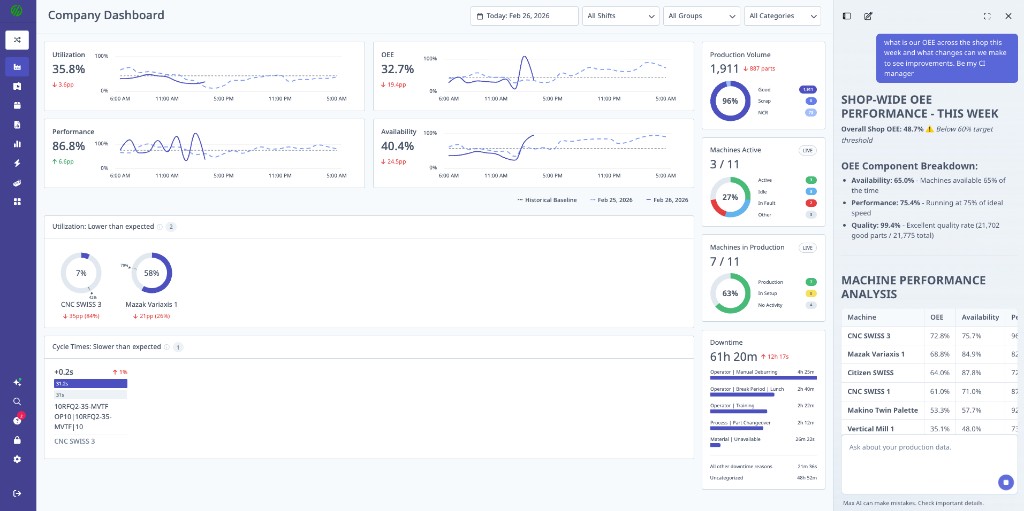
Keyboard Shortcut
- Press
Ctrl + K(Windows) orCmd + K(Mac) to open Max AI from anywhere in the platform
3. What Max Can Help With
Max is a manufacturing data specialist and MachineMetrics platform expert. It answers questions about your production data and your documentation, and it builds visuals on request. It does not take actions on your behalf.
Analysis and Insight
| Area | What you can ask about |
|---|---|
| Bottlenecks | Where production is constrained right now, and which machines contribute most |
| Downtime | Top reasons, trends, and how they compare across machines, shifts, or time periods |
| Setup and cycle times | How setup and cycle times vary, and where they deviate from expectation |
| Delivery risk | Which jobs are tracking behind, based on current progress against due dates |
| Shift and group comparisons | How shifts, cells, or machine groups compare over a period you choose |
| Utilization and OEE | OEE and its components, broken down the way you ask for it |
Platform Help
Max is also a platform expert. Ask how a feature works, how a metric is calculated, or how to find something in MachineMetrics.
Example Prompts
"What are the top 5 causes of downtime this week?"
"Show me setup time trends for CNC Mill 3 over the last month"
"Which jobs are at risk of being late?"
"Compare shift performance for the past 7 days"
"What's causing the longest cycle times on operation 12345?"
"How is OEE calculated in MachineMetrics?"
Max answers questions and creates visuals. It does not change machine settings, modify jobs or schedules, write to your ERP, or configure automations. To automate responses to shop floor events, see the Automations & Workflows Guide — those are rules you configure yourself.
4. Chat with Your Data
Max AI understands both the question and the context. Whether you're on the floor or in a meeting, get instant answers pulled from real-time data, ERP records, and tribal knowledge.
How It Works
- Ask a Question — Type in natural language
- Max Interprets — Understands intent and context
- Data Retrieved — Pulls from machines, ERP, Knowledge Hub
- Answer Delivered — Clear response with supporting data
Question Types
Production Questions:
"What's the current utilization across all machines?"
"How many parts did we make yesterday?"
"Which machines are currently down?"
"What's the OEE for Mill 5 this week?"
Analysis Questions:
"Why did OEE drop on Tuesday?"
"What's causing scrap on operation 7890?"
"Show me the trend of downtime for the past 30 days"
"Compare performance between first and second shift"
Guidance Questions:
"How do I read the OEE breakdown on my dashboard?"
"What's the best way to configure cycle time goals?"
"How do I add a widget to my dashboard?"
Tips for Better Results
| Do | Don't |
|---|---|
| Be specific about time ranges | Use vague timeframes |
| Name specific machines or operations | Assume Max knows what you're looking at |
| Ask one question at a time | Combine multiple unrelated questions |
| Include context (shift, machine group) | Leave out relevant filters |
Good Example:
"What were the top 3 downtime reasons for CNC Cell A during first shift last week?"
Less Effective:
"Why is downtime bad?"
5. Instant Visuals
Need a shift summary or downtime breakdown? Just ask. Max AI builds reports in seconds, complete with visuals, trends, and root cause insights.
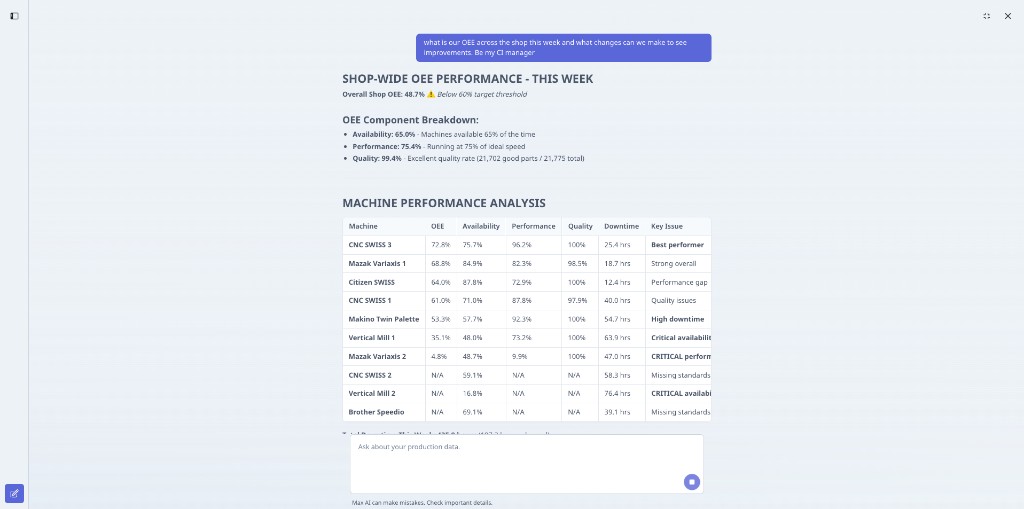
Generating Charts and Reports
Example Requests:
"Create a downtime Pareto for this week"
"Show me a utilization trend chart for the past month"
"Generate a shift comparison report for yesterday"
"Build an OEE breakdown chart for Mill 3"
Chart Types Available
| Chart Type | Best For |
|---|---|
| Pareto | Identifying top contributors (downtime, rejects) |
| Trend Line | Showing changes over time |
| Bar Chart | Comparing categories or groups |
| Pie/Donut | Showing proportions |
| Table | Detailed data with multiple columns |
Adding Charts to Dashboards
- Generate a chart using Max AI
- Click Add to dashboard on the generated visual
The chart is added as a live widget that updates automatically, and Max closes or collapses so you can see it. Reposition or resize the widget the same way you would any other — see the Dashboards Guide.
6. Data Sources
Max AI gets its intelligence from three key data sources:
6.1 Machine Data
Real-time performance from any equipment — old, new, CNC, or manual.
- Cycle times and part counts
- Machine states (running, idle, down)
- Alarms and conditions
- Spindle loads and feed rates
6.2 ERP Integration
Work orders, routings, and schedules sync directly with ERP.
- Job information and due dates
- Planned vs. actual quantities
- Routing and operation details
- Customer and order context
6.3 Knowledge Hub
Tribal knowledge captured and made searchable.
- SOPs and work instructions
- Setup procedures
- Troubleshooting guides
- Best practices and notes
See the Knowledge Hub Guide for details on uploading and managing documentation.
7. Common Use Cases
Daily Shift Handover
"Give me a shift handover summary for second shift"
Max provides:
- Jobs completed vs. planned
- Current machine status
- Open issues and alerts
- Priority items for next shift
This is a question you ask Max about a shift. It is separate from Shift Handover in ShopPulse, where an outgoing operator writes notes at clock-out and AI structures them for the incoming operator.
Root Cause Analysis
"Why did utilization drop on Thursday?"
Max analyzes:
- Downtime events and durations
- Alarm patterns
- Setup time anomalies
- Provides ranked contributing factors
Performance Tracking
"How are we tracking against our monthly OEE goal?"
Max shows:
- Current OEE vs. target
- Trend over the month
- Gap analysis
- Recommendations for improvement
Troubleshooting
"Machine 7 keeps throwing alarm 1234, what should I check?"
Max searches Knowledge Hub for:
- Previous occurrences
- Resolution steps
- Related documentation
- Expert recommendations
8. Best Practices
Getting Started
- Start with questions you already know the answer to — Verify Max's accuracy
- Explore different question types — Production, analysis, guidance
- Use specific context — Machine names, date ranges, shifts
- Review and validate — Max is a tool to augment, not replace, expertise
Building Trust
- Compare Max's answers against reports you've built manually
- Use Max for quick lookups, then dive deeper when needed
- Provide feedback when answers aren't helpful
Team Adoption
- Share useful prompts with colleagues
- Create a "prompt library" for common questions
- Train operators on basic Max AI usage
- Encourage feedback to improve results
9. Troubleshooting
Max Doesn't Understand My Question
- Rephrase using simpler language
- Break complex questions into smaller parts
- Include specific machine or operation names
- Add time context (today, this week, last month)
Data Seems Incorrect
- Verify the time range Max is using
- Check if filters are applied correctly
- Confirm machine names match exactly
- Review data mapping in Machine Settings
Charts Won't Generate
- Ensure you have data for the requested time period
- Check permissions for the machines/operations requested
- Try a simpler chart type first
Knowledge Hub Content Not Found
- Verify documents are uploaded and indexed
- Check document tags and categories
- Use exact terminology from uploaded documents
10. Privacy and Security
Data Handling
- Max AI runs on AWS Bedrock within MachineMetrics' private AWS tenant
- Customer data is never used for training AI models
- All queries are processed in isolated environments
- Data remains within your MachineMetrics account
Access Control
- Max AI respects existing role-based permissions
- Users only see data they have access to
- Audit logs track AI interactions
Fairness and Responsible AI
If you observe any AI-generated output that appears to reflect unfair treatment, bias, or discrimination, please contact MachineMetrics Support.
Related Articles
- Knowledge Hub Guide — Upload and manage documentation
- Automations & Workflows Guide — Rules-based automations you configure yourself (not driven by Max AI)
- Dashboards Guide — Add Max AI charts to dashboards
- Understanding Your Data — OEE, OOE, TEEP explained
- AI Security — How Max AI handles your data
Getting Help
- In-App: Click the help icon or ask Max AI "How do I get support?"
- Support Portal: Visit the MachineMetrics Support Portal
- Documentation: Browse the full documentation library