Edge Device Setup Guide
Overview
MachineMetrics Edge devices, including virtual Edge devices, provide no terminal, shell, or SSH access and no interactive login. This is a deliberate security-hardening measure: the Edge has no OS-level access and no user accounts, which minimizes its attack surface (see Edge Device Security). Because there is no shell on the Edge, run connectivity checks from a computer on the same network, or use the built-in Diagnostics (Firewall Test and Manual Ping) in Edge Management.
Edge devices play a critical role in getting data from your equipment to the MachineMetrics Cloud. These hardware components are located at the "edge" of the network, serving as gateways that bridge the physical and digital worlds between your machines and the cloud.
What is an Edge Device and Why You Need One
MachineMetrics Edge Devices connect to equipment on the machine network, gather and normalize data, and securely transmit it to the MachineMetrics Cloud. The Edge also reaches out to the cloud for updates and configuration changes. All communication is edge-initiated outbound. There are no inbound firewall requirements.
Network Requirements: See the Network Requirements Guide for detailed firewall rules, required ports, and domains.
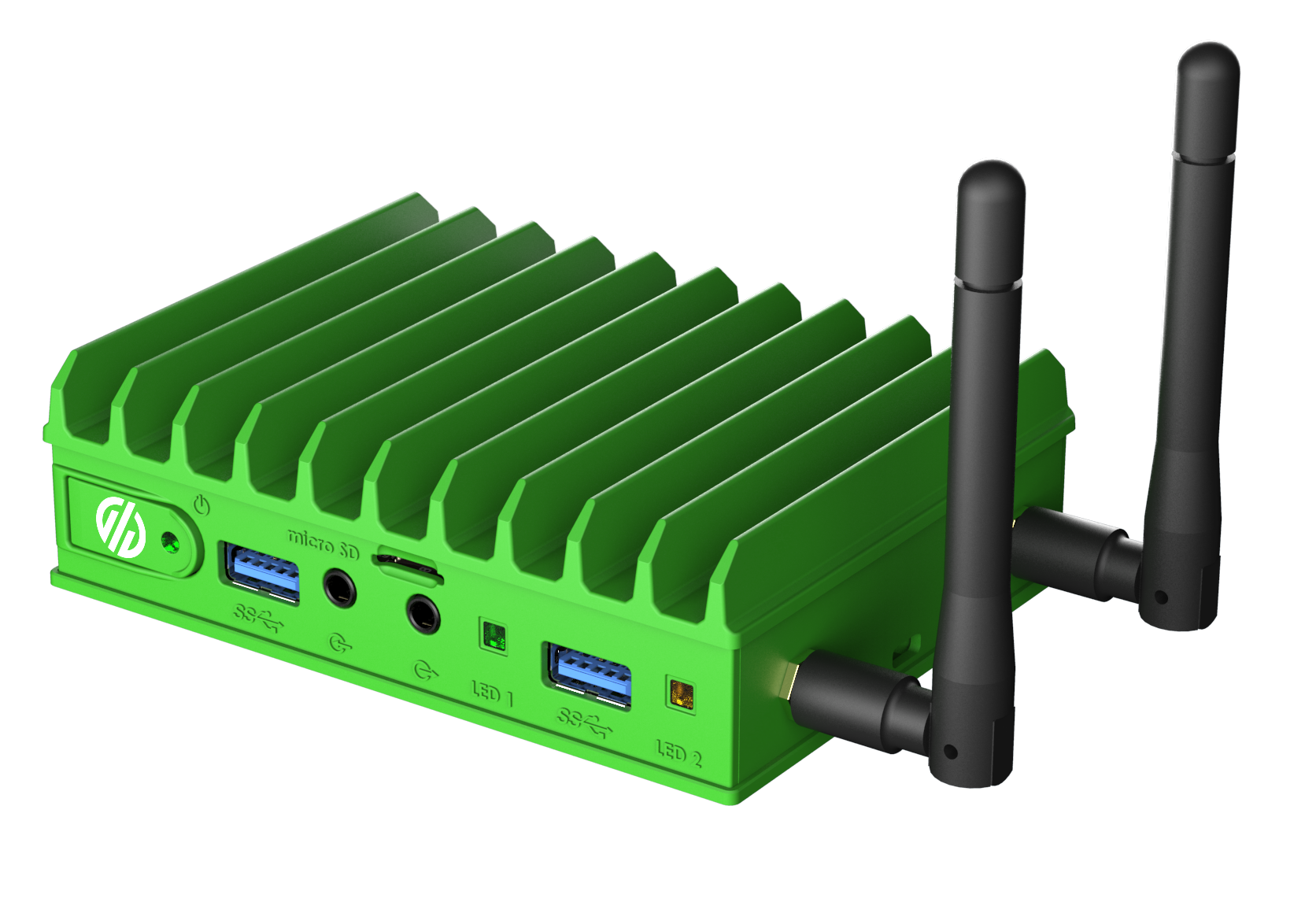
MachineMetrics Physical Edge Device - An Intel NUC-based appliance that comes pre-loaded with MachineMetrics software. The compact edge device connects to your machine network and the internet, serving as the gateway between your shop floor equipment and the MachineMetrics Cloud.
Physical vs Virtual: When to Use Each
Virtual Edge Devices (Recommended) are software-based versions that run on virtualization platforms like VMWare or Hyper-V. They are ideal for:
- Quick deployment and testing
- Environments with existing virtualization infrastructure
- Easy scalability across multiple sites
- Most production environments
Physical Edge Devices are hardware appliances (typically Intel NUC-based) that come pre-loaded with MachineMetrics software. They are ideal for:
- Locations requiring multiple network interfaces
- Environments where dedicated hardware is preferred
- Specific use cases where physical hardware is required
Important: The physical Edge image (balenaOS) is built and validated specifically for MachineMetrics Edge hardware (Intel NUC-based appliances). It is not supported on general-purpose laptops or PCs — flashing such hardware directly will often fail to boot or prove unstable. To repurpose an existing laptop or PC as an Edge, deploy a Virtual Edge instead (see Virtual Edge Setup).
Virtual Edge Setup
Virtual Edges are software-based versions of their physical counterparts. They simulate the functionalities of physical edge devices, allowing for quick deployment, easy scalability, and convenient testing.
System Requirements
Before provisioning your Virtual Edge, ensure you have the following:
- An account on the MachineMetrics platform with either Manager or Executive level permissions
- You have the capacity on your virtualization environment to provision a device with:
- x86 processor
- 4 Cores
- At least 6GB of RAM
- 64GB of storage
- A reliable internet connection
- A computer for downloading the image and connecting to the virtualization environment to deploy it
Supported Virtualization Environments
Our platform supports several popular virtualization environments. A download link is provided for each environment along with detailed steps for deploying the image.
Virtual Edge images expire monthly. The time you have to use a given image varies depending on when in the month you download it. Always download a fresh image before setting up a new Virtual Edge, since a critical update may need to be applied mid-month.
VMWare
VMWare can be used to provision the MachineMetrics Virtual Edge software in production environments.
Minimum Version: 6.7+
Hyper-V
Hyper-V can be used to provision the MachineMetrics Virtual Edge software in production environments.
Minimum Version: Any version running on a currently supported Windows version
Configuration and Activation
After deploying the Virtual Edge image in your virtualization environment:
- Start the virtual machine
- Follow the same activation steps as physical devices (see Activation Steps below)
- The on-screen setup wizard will guide you through network configuration and device activation
Deploying a Virtual Edge in Azure
You can deploy a MachineMetrics Edge Appliance in Microsoft Azure using nested Hyper-V virtualization. This approach preserves the appliance's intended security model — the configuration interface is only accessible from within the appliance itself, not over the network.
Before beginning, ensure you have:
- An active Azure subscription
- A Windows Server VM in Azure that supports nested virtualization
- A MachineMetrics Edge appliance image (VHDX)
- Administrative access to Azure
- RDP access to the Azure VM
Recommended Azure VM Sizes
Use an Azure VM size that supports nested virtualization:
| VM Size | Notes |
|---|---|
Standard_D4s_v5 | Minimum recommended for light workloads |
Standard_D8s_v5 | Suitable for most deployments |
Standard_D16s_v5 | For high machine counts or multiple connectors |
Adjust sizing based on the number of machines, connectors, and expected workload.
Deployment Steps
Step 1: Create a Windows Server VM
Deploy a Windows Server virtual machine in Azure with the following configuration:
- OS: Windows Server 2022 Datacenter (recommended)
- Access: Enable Remote Desktop (RDP)
- Resources: Allocate sufficient CPU, memory, and storage for both the Hyper-V host and the Edge appliance
Step 2: Enable Hyper-V
- Connect to the Azure VM using Remote Desktop
- Open PowerShell as Administrator
- Run the following command:
Install-WindowsFeature Hyper-V -IncludeManagementTools -Restart
The VM restarts automatically. After the restart, reconnect using Remote Desktop.
Step 3: Install the MachineMetrics Edge Appliance
After reconnecting:
- Open Hyper-V Manager
- Select Import Virtual Machine to import an existing appliance, or create a new virtual machine and attach the supplied VHDX
- Complete the wizard
- Start the virtual machine
Step 4: Open the Edge Appliance Console
In Hyper-V Manager:
- Select the MachineMetrics Edge virtual machine
- Click Connect
- A Virtual Machine Connection window opens
This provides console access equivalent to connecting a keyboard, mouse, and monitor directly to the appliance.
Step 5: Access the Configuration Interface
Within the Virtual Machine Connection window:
- Log in to the Edge appliance if prompted
- Open the local browser inside the appliance
- Navigate to the MachineMetrics configuration URL (e.g.,
http://localhost:<port>)
Refer to MachineMetrics documentation for the exact URL and port number.
The configuration interface is intentionally restricted to localhost. It is only accessible from within the appliance console session — not from the Azure VM host or any external machine.
Architecture Overview
Administrator Laptop
        │
        ▼ RDP
        │
Azure Windows Server VM
(Hyper-V Host)
        │
        ▼ Hyper-V VMConnect
        │
MachineMetrics Edge Appliance
        │
        ▼
localhost-only Configuration UI
Security Considerations
The MachineMetrics Edge Appliance configuration interface is intentionally accessible only from within the appliance itself. This preserves the same security model used in on-premises deployments.
Benefits of this approach:
- No inbound firewall rules required — the configuration port is never exposed to the network
- Defense in depth — access requires Azure authentication → RDP to the Hyper-V host → Hyper-V console access → valid MachineMetrics credentials
- Consistent security posture — identical to a physical on-premises deployment
Azure Deployment Troubleshooting
Hyper-V Manager Is Not Available
Verify Hyper-V was installed successfully:
Get-WindowsFeature Hyper-V
If the feature is not installed, re-run the install command from Step 2: Enable Hyper-V above.
Unable to Import the VHDX
Verify:
- The VHDX file transferred to the Azure VM successfully and is not corrupted
- Sufficient disk space is available on the Azure VM
- The Azure VM size supports nested virtualization (see Recommended Azure VM Sizes)
Unable to Access the Configuration Interface
Verify:
- The Edge appliance virtual machine is fully booted (allow 2–3 minutes)
- The configuration service is running inside the appliance
- You are navigating to the URL from within the Virtual Machine Connection window, not from the Azure VM's own browser
Cannot Connect to the Appliance Console
Verify:
- The virtual machine is powered on in Hyper-V Manager
- Hyper-V Integration Services are installed and functioning correctly
- You are using the Connect action in Hyper-V Manager (not RDP directly to the appliance)
If issues persist, contact MachineMetrics Support and include the Azure VM size, OS version, and a description of the error.
Physical Edge Device Setup
Hardware Requirements
Before setting up your physical edge device, ensure you have the following:
- A MachineMetrics Edge device
- A reliable internet connection
- A computer for downloading the image (if reflashing is needed)
- A thumb drive with a minimum of 16GB of storage (if reflashing is needed)
- A keyboard, monitor, and mouse connected to the edge device
- An account on the MachineMetrics platform with either Manager or Executive level permissions
Option A: Using a Pre-Configured MachineMetrics Edge Device
If you purchased an edge device directly from MachineMetrics, it comes with our software already installed. Simply proceed to the Activation Steps section below.
Option B: Reflashing a MachineMetrics Edge Device
If you need to restore or repair a MachineMetrics Edge device, follow these steps:
Note: We recommend purchasing pre-configured MachineMetrics Edge devices. If you need to reflash a device, contact support for guidance.
1. Download and Prepare Your Thumb Drive
- Download the latest image:
- Commercial Client Users: Download Here
- GovCloud Client Users: Download Here
- Download and install balenaEtcher on your computer
- Run balenaEtcher and click on "Flash from file". Locate and select the downloaded image from step 1
- Insert your thumb drive into the computer. In balenaEtcher, select "Select target" and choose your thumb drive
- Click on "Flash!" to start the flashing process
- balenaEtcher will verify that the flashing process was successful. If this fails, repeat the process starting at step 3
Note: While you can use the same thumb drive for multiple edge devices, this image expires and is replaced every week. Always download the latest image before starting the provisioning process.
2. Flash the Edge Device
- Safely remove the thumb drive from your computer and insert it into the edge device
- Turn on the edge device and boot from the thumb drive. You may have to make adjustments in the BIOS to select the boot volume. This process may vary depending on the device; consult your device's manual if necessary
- Once the device has finished booting from the thumb drive, it will automatically start the flashing process. At this stage, the screen will only display a flashing cursor in the upper left-hand corner. This will remain for a few minutes while the device is being flashed
- When the flashing is complete, the monitor will indicate there is no device connected. If you are using a MachineMetrics Edge device, the light on the power button will turn amber at this point
- After the flashing process is complete, unplug the thumb drive from the edge device and power it on
Activation Steps
Once your edge device is powered on with peripherals connected, follow these steps:
Step 1: Welcome Screen
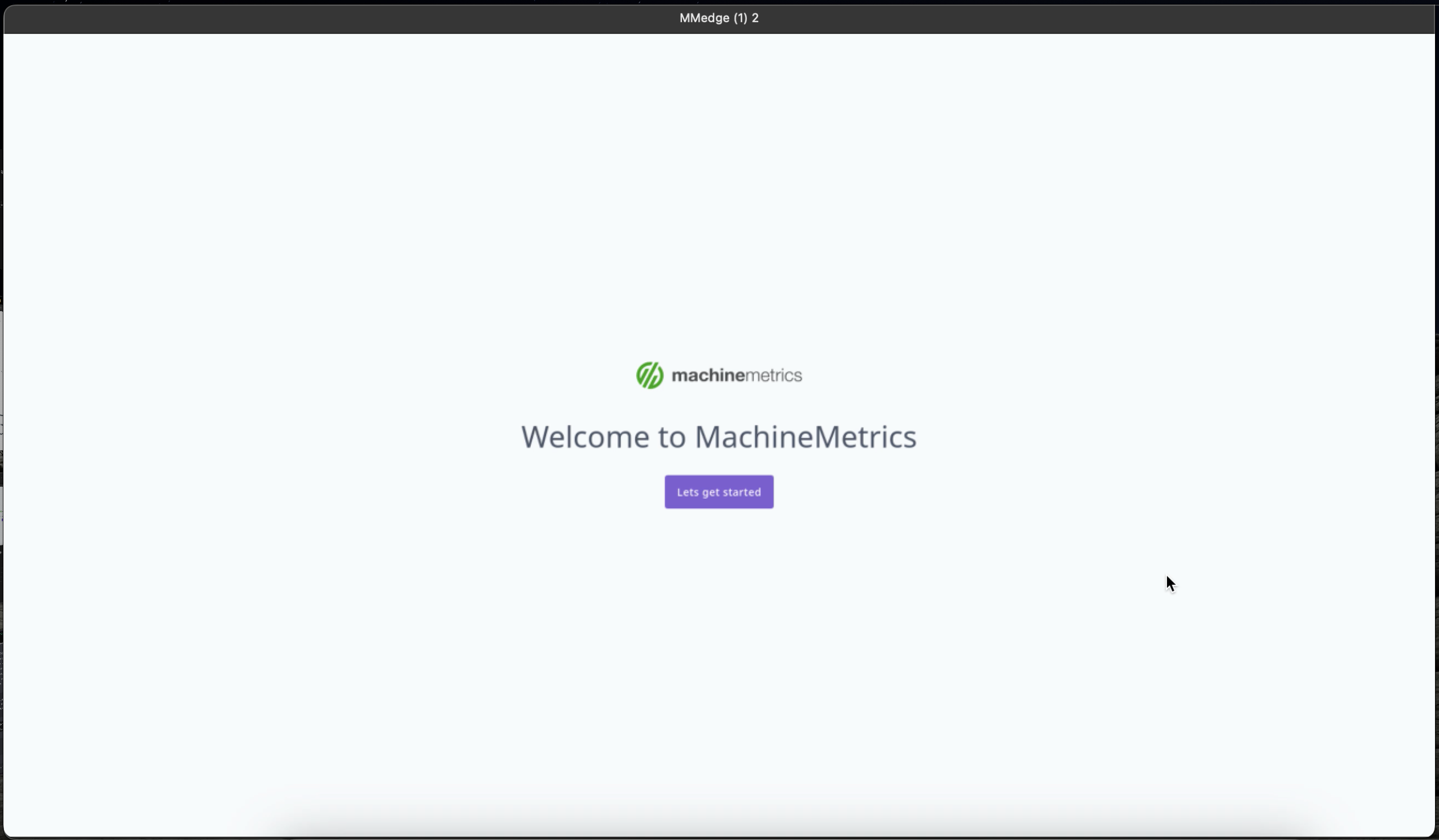
Once your edge device is powered on and your peripherals are connected, a logo will appear for 10-15 seconds and you'll then be presented with a welcome screen. Click "Let's get started!" to proceed.
Step 2: Establish an Internet Connection
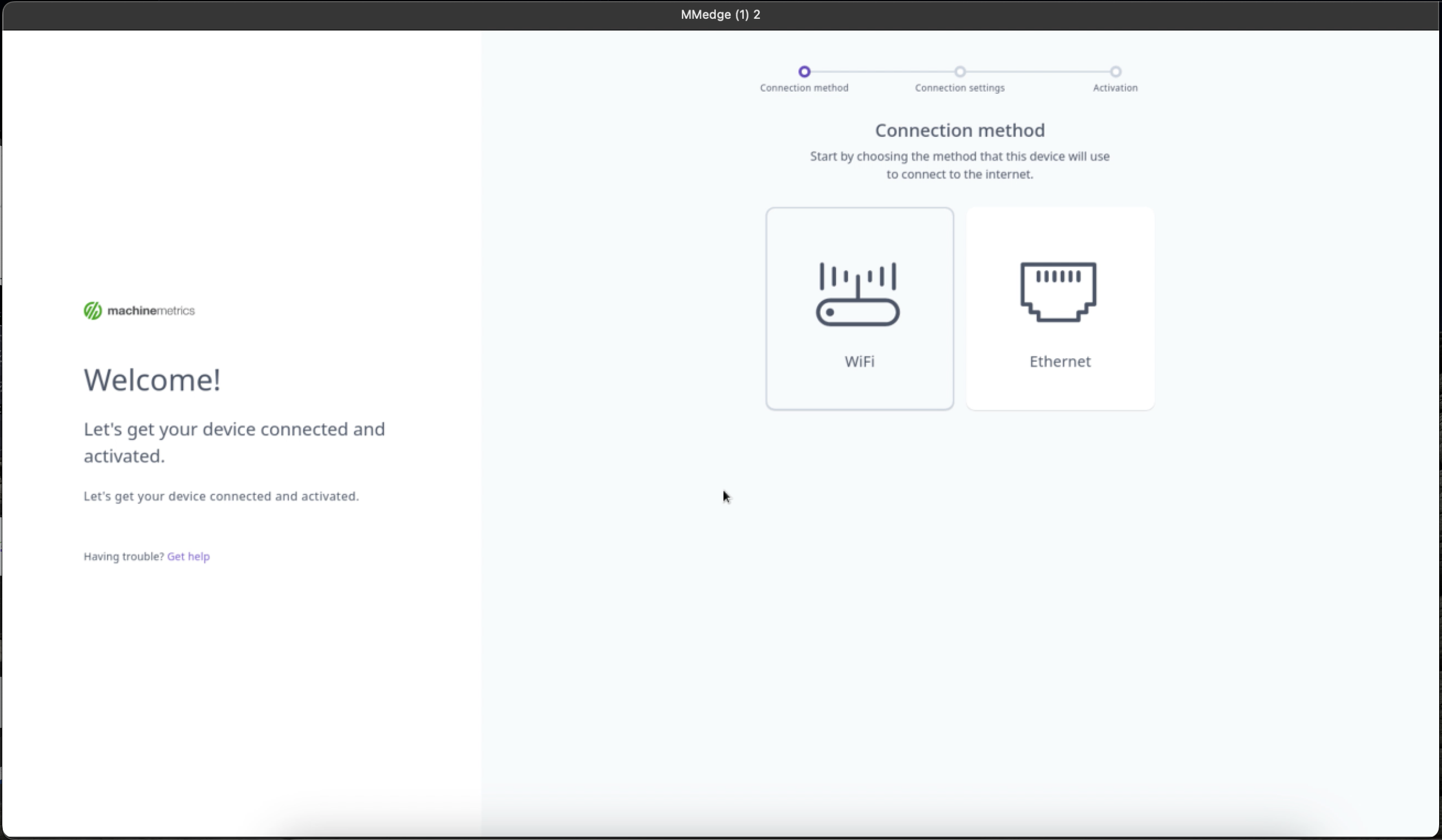
The next step is to get your edge device connected to the internet. You'll be presented with two connection options: WiFi or Ethernet.
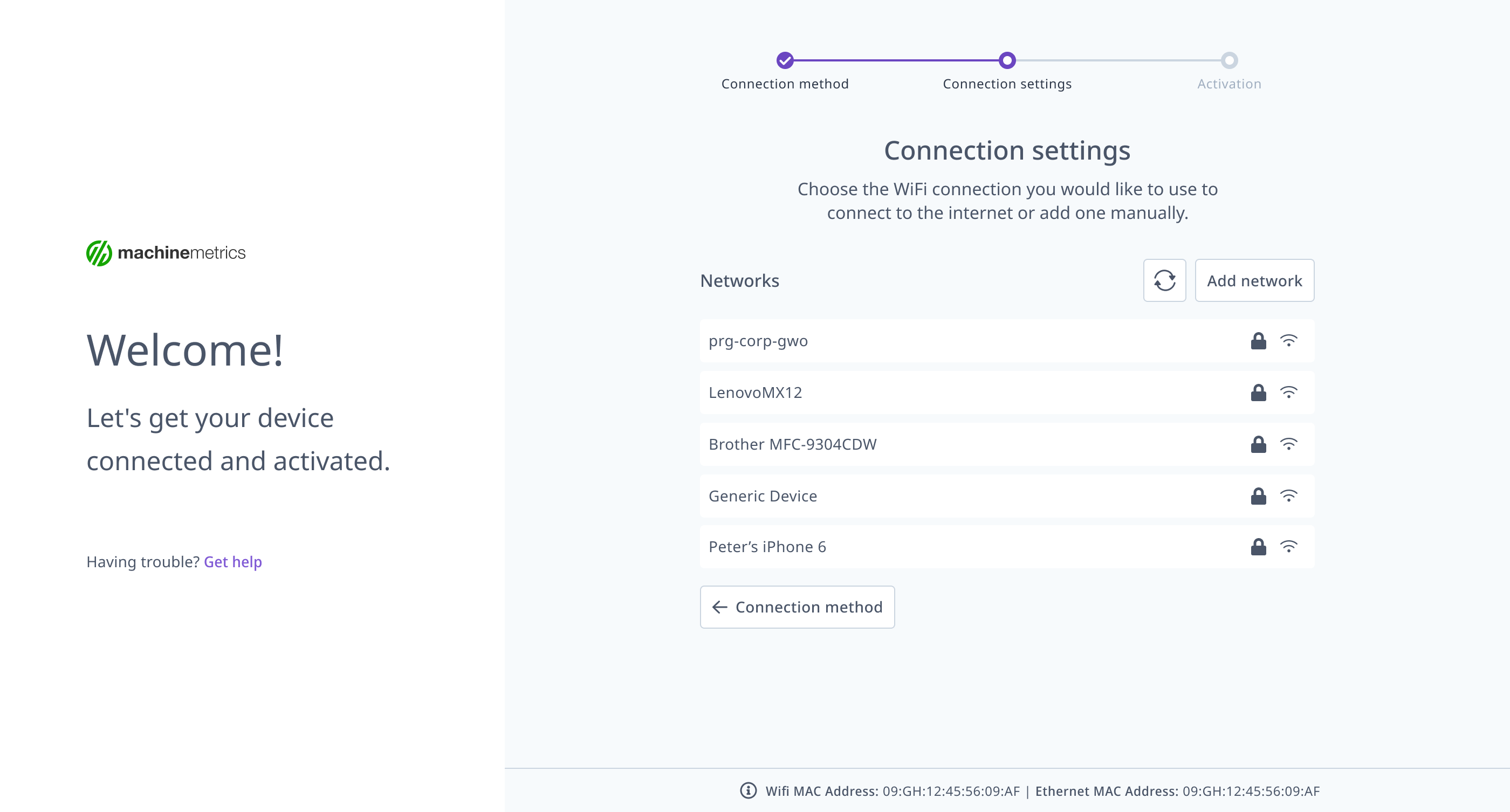
WiFi Connection:
- Select 'WiFi' as your preferred connection method
- You will then be prompted to choose the WiFi network from a list
- Select your preferred network and type in the password
WiFi Installations: Do Not Set a Gateway on the Ethernet Ports
When WiFi is the Edge device's internet connection, the default gateway belongs to the WiFi configuration only.
On the Edge Management page, if you assign a static IP to Ethernet Port 1 or Port 2 (rather than using DHCP), leave the gateway field blank. Those ports face the machine network, not the internet.
A gateway entered on Ethernet Port 1 or Port 2 can take precedence over the gateway specified in the WiFi configuration, causing the edge device to attempt to reach the internet through the machine network — where no internet connection exists. The result is lost cloud connectivity or stalled data collection.
Rule of thumb: when specifying a static IP, only enter a gateway address if that connection is internet-facing.
Ethernet Connection:
- If you prefer a wired connection, select 'Ethernet'
- You'll be prompted to select the network interface. If one of the Ethernet ports is plugged in, you'll see that noted in the list as 'Connected'
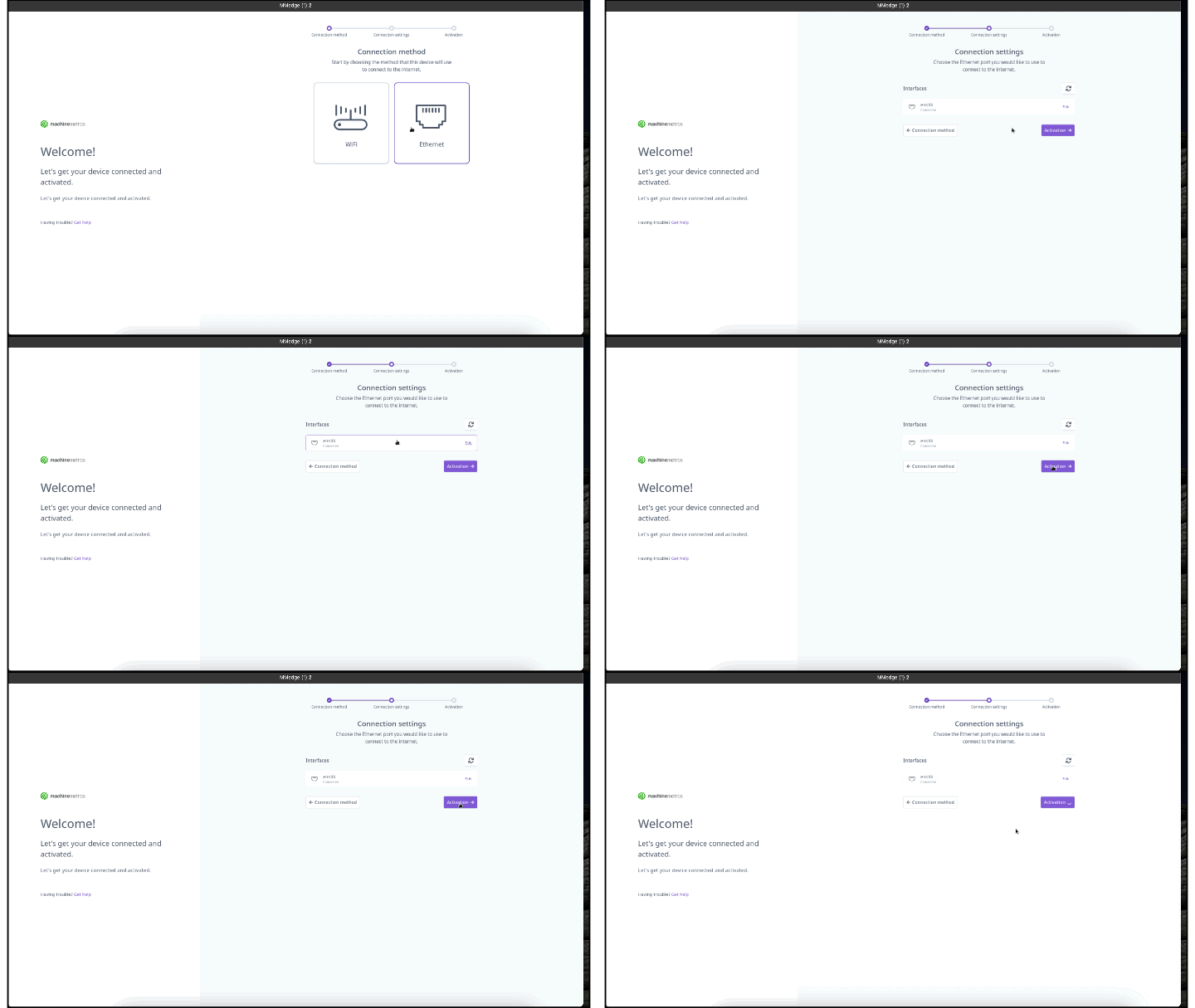
The interfaces are set up as DHCP (Dynamic Host Configuration Protocol) by default, meaning they automatically receive the necessary settings from the router. However, if you need to configure a static IP address, follow the on-screen instructions.
Wireless Edge Device Installation
This section covers physical installation for MachineMetrics Edge devices that connect to the internet via WiFi rather than Ethernet. Follow the standard Activation Steps in this guide; this section provides wireless-specific mounting, placement, and configuration guidance.
Hardware Mounting and Placement
Proper placement is critical on a shop floor where metal machinery, motors, and cable runs can significantly degrade WiFi signal.
- Mount at or above head height — elevate the Edge device away from machine bodies and steel enclosures; height improves line-of-sight to the access point
- Maximize line of sight to the access point — walls, metal panels, and heavy machinery absorb and reflect WiFi signal; choose a position with the clearest possible path to the nearest access point
- Avoid dense metal enclosures — do not mount inside steel cabinets or directly behind large CNC machine frames
- Separate from high-EMI sources — maintain at least 1–2 meters from inverters, VFDs, welders, and high-current cabling, which generate interference that degrades WiFi performance
- Plan cable routing before mounting — the Edge device requires a power cable and an Ethernet cable to the machine network even in a wireless installation; confirm both can reach the chosen mount point
Walk the planned cable path and test WiFi signal at the intended location before permanently mounting. A position just a few feet higher or farther from machinery can result in significantly stronger signal.
Antenna Orientation and Signal-Strength Considerations
- Vertical antenna orientation — if the Edge device has external antennas, orient them vertically (straight up) for best omnidirectional coverage
- Band selection — 5 GHz offers faster throughput but less range and wall penetration; 2.4 GHz penetrates obstacles better and is preferred on congested shop floors unless the access point is close
- Confirm signal before finalizing placement — the WiFi network list shown during Step 2 of the activation wizard indicates signal strength for available networks; choose a position where the target network shows a consistently strong signal before permanently mounting
- Dedicated access point — if WiFi signal is weak across the shop floor, consider installing a dedicated WiFi access point in proximity to the Edge device and the machines it serves
Machine Network Connection
In a wireless installation, the Edge device uses two separate network interfaces for two distinct purposes:
| Interface | Role |
|---|---|
| WiFi | Internet connection to the MachineMetrics Cloud |
| Ethernet port(s) | Local connection to the machine network (controllers, switches) |
- Connect the Ethernet port(s) to the machine-side switch or directly to a machine controller — not to the corporate internet network
- Connecting an Ethernet port to an internet-facing switch while WiFi is also connected can cause routing conflicts where cloud traffic takes the wrong path
Do not set a default gateway on the Ethernet ports in a WiFi installation. If both interfaces have a gateway configured, the Edge device may route cloud traffic through the Ethernet port instead of WiFi, causing connectivity failures.
Network Credentials and IP Configuration in Edge Management
After completing the on-device activation wizard, review and adjust interface settings in the MachineMetrics portal:
- Log in to MachineMetrics and navigate to Assets → Edge Devices
- Select the Edge device
- Open the Network section
- Verify the WiFi interface shows the correct network name (SSID) and an assigned IP address
- Verify the Ethernet interface shows an IP address on the machine-network subnet
- To assign a static IP to the machine-network Ethernet interface:
- Enter the IP Address, Subnet Mask, and DNS as required by your network
- Leave Gateway blank — do not add a gateway to the Ethernet interface in a WiFi installation
- Save; the Edge device applies the new configuration within a few seconds
Verification After Installation
- In Assets → Edge Devices, confirm the Edge device status is Reporting (green)
- Open the Edge device detail page and confirm:
- WiFi interface is connected with an assigned IP address
- Ethernet (machine network) interface shows the expected IP address
- From the Edge device detail page, run Diagnostics → Firewall Test to confirm all required cloud endpoints are reachable
- Navigate to the machines assigned to this Edge device and confirm data is flowing — machine status transitions from Never Reported to Reporting within a few minutes of an active controller connection
If the Edge device does not show Reporting after a few minutes, see CloudLink Blocked or contact MachineMetrics Support.
Step 3: Verify Firewall Configuration
Once your internet connection is established, the edge device will run a series of tests to verify that the firewall is properly configured. This step is important to ensure that communication won't be blocked.
Note: For detailed firewall requirements, ports, and domains, see the Network Requirements Guide.
Step 4: Activate Your Edge Device
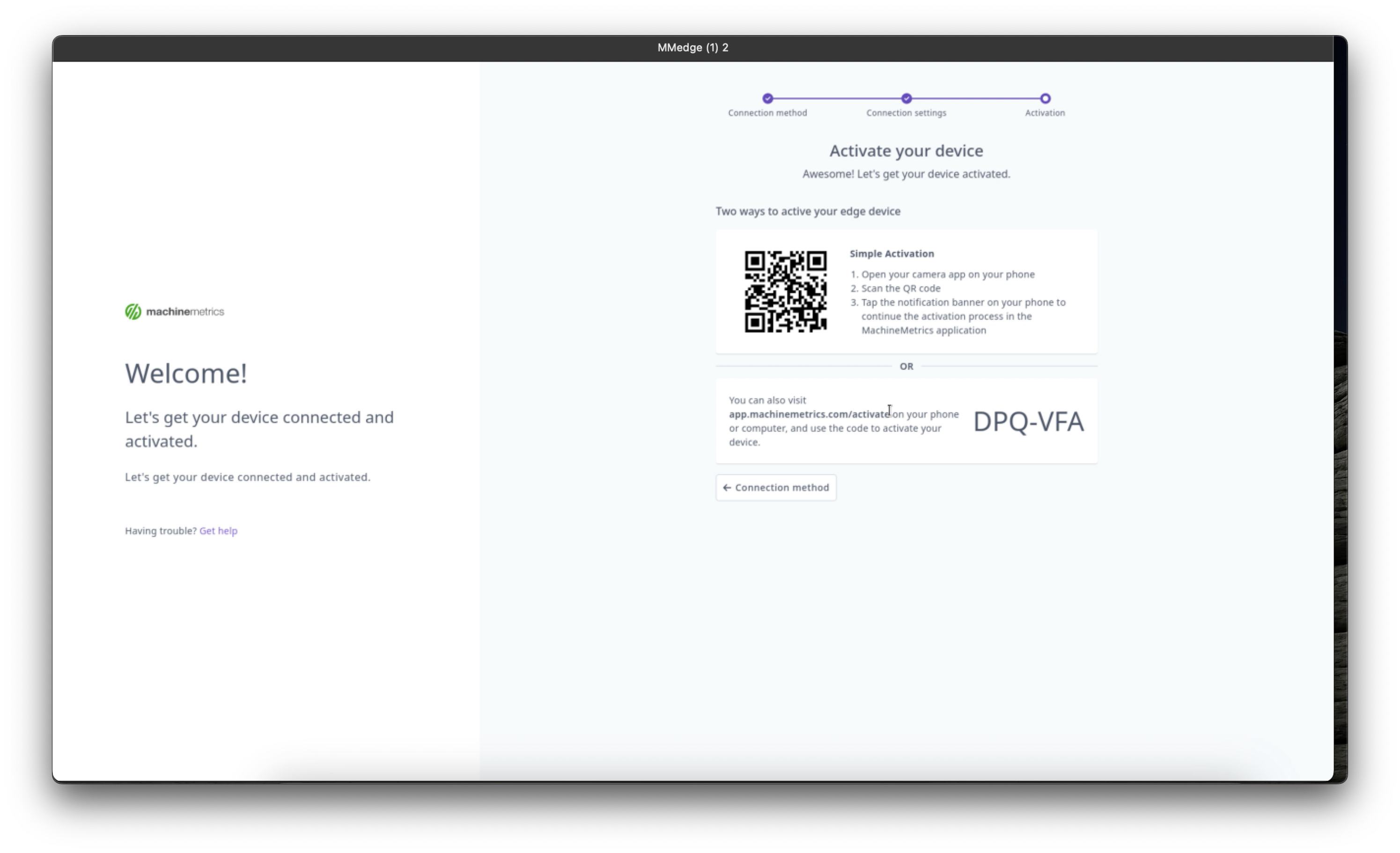
Once the firewall tests have returned and the connection is confirmed, you will be presented with a QR code on the screen. This code needs to be scanned to activate the device with your account.
- Using your phone, scan the QR code
- You will be prompted to log into MachineMetrics if you haven't already done so
- Once logged in, you'll see a form that has been automatically filled out with the activation code. Click "Add Edge Device"
Step 5: Connect to Your Machine Network
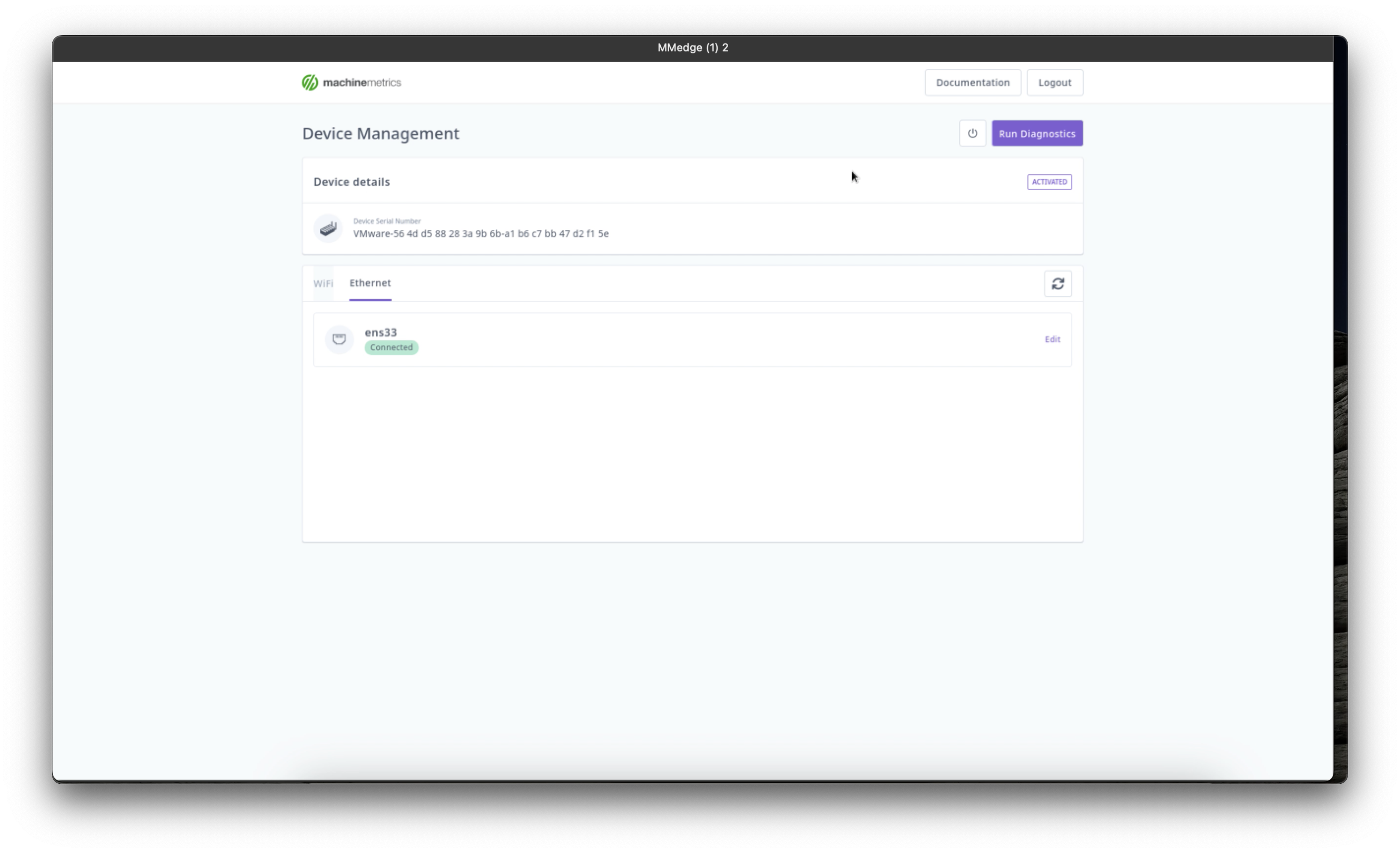
Follow on-screen instructions for configuring the edge device to connect a second networking interface to your machine network.
Network Requirements
To ensure reliable operation of your Edge Device, the following network requirements must be met. All communication is edge-initiated outbound—there are no inbound firewall requirements.
Required Ports
| Port | Protocol | Description |
|---|---|---|
| 53 | UDP | DNS resolution |
| 123 | UDP | Network Time Protocol |
| 443 | TCP | HTTPS communication, updates, remote diagnostics |
| 7422 | TCP | NATS communication for tool monitoring and Edge health |
Required Domains and Addresses
The following URLs must be accessible from the Edge Device:
| URL | Description |
|---|---|
| api.machinemetrics.com | MachineMetrics communication |
| app.machinemetrics.com | MachineMetrics communication |
| *.balena-cloud.com | Software updates |
| cloudlink.balena-cloud.com | Remote diagnostics, OS updates, OpenVPN tunnel (activation, heartbeat, remote access) |
| notify.bugsnag.com | Bug reporting |
| mm-adapter-store.s3.us-west-2.amazonaws.com | Machine data communication |
| mm-edge-uploads.s3.us-west-2.amazonaws.com | Machine data communication |
| machinemetrics-deploy.s3.us-west-2.amazonaws.com | Machine data communication |
| machinemetrics-public.s3.us-west-2.amazonaws.com | Machine data communication |
| 352302322568.dkr.ecr.us-west-2.amazonaws.com | Software container updates |
| prod-us-west-2-starport-layer-bucket.s3.us-west-2.amazonaws.com | Machine data communication |
GovCloud-Specific Requirements
If you're using MachineMetrics GovCloud, the following domains and static IP addresses must be accessible:
| URL | Description | Static IPs |
|---|---|---|
| api.machinemetrics-us-gov.com | MachineMetrics communication | 18.252.129.108, 18.254.70.116, 182.30.131.220 |
| app.machinemetrics-us-gov.com | MachineMetrics communication | — |
| stream.machinemetrics-us-gov.com:7422 | NATS (tool monitoring and edge health) | See GovCloud NATS IPs below |
| api.balena.machinemetrics-us-gov.com | Software updates | 18.253.182.20 |
| ca.balena.machinemetrics-us-gov.com | Software updates | 18.253.182.20 |
| cloudlink.balena.machinemetrics-us-gov.com | Remote diagnostics and OS updates | 18.253.182.20 |
| logs.balena.machinemetrics-us-gov.com | Software updates | 18.253.182.20 |
| ocsp.balena.machinemetrics-us-gov.com | Software updates | 18.253.182.20 |
| registry2.balena.machinemetrics-us-gov.com | Software updates | 18.253.182.20 |
| s3.balena.machinemetrics-us-gov.com | Software updates | 18.253.182.20 |
| tunnel.balena.machinemetrics-us-gov.com | Software updates | 18.253.182.20 |
| machinemetrics-adapter-store.s3.us-gov-east-1.amazonaws.com | Machine data communication | — |
| machinemetrics-govcloud-edge-uploads.s3.us-gov-east-1.amazonaws.com | Machine data communication | — |
| machinemetrics-deploy.s3.us-gov-east-1.amazonaws.com | Machine data communication | — |
| machinemetrics-govcloud-public.s3.us-gov-east-1.amazonaws.com | Machine data communication | — |
| 139811071765.dkr.ecr.us-gov-east-1.amazonaws.com | Software updates | — |
DNS Configuration
- The Edge Device uses Google DNS (8.8.8.8 and 8.8.4.4) by default
- DNS may be overridden via DHCP or statically in the Edge management page
- If Google DNS is blocked, the Edge will fall back to the configured DNS servers
Network Time Protocol (NTP)
The Edge synchronizes time using the pool.ntp.org fleet:
*.resinio.pool.ntp.org
Internal NTP servers may be specified via DHCP if required. IP-based filtering is not possible due to the distributed nature of public NTP pools.
NATS Communication
NATS requires outbound access to port 7422. The following IP addresses must be reachable:
Standard MachineMetrics:
- 54.218.103.126
- 52.24.16.63
- 52.34.161.223
- 35.155.82.103
GovCloud Only:
- 18.252.129.108
- 18.254.70.116
- 182.30.131.220
Deep Packet Inspection (DPI)
Deep packet inspection must not be applied to any traffic between the Edge Device and the MachineMetrics Cloud, including:
- MachineMetrics domains
- Balena domains
- S3 endpoints
- NATS services
- All encrypted HTTPS traffic
If DPI is enabled (e.g., Palo Alto, Fortinet, Cisco), create bypass rules for Edge traffic.
Proxy Configuration
If your network requires proxy configuration, this can be set during the initial setup or later through the Edge management interface. Consult with your IT team for specific proxy settings.
Bandwidth Requirements
The Edge Device requires minimal bandwidth for normal operation:
- Typical data transmission: 1-5 Mbps
- Software updates: 10-50 MB (periodic)
- Recommended minimum: 10 Mbps connection
Edge-to-Machine Protocol Ports
If a firewall exists between the Edge Device and the machine network, allow outbound access from the Edge to the appropriate protocol ports:
| Protocol / Controller | Port |
|---|---|
| FANUC FOCAS | 8193 |
| Citizen M700 | 683 |
| Mitsubishi | 683 |
| Haas Serial | 4001 |
| Haas MTConnect | 8082 |
| MTConnect Adapter | 7878 |
| MTConnect Agent | 5000 |
| Heidenhain | 19000 |
| Allen Bradley (EtherNet/IP) | 44818 |
| Siemens S7 | 102 |
| MQTT | 1883 |
| OPC-UA | Varies by manufacturer/configuration |
| Bystronic OPC-UA | 56000 |
| Siemens OPC-UA | 4840 |
| Kepware OPC-UA | 49320 |
| Fanuc Robot OPC-UA | 4880 |
| Modbus TCP / SeaLevel | 502 |
Note: OPC-UA port numbers can vary depending on the manufacturer or how users configure their OPC-UA servers. Check with your equipment manufacturer or IT team for specific port configurations.
Verification
How to Confirm Edge is Connected
After completing the activation process:
- Log into your MachineMetrics account
- Navigate to Assets → Edge Devices
- Your newly activated Edge Device should appear in the list with a Reporting status
- The device page will show:
- Connection status
- IP address
- Last communication time
Health Check Indicators
A healthy Edge Device will show:
- Connection Status: Reporting (green indicator)
- Last Seen: Within the last few minutes
- Network: Both WAN and LAN interfaces configured (if applicable)
Data Retention and Connectivity
MachineMetrics is designed to buffer and retain machine data during common connectivity disruptions. When temporary interruptions occur, the MachineMetrics Edge Device can buffer data locally and backfill retained data once connectivity is restored. This helps preserve continuity in machine timelines, reports, and dashboards.
Key Principle: MachineMetrics can only backfill data that was successfully captured and retained by the Edge Device. Data from extended outages, internal network interruptions, machine disconnections, or hardware failures may be permanently unavailable.
Note on Connectivity Terms
Local network connectivity refers to the connection between machines and the MachineMetrics Edge Device. This is separate from internet connectivity. Machines can stop sending data to the Edge Device even if the Edge Device itself is fully connected to the internet.
How Data Buffering and Backfill Works
When machine data is being successfully received by the MachineMetrics Edge Device:
- Temporary internet interruptions do not typically stop data collection
- Data is buffered locally for a limited period
- Once connectivity is restored, retained data is automatically uploaded and backfilled into MachineMetrics
This buffering and backfill behavior is a core capability of the platform and requires no manual action when conditions are met.
Internet Connectivity Loss
If internet connectivity is lost but the MachineMetrics Edge Device remains powered and continues receiving data from machines over the local network:
- Data is typically buffered locally for a limited period
- Retained data is sent to MachineMetrics once the connection is restored
- In many cases, this results in minimal or no visible data gaps
Important: If machines are unable to send data to the Edge Device during this time, buffering and backfill cannot occur.
Power Loss or Local Network Disruption
If the MachineMetrics Edge Device loses power or if the local network connection between machines and the Edge Device is interrupted:
- Machine data cannot be captured during that time
- This can occur even if the Edge Device itself still has internet connectivity
- Activity that occurs while machines are disconnected is not recoverable
- Data captured before the interruption and after connectivity is restored is retained normally
Internal Network Issues or Machine Disconnections
If internal networking issues prevent machines from sending data to the MachineMetrics Edge Device:
- Data generated during that period is not captured
- This includes unplugged machines, disabled ports, controller changes, switch or VLAN issues, or other internal network misconfigurations
- Data from these periods cannot be recovered later
Ensuring stable internal networking and machine connectivity is required for continuous data capture.
Extended Outages
During extended outages such as prolonged internet loss, repeated restarts, or unstable connectivity, data retention is not guaranteed.
In these situations:
- Some or all data from the outage period may be permanently unavailable
- Recovery depends on whether data was captured and retained throughout the interruption
- MachineMetrics does not guarantee full data recovery after extended interruptions
Summary
- MachineMetrics is designed to buffer data during common connectivity disruptions
- Retained data is automatically backfilled when connectivity is restored
- Data recovery depends on successful capture and retention by the Edge Device
- Extended outages, internal network issues, machine disconnections, or hardware failures can result in permanent data unavailability
Troubleshooting Common Issues
Edge Device Won't Boot
Problem: Device doesn't start or shows a blank screen
Solutions:
- Verify power cable is securely connected
- Check that monitor cable is properly connected
- Try a different power outlet
- If using a thumb drive, ensure it was flashed correctly
Can't Connect to Internet
Problem: Firewall tests fail during setup
Solutions:
- Verify network cable is connected (for Ethernet)
- Check that WiFi password is correct
- Confirm DHCP is enabled on your network, or configure static IP
- Review required firewall ports and domains with your IT team
- Ensure DNS servers are accessible
QR Code Won't Scan
Problem: Mobile device can't read the activation QR code
Solutions:
- Ensure adequate lighting
- Try moving phone closer or farther from the screen
- Clean your phone camera lens
- Manually enter the activation code displayed below the QR code
Device Shows as Offline in Portal
Problem: Edge Device activated but shows offline status
Solutions:
- Check internet connectivity on the Edge Device
- Verify firewall rules allow required outbound connections
- Restart the Edge Device
- Check that the time/date on the Edge is correct (NTP synchronization)
- Check that
cloudlink.balena-cloud.comis not blocked — this is the most common cause. See below. - Contact MachineMetrics support if issue persists
CloudLink Blocked (Offline, No Updates, Activation Fails)
Problem: Edge device shows offline, won't activate, or doesn't receive software updates — even though it appears to have internet access (can ping external IPs).
What is CloudLink?
CloudLink maintains the persistent connection between the Edge device and the MachineMetrics cloud. It uses OpenVPN to establish an outbound secure tunnel over TCP port 443 to cloudlink.balena-cloud.com. The Edge initiates this connection; there are no inbound connections. Through this tunnel, CloudLink enables activation, software updates, remote diagnostics, and the heartbeat/health status ("Last Seen") shown in the portal.
Cause: The domain cloudlink.balena-cloud.com is blocked by a firewall, or traffic is being intercepted (e.g., by VPN-blocking rules or deep packet inspection). Many facilities have multiple firewall layers (OT firewall and corporate/enterprise firewall) — both must allow this domain. Some firewalls block or inspect OpenVPN traffic; ensure CloudLink is exempt.
Symptoms:
- Edge stuck on activation screen
- Edge shows offline in MachineMetrics portal
- Software updates never arrive
ECONNRESETerrors in Edge logs
Diagnostic Steps:
From a computer on the same network as the Edge device, run:
curl -v https://cloudlink.balena-cloud.com/ping
curl -v https://api.machinemetrics.com/ping
ping 8.8.8.8
If ping 8.8.8.8 succeeds but the curl commands fail or timeout, a firewall is blocking the required domains.
Resolution: Work with your IT team to whitelist cloudlink.balena-cloud.com (TCP 443) on all firewalls between the Edge and the internet. Exempt it from VPN-blocking rules and deep packet inspection (DPI). See the Network Requirements Guide for the full list of required domains and ports.
Flashing Process Hangs
Problem: Screen stuck with cursor during flashing
Solutions:
- Wait at least 15 minutes—the process can take time
- If still frozen after 30 minutes, power cycle the device and try again
- Re-flash the thumb drive with a fresh image download
- Verify the thumb drive is at least 16GB and functioning properly
If you are attempting to flash a general-purpose laptop or PC (not a MachineMetrics Edge appliance), note that the physical Edge image is not supported on that hardware. Repeated re-flash attempts will not resolve the issue. Deploy a Virtual Edge instead — see Virtual Edge Setup.
Virtual Edge Stuck on Loading Screen
Problem: Virtual Edge image won't complete startup
Solutions:
- Download a fresh image file (Virtual Edge images expire monthly)
- Verify VM has adequate resources allocated (4 cores, 6GB RAM, 64GB storage)
- Check that virtualization platform meets minimum version requirements
- Ensure network adapter is configured correctly in VM settings
Connectivity Issues After a Power Outage
Problem: After a power outage, the Edge device is not collecting data, shows offline in the portal, or machines are not reporting.
Power outages can leave the Edge device, network switches, or both in a degraded state — sometimes with no visible indication. Work through the steps below in order before contacting support.
Prerequisites:
- Physical access to the Edge device and the network hardware between it and the internet
- The Edge device's IP address (find it under Assets → Edge Devices in the MachineMetrics portal, or check your network's DHCP lease table)
- A computer on the same network for connectivity testing
Step 1: Check network switches and other intermediate hardware
Network switches and routers in the path between the Edge device and the internet may have lost power or be stuck in a non-functional state even if they appear to be powered on.
- Identify all network switches, routers, and patch panels between the Edge device and the facility's main network
- Power cycle each piece of hardware one at a time: unplug the power cable, wait 10 seconds, then plug it back in
- Allow 1–2 minutes for each switch to fully boot and re-establish its uplinks before moving on
Managed switches and some routers can take longer to recover than expected after a sudden power loss. A complete power cycle is more reliable than relying on their internal recovery behavior.
Step 2: Power cycle the Edge device
A clean power cycle clears transient errors and allows the Edge device to re-establish all connections from scratch.
- Unplug the Edge device's power cable from the device or wall outlet
- Wait at least 10 seconds
- Plug the power cable back in
- Allow 2–3 minutes for the Edge device to fully boot before testing connectivity
Do not hold the power button or use a hard reset. Unplugging and re-plugging the power cable is the correct procedure.
Step 3: Verify network connectivity by pinging the Edge device
Once the Edge device has had time to boot:
- On a computer connected to the same network, open a terminal (Mac/Linux) or Command Prompt (Windows)
- Ping the Edge device's IP address:
ping <edge-device-ip> - If ping replies are received, the Edge device is reachable on the local network — proceed to check the MachineMetrics portal for its online status
- If ping fails, the device may still be booting — wait another minute and try again
- If ping continues to fail, the Edge device may have received a new IP address via DHCP, or there may be a network path issue — check your DHCP server for the current lease
Step 4: Connect a monitor to verify the Edge device has fully booted
If the Edge device still appears offline after a full power cycle and ping succeeds, or if ping continues to fail, connect a monitor directly to the Edge device. Power surges can cause hardware damage or leave the device in a state that is not visible externally.
- Connect an HDMI or DisplayPort monitor to the Edge device
- Power cycle the device again (unplug, wait 10 seconds, plug back in)
- Watch the boot sequence on the monitor:
- A healthy boot will display the MachineMetrics status/welcome screen within 2–3 minutes
- A frozen screen or a screen that goes blank and stays blank (other than normal power-save mode) may indicate hardware damage or a corrupted OS
- If the device boots to the status screen, note any error messages shown and check the portal under Assets → Edge Devices for current connectivity status
- If the device does not boot to the status screen, contact MachineMetrics support — hardware replacement may be required
If the issue persists after completing all steps:
- Check whether managed switch or firewall configurations were reset by the outage — power cycling can sometimes reset port configurations or ACL rules
- Verify the required domains and ports are still reachable: see Network Requirements and the CloudLink Blocked section
- Contact MachineMetrics Support and include the Edge device hostname, its IP address, and a brief description of the outage
Getting Help
If you encounter issues not covered in this troubleshooting section:
- Contact Support: Submit a ticket through your MachineMetrics portal or email MachineMetrics Support
- Talk to Your SDM: During onboarding, reach out to your Solution Delivery Manager for assistance
When contacting support, please provide:
- Edge Device serial number or hostname
- Description of the issue
- Screenshots of any error messages
- Network configuration details (if connectivity-related)
Next Steps
Once your Edge Device is successfully activated and online:
- Add Machines: Connect your first machine to begin collecting data
- Configure Network: Set up the machine network interface if not already done
- Verify Data Flow: Confirm that data is being collected from connected machines
- Set Up Users: Add team members and configure their access levels
For guidance on these next steps, refer to:
- Machine Connectivity guides for your specific protocol
- User Management & Access documentation
- Quick Start Checklist
Deploying a Virtual Edge in Microsoft Azure
This section describes how to deploy a MachineMetrics Edge Appliance in Microsoft Azure using nested Hyper-V virtualization. This approach preserves the appliance's intended security model, where the configuration interface is only accessible from within the appliance itself.
Prerequisites
Before beginning, ensure you have the following:
- An Azure subscription
- A Windows Server VM in Azure that supports nested virtualization
- A MachineMetrics Edge appliance image (VHDX)
- Administrative access to Azure
- RDP access to the Azure VM
Recommended Azure VM Sizes
Use an Azure VM size that supports nested virtualization. Examples include:
- Standard_D4s_v5
- Standard_D8s_v5
- Standard_D16s_v5
Adjust sizing based on the number of machines, connectors, and expected workload.
Step 1: Create a Windows Server VM
Deploy a Windows Server virtual machine in Azure:
- Windows Server 2022 Datacenter (recommended)
- Enable Remote Desktop access
- Allocate sufficient CPU, memory, and storage for both the Hyper-V host and the Edge appliance
Step 2: Enable Hyper-V
Connect to the Azure VM using Remote Desktop.
Open PowerShell as Administrator and run:
Install-WindowsFeature Hyper-V -IncludeManagementTools -Restart
The VM will restart automatically. After the restart, reconnect using Remote Desktop.
Step 3: Install the MachineMetrics Edge Appliance
After reconnecting:
- Open Hyper-V Manager
- Select Import Virtual Machine if importing an existing appliance
- Alternatively, create a new virtual machine and attach the supplied VHDX
- Complete the wizard
- Start the virtual machine
Step 4: Open the Edge Appliance Console
In Hyper-V Manager:
- Select the MachineMetrics Edge virtual machine
- Click Connect
- A Virtual Machine Connection window will open
This provides console access equivalent to connecting a keyboard, mouse, and monitor directly to the appliance.
Step 5: Access the Configuration Interface
Within the Virtual Machine Connection window:
- Log in to the Edge appliance if required
- Open the local browser
- Navigate to the MachineMetrics configuration URL
Example:
http://localhost:<port>
Refer to the MachineMetrics documentation for the exact URL and port.
The configuration interface is intentionally restricted to localhost and is only accessible from within the appliance itself.
Architecture Overview
Administrator Laptop
        │
        ▼
      RDP
        │
        ▼
Azure Windows Server VM
(Hyper-V Host)
        │
        ▼
Hyper-V VMConnect
        │
        ▼
MachineMetrics Edge Appliance
        │
        ▼
localhost-only Configuration UI
Security Considerations
The MachineMetrics Edge Appliance configuration interface is intentionally designed to be accessible only from within the appliance.
Benefits of this approach include:
- No inbound access to the configuration port is required
- The configuration interface is not exposed to the network
- Access requires Azure authentication, RDP access to the Hyper-V host, Hyper-V console access to the appliance, and valid MachineMetrics credentials
This preserves the same security model used for on-premises deployments while enabling deployment within Azure.
Troubleshooting
Hyper-V Manager is not available
Verify Hyper-V was installed successfully:
Get-WindowsFeature Hyper-V
Unable to import the VHDX
Verify:
- The VHDX file transferred successfully
- Sufficient disk space is available
- The Azure VM supports nested virtualization
Unable to access the configuration interface
Verify:
- The Edge appliance is fully booted
- The configuration service is running
- You are accessing the URL from within the appliance console session
Cannot connect to the appliance console
Verify:
- The virtual machine is powered on
- Hyper-V Integration Services are functioning correctly
- You are connected through Hyper-V Manager using the Connect action
For additional assistance, contact MachineMetrics Support.