Brother Connectivity Guide
Contents
- Introduction
- Compatible Controls
- Connection Modes
- Collected Data Items
- Prerequisites
- Machine Configuration
- Configure Machine in MachineMetrics
- Troubleshooting
- Additional Resources
Introduction
The Brother Adapter allows machine data to be collected directly from the machine's ethernet port with three different configuration options.
Firmware Requirement (C00)
IMPORTANT: On C00 controls it is recommended that firmware version 12.026 or higher is installed. Earlier versions may not report properly (in particular, part count may not be available over HTTP).
Connection Mode Comparison
The Brother Adapter provides the following data points depending on the connection mode:
| Feature | Mixed Mode (Default) | FTP Mode | HTTP Mode |
|---|---|---|---|
| Execution | ✅ | ✅ | ✅ |
| Part Count | ✅ | ✅ | ✅ |
| Workpiece Counters (4) | ✅ | ✅ | ✅ |
| Alarms | ✅ | ✅ | ✅ |
| Program Number | ✅ | ✅ | ✅ |
| Program Header* | ✅ | ✅ | ❌ |
| Machine Name & Model | ✅ | ❌ | ✅ |
| Controller Mode | ❌ | ✅ | ❌ |
| Feedrate & Spindle Speed | ❌ | ✅ | ❌ |
| Overrides (Rapid/Feed/Spindle) | ❌ | ✅ | ❌ |
| Emergency Stop Status | ❌ | ✅ | ❌ |
| Cutting Status | ❌ | ✅ | ❌ |
| Macro Variables | ❌ | ✅ | ❌ |
| C00 Controls | ✅ | ✅ | ✅ |
| D00 Controls | ❌ | ✅ | ❌ |
*Program Header is required for Production Monitoring.
See Collected Data Items for the full list of data item names emitted in each mode.
Compatible Controls
This Brother Adapter is compatible with the following Brother Control Models:
Supported:
- CNC C00 Control — all three connection modes (Mixed, FTP, HTTP)
- CNC D00 Control — use OPC-UA (recommended). See Brother D-Series Setup. The Brother Adapter in FTP mode (
cnc-version: d00) is an alternative if OPC-UA is not available.
Other Brother Controllers:
For different Brother control series, see:
- A and B Series - See Brother CNC I/O Integration
Note: For D00 controls, OPC-UA is the better connection method. Follow Brother D-Series Setup on the OPC-UA Connectivity Guide. Use this Brother Adapter (FTP mode) only if you cannot use OPC-UA.
Connection Modes
The Brother Adapter supports three configuration modes. Choose the mode that best fits your workflow.
Mixed Mode (Default) - Recommended for C00
What it does:
- Utilizes both HTTP and FTP protocols: data is polled over HTTP, and the program header is fetched over FTP whenever a program change is detected
- Provides complete standard data collection including program headers
Requirements:
- FTP server username and password configured on machine
When to use:
- For most C00 installations (recommended)
- When you need program headers for Production Monitoring
Configuration:
collection-mode: mixed
FTP Mode
What it does:
- Utilizes FTP protocol exclusively to gather all data items
- Provides the richest data set: in addition to the standard items, it collects controller mode, feedrate, spindle speed, override positions, emergency stop status, cutting status, and (optionally) macro variables
Requirements:
- FTP server username and password configured on machine
When to use:
- On C00 controls, when you need the additional data items (e.g. controller mode, overrides) or when HTTP access is restricted or unavailable
- On D00 controls only if OPC-UA is not available (requires
cnc-version: d00). For D00, OPC-UA is recommended — see Brother D-Series Setup
Configuration (C00):
collection-mode: ftp
Configuration (D00):
collection-mode: ftp
cnc-version: d00
Note: The Brother FTP server allows at most 4 simultaneous connections and has a single shared data channel. If FTP is also used at your site to transfer programs to the machine, see Adapter Blocked by Another FTP Client in Troubleshooting.
HTTP Mode
What it does:
- Utilizes HTTP protocol exclusively
- Gathers limited set of data items (no program headers)
Requirements:
- None (no FTP credentials needed)
When to use:
- When customers are using FTP to transfer programs and want to avoid any FTP activity from the connector
- When Production Monitoring is not required
Limitations:
- Does not provide program headers
- Cannot support Production Monitoring features
- Not available for D00 controls
Configuration:
collection-mode: http
Collected Data Items
The data item names below appear on the machine's data mapping and diagnostics pages.
All Modes
| Data Item | Description |
|---|---|
execution | Machine execution state (ACTIVE, READY, FEED_HOLD, OPTIONAL_STOP) |
operating_status | Operating status as reported by the control |
part_count | Part counter (see notes below) |
custom_part_count_1 … custom_part_count_4 | The four workpiece counters from the control's Workpiece Counter page |
program_number_1 | Program number, pallet/path 1 |
program_number_2 | Program number, pallet/path 2 (two-pallet machines) |
| Alarms | Active alarms are reported as conditions (WARNING or FAULT), with Brother NC codes and message text |
Part count notes:
- In HTTP and Mixed mode,
part_countis available on the page formats produced by firmware 12.026 and later. On older page formats (e.g. 08.060) it is not available over HTTP; use FTP mode or a custom workpiece counter instead. - On D00 controls (FTP mode), the production counter used for
part_countis a best-effort source — verify against the machine after setup and use the workpiece counters (custom_part_count_X) if it does not match your process.
Mixed and HTTP Modes Only
| Data Item | Description |
|---|---|
machine_name | Machine name as configured on the control |
machine_model | Machine model reported by the control |
Mixed and FTP Modes Only
| Data Item | Description |
|---|---|
program_comment_1 | Program header (comment lines at the top of the program), pallet/path 1 |
program_comment_2 | Program header, pallet/path 2 (two-pallet machines) |
FTP Mode Only
| Data Item | Description |
|---|---|
controller_mode | Control mode: MANUAL, SEMI_AUTOMATIC, AUTOMATIC, EDIT, MANUAL_DATA_INPUT |
feedrate | Current feedrate |
spindle_speed | Current spindle speed |
rapid_traverse_override | Rapid traverse override position (%) |
feedrate_override | Feedrate override (%) |
spindle_override | Spindle override (%) |
emergency_stop | ARMED or TRIGGERED |
cutting_1, cutting_2 | Cutting status per pallet/path (ON/OFF), derived from the control's accumulated cutting time |
| Macro variables | Custom data items read from macro variables, as configured with the macros parameter |
Prerequisites
Before beginning setup, ensure you have:
Hardware:
- Brother CNC machine with C00 or D00 control
- MachineMetrics Edge device configured on your network
- Network cable (Cat5e or Cat6)
Network:
- Available IP address for the machine
- Network connectivity between machine and Edge device
- Firewall rules configured (see Network Requirements Guide)
Access:
- Physical access to machine control panel
- Access to machine's Data Bank menu
- Administrator/maintenance password (if required)
MachineMetrics:
- Machine added to MachineMetrics (see Adding Machines Guide)
- Edge device installed and connected
Machine Configuration
The steps and screenshots below show a C00 control. On D00 controls the equivalent settings (IP address, FTP server credentials, Restrict Ethernet access) are found in the same Ethernet/FTP communication parameter screens; see the Brother D-Series Setup section of the OPC-UA Guide for D00 screenshots of these screens.
Step 1: Confirm Ethernet/FTP Tab Exists
Access Communication Parameters:
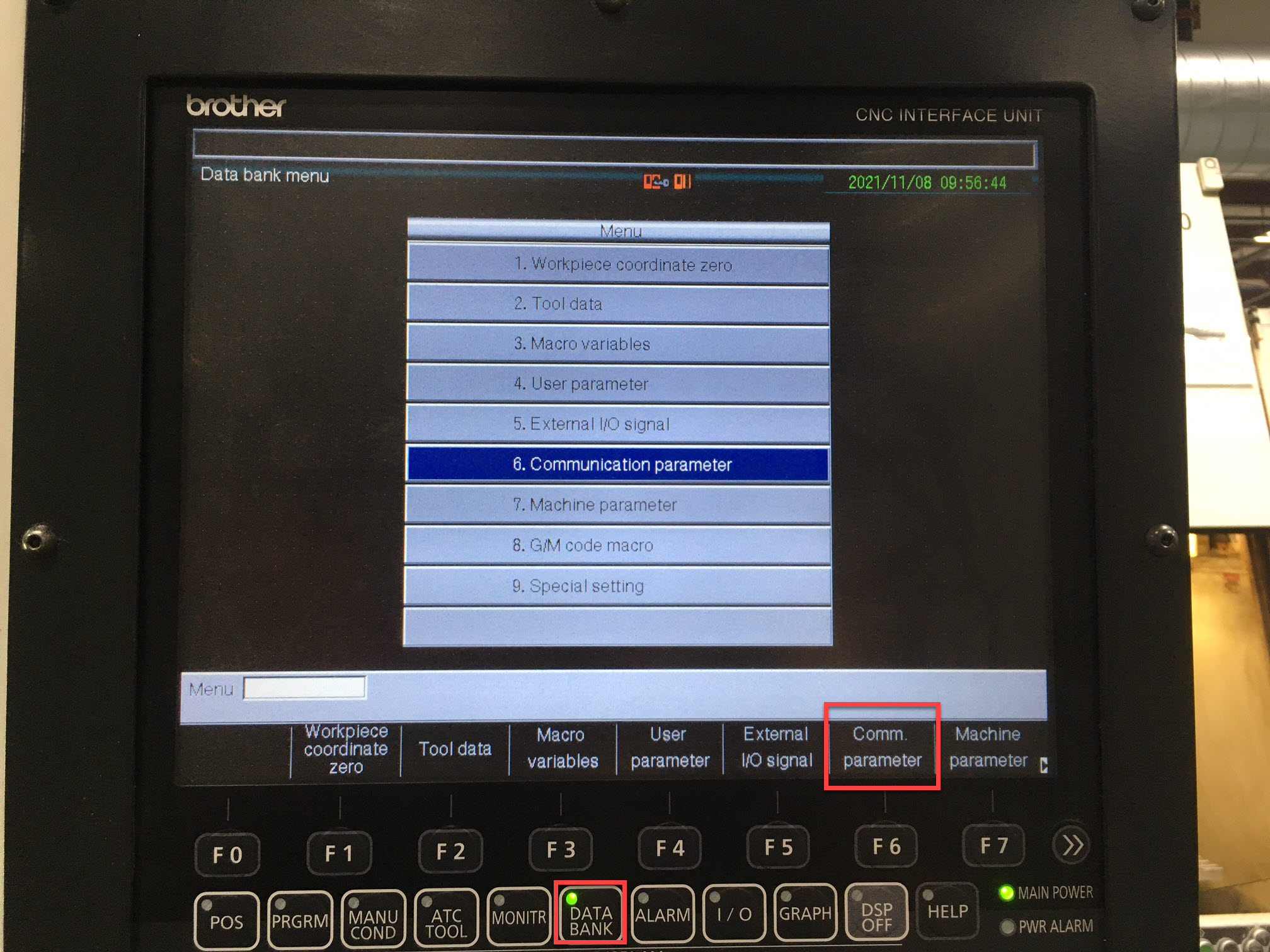
- Press the DATA BANK hardkey on the control panel
-
Press the Communication Parameter softkey (F6)
-
Confirm you see the Ethernet/FTP tab
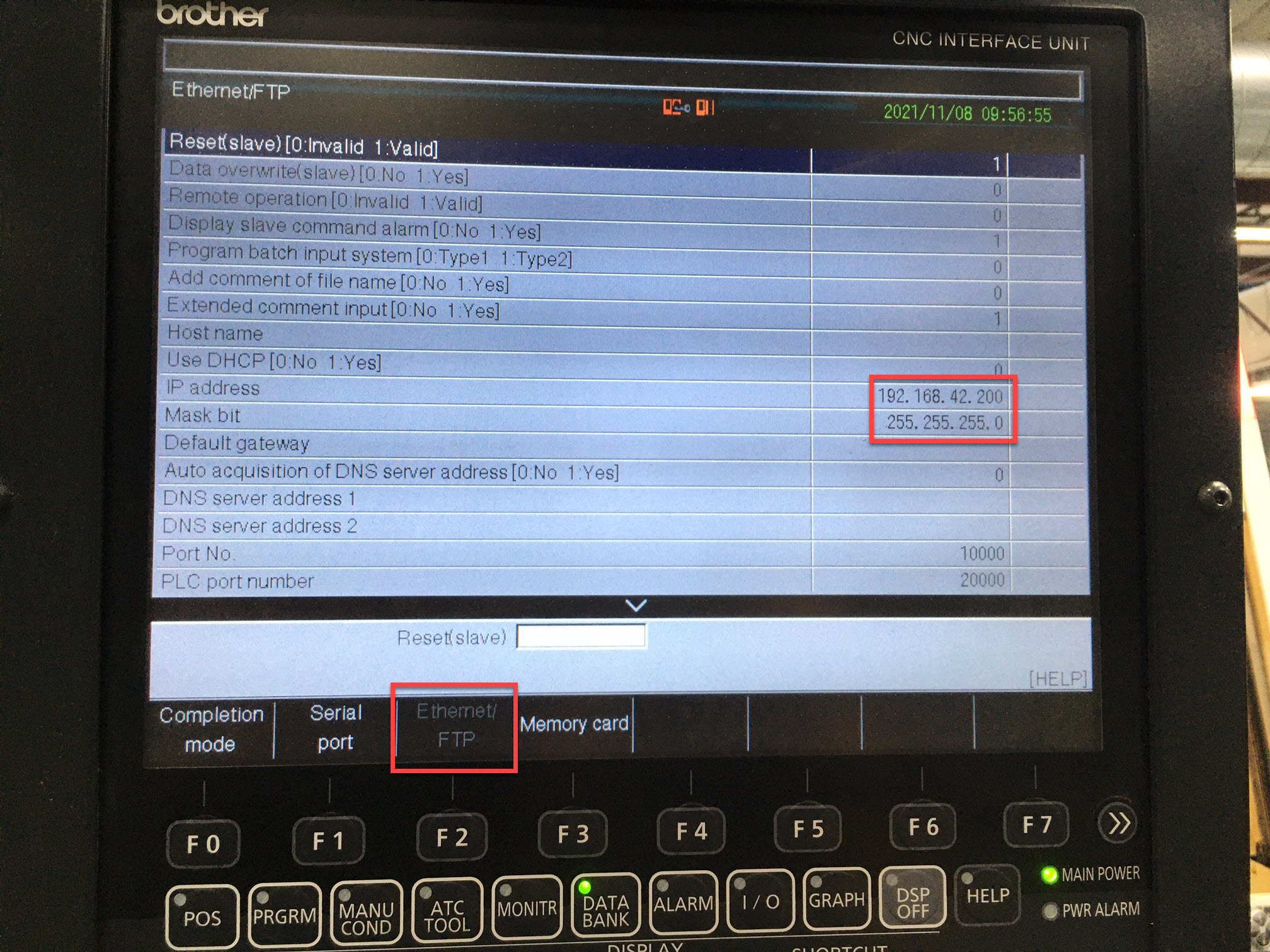
Note: If you don't see the Ethernet/FTP tab, your control may not support network connectivity. Contact Brother or MachineMetrics support.
Step 2: Set IP Address on Machine
Navigate to the Ethernet/FTP tab and configure the network settings.
Configure IP Address:
- Select IP address field
- Enter your static IP address
- Configure Mask bit (subnet mask)
- Configure Default gateway (if required)
Important: Make sure the Edge device can communicate with whatever IP range you configure. Coordinate with your IT team for proper network settings.
IP Address Entry Format:
Depending on your control type, you may need to enter the IP address in a specific format:
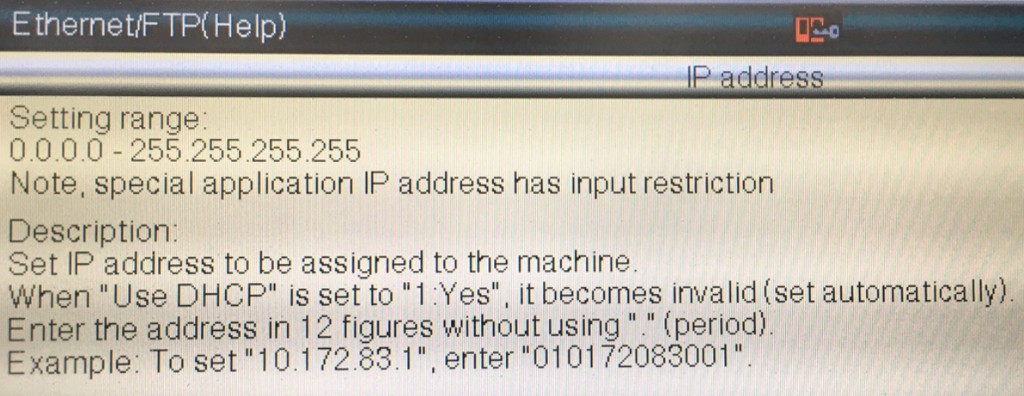
Format: Enter the address in 12 figures without using "." (period).
Example: To set 10.172.83.1, enter 010172083001
Step 3: Disable "Display Slave Command Alarm"
The "Display slave command alarm" option must be set to 0 (off).
How to configure:
- In the Ethernet/FTP settings, scroll down to find Display slave command alarm
- Set the value to 0 (No/Off)
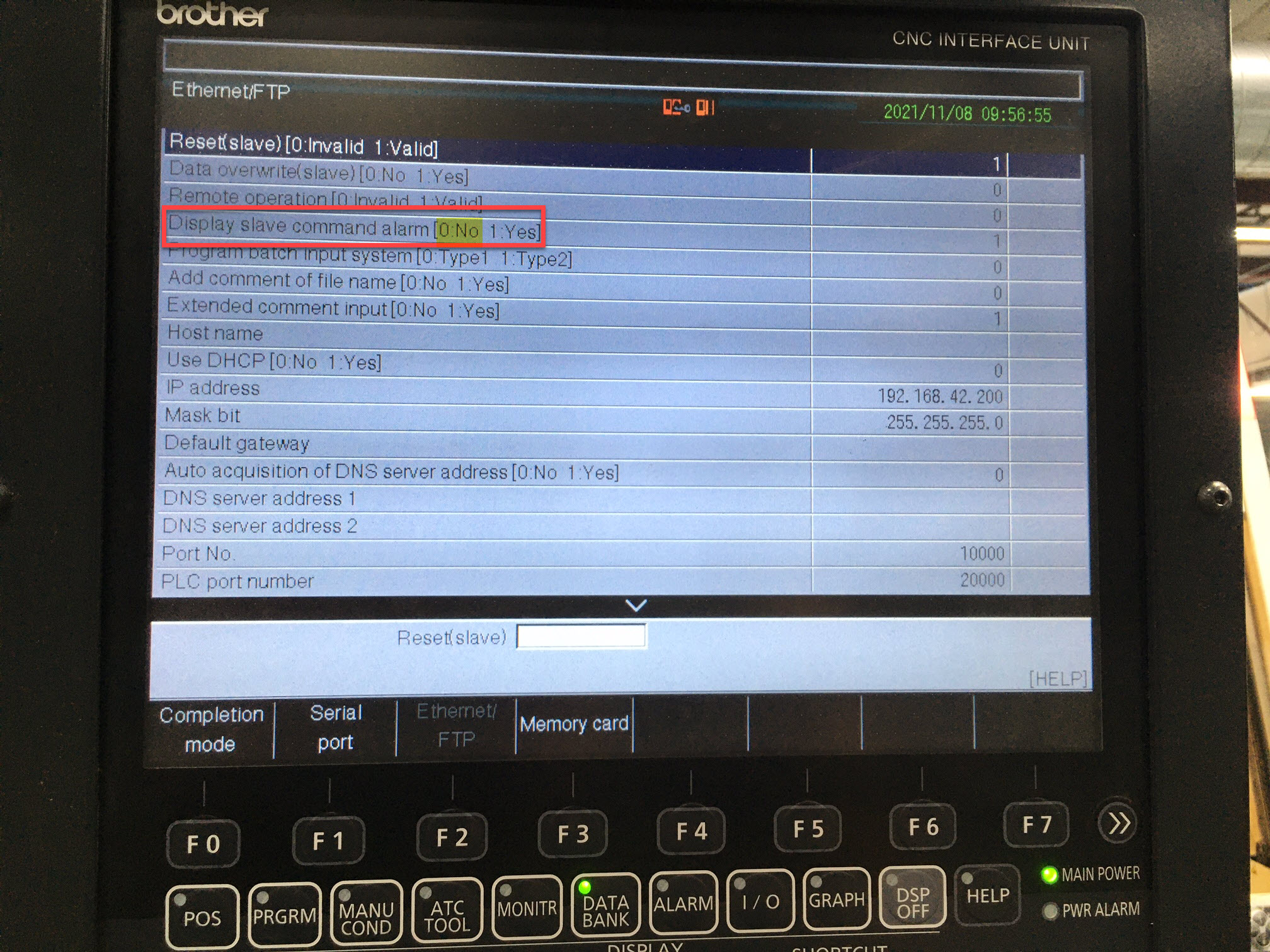
Why: This prevents the machine from displaying error alarms when MachineMetrics queries data from the control.
Step 4: Disable "Restrict Ethernet Access" (Firmware 12+)
On machines with firmware version 12 or newer, "Restrict Ethernet Access" must be set to 0 (off).
How to configure:
- In the Ethernet/FTP settings, find Restrict Ethernet access
- Set the value to 0 (No/Off)
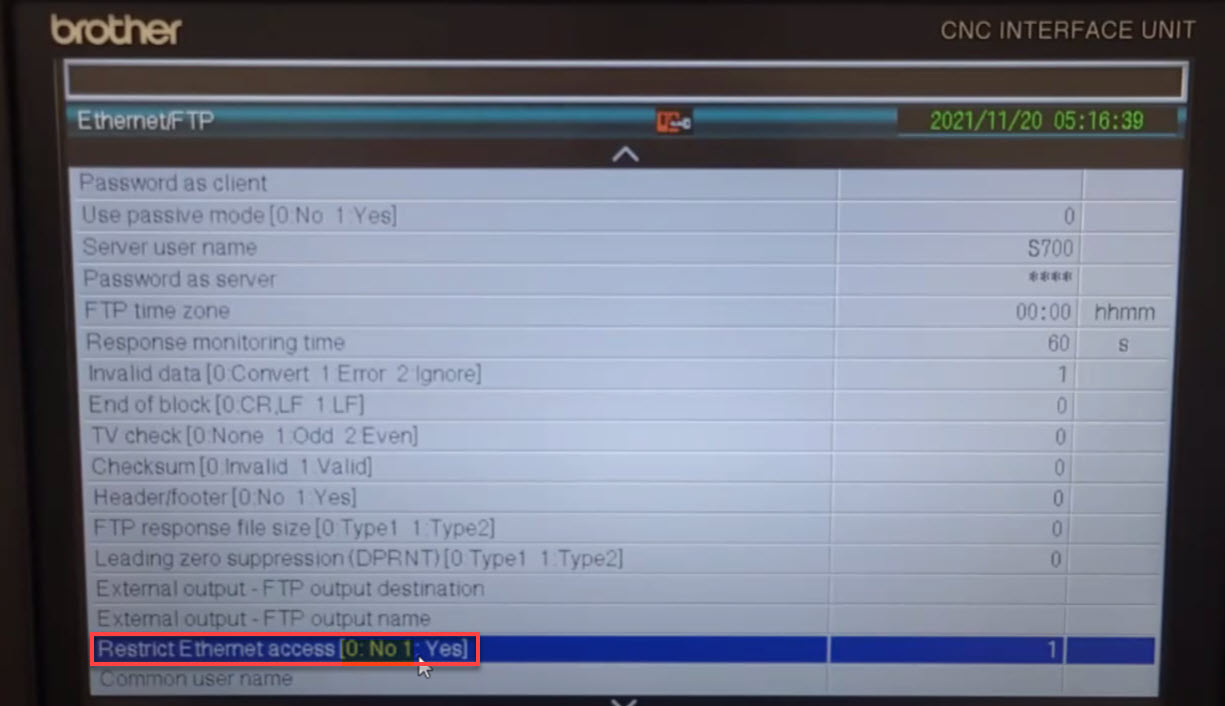
Note: This setting only appears on newer firmware versions. If you don't see this option, your firmware is older than version 12.
Step 5: Configure FTP Server Credentials (Mixed Mode and FTP Mode Only)
If you're using Mixed Mode (recommended for C00) or FTP Mode (including all D00 installations), you need to configure the machine's FTP server username and password.
Skip this step if you're using HTTP Mode only.
How to configure:
- In the Ethernet/FTP settings, find Server user name
- Enter a username (default is often
S700or similar) - Find Password as server
- Enter a password for the FTP server
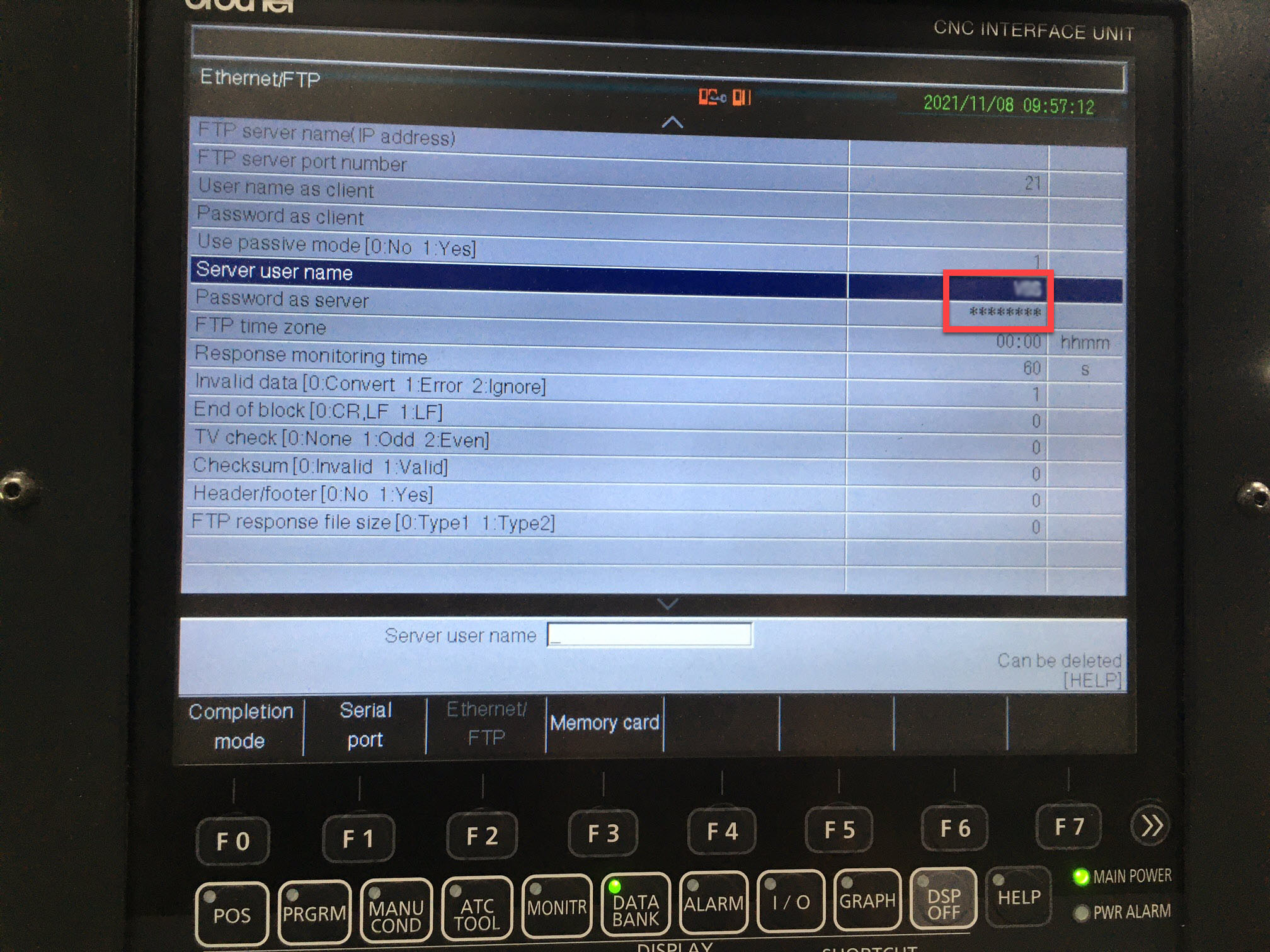
Record these credentials - you will need them when configuring the machine in MachineMetrics.
Common Default Credentials:
- Username:
S700orBROTHER-1(varies by machine model) - Password: Set your own secure password
Example Credentials:
- Username:
BROTHER-1 - Password:
PASSWORD1234
Important: Record the exact username and password you configure. You will need these when setting up the connection in MachineMetrics.
Step 6: Save Changes
To save all changes:
- Press F0 (Completion Mode)
- Select Cancel W/Save Changes
- Control will save the configuration
Important: Changes may require a control restart to take effect. Follow your machine's procedures for restarting the control.
Step 7: Connect Machine to Network
Physical Connection:
Plug the ethernet cable into the NIC port in the machine's main electrical cabinet:
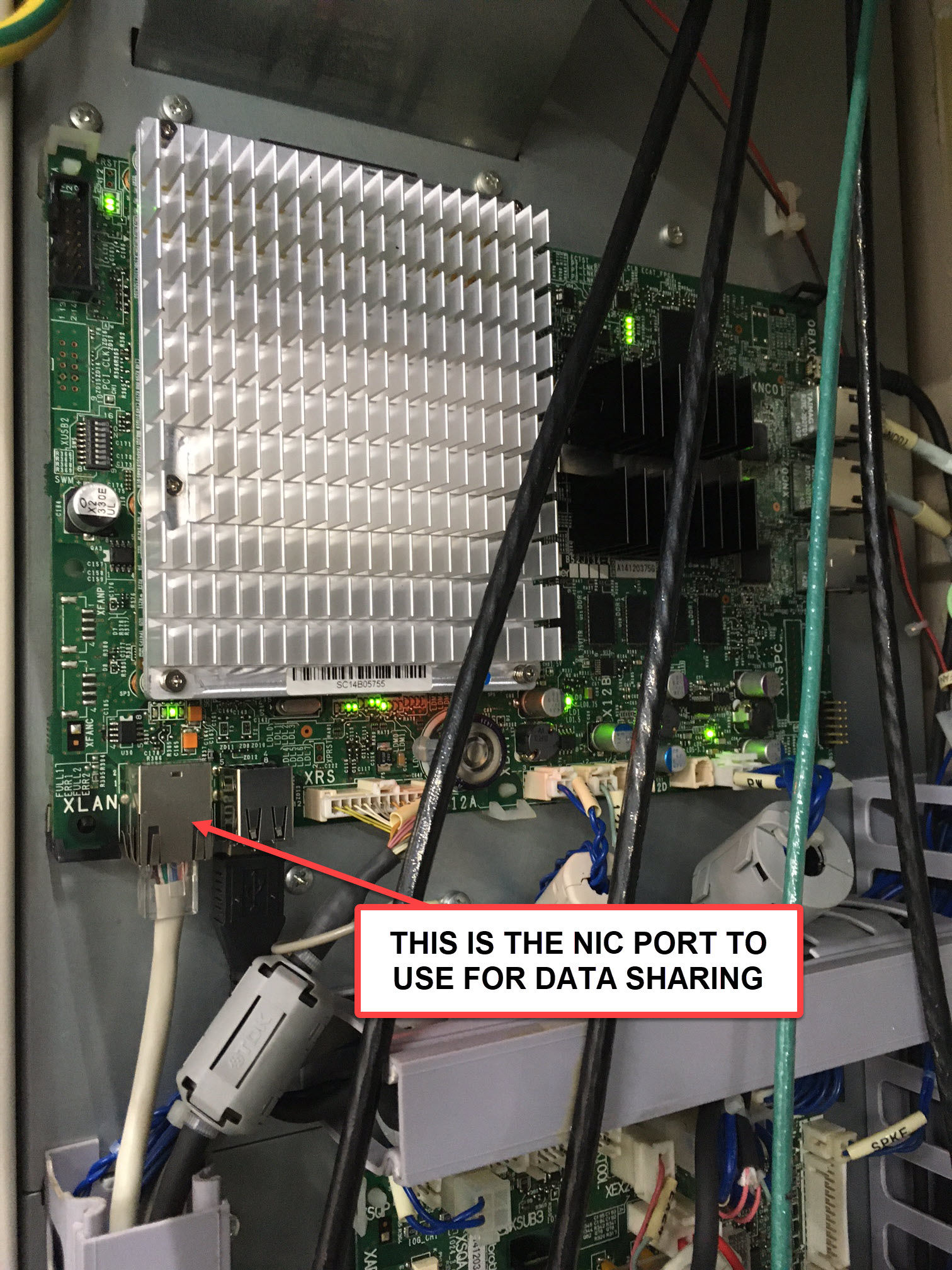
Verify Connection:
- Check link lights on the ethernet port (should be lit/blinking)
- From a computer on the same network, ping the machine's IP address:
ping 192.168.42.200
(Replace with your machine's IP address)
- Verify successful ping responses
Configure Machine in MachineMetrics
Step 1: Determine Connection Mode
Choose which Brother Adapter configuration mode to use based on your control and needs:
C00 controls — Recommended: Mixed Mode (default)
- Provides all standard data including program headers
- Requires FTP credentials
- Best for full Production Monitoring capabilities
D00 controls — Recommended: OPC-UA
- Better connection method for D00 than the Brother Adapter
- See Brother D-Series Setup
D00 controls — Alternative: FTP Mode with cnc-version: d00
- Use only if OPC-UA is not available
- The only Brother Adapter mode that supports D00
- Requires FTP credentials
Alternative (C00): FTP Mode
- Use when you need the extended data set (controller mode, overrides, etc.) or when HTTP access is restricted
- Requires FTP credentials
Alternative (C00): HTTP Mode
- Use if FTP must remain free for program transfers
- Does not provide program headers
- No FTP credentials required
Step 2: Navigate to Machine's Edit Page
- Log into MachineMetrics
- Go to Assets → Machines
- Find your Brother machine in the list
- Click on the machine to open its page
- Click the Edit icon or Data Collection tab
Step 3: Add Brother Data Collection Method
- Click Add Data Collection Method
- Select Brother HTTP adapter
- Select the Edge device to connect to this machine
Step 4: Configure Brother Data Collection Method
Select Edge Device:
- Choose the Edge device that will connect to this machine
Connection Address:
- Enter the machine's IP address configured in Step 2
- Format:
<IP address> - Example:
192.168.42.200
Adapter Script Configuration:
Configure the adapter script based on your desired connection mode:
Example: Mixed Mode (Recommended for C00)
collection-mode: mixed
username: BROTHER-1
password: PASSWORD1234
Example: FTP Mode (C00)
collection-mode: ftp
username: BROTHER-1
password: PASSWORD1234
Example: FTP Mode (D00)
collection-mode: ftp
cnc-version: d00
username: BROTHER-1
password: PASSWORD1234
Example: HTTP Mode
collection-mode: http
Parameters:
| Parameter | Default | Required | Description |
|---|---|---|---|
collection-mode | mixed | ❌ | mixed, ftp, or http |
username | — | ✅ (Mixed/FTP) | The CNC's FTP server username from Step 5 of Machine Configuration. Common values: S700, BROTHER-1, or custom username |
password | — | ✅ (Mixed/FTP) | The CNC's FTP server password from Step 5 of Machine Configuration |
cnc-version | legacy (C00) | For D00 | Must be set to d00 for D00 support (FTP mode only). C00 controls use the default |
scan-interval | 1.0 | ❌ | Seconds between data collection cycles |
http-interval | 0.05 | ❌ | Seconds to wait between consecutive HTTP requests (Mixed/HTTP mode) |
memory-path | C00: MEM.NC — D00: _MCM/MEM.NC | ❌ | Path to the file for memory operation data (execution / operating status) |
production-path | C00: PRDC2.NC — D00: _PRD/PRDD2.NC | ❌ | Path to the file for production data (programs, cutting, part count) |
panel-path | C00: PANEL.NC — D00: _MCM/PANEL.NC | ❌ | Path to the file for operation panel data (overrides, controller mode, emergency stop) |
position-path | C00: PDSP.NC — D00: _MCM/PDSP.NC | ❌ | Path to the file for position data (feedrate, spindle speed) |
work-counter-path | C00: WKCNTR.NC — D00: _PRD/WKCNTR.NC | ❌ | Path to the file for the workpiece counters |
alarm-path | C00: ALARM.NC — D00: _MCM/ALARM.NC | ❌ | Path to the file for alarms |
macro-path | C00: MCRNI1.NC — D00: _DAT/MCRNI1.NC | ❌ | Path to the file for macro variables. The default file name is derived from macro-settings (type/units/databank); the defaults shown correspond to type1/inches/databank 1 |
macro-settings/type | type1 | ❌ | One of type1, type2. This is the Macro program call control type set in the control's Data Bank → G/M code macro section (0 = type1, 1 = type2). Typically 0 |
macro-settings/units | inches | ❌ | One of inches, metric |
macro-settings/databank | 1 | ❌ | A value from 0 to 9. Typically 1 |
macros/[key] | — | ❌ | FTP mode only: any number of key/macro-variable pairs (see below). Each key becomes a data item emitting the value of the corresponding macro variable |
Note (D00): the file paths listed as defaults for
cnc-version: d00match the FTP layout observed on D00 controls, but the file locations may vary per machine. If a D00 machine reports FTP 550 (file not found) errors for individual files, set the corresponding*-pathparameter(s) explicitly to where the files reside on that control. The*-pathparameters are otherwise rarely needed — only set them when directed by MachineMetrics support.
Macro Variables (FTP Mode Only):
FTP mode can read macro variables from the control and emit them as custom data items:
collection-mode: ftp
username: BROTHER-1
password: PASSWORD1234
macros:
  my_custom_item: 500
  another_item: 501
macro-settings:
  type: type1
  units: inches
  databank: 1
macros: each key becomes a data item name and each value is the macro variable number to read. Names must not collide with the built-in data item names listed in Collected Data Items.macro-settings.type:type1(default) ortype2— must match the macro program call control type set on the control (Data Bank → G/M code macro section)macro-settings.units:inches(default) ormetricmacro-settings.databank: databank number0–9. Default:1
Step 5: Test Connection
- Click Test Connection to verify connectivity
- Wait for test results
- Verify successful connection message
Expected Results:
- ✅ Connected - Configuration is correct
- ❌ Failed - Check IP address, network connectivity, and credentials
Step 6: Save Configuration
- Review all settings for accuracy
- Click Save to apply the configuration
- Edge device will begin collecting data from the machine
Step 7: Verify Data Collection
Check Machine Status:
- Navigate to the machine's page in MachineMetrics
- Verify connection status:
- Green - Connected and receiving data
- Yellow - Connecting or intermittent
- Red - Connection failed
Verify Data Items:
- Go to the machine's Data Collection or Diagnostics tab
- Verify the following data items are populating:
execution- Machine state (ACTIVE, READY, etc.)program_number_1- Current program numberpart_count- Parts completed- Alarms - Active alarms (as conditions)
Run Test Program:
- Run a program on the machine
- Watch the MachineMetrics timeline to confirm data updates
- Verify part count increments (if applicable)
Troubleshooting
Cannot Connect to Machine
Problem: Connection test fails or machine shows as disconnected.
Possible Causes:
- Incorrect IP address
- Network connectivity issue
- Machine control not configured correctly
- Firewall blocking connection
Solutions:
-
Verify IP Address:
- Check IP address on machine control matches configuration
- Ensure no typos in MachineMetrics configuration
-
Test Network Connectivity:
- Ping the machine via Diagnostics → Manual Ping in Edge Management, or from another computer on the network:
ping 192.168.42.200 - Verify successful ping responses
- Check network cable connection
- Ping the machine via Diagnostics → Manual Ping in Edge Management, or from another computer on the network:
-
Verify Machine Configuration:
- Confirm "Display slave command alarm" is set to 0
- Confirm "Restrict Ethernet access" is set to 0 (firmware 12+)
- Verify IP address is configured correctly
-
Check Firewall:
- Ensure network allows HTTP (port 80) and FTP (port 21) traffic
- Coordinate with IT team if needed
-
Restart Control:
- Power cycle the machine control (if safe to do so)
- Wait for control to fully boot before testing
FTP Authentication Failed
Problem: Connection test fails with FTP authentication error.
Possible Causes:
- Incorrect FTP username or password
- FTP server not configured on machine
- Using HTTP mode but provided FTP credentials
Solutions:
-
Verify FTP Credentials:
- Check username and password on machine control
- Ensure credentials match in MachineMetrics configuration
- Re-enter password carefully (no extra spaces)
-
Verify FTP Server Configuration:
- Confirm "Server user name" is set on machine
- Confirm "Password as server" is set on machine
- Save changes and restart control
-
Check Connection Mode:
- If using HTTP mode, remove FTP credentials from configuration
- If using Mixed/FTP mode, ensure credentials are provided
No Data Appearing
Problem: Machine shows as connected but no data items populate.
Possible Causes:
- Machine in wrong mode (not AUTO/REMOTE)
- Firmware version too old
- Collection mode misconfigured
- Missing or incorrect
cnc-version(D00 controls) - Machine not running a program
Solutions:
-
Check Machine Mode:
- Ensure machine is in AUTO or REMOTE mode
- Some data only appears during program execution
-
Verify Firmware Version:
- Check machine firmware version
- On C00, upgrade to 12.026 or higher if possible
-
Check
cnc-version(D00):- On a D00 control, the configuration must include
collection-mode: ftpandcnc-version: d00 - See D00 Control Not Reporting below
- On a D00 control, the configuration must include
-
Run Test Program:
- Load and run a program on the machine
- Watch for data updates in MachineMetrics
-
Review Adapter Logs:
- Check Edge device logs for specific errors
- Contact support if errors persist
D00 Control Not Reporting
Recommended: For D00 controls, use OPC-UA instead of the Brother Adapter. See Brother D-Series Setup.
Problem: A D00 machine on the Brother Adapter shows as connected but data is missing, or adapter logs show "file not found" (FTP 550) errors.
Cause:
D00 controls store their status files in different FTP locations and formats than C00 controls. If the adapter runs against a D00 control without cnc-version: d00, it looks for the C00 file layout and fails: typical symptoms are FTP 550 (file unavailable) errors in the adapter logs, or program header lookups against nonsensical paths (e.g. a path ending in O000000000.NC).
Solution:
- Edit the machine's data collection method
- Ensure the adapter script contains both keys:
collection-mode: ftp
cnc-version: d00 - Save and test connection
- If FTP 550 errors persist for individual files with
cnc-version: d00set, the machine stores those files in non-default locations: set the corresponding*-pathparameter(s) explicitly (see the parameter table in Step 4)
D00 part count note: the production counter used for part_count on D00 controls is a best-effort source. Verify it against the machine after setup; if it does not track your process, use one of the workpiece counters (custom_part_count_1 … custom_part_count_4) via data mapping instead.
Adapter Blocked by Another FTP Client
Problem: Data collection stops (values go UNAVAILABLE) while another FTP client — e.g. an operator or DNC application transferring programs — is connected to the machine. Adapter logs may show FTP 503 "Bad sequence of commands" errors.
Cause:
The Brother FTP server supports at most 4 simultaneous connections and has a single shared data channel. Another FTP client transferring files in ACTIVE mode can hold that channel and block the connector.
Solutions:
- The connector detects this condition, logs a prominent warning, and automatically resets its own connection to recover — no action is needed for occasional occurrences
- If it recurs frequently, the fix is on the other FTP client: configure it to use PASSIVE mode, and/or avoid concurrent FTP transfers against the machine
- Alternatively, on C00 controls, switch the connector to HTTP mode so it does not use FTP at all (this gives up program headers and the FTP-only data items)
Part Count Not Incrementing
Problem: Part count stays at zero or doesn't increment.
Possible Causes:
- Part counter not configured on machine
- Program doesn't trigger part count
- Data mapping not configured
- Old C00 firmware page format (HTTP/Mixed mode)
Solutions:
-
Check Machine Part Counter:
- Verify machine has built-in part counter
- Run program and check if counter increments on machine
-
Verify Data Mapping:
- Go to Machine Settings → Data Mapping
- Confirm
part_countis mapped as PART_COUNT data type - Alternatively, map one of the workpiece counters (
custom_part_count_1…custom_part_count_4)
-
Check Data Rules:
- Go to Machine Settings → Data Rules
- Verify correct part count source is selected
-
Check Firmware (HTTP/Mixed mode):
- On C00 controls with firmware older than 12.026,
part_countmay not be available over HTTP; use FTP mode or a workpiece counter
- On C00 controls with firmware older than 12.026,
-
Review Program:
- Some machines require M-code to increment counter
- Consult Brother documentation for part counting
Program Headers Not Available (HTTP Mode)
Problem: Program header information is missing.
Cause:
- HTTP Mode does not support program headers
Solution:
Switch to Mixed Mode or FTP Mode to enable program headers:
- Edit machine's data collection method
- Change adapter script:
collection-mode: mixed
username: S700
password: your-password - Save and test connection
Additional Resources
Related Guides:
- Machine Settings Guide - Configure data mapping and part counting
- Connectivity Overview - Compare connectivity methods
- Network Requirements - Firewall configuration
- Edge Device Setup - Edge device installation
- OPC-UA Guide - Alternative connection method for Brother D00 controls
- Brother CNC I/O Integration - For A and B Series controls
Getting Help:
- MachineMetrics Support
- Include in support request:
- Brother machine model
- Control type (C00 or D00)
- Firmware version
- Connection mode being used (Mixed/HTTP/FTP) and, for D00, the
cnc-versionsetting - IP address configured
- Screenshots of error messages
- Adapter configuration (YAML)
Ready to connect your Brother machine?
- Verify firmware version (C00: 12.026 or higher recommended)
- Configure IP address on machine control
- Disable "Display slave command alarm"
- Disable "Restrict Ethernet access" (firmware 12+)
- Configure FTP credentials (Mixed/FTP mode)
- Connect ethernet cable to NIC port
- Test network connectivity
- Add data collection method in MachineMetrics
- Configure connection mode and credentials. D00: use OPC-UA. If remaining on this adapter, use
collection-mode: ftp+cnc-version: d00 - Test and verify data collection
Questions? Contact MachineMetrics Support or your Solution Delivery Manager (SDM).