Mitsubishi Connectivity Guide
- Overview
- Mitsubishi Controls
- Network Configuration
- Adding Machine in MachineMetrics
- Adapter Configuration
- Troubleshooting
- Additional Resources
Overview
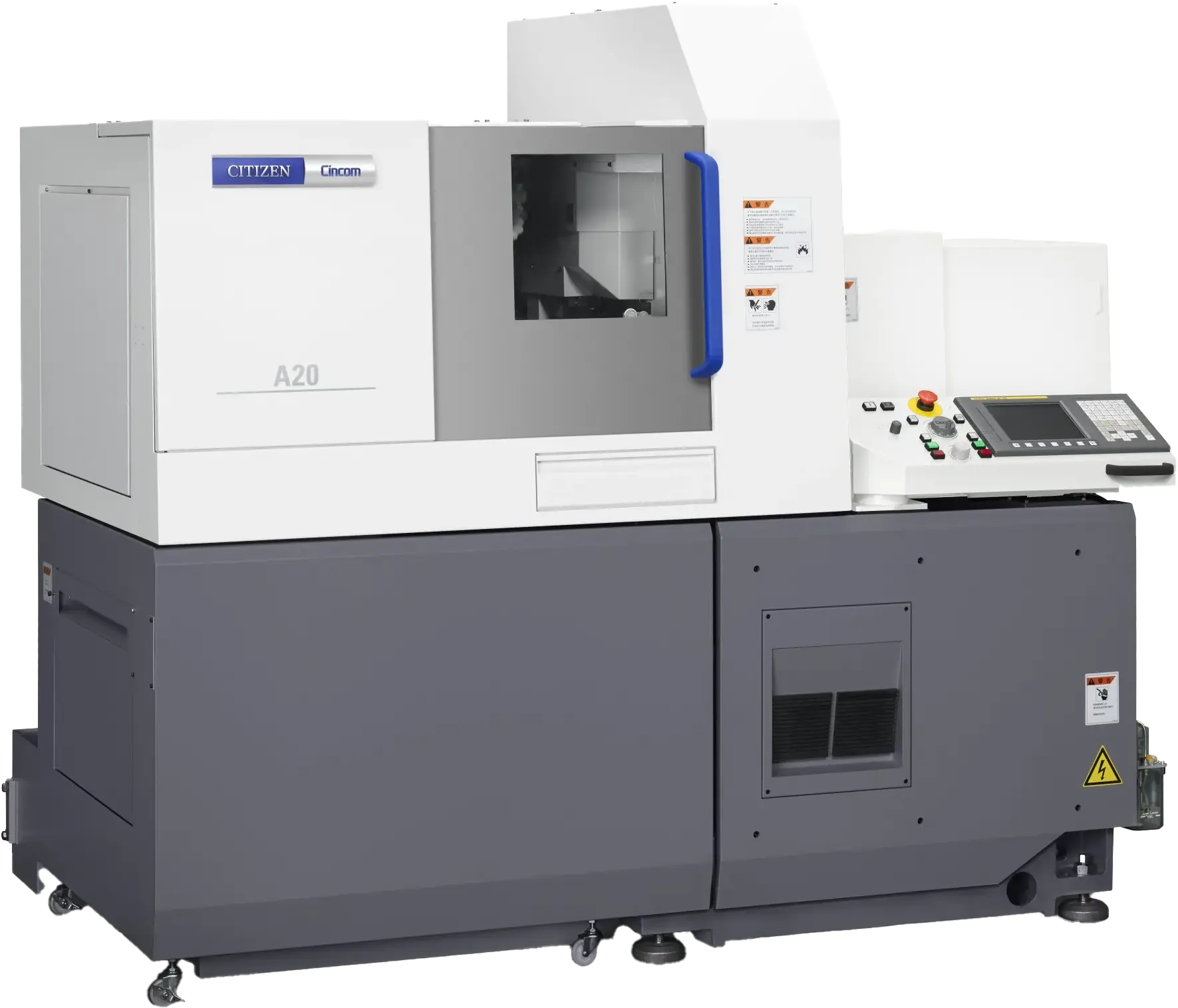
Mitsubishi M70/M700 control panel. These controls use MachineMetrics' proprietary Mitsubishi adapter for direct connectivity over Ethernet.
Important: If you have a Citizen machine, please see the Citizen Connectivity Guide instead of this guide.
MachineMetrics connects to machines with Mitsubishi controls using proprietary adapters designed specifically for these control series.
Use the M70 / M80 / M800 adapter
Compatible Controls:
- M70
- M700
- M80
- M800
Note: For DMG MORI machines (CELOS or MAPPS), see the DMG MORI Connectivity Guide.
Mitsubishi Controls
The Mitsubishi adapter is not compatible with DMG Mori or Kitamura machines. Even if these machines use a Mitsubishi backend, they must always be connected via MTConnect. Using this adapter on DMG Mori or Kitamura machines will result in incorrect or failed connectivity.
For Kitamura machines, see the Kitamura Connectivity Guide.
What is Mitsubishi M70 / M80 / M800 and M700?
Mitsubishi Electric's CNC control systems are found in various machine tools. MachineMetrics uses proprietary adapters to communicate directly with these controls over Ethernet.
Compatible Machines:
- Mitsubishi CNC controls
- Miyano machines (with Mitsubishi controls)
What Data Can Be Collected:
- Execution state (ACTIVE, READY, INTERRUPTED)
- Program name and number
- Tool number and offsets
- Spindle speed and override
- Feed rate and override
- Axis positions
- Alarms and messages
- Part count (with proper configuration)
- Cycle time
Prerequisites
Before connecting a Mitsubishi machine:
- Machine has Ethernet port on control
- Machine is on the network (same network as Edge device)
- Static or reserved DHCP IP address assigned to machine
- Network settings accessible on control
- Physical access to machine control for initial setup
Network Configuration on Mitsubishi Control
Step 1: Access Network Settings
- Press SYSTEM button on control panel
- Navigate to Network or Ethernet settings
- Depending on control version, may be under:
- SYSTEM → Network
- Parameter → Ethernet
- Setup → Communication
Step 2: Set IP Address
Before establishing a network connection, verify and configure the following CNC parameters:
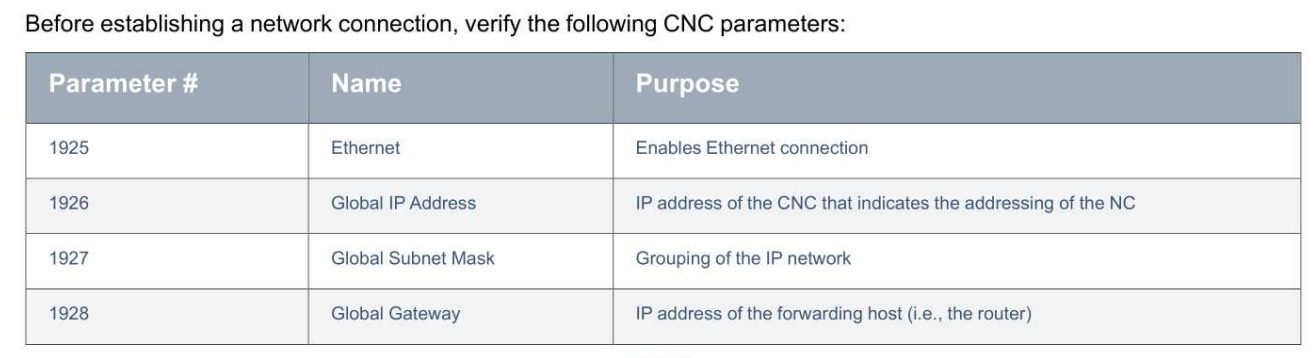
| Parameter # | Name | Purpose |
|---|---|---|
| 1925 | Ethernet | Enables Ethernet connection |
| 1926 | Global IP Address | IP address of the CNC that indicates the addressing of the NC |
| 1927 | Global Subnet Mask | Grouping of the IP network |
| 1928 | Global Gateway | IP address of the forwarding host (i.e., the router) |
Configuration Example:
- Parameter 1925 (Ethernet): Set to
1(enabled) - Parameter 1926 (IP Address): Enter static IP (e.g.,
192.168.1.100) - Parameter 1927 (Subnet Mask): Usually
255.255.255.0 - Parameter 1928 (Gateway): Your network gateway IP (e.g.,
192.168.1.1) - Port: Uses port
683(standard for Mitsubishi)
Important: If the network connection doesn't work after setting these parameters, reboot the control for the changes to take effect.
Step 3: Enable Communication
- Enable Ethernet communication if disabled
- Set communication protocol to allow external access
- No additional protocol licenses typically required
Step 4: Verify Connection
- Note the IP address you configured
- From a computer on the same network, ping the machine:
ping 192.168.1.100 - Should receive replies confirming network connectivity
Adding Machine in MachineMetrics
Step 1: Navigate to Machine Settings
- Log into MachineMetrics
- Go to Assets → Machines
- Click Add Machine
Step 2: Enter Machine Details
Fill in machine information:
- Machine Name: (e.g., "Miyano BNE-51SY")
- Make: Mitsubishi or Miyano
- Model: (e.g., "M700V", "BNE-51SY")
- Edge Device: Select your Edge device
Step 3: Select Adapter Type
Choose the appropriate adapter:
| Control Series | Adapter to Select |
|---|---|
| M70 / M80 / M800 Series | Mitsubishi M70 |
| M700 Series | Mitsubishi M700 |
Note: For Citizen machines, see the Citizen Connectivity Guide.
Step 4: Enter Connection Details
Connection address: <IP address>
Examples:
- Mitsubishi M700:
192.168.1.100 - Mitsubishi M70:
192.168.1.100 - Mitsubishi M80:
192.168.1.100
Note: The Mitsubishi adapter always uses port 683. No port specification is required in the connection address.
Step 5: Test Connection
- Click Test Connection
- Wait for connection verification
- If successful, click Save
- If failed, verify:
- IP address is correct
- Port number is correct
- Machine is powered on
- Network connectivity exists (try pinging machine)
Adapter Configuration
Basic Configuration
The Mitsubishi adapters typically work out-of-the-box with default settings. No adapter script required for basic data collection.
Default Data Items Collected:
- Execution state
- Program name/number
- Tool number
- Spindle speed and load
- Feed rate
- Axis positions
- Alarms
Part Counting Configuration
Part counting on Mitsubishi machines can use:
1. M-Code Trigger
- Add M-code to end of program
- Triggers part count increment
- Example: Add
M30or custom M-code
2. Signal-Based Counting
- Monitor machine signals
- Configure trigger based on machine output
Configuration in MachineMetrics:
- Go to Machine Settings → Data Collection
- Under Part Counting, select method:
- M-Code (specify which M-code)
- Signal-based (configure trigger)
Advanced Configuration (Optional)
For advanced data collection, you can add a Transform Adapter on top of the Mitsubishi adapter to:
- Extract operation from program name
- Calculate custom metrics
- Filter or transform data
- Add custom alarms
See Transform Adapter Scripts Guide for details.
Troubleshooting
Cannot Connect to Machine
Problem: Connection test fails when adding machine.
Solutions:
-
Verify IP Address
- Confirm IP address on machine control
- Check for typos in MachineMetrics
-
Verify Port Number
- Port 683 is used for all Mitsubishi connections
- Check control network settings if connection fails
-
Check Network Connectivity
- Ping machine from Edge device or computer
- Ensure machine and Edge are on same network/VLAN
- Check firewall rules
-
Verify Machine Powered On
- Control must be powered on
- Ethernet communication must be enabled
No Data Appearing
Problem: Machine connects but no data displays in MachineMetrics.
Solutions:
-
Check Adapter Settings
- Verify correct adapter type selected
- Review Data Collection tab
-
Run a Program
- Some data only appears during operation
- Load and run a test program
-
Check Control Settings
- Ensure external communication enabled
- Verify no security restrictions blocking data
Part Count Not Incrementing
Problem: Part count stays at zero or doesn't increment.
Solutions:
-
Verify Part Count Method
- Go to Machine Settings → Data Collection
- Select correct part counting method
-
Check M-Code Configuration
- Check if M-code is in program (if using M-code method)
- Ensure signal is configured (if using signal method)
-
Run Complete Cycle
- Part count may only increment on M30 or program end
- Run a full cycle to test
Wrong Adapter Type Selected
Problem: Accidentally selected wrong adapter type.
Solution:
- Go to Machine Settings for that machine
- Click Data Collection tab
- Click Change Adapter or remove and re-add
- Select correct adapter (Mitsubishi M70 or Mitsubishi M700)
- Re-configure connection settings
- Test connection and save
Additional Resources
Related Guides:
- Citizen Connectivity Guide - For Citizen Cincom machines
- Machine Settings Guide - Configuring machine settings and part counting
- Transform Adapter Scripts Guide - Advanced data transformation
- Connectivity Overview - Choosing the right protocol
Mitsubishi Resources:
- Mitsubishi CNC manuals (contact machine tool builder)
- Network configuration documentation
Getting Help:
- MachineMetrics Support
- Include in support request:
- Machine make and model
- Control type and version
- IP address and port
- Screenshots of connection error (if applicable)
- Adapter type selected
Ready to connect your Mitsubishi machine?
- Assign static IP address to machine
- Note IP address and port number
- Add machine in MachineMetrics
- Select appropriate adapter (Mitsubishi M70 or M700)
- Test connection and configure data collection
Questions? Contact MachineMetrics Support or your Solution Delivery Manager (SDM).