Timesheets
A Timesheet records a person's clock-in and clock-out session. A labor ticket records work on a particular job or activity. Use Timesheets to review a person's session times and labor tickets to review their work on operations.
Open My Apps → ERP Data Studio → Timesheets.
Timesheets and Labor Tickets
| Record | What it records | What to review |
|---|---|---|
| Timesheet | A person's clock-in/out session. | When the person clocked in, whether the session is still open, and when they clocked out. |
| Labor ticket | Work on an operation or activity, including time and reported quantities. | The job, operation, resource, activity, and production quantities. |
The records serve different purposes. Ending work on one job is not the same as ending a person's clock-in/out session. A Timesheet alone does not show how time was assigned to jobs.
Where Timesheets Come From
In the ShopPulse labor workflow, signing in with an ERP-linked operator can create a Timesheet. If that person already has an open Timesheet, the existing session is reused. The operator must be linked to an ERP person through ERP Data Studio → Persons.
Clocking out closes the person's open session in the configured clock-out workflow. Opening or submitting a handover by itself does not close a Timesheet; handover can also be opened during an active shift. For operator steps, see Signing Out. Do not assume that switching machines or closing a single labor ticket ends the Timesheet.
Timesheet availability and ERP synchronization depend on the configured workflow and connector.
View a Timesheet
- Open My Apps → ERP Data Studio and select Timesheets.
- Check the selected date range. Widen or clear the filters if the session is missing.
- Search by Timesheet reference, person, source system, external transaction ID, or terminal. You can also filter by person, source system, and terminal.
- Select a row to open its details. Use the column controls to show additional fields in the list.
| Field | Meaning |
|---|---|
| Timesheet reference | The MachineMetrics reference for this session. |
| Person | The employee associated with the session. |
| Clock in / Start | When the session began. |
| Clock out / End | When the session ended. A blank value is displayed as an open session. |
| Duration | Elapsed time between clock-in and clock-out. Open sessions display a duration that continues to update. |
| Source system | Source metadata, when recorded. |
| External transaction ID | The external record identifier, when recorded. |
| Terminal | Terminal metadata, when recorded. |
| Created / Updated | When the MachineMetrics record was created or last updated. |
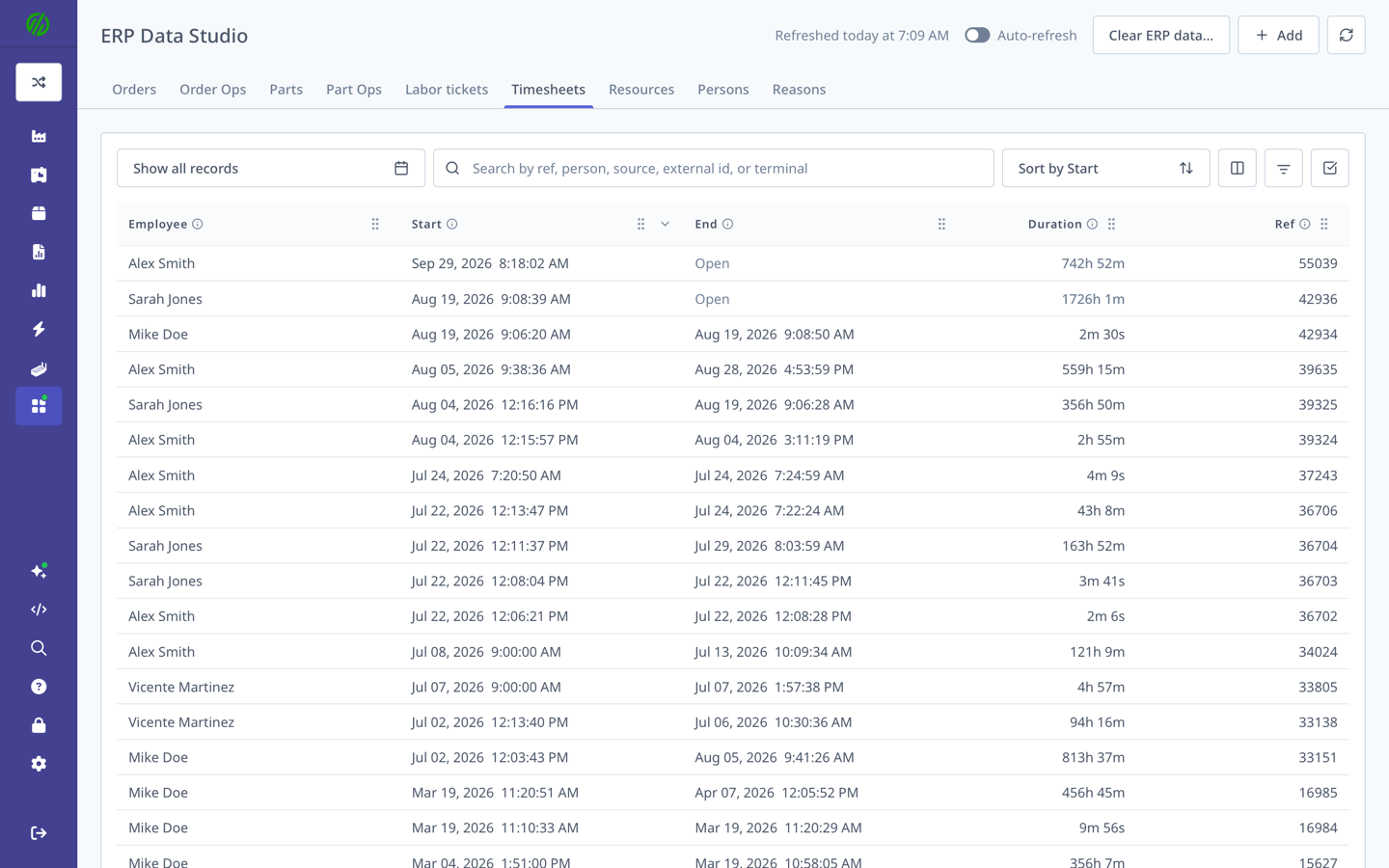
The demo list below includes both completed and open sessions. Open in the End column means the session has no clock-out time. The long durations shown are demo records, not examples of a normal shift.
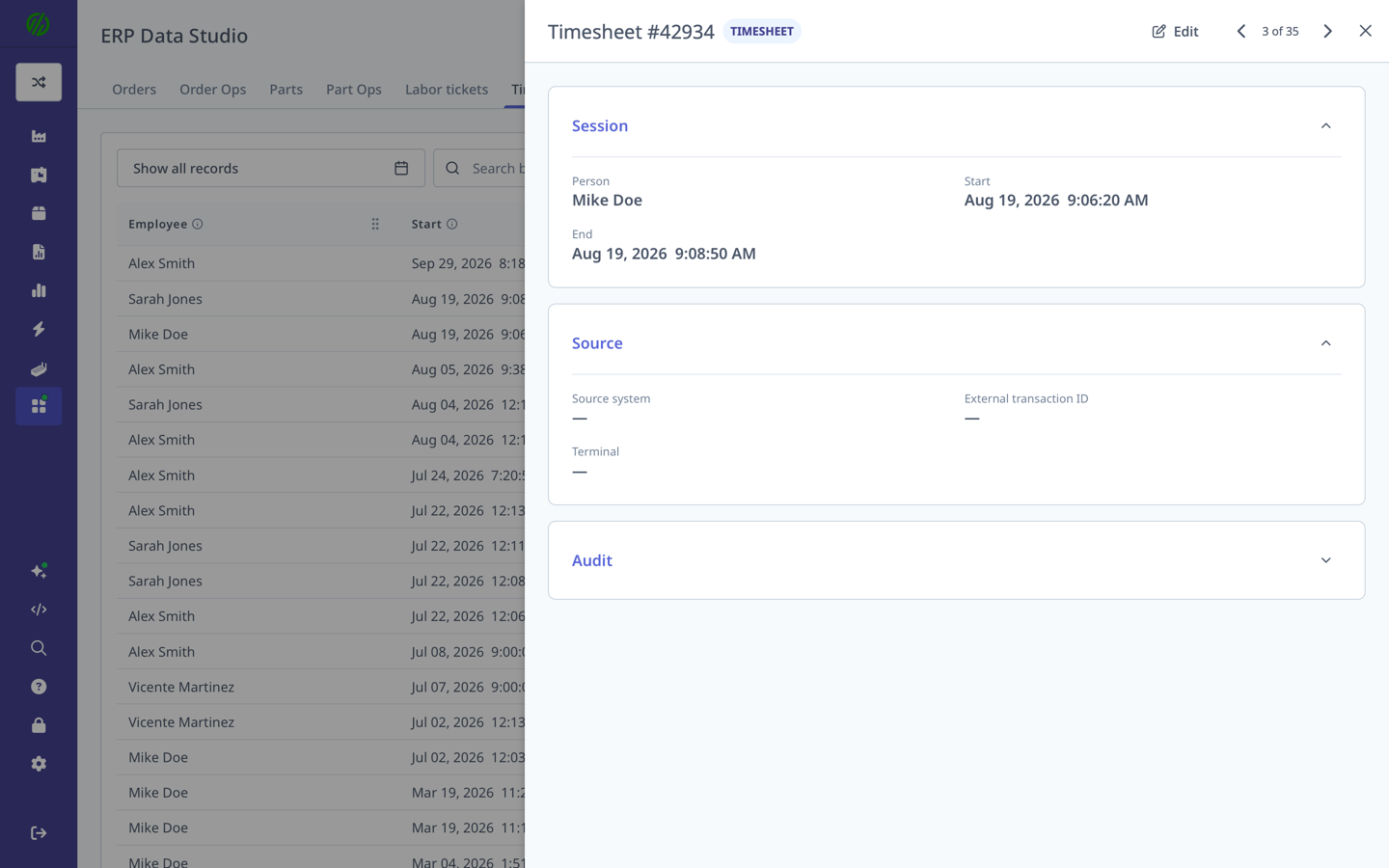
Select a row to review Session, Source, and Audit details. This completed demo session has both a start and end time; its optional source fields are blank.
Add or Correct a Timesheet
Viewing does not require editing access. In versions with the current role rules, Admin, Manager, Executive, and IT Admin users can create and edit Timesheets; deletion requires IT Admin. See ERP Data Studio permissions and confirm the roles available in your deployed version.
To add a session, use the Add menu in ERP Data Studio and choose Timesheet. Select the person and enter the start time. Leave the end time blank only for an open session. Source system, external transaction ID, and terminal are optional metadata.
To correct a session, open the Timesheet and use the edit action. Update the session times or source metadata, then save. The person is locked when editing an existing Timesheet. The form requires a person and start time, and the end time cannot be before the start time.
Before changing historical data, confirm the correction needed in each system. Saving a Timesheet in MachineMetrics does not establish how an ERP will handle that correction. Check the connector's behavior with your ERP administrator or MachineMetrics Support.
ERP Synchronization
Timesheet synchronization is separate from labor-ticket synchronization. A connector's support for labor tickets does not by itself establish Timesheet support.
For Epicor Kinetic, the outbound sync processes labor tickets before Timesheets. A Timesheet without a clock-out time triggers Epicor employee clock-in. A Timesheet with a clock-out time triggers employee clock-out. These use the employee ID and Epicor's clock-in/out actions; do not assume that editing a historical MachineMetrics timestamp rewrites the corresponding Epicor attendance timestamp. See the Epicor connector guide.
Confirm Timesheet support and the direction of synchronization for other connectors with your SDM. Do not apply Epicor's behavior to another ERP.
Troubleshooting
| Problem | What to check |
|---|---|
| A session is missing | Widen the date range, clear filters, and verify the employee-to-operator link. Confirm the machine uses the intended labor workflow. |
| A session is still open | Check whether the person completed the clock-out workflow. Review the end time separately from the status of individual job labor tickets. |
| Session time differs from job time | Compare the person's Timesheet with their labor tickets. A session and a job record describe different intervals. |
| Add or edit is unavailable | Check your editing role and deployed version with your administrator. See ERP Data Studio permissions above. |
| The record exists in MachineMetrics but not in the ERP | Confirm connector support, employee mapping, and connector logs. Check the Timesheet sync separately from labor-ticket sync. |