Connect an AI Assistant with MCP
Connect Claude Code, Claude Desktop, or any MCP-compatible AI assistant to your MachineMetrics data. Ask questions in plain language and let your assistant pull live production data, run queries, and search your documentation.
Overview
MachineMetrics provides an MCP server — a standard way for AI assistants to use external tools. Once connected, your assistant can:
- Answer questions about production using live data from your machines
- Search your Knowledge Hub documents and playbooks
- Run production and operational queries on your behalf
- Work inside your own AI assistant, rather than in a separate window
The Model Context Protocol (MCP) is an open standard, so this works with any client that supports it — not only the ones documented here.
This connects your AI assistant to MachineMetrics tools. It is separate from Max, the AI assistant built into the MachineMetrics platform. You can use either or both — but they handle your data differently, so see Where your data goes before you connect.
Server address
| Environment | MCP server URL |
|---|---|
| Standard | https://agent.machinemetrics.com/mcp |
| GovCloud | https://agent.machinemetrics-us-gov.com/mcp |
Use the address for the environment your MachineMetrics account belongs to. If you are unsure, it is the same environment as the MachineMetrics web address you sign in to every day.
GovCloud customers can connect any MCP-compatible client, the same as everyone else. See Where your data goes for what that means for your data.
This is the only address to configure. Your assistant discovers everything else — including where to sign in — automatically.
Before you begin
You will need:
- A MachineMetrics user account. Your existing account works, and no special role is needed to connect. Your role does decide what you get once connected: it governs what your account may do at all, and so which tools your assistant is offered. Some tools belonging to other MachineMetrics products appear only for administrator roles.
- An MCP-compatible AI assistant, such as Claude Code or Claude Desktop.
- A web browser on the same machine, to sign in when you connect.
Connecting uses OAuth — the same secure sign-in flow you have seen when an application asks to connect to Google or Microsoft. You sign in to MachineMetrics in your browser and approve the connection.
What you approve is named on the consent screen, and the same values appear later under Authorized Apps: reporting for reading your production and operational data, custom-data:schema for the custom-application tooling, and offline_access so the assistant can renew its own access without asking you to sign in again. You are offered only what your role allows, so a non-administrator will not see custom-data:schema.
You do not create an API key for this, and you never paste a password or key into your AI assistant — there is nothing to generate, paste, or rotate. API keys remain the right choice for the REST API; the MCP server uses OAuth only.
Connect Claude Code
-
Add the MachineMetrics server. This is the Standard address; on GovCloud, substitute
https://agent.machinemetrics-us-gov.com/mcphere and in every step below.claude mcp add --transport http machinemetrics https://agent.machinemetrics.com/mcp -
Start Claude Code and run:
/mcp -
Select machinemetrics, then choose to authenticate. Your browser opens.
-
Sign in to MachineMetrics and review what the connection is allowed to do.
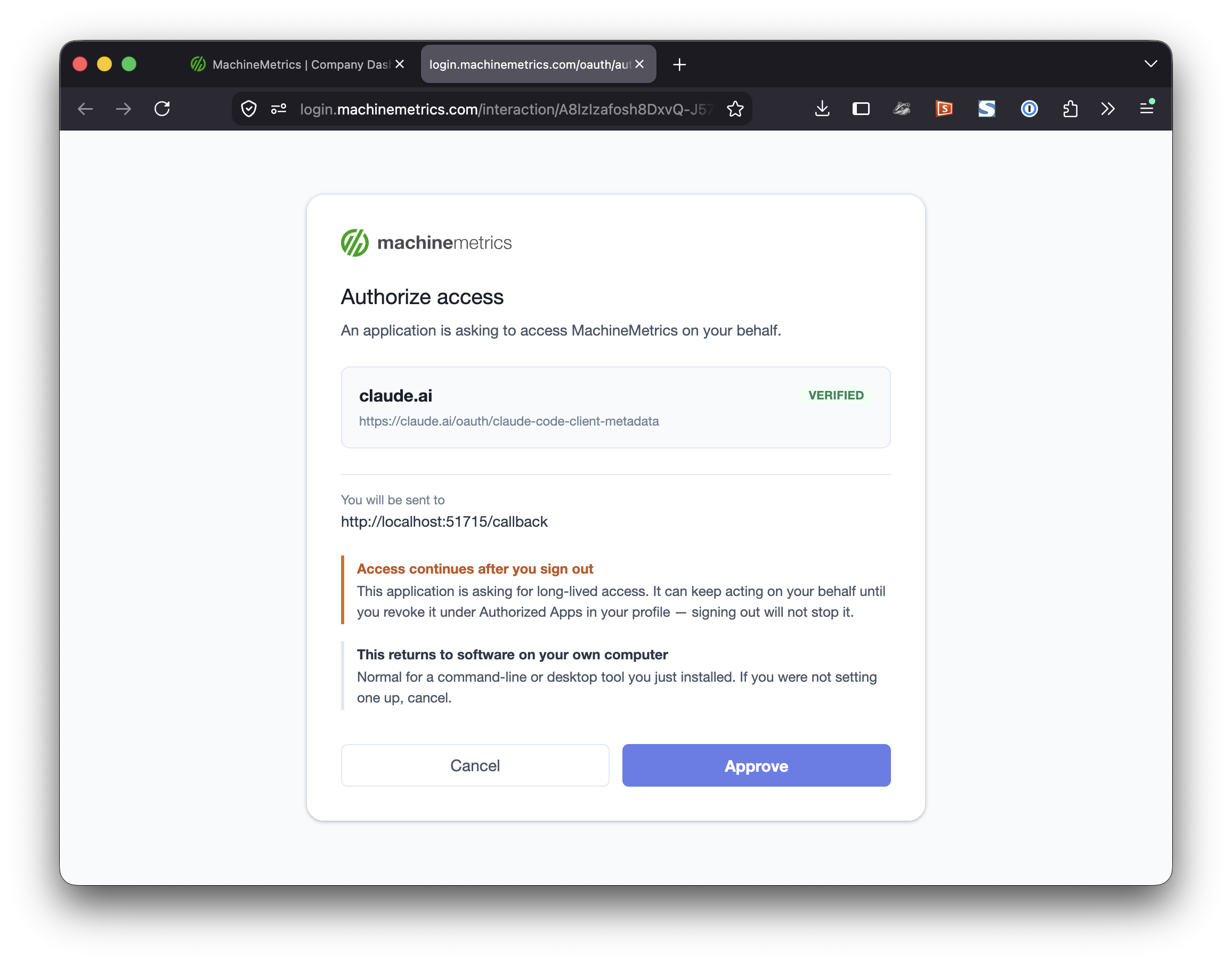
- Click Approve. Your browser confirms the connection, and you can return to Claude Code.
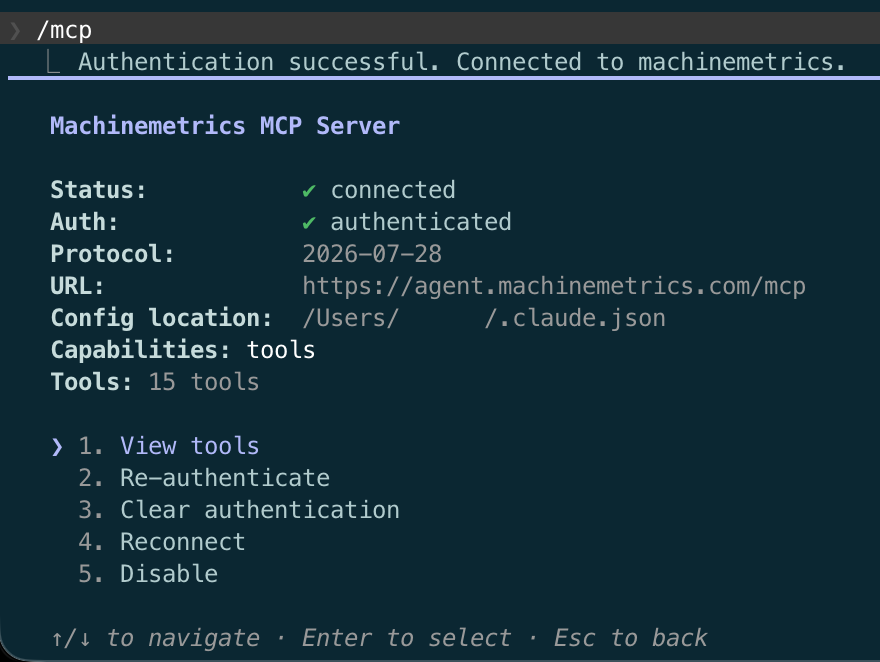
Run /mcp again at any time to check the connection status or to sign out.
Connect Claude Desktop or claude.ai
Which path you take depends on your Claude plan.
Claude's menus are Anthropic's and change from time to time. The labels below were current when this page was written; if one has moved, look for Connectors wherever your Claude settings keep integrations. The address you enter and everything on the MachineMetrics side are unaffected.
On a Team or Enterprise plan
A Claude Owner adds the connector once for the organization:
-
Open Organization settings → Connectors → Add custom connector.
-
Enter a name (for example,
MachineMetrics) and the server URL for your environment. This is the Standard address; on GovCloud usehttps://agent.machinemetrics-us-gov.com/mcpinstead:https://agent.machinemetrics.com/mcp
Each person then connects with their own account:
- Open Customize → Connectors.
- Find MachineMetrics and click Connect.
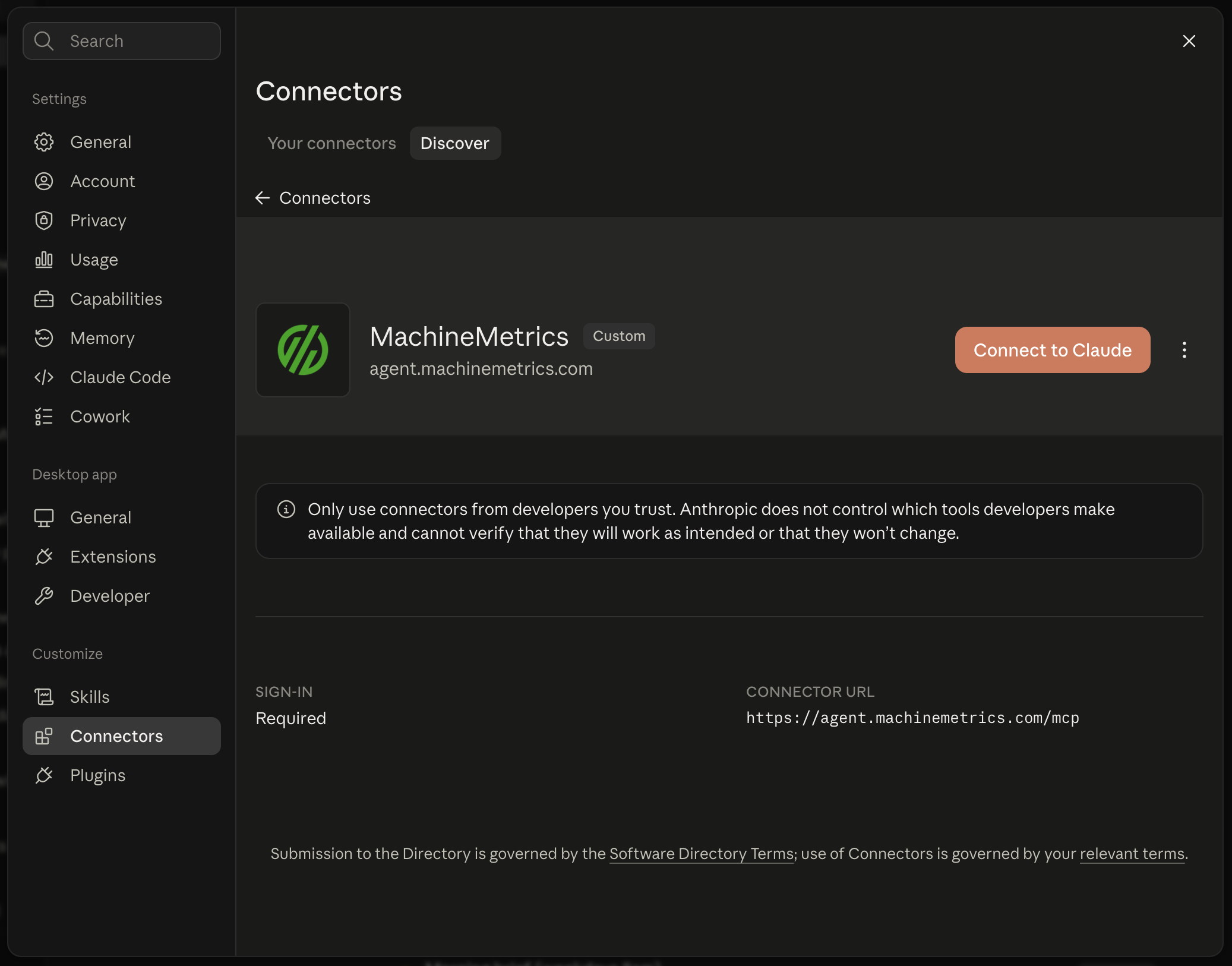
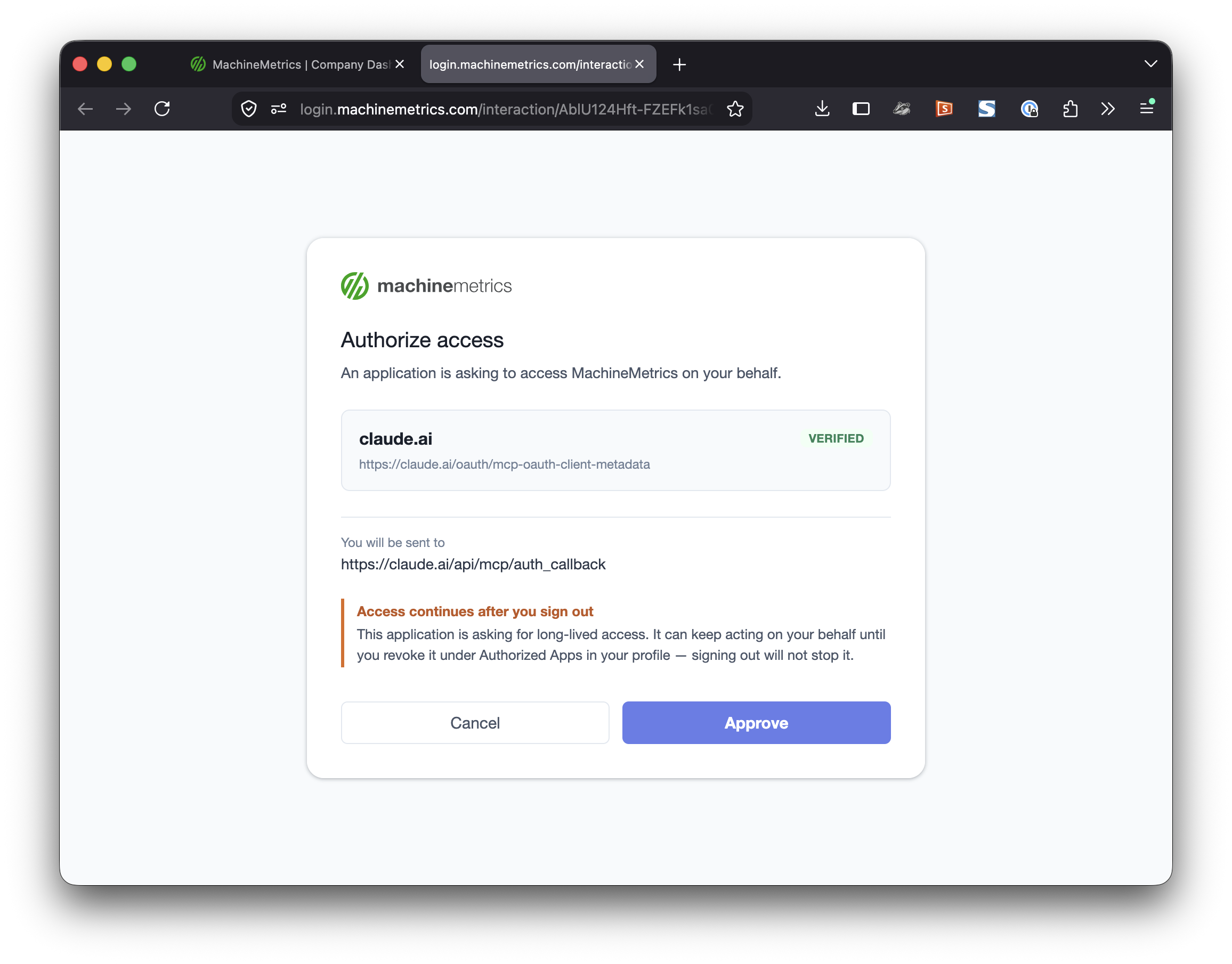
- Sign in to MachineMetrics and review the requested access.
- Click Approve.
On a Pro or Max plan
- Open Customize → Connectors and click Add.
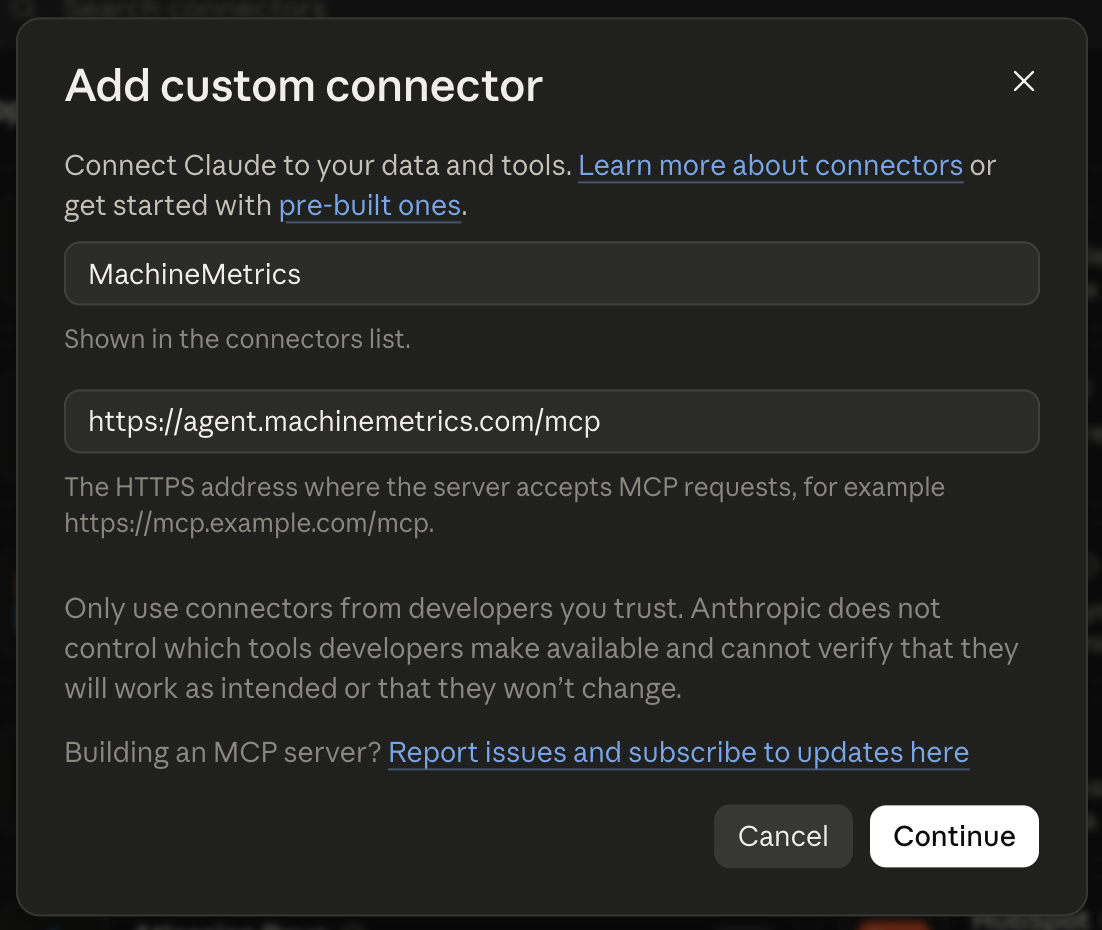
- Enter a name (for example,
MachineMetrics) and the server URL above, then click Continue. - Leave the authentication and OAuth client options as they are — Claude detects the right settings from our server, and no request headers are needed.
- Click Connect, then sign in to MachineMetrics and review the requested access.
- Click Approve.
Claude may show a confirmation page asking whether you meant to connect something. That is a safety check against links that try to attach a connector without your knowledge. If you started this yourself, choose Continue connecting.
You are on a Team or Enterprise plan, and your Claude Owner needs to add the connector for the organization. This is a Claude permission, not a MachineMetrics one.
Once connected, the MachineMetrics tools appear in the tools menu of your conversations.
When an owner adds the connector for an organization, that only makes it available. Each person still signs in with their own MachineMetrics account, and sees only what their own account permits.
Connect another MCP client
Any client that supports remote MCP servers over Streamable HTTP with OAuth can connect. Point it at the address for your environment — Standard below, or https://agent.machinemetrics-us-gov.com/mcp on GovCloud:
https://agent.machinemetrics.com/mcp
The server publishes standard OAuth discovery metadata (RFC 9728), so a compliant client finds the sign-in location on its own. There is nothing else to configure.
If your client asks for a transport type, choose HTTP or Streamable HTTP — not SSE, and not a local/stdio command.
Already using a service token?
Existing integrations that authenticate with a service token (st-) continue to work unchanged, but service tokens are deprecated for MCP access. Move them to the OAuth flow described here. New integrations should use OAuth from the start.
Available tools
After connecting, your assistant has access to these tools:
| Tool | What it does |
|---|---|
knowledgeBase | Searches your Knowledge Hub documents for relevant passages |
knowledgeHubDocument | Retrieves a specific Knowledge Hub document |
generateProductionQuery | Builds a production query from a plain-language question |
executeProductionQuery | Runs a production query and returns the results |
generateGraphqlQuery | Builds a query against MachineMetrics operational data |
executeGraphqlQuery | Runs that query and returns the results |
You do not call these by name. Ask your question normally — "Which machines had the most unplanned downtime last week?" — and your assistant selects the tools it needs.
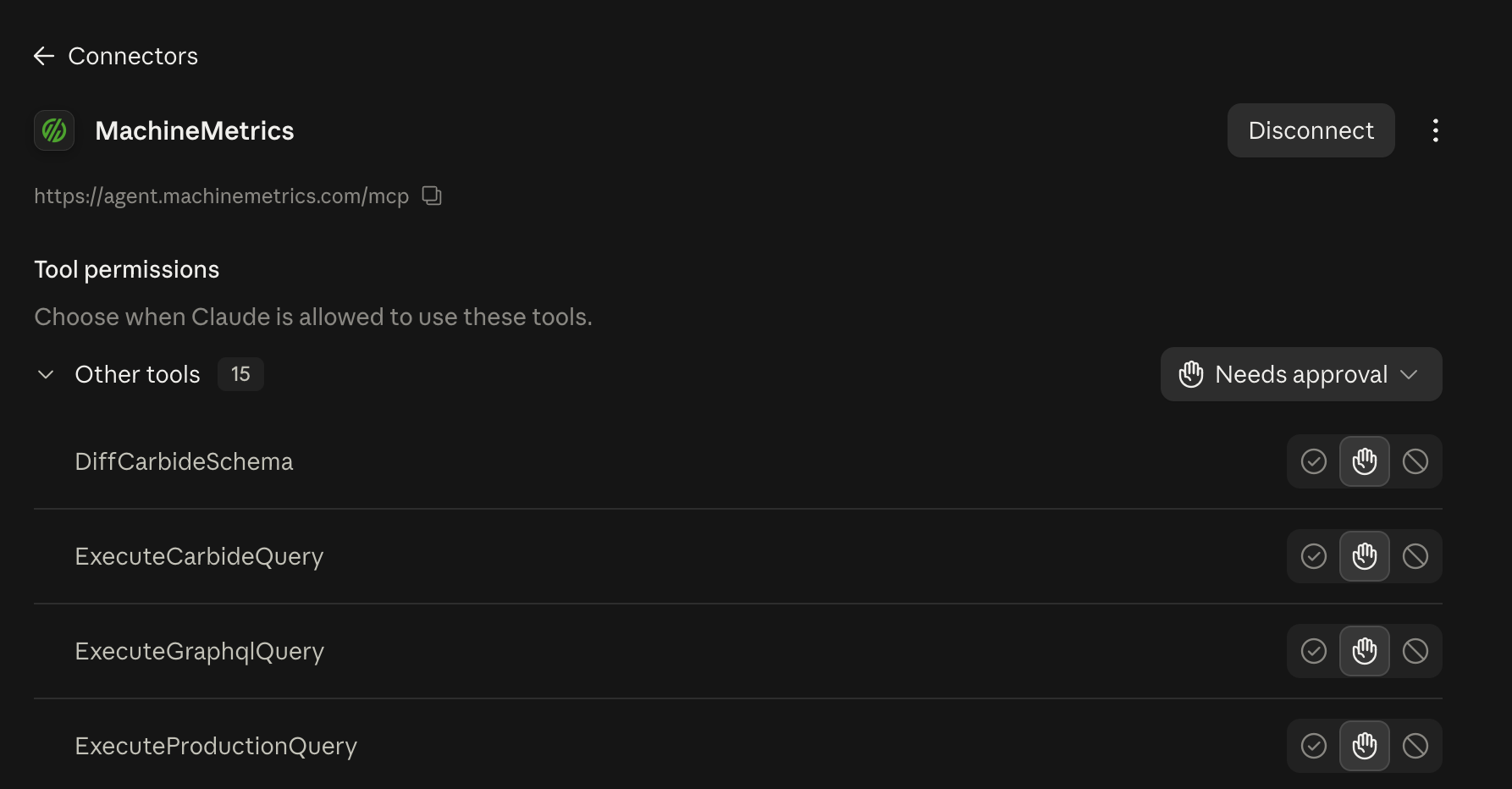
The tools above are the core set, and the list your assistant shows is assembled for you rather than fixed. Two things decide it: your role in MachineMetrics, which governs what your account may do at all, and the access you granted when you signed in, since the consent screen is where you choose what this assistant may do on your behalf. Grant less, and you see fewer tools.
Your company's products move the number as well: a company using MachineMetrics products that add their own tools sees those too. The screenshot below reports 15 tools on an account that also has tooling for building custom applications. A different number is not a sign that something is wrong.
What your assistant can see
Understanding the boundaries helps you use the connection confidently.
Your permissions apply. The connection acts as you. It is scoped to your company and can reach the same data your MachineMetrics account can reach — no more. It cannot see another company's data, and it cannot perform actions your account is not permitted to perform.
The core tools only read. They retrieve and query information, and none of them changes machine settings, controls equipment, or modifies your production records.
Product tools can write, within their own product. If your company uses MachineMetrics products that add tools — the tooling for building custom applications, for example — some of those create or change data belonging to that product, such as publishing a data schema or seeding records into it. They still cannot change machine settings or control equipment, and they still act as you: a tool that writes appears only if your role allows it and you granted that access at sign-in.
You can disconnect at any time. Remove the connector in your assistant to stop using it.
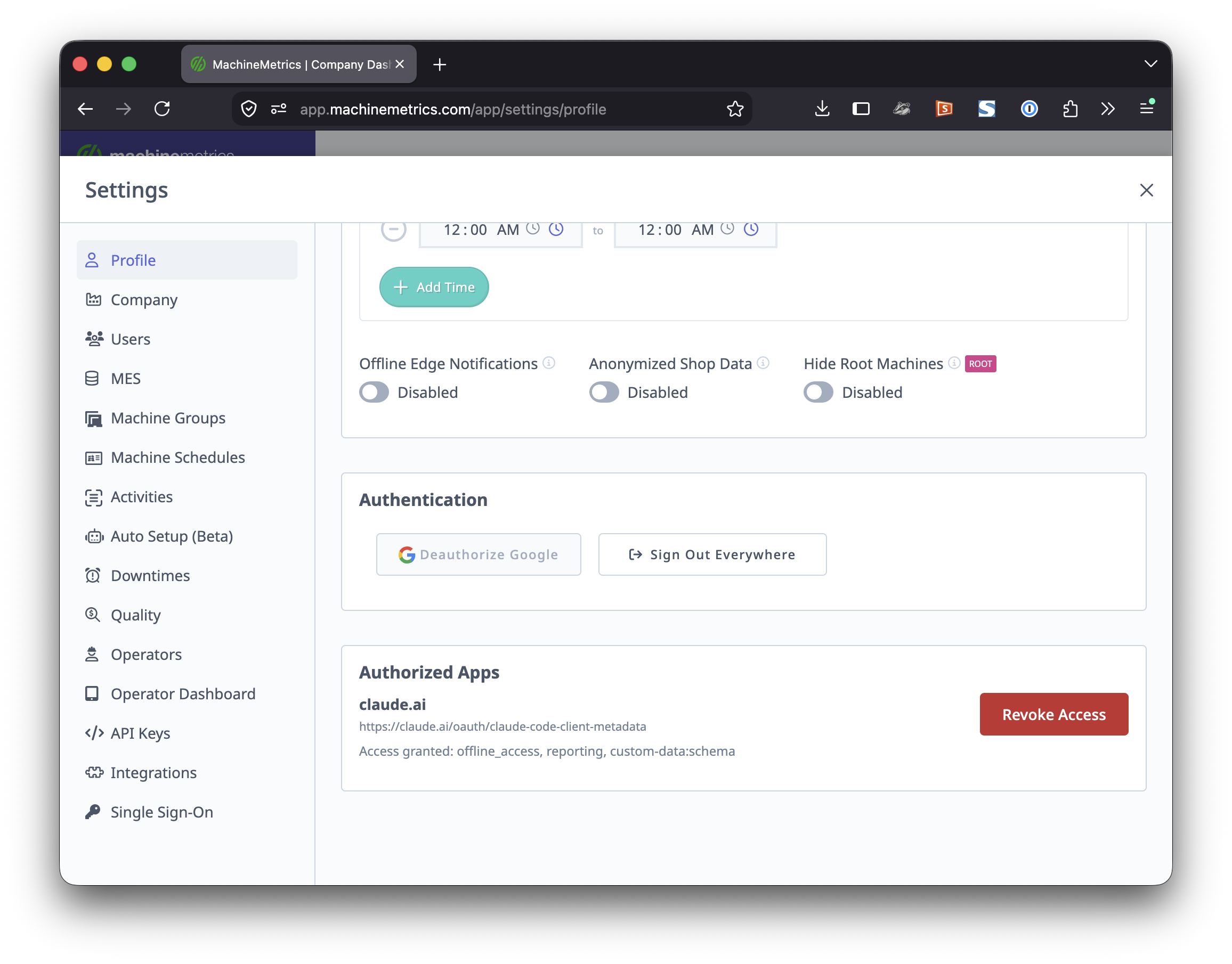
To disconnect from the MachineMetrics side: open your account settings and find Authorized Apps. Each connected assistant is listed with the access it was granted; click Revoke Access. The assistant will be asked to sign in again the next time it connects.
Where your data goes
Max and your own AI assistant both answer questions about your shop, but the data takes a different path in each case. The difference matters, and it is worth understanding before you connect.
Max — inside the MachineMetrics environment. When you use Max in the MachineMetrics platform, your data is processed by foundation models running on AWS Bedrock within our private AWS infrastructure. It is not sent to an external AI provider. See AI Security for details.
Your own assistant — your AI provider. When you connect Claude Code, Claude Desktop, or another client over MCP, the tools return your MachineMetrics data to the assistant you are running, and that assistant sends it to its own provider — Anthropic for Claude, OpenAI for ChatGPT, and so on — in order to answer your question. That data is then handled under your agreement with that provider, not under your MachineMetrics agreement.
A note for GovCloud customers. MachineMetrics does not use Anthropic models to power platform AI for GovCloud accounts — those features run on different foundation models within our environment. That is a statement about our models, not a restriction on yours: you can connect any MCP-compatible client. But if the assistant you connect is Claude, your tool results reach Anthropic, because that is the assistant you chose to run. Weigh that against your own compliance obligations.
Neither path is more correct than the other. Connecting your own assistant is a deliberate choice to use your provider, with the flexibility that brings; using Max keeps processing inside our environment. Confirm which fits your company's data-handling policy — and if your policy prohibits sending production data to external AI providers, use Max rather than an MCP connection.
Troubleshooting
The sign-in window does not open
Your assistant needs a browser on the same machine. If you are working on a remote or headless system, connect from a local session instead. Check that pop-ups are not being blocked.
"Unauthorized" or you are asked to sign in again
Your assistant normally renews access on its own, so being asked to sign in again means something changed. Two causes account for nearly all of it: access was revoked in Authorized Apps on the MachineMetrics side, or your assistant lost what it needs to renew, which happens when it is reconnected or its cache is cleared.
Either way, re-authenticate — in Claude Code, run /mcp and select the server; in Claude Desktop, open the connector in Settings → Connectors.
If it happens immediately after signing in, confirm you signed in to the MachineMetrics account and company you intended.
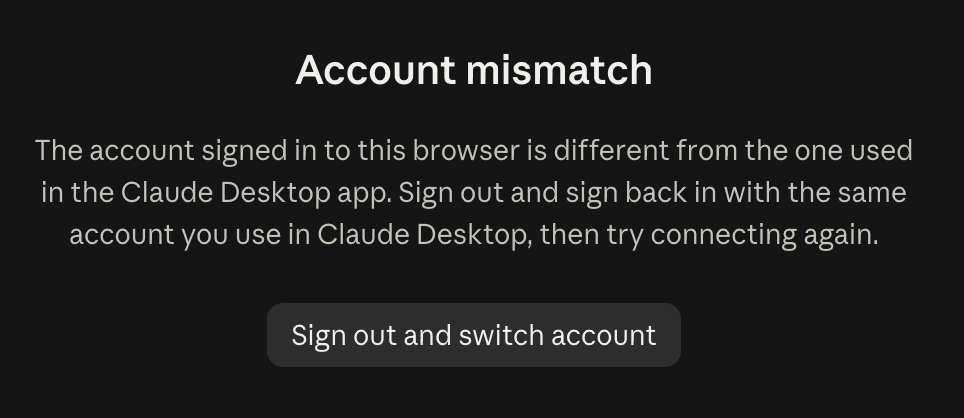
"Account mismatch" when connecting
The Claude account signed in to your browser is different from the one in the Claude Desktop app. Sign out in the browser, sign back in with the same Claude account you use in Desktop, and connect again. This is a Claude account mismatch, not a MachineMetrics one.
A tool you expected is not there
A tool your role does not allow is not offered at all, rather than offered and then refused, so the symptom is absence and there is no error to read. Reconnecting will not change it: the tool list is built from your role and from what you granted at sign-in, and signing in again produces the same list.
The common case is the tooling for building custom applications, which requires an administrator role. If you need a tool that is not appearing, ask whoever administers MachineMetrics for your company about your role, or contact support@machinemetrics.com.
MachineMetrics is not listed in Connectors
Your Claude organization has not had the connector added yet. Ask whoever administers it to add it once under Organization settings → Connectors, or add it yourself as a custom connector if your plan allows it.
No tools appear
Disconnect the MachineMetrics connector in your assistant and connect again — this refreshes both your sign-in and the tool list. If the list is still empty afterward, contact support@machinemetrics.com.
A list that is shorter than you expected rather than empty is a different thing, and usually not a fault. See A tool you expected is not there.
The client cannot connect at all
Confirm you are using the correct URL for your environment (see Server address), that your client is configured for HTTP (not SSE or a local command), and that your network permits HTTPS to that host. Some corporate firewalls restrict outbound connections — your IT team may need to allow it.
Answers look wrong or incomplete
Ask your assistant which tool it used and over what time range. Narrowing the question — naming the machines, the shift, or the date range — usually resolves it. If results still look incorrect, contact support@machinemetrics.com with the question you asked.
Example questions
Once connected, try:
- "What was our OEE by machine for last week?"
- "Which machines had the most unplanned downtime yesterday, and what were the reasons?"
- "Find the setup documentation for the Mazak in cell 3."
- "Compare part counts on the second shift this month against last month."
- "Summarize the downtime reasons for machine 12 and suggest what to investigate."
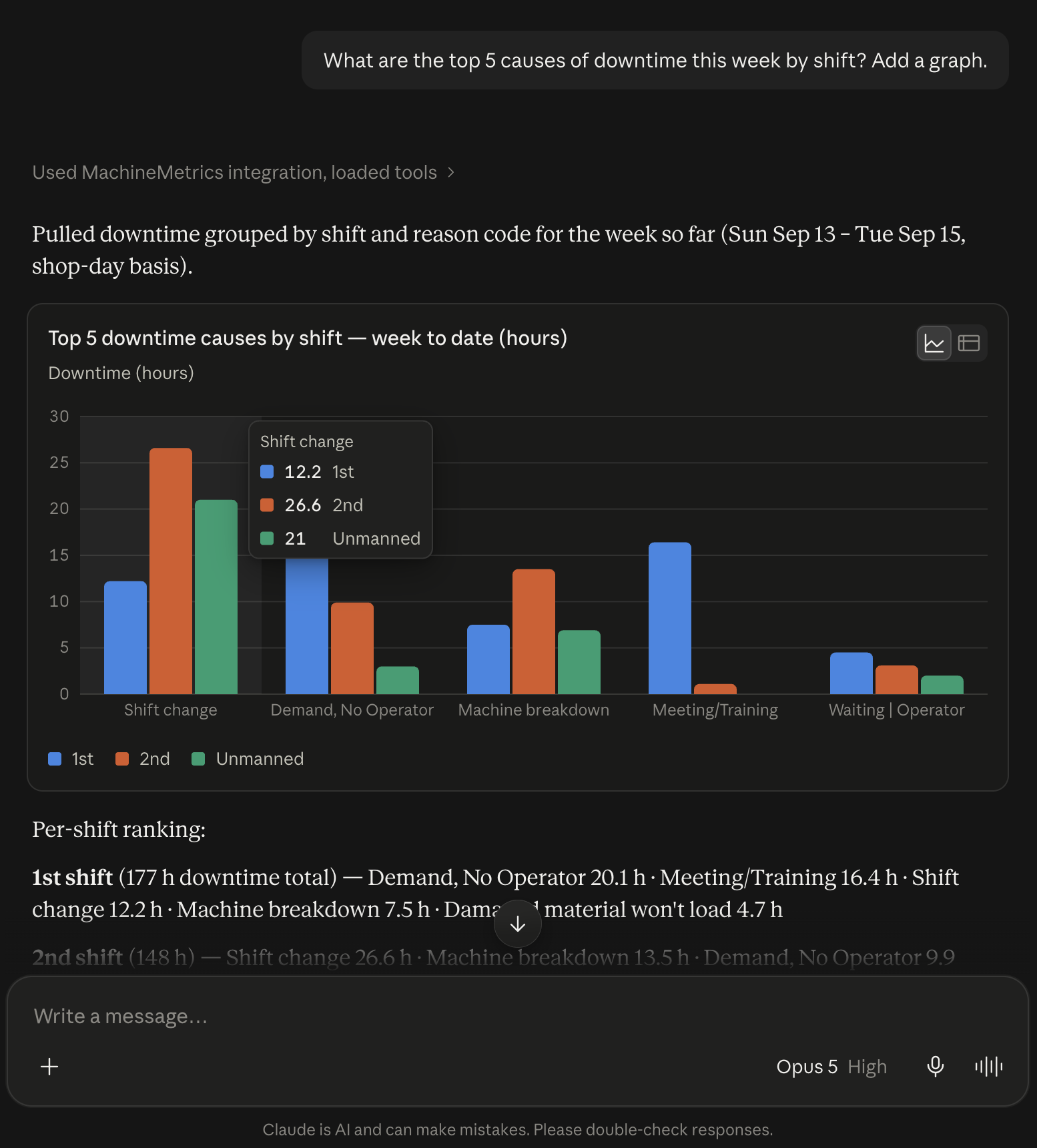
- "What are the top 5 causes of downtime this week by shift? Add a graph."
Need Help?
- Questions about your account's access — Contact your Solution Delivery Manager (SDM) during onboarding, or support@machinemetrics.com
- Technical Support — Email support@machinemetrics.com
- REST API instead — See the API Integration Guide
- Security details — See the Security Overview and AI Security