ShopPulse Interface Setup
Overview
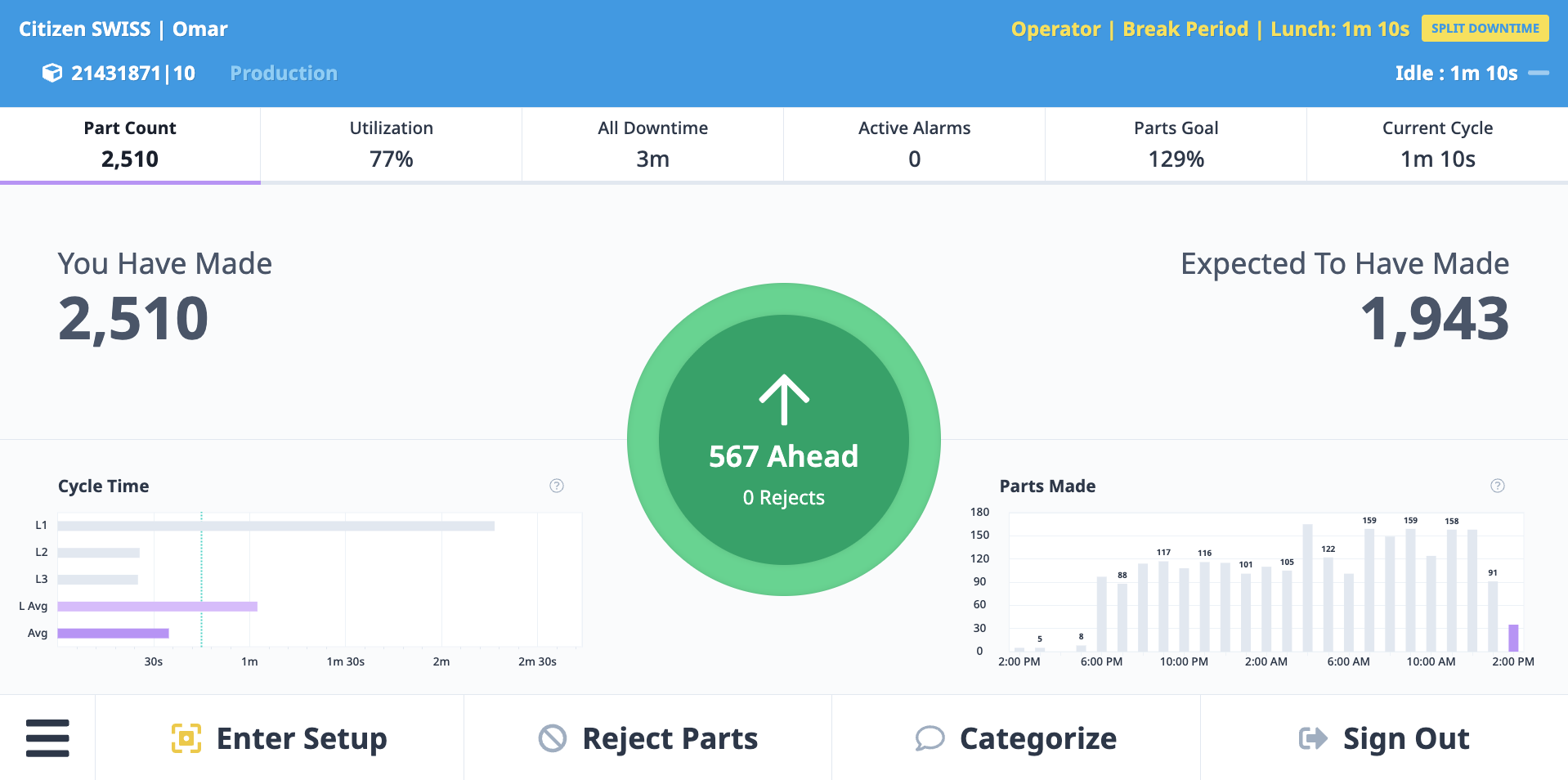
Tablets bring MachineMetrics to the shop floor, giving operators an easy way to view machine performance and provide important context such as downtime reasons or rejected parts. This combination of data helps create a more complete picture of production activity and supports better decision-making.
When set up at the machine, a tablet becomes the operator's connection point to MachineMetrics through the ShopPulse Interface—providing a live view of performance, cycle times, part counts, and downtime. Operators can start and stop jobs, record rejected parts, and categorize downtime.
Connection Path
Tablet → Wi-Fi → MachineMetrics Cloud
Tablets connect only via Wi-Fi directly to the Cloud—never to machines or Edge Devices. If a tablet displays a message about a machine or Edge Device being disconnected, it means data is not flowing between the machine, the Edge Device, and MachineMetrics. The tablet is only reflecting that status from the cloud.
Hardware Recommendations
Tablets are sourced by customers. We recommend the following specifications:
Recommended Tablets
Many customers use Samsung Galaxy Tab A devices for their reliability and compatibility.
Minimum Specifications
- Operating System: Android 8.0 or later (for Android tablets) or iOS 13 or later (for iPads)
- Screen Size: 10 inches or larger for optimal visibility
- Connectivity: Wi-Fi capable
- Browser: Google Chrome (required for Android PWA installation)
- Memory: 2GB RAM minimum
- Storage: 16GB minimum
Accessories
- Mounting Hardware: Tablet mount or stand for machine-side placement
- Power Supply: Dedicated power adapter (do not use machine USB ports—see Power & Charging section)
- Protective Case: Industrial-grade case for shop floor environment
- Screen Protector: To protect against debris and scratches
Hardware Shopping List (Customer-Sourced)
The following is a reference list of commonly purchased items. MachineMetrics does not sell or endorse specific products — these are provided as a starting point. Links should be reviewed periodically as hardware availability changes.
| Category | Product | Link | Date Updated |
|---|---|---|---|
| Tablet | Samsung Galaxy Tab A9+ | amazon.com | May 2026 |
| Tablet Mount | MacLocks Tablet Counter Top Mounts | maclocks.com | May 2026 |
| TV Display | (link to be added) | — | — |
| TV Mount | (link to be added) | — | — |
| PC Stick / Mini PC | (link to be added) | — | — |
| Wireless Keyboard + Trackpad | (link to be added) | — | — |
Provisioning Methods
MachineMetrics offers two primary methods for provisioning tablets depending on your platform and use case.
ShopPulse Android App - Recommended for Android Devices
The ShopPulse Android App is the primary method for provisioning Android tablets and is designed specifically for always-on display and kiosk-style operation.
When to use:
- Android tablets (any Android device meeting minimum requirements)
- Unattended kiosk displays
- Always-on screen requirements
- Enhanced display stability needed
Benefits:
- Optimized for kiosk-style operation
- Native Android performance
- Enhanced always-on display capabilities
- Direct installation via APK
Note: Any Android tablet or device can be used as long as it meets the minimum requirements (Android 8.0+, 2GB RAM, adequate screen size for shop floor visibility).
Progressive Web App (PWA) - For iOS and Other Platforms
The MachineMetrics Progressive Web App (PWA) is the standard method for provisioning iOS devices and other platforms.
Works on:
- iOS devices (iPad)
- Desktop computers (for testing or supervision)
- Chrome OS devices
Benefits:
- Simple installation process
- No app store required
- Works across multiple platforms
- WakeLock keeps screen awake
- For MDM-managed deployments, see Using ShopPulse with an MDM (Mobile Device Manager) below instead of installing the PWA.
Note: iOS devices must use the PWA method. The ShopPulse Android App is not available for iOS.
Device Preparation
Before starting the provisioning process:
For New or Previously Used Tablets
- Factory Reset Recommended: Start with a clean slate for best results
- Update Operating System: Ensure Android or iOS is up to date
- Update Browser: Update Google Chrome to the latest version (Android)
- Charge Device: Ensure tablet is fully charged or connected to power
Factory Reset Instructions
If using a tablet that was previously configured, perform a factory reset:
- Swipe down from the top of the screen and tap the gear icon (Settings)
- Tap the search icon and search for "Factory Data Reset"
- Select Factory Data Reset
- Confirm by selecting Reset at the bottom of the screen
- On the confirmation screen, select Delete All to initiate the reset
- After reset completes, update Android OS and Chrome browser
Important: Even new tablets may have been set up by the vendor. Factory resetting ensures a clean provisioning process.
Method 1: ShopPulse Android App (Recommended for Android)
The ShopPulse Android app is the primary provisioning method for Android devices and is designed for always-on display and kiosk setups.
Note: Any Android device can be used as long as it meets the minimum requirements (Android 8.0+, 2GB RAM, adequate screen size for shop floor visibility).
Platform Support
| Platform | Supported Method |
|---|---|
| Android | ShopPulse Android App |
| iOS | Progressive Web App (PWA) |
Download the ShopPulse Android App
Choose the correct download option for your MachineMetrics environment:
Commercial Cloud:
- Link: Download APK
GovCloud:
- Link: Download APK
Important: The app is distributed as an APK and is not installed through the Google Play Store.
Install the App
- Download the APK using the link above or scan the QR code (if viewing on another device)
- When prompted, allow the browser or file manager to install unknown apps
- Complete the installation
- Open the ShopPulse app from your app drawer
- Sign in using your MachineMetrics credentials
Once signed in, ShopPulse will load the operator display.
App Settings
The ShopPulse Android app runs in kiosk-style mode by default.
To access app settings:
- Tap four (4) times anywhere on the screen
Available settings:
- Reset the app (log out and return to sign-in screen)
- Check for updates
The app also checks for updates automatically and will notify you when one is available.
Locking the App for Kiosk Use
To prevent users from leaving the ShopPulse app, use Android's built-in Screen Pinning.
Enable Screen Pinning:
- Open Android Settings
- Navigate to Security or Privacy & Security
- Enable Screen Pinning or App Pinning
- (Recommended) Require a PIN to unpin the app
Pin the ShopPulse App:
- Open ShopPulse
- Tap the Overview / Recent Apps button (typically square or three lines)
- Locate the ShopPulse app card
- Select Pin or tap the pin icon
Once pinned, the device cannot leave the ShopPulse app without the configured PIN or gesture.
Method 2: Progressive Web App (PWA) Provisioning
The PWA provisioning process is simple: Link → Install → Authorize
This method is required for iOS devices and also works on Chrome OS and desktop computers.
Requirements
- Device with Google Chrome browser (Android) or Safari (iOS)
- Clean device (logged out of any MachineMetrics sessions or factory reset)
- Manager or Executive level MachineMetrics account (for authorization)
- Secondary device (phone or computer) for completing authorization
Step 1: Link
Navigate to the provisioning URL on the tablet:
Standard customers:
https://operator.machinemetrics.com/pwa
GovCloud customers:
https://operator.machinemetrics-us-gov.com/pwa
Step 2: Install
- Click Install Now on the provisioning page
- Accept your browser's install confirmation to add the "MachineMetrics ShopPulse Interface" PWA
- The PWA will be installed as a standalone app on your device
Android: The app will appear in your app drawer
iOS: The app will be added to your home screen
Step 3: Authorize
After installation, you'll be redirected to the MachineMetrics login page.
For shared or kiosk devices (tablets at a machine):
- Select Authorize Device instead of logging in
- You'll receive a 4-character code on the tablet screen with a countdown timer
Complete authorization on a different device:
- On a computer or smartphone, navigate to:
- Standard:
https://app.machinemetrics.com/app/tablet - GovCloud:
https://app.machinemetrics-us-gov.com/app/tablet
- Standard:
- Log in with Manager or Executive credentials
- Enter the 4-character code displayed on the tablet
- The tablet will display an Authorized confirmation and load the ShopPulse Interface
Important: If the timer expires, the tablet will automatically generate a new code. Simply enter the new code on the authorization page.
Provision a PC with the Progressive Web App (PWA)
A Windows or other desktop PC running Google Chrome can run ShopPulse through the same Progressive Web App used for tablets. This is a good fit for touchscreen PCs and panel-mounted screens at the machine.
Provisioning must begin in a browser session that is not already logged into MachineMetrics. Log out of any existing MachineMetrics sessions on the PC and ensure both Windows and Chrome are fully up to date before starting.
- Open the PWA link in Chrome:
- Standard Cloud:
https://operator.machinemetrics.com/pwa - GovCloud:
https://operator.machinemetrics-us-gov.com/pwa
- Standard Cloud:
- When Chrome prompts to install, select Install and accept the confirmation to add the MachineMetrics Operator Dashboard PWA.
- The dashboard opens in its own standalone app window.
- Authorize the PC using the same process as a tablet:
- For a shared or machine-side PC, select Authorize Device instead of logging in with personal credentials.
- You will receive a 4-character code.
- On a different device, go to
https://app.machinemetrics.com/app/tablet(GovCloud:https://app.machinemetrics-us-gov.com/app/tablet) and enter the code to complete authorization. - If the PC is for a single named user, log in directly with Email/Password, Google, or SSO.
Wake Lock helps keep the screen active while the app is in use. If the screen still sleeps, confirm you have interacted with the app after launch and that Windows power and sleep settings are not overriding it.
Chrome OS Kiosk Mode Setup
For Chrome OS devices (Chromebox, Chromebit), you can set up kiosk mode for dedicated displays.
Requirements
- Chrome OS device
- Login credentials for the device
- Wireless network name and password
Setup Process
- Log in to the Chrome OS device
- Click the clock in the bottom-right corner → Settings
- Scroll down and click Show advanced settings
- Scroll to the bottom and click Powerwash
- Click Restart in the prompt
- After restart, click Powerwash again, then Continue
- After the device restarts, connect to your wireless network
- At the login screen, press Ctrl+Alt+K to enable kiosk mode
- Log in to the device
- Open Chrome and navigate to
chrome://extensions - Check the box for Developer Mode at the top
- Click Manage Kiosk Applications
- Add the kiosk application ID:
afhcomalholahplbjhnmahkoekoijban - Set the app to auto-launch
- Click Done and close Chrome
- Shut down the device from the corner menu
- Power on the device—it should boot directly into kiosk mode
Configure Kiosk App
Once in kiosk mode:
- Set Content URL to:
https://app.machinemetrics.com - In Administration section, enable Local Administration and set username/password
- In Scheduling section, set Sleep Mode to Prevent from Sleeping
- Click Save
- Log in to MachineMetrics
- Click the fullscreen button in the bottom-right corner
To access settings: Press Ctrl+A at any time
Reauthorization
Tablets may lose authorization after extended inactivity. This is a normal security feature.
When Reauthorization is Needed
- After prolonged periods of inactivity
- If the tablet has been powered off for an extended time
- When the authentication session expires
How to Reauthorize
- Launch the PWA or ShopPulse app on the tablet
- If not authorized, you'll be prompted before the Operator Dashboard loads
- Select Authorize Device
- A 4-character code will appear with a countdown timer
- On a secondary device, navigate to:
- Standard:
https://app.machinemetrics.com/app/tablet - GovCloud:
https://app.machinemetrics-us-gov.com/app/tablet
- Standard:
- Enter the 4-character code
- The tablet will show Authorized and load the ShopPulse Interface
Note: You do not need to reinstall the PWA or ShopPulse app to reauthorize. Reinstallation is only required after a factory reset.
ShopPulse Interface Usage
Once provisioned and authorized, operators can use the tablet for:
Viewing Real-Time Metrics
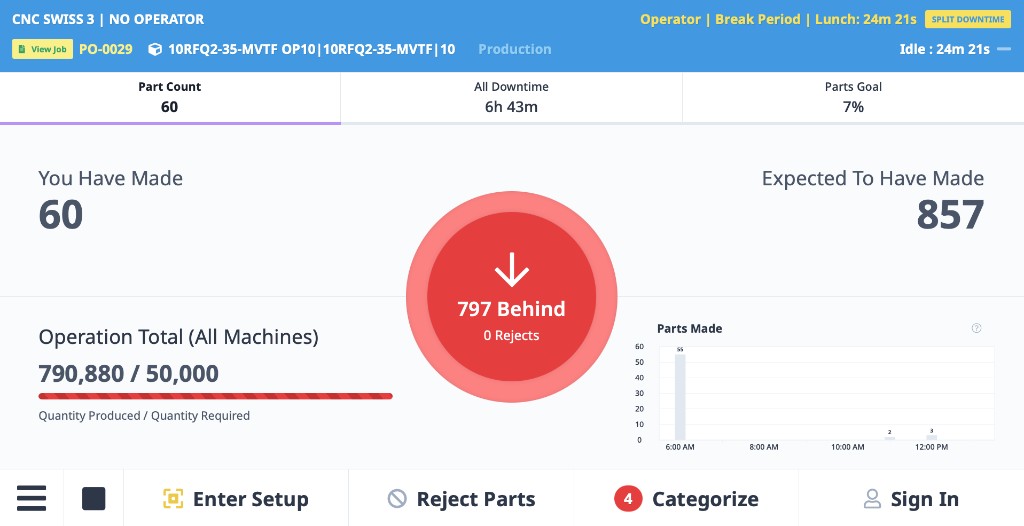
- Machine status (running, idle, down)
- Current cycle time
- Parts produced (good/reject)
- Utilization percentage
- Current job and work order information
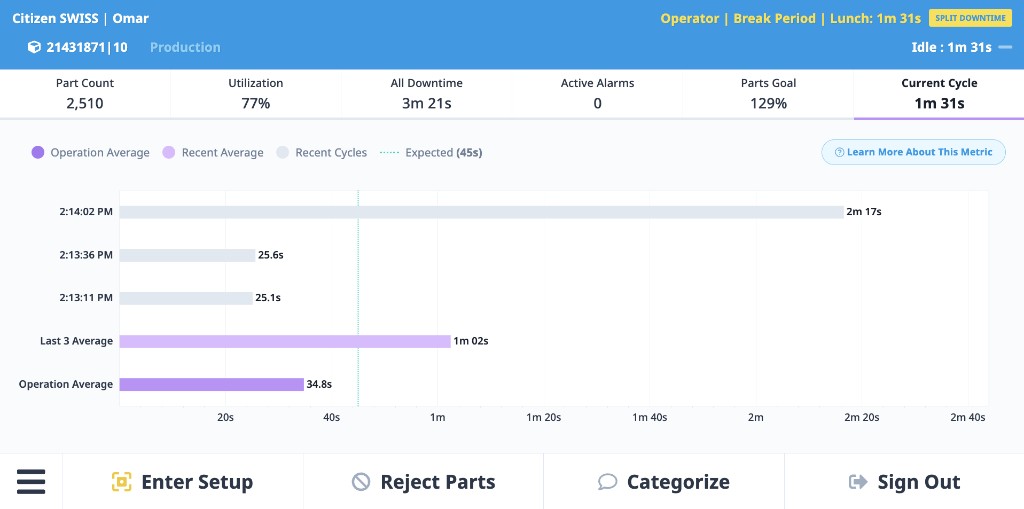
Tapping any metric at the top of the screen drills into a detail view. For example, tapping Current Cycle opens the cycle time tab showing recent cycles against operation average:
Starting and Stopping Jobs
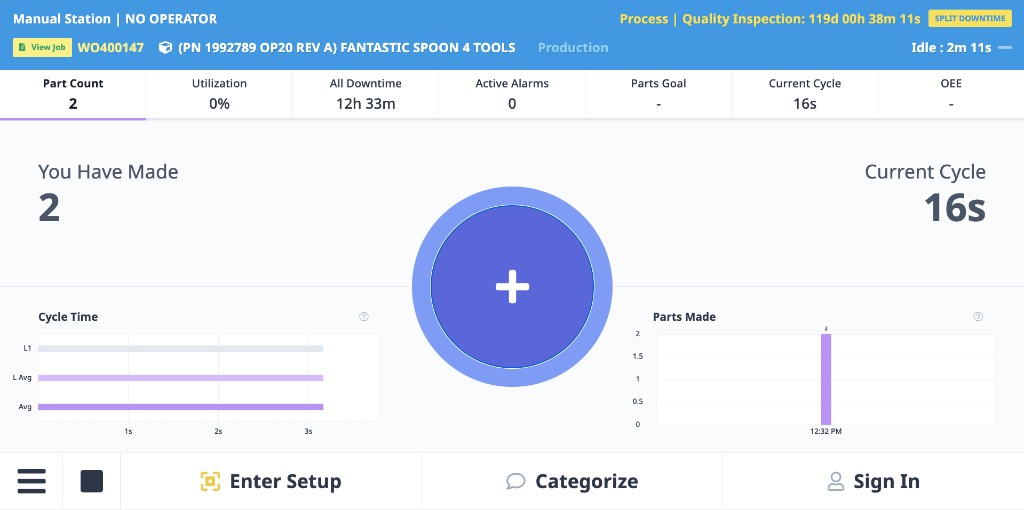
When no operator is signed in, the interface shows the machine in an unattended state. Tapping the + button in the center allows an operator to sign in and begin a production run.
- Select jobs from ERP integration or manual entry
- Start production runs
- Complete or pause jobs
- Switch between setup and production activities
Logging Downtime
When the machine goes idle, ShopPulse detects the downtime and prompts the operator to categorize it:
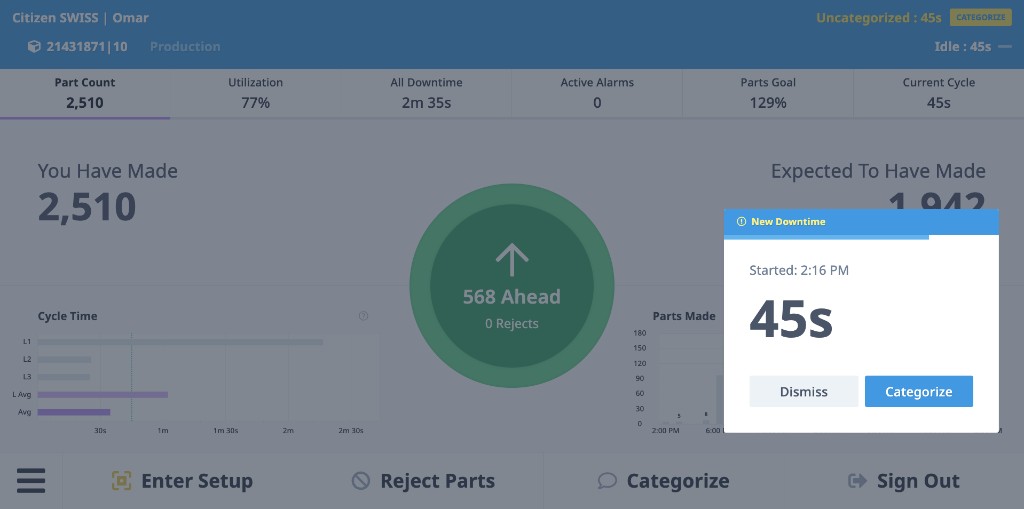
Tapping Categorize opens the full category picker, where operators select from your configured downtime reasons:
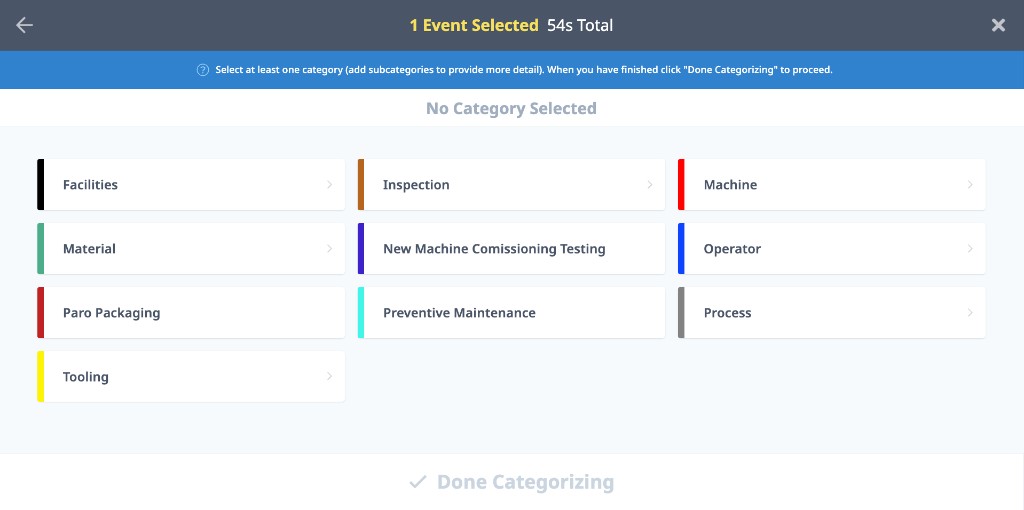
- Categorize downtime reasons as they occur
- Add notes for context
- View downtime duration
Workflow Notifications
If your team uses Automations & Workflows, operators can receive real-time alerts directly on the ShopPulse Interface:
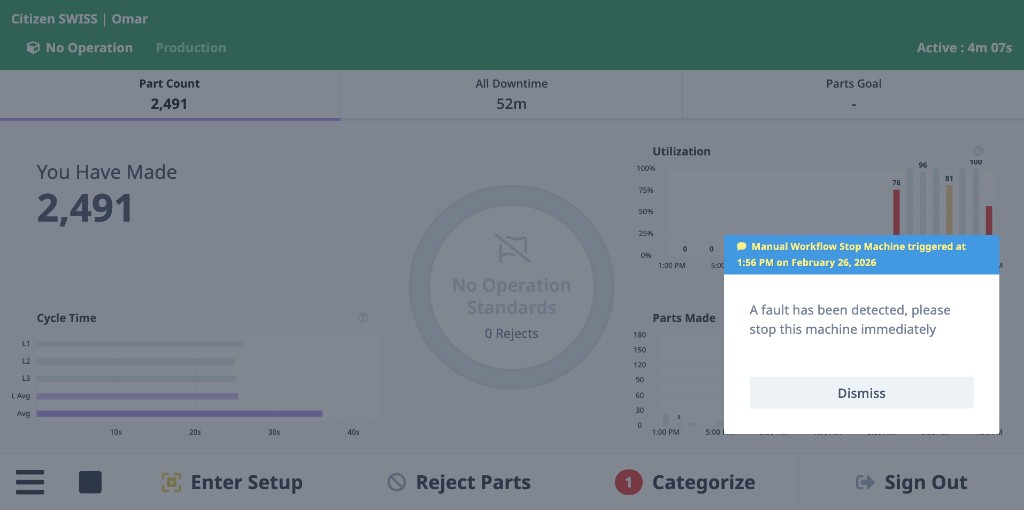
Alerts appear as overlay popups and can be dismissed after the operator acknowledges them.
Recording Quality Data
- Log rejected parts
- Select reject reasons
- Add quality notes
Viewing Work Instructions (if configured)
- Access job-specific documents
- View embedded content in custom tabs
Network Configuration
Connecting to Wi-Fi
Android:
- Swipe down from top of screen
- Tap and hold Wi-Fi icon
- Select your network from the list
- Enter password
- Tap Connect
iOS:
- Open Settings
- Tap Wi-Fi
- Select your network
- Enter password
- Tap Join
Network Requirements
Tablets require internet access to communicate with MachineMetrics Cloud:
- Outbound HTTPS (Port 443) to MachineMetrics domains
- DNS resolution for domain name lookup
- Minimum bandwidth: 1-2 Mbps per tablet
- Recommended: Reliable Wi-Fi coverage across shop floor
Firewall Configuration
Ensure your firewall allows outbound connections to:
app.machinemetrics.comapi.machinemetrics.comoperator.machinemetrics.com
For GovCloud customers, use the -us-gov domain variants.
Power & Charging
Best Practices
DO:
- Use dedicated wall chargers or continuous power sources
- Keep tablets plugged in at all times for always-on displays
- Use industrial-grade USB charging cables
- Provide adequate power (2A minimum recommended)
DON'T:
- Power tablets from machine USB ports
- Rely on battery power for always-on displays
- Use low-quality charging cables
Why Avoid Machine USB Ports
Machine USB ports typically provide low current and may not supply enough power to keep the tablet running. When the machine is turned off, USB power usually shuts off as well, causing the tablet's battery to drain. This can lead to:
- Tablet shutting down overnight
- Loss of authorization
- Inconsistent availability
Always use dedicated charging blocks or continuous power sources.
Using ShopPulse with an MDM (Mobile Device Manager)
If you manage tablets centrally through a Mobile Device Manager (MDM), the recommended deployment method is different from both the ShopPulse Android App and the Progressive Web App (PWA) install flow.
Configure your MDM's web link (managed web app) feature to launch the bare operator URL as a full-screen kiosk icon on the device home screen:
- Commercial Cloud:
https://operator.machinemetrics.com - GovCloud:
https://operator.machinemetrics-us-gov.com
Do not use the PWA "Install" prompt for MDM-managed devices — go straight to the plain URL, not a /pwa install path. Do not deploy the ShopPulse Android APK on MDM-managed tablets.
Why skip the PWA install and APK for MDM-managed devices:
- The ShopPulse Android App and the PWA install both exist mainly to keep the screen awake and display full-screen without browser chrome. An MDM already provides both through its own device and power management policies.
- A plain, MDM-locked web link accomplishes the same result with fewer moving parts.
- The Android APK has known deployment issues under some MDMs (e.g., Microsoft Intune with Android Enterprise): install status may not report correctly, and false "already installed" conflicts with the PWA can occur. The APK is not recommended for MDM-managed fleets at this time.
Validated MDM platform:
This approach has been validated with customers using Microsoft Intune (Android Enterprise). Other MDM platforms that support web link or managed web app kiosk features should work the same way.
Troubleshooting
Tablet Won't Install PWA
Problem: "Install Now" button doesn't appear or installation fails
Solutions:
- Ensure you're using Google Chrome (Android) or Safari (iOS)
- Clear browser cache and try again
- Verify device has adequate storage space
- Factory reset and start fresh
Can't Authorize Device
Problem: Authorization code doesn't work or expires
Solutions:
- Ensure you're entering the code on a different device (not the tablet being authorized)
- Enter the code before the timer expires
- If timer expires, use the new code displayed on the tablet
- Verify you're logged in with Manager or Executive account on authorization page
- Check that you're using the correct URL (Standard vs GovCloud)
Screen Keeps Turning Off
Problem: Tablet screen dims or locks during use
Solutions:
For PWA:
- Tap inside the app to activate WakeLock
- Check device display settings—increase screen timeout
- Disable battery optimization for the Chrome/browser app
For ShopPulse Android App:
- Disable battery optimization for ShopPulse app
- Configure device-level display sleep settings
- Check that the app has necessary permissions
Tablet Shows "Machine Disconnected"
Problem: Tablet displays connectivity error messages
This is NOT a tablet issue. The tablet is only reflecting the status from the cloud. The machine or Edge Device has a connectivity problem.
Solutions:
- Check that the Edge Device is online
- Verify machine is connected to the Edge Device
Wi-Fi Connection Issues
Problem: Tablet won't connect to Wi-Fi or keeps disconnecting
Solutions:
- Verify correct network and password
- Check Wi-Fi signal strength at tablet location
- Test internet by opening a website in browser
- Reset network settings (Settings → Reset → Reset Network Settings)
- Contact IT team to verify firewall rules
Tablet Frozen or Unresponsive
Problem: App or device won't respond to touch
Solutions:
Soft Restart:
- Hold Power button → select Restart
Hard Restart (if soft restart fails):
- Hold Volume Down for 5 seconds, then hold Power until reboot begins
Parts Not Counted or Data Not Updating
Problem: Data on tablet appears static or incorrect
This is NOT a tablet issue. If the tablet is responsive and other functions work, this indicates a machine connection or configuration issue.
Solutions:
- Verify the tablet itself is responsive (try navigating between screens)
- Check that timestamps are updating
Can't Start Operation
Problem: Unable to find or start operations from the tablet
This is NOT a tablet issue. Common causes:
Solutions:
- Verify the operation exists in MachineMetrics (contact system administrator)
- Check if Automatic Production Monitoring is enabled—if so, operations cannot be started manually
- Review operation configuration in System Settings
ShopPulse App Won't Install
Problem: APK installation fails on Android
Solutions:
- Allow browser or file manager to install unknown apps (Settings → Security → Unknown Sources)
- Download a fresh copy of the APK
- Check available storage space
- Ensure Android OS is up to date
Can't Access App Settings (ShopPulse)
Problem: Tapping screen doesn't open settings
Solution:
- Tap quickly four (4) times in the same location
- Ensure taps are registered (not too slow)
- Try tapping in different areas of the screen
Tablet Loses Authorization Frequently
Problem: Need to reauthorize often
Solutions:
- Keep tablet powered on continuously
- Ensure screen stays active (enable WakeLock or adjust display settings)
- Encourage regular operator interaction
- Check Wi-Fi stability
Tips & Best Practices
Placement
- Position tablets where operators can easily access them without interrupting workflow
- Ensure good Wi-Fi signal strength at mounting location
- Protect from coolant, chips, and debris
- Mount at comfortable viewing angle and height
Usage Habits
- Encourage quick entry of downtime and reject reasons for accurate reporting
- Build habit of signing in at start of shift (if operator login is enabled)
- Keep tablets active—regular interaction prevents session expiration
Maintenance
- Clean screens regularly with appropriate cleaner
- Check charging cables for wear
- Verify Wi-Fi connectivity periodically
- Keep a spare tablet available for backup
Deployment
- Start with a few tablets as pilot before full deployment
- Gather operator feedback and refine process
- Document your specific setup process for IT team
- Train operators on basic tablet usage and troubleshooting
Data Quality
- Review reports with operators to connect shop floor activity to improvement efforts
- Validate that operator-entered data (downtime, quality) aligns with actual events
- Use data to identify training opportunities
Frequently Asked Questions
Q: Does data still record if Wi-Fi drops?
A: Yes. The tablet does not impact machine data—it continues to flow through the Edge Device. Only operator inputs are delayed until the tablet reconnects or another device is used.
Q: Is operator login required?
A: No—login is optional. Without it, activity is tracked at the machine level only.
Q: Do I need MDM to use tablets?
A: No. MDM is optional. If you do have MDM-managed tablets, see Using ShopPulse with an MDM (Mobile Device Manager) for the correct deployment method — it differs from both the PWA install and the Android APK.
Q: Can I use the same tablet for multiple machines?
A: Yes, but tablets are typically dedicated to a single machine for best operator experience. Operators can switch between machines within the app if needed.
Q: What if I already provisioned with the old QR method?
A: The QR provisioning method has been deprecated. Factory reset the tablet and reprovision using the PWA or ShopPulse app.
Q: Can I use iPad tablets?
A: Yes. Use the PWA provisioning method on iOS devices. The ShopPulse Android App is not available for iOS.
Q: Which tablet is best?
A: Many customers use Samsung Galaxy Tab A devices. Contact MachineMetrics for current hardware recommendations.
Q: Tablet is offline—is data lost?
A: No. Tablets are unrelated to machine data capture—production data continues to flow through the Edge Device even if a tablet is offline. Only operator-entered context (downtime reasons, quality notes) may be delayed.
Q: Can I reprovision without factory reset?
A: For tablets previously provisioned with deprecated methods, factory reset is required. For reauthorization after session expiration, no reset is needed.
Q: What's the difference between PWA and ShopPulse Android App?
A: PWA works across all platforms (Android, iOS, desktop) and is the standard method. ShopPulse Android App is specifically designed for Android tablets requiring always-on display and enhanced kiosk capabilities.
Getting Help
If you encounter issues not covered in this guide:
- Contact Support: Submit a ticket through your MachineMetrics portal or email MachineMetrics Support
- Talk to Your SDM: During onboarding, reach out to your Solution Delivery Manager for assistance
When contacting support, please provide:
- Tablet make and model
- Operating system and version
- Provisioning method used (PWA or ShopPulse App)
- Description of the issue
- Screenshots of any error messages
Next Steps
Once your tablets are successfully provisioned and authorized:
- Train Operators: Ensure operators understand how to use the ShopPulse Interface
- Configure Settings: Set up downtime categories, reject reasons, and other operator-facing settings
- Monitor Usage: Track operator engagement and data quality
- Gather Feedback: Collect operator feedback to improve the experience
- Expand Deployment: Roll out to additional machines based on pilot results
For guidance on these next steps, refer to other guides in this documentation.
System Requirements for Browser Access
ShopPulse is accessed through a modern web browser. The following requirements apply when running ShopPulse on a desktop, laptop, or browser-equipped workstation.
Supported Browsers
- Google Chrome — recommended and primary supported browser
- Microsoft Edge — generally works but is not officially supported
Requirements
| Requirement | Minimum | Recommended |
|---|---|---|
| OS | Windows 10 or later, or macOS 11 (Big Sur) or later | Same |
| Browser | Latest stable Google Chrome | Latest stable Google Chrome, kept up to date |
| CPU | Intel Pentium 4 / SSE3-capable processor or newer | Modern multi-core (Intel Core i5/i7, AMD Ryzen 5/7, or Apple Silicon) |
| RAM | 4 GB | 16 GB (8 GB acceptable for light, single-tab use) |
| Display | 1366 × 768 | 1920 × 1080 (Full HD) or higher |
| Storage | — | SSD for faster load and caching |
| Graphics | — | GPU with hardware acceleration enabled |
| Network | Stable broadband connection to MachineMetrics | Reliable wired or strong Wi-Fi broadband |
Keep Chrome updated to the latest stable release for the best security and compatibility. Hardware acceleration should remain enabled in Chrome settings for smooth dashboard rendering.
The dedicated ShopPulse Android tablet is the recommended deployment for shop-floor operator use. Browser-based access is best suited for desktop workstations and supervisory roles.